
FERMAX 90b61eff-c290-484c-aba5-73e26c52e3da
FERMAX Duox Plus Veo 4.3" Monitor User Manual
Model: 90b61eff-c290-484c-aba5-73e26c52e3da
Introduction
Welcome to the user manual for your new FERMAX Duox Plus Veo 4.3" Monitor. This manual provides essential information for the proper installation, operation, and maintenance of your device. Please read this manual thoroughly before using the product to ensure safe and efficient operation.
Important Safety Information
- Electrical Safety: Ensure all electrical connections are made by a qualified professional and comply with local electrical codes. Disconnect power before installation or maintenance.
- Environmental Conditions: Do not expose the monitor to extreme temperatures, humidity, or direct sunlight. Install in a dry, well-ventilated area.
- Handling: Handle the monitor with care to avoid damage to the screen or internal components.
- Cleaning: Use a soft, dry cloth for cleaning. Do not use abrasive cleaners or solvents.
- Disposal: Dispose of the product and its components according to local electronic waste regulations.
Package Contents
Please verify that all items listed below are included in your package:
- FERMAX Duox Plus Veo 4.3" Monitor Unit
- Mounting Bracket
- Connection Cables (if applicable)
- Screws and Wall Plugs
- User Manual (this document)
Product Features
The FERMAX Duox Plus Veo 4.3" Monitor offers advanced features for your intercom system:
- 4.3-inch color display for clear video communication.
- Hands-free audio communication.
- Intuitive button interface for call answer, door release, and additional functions.
- Sleek, compact design suitable for modern interiors.
- Compatible with Duox Plus digital systems.
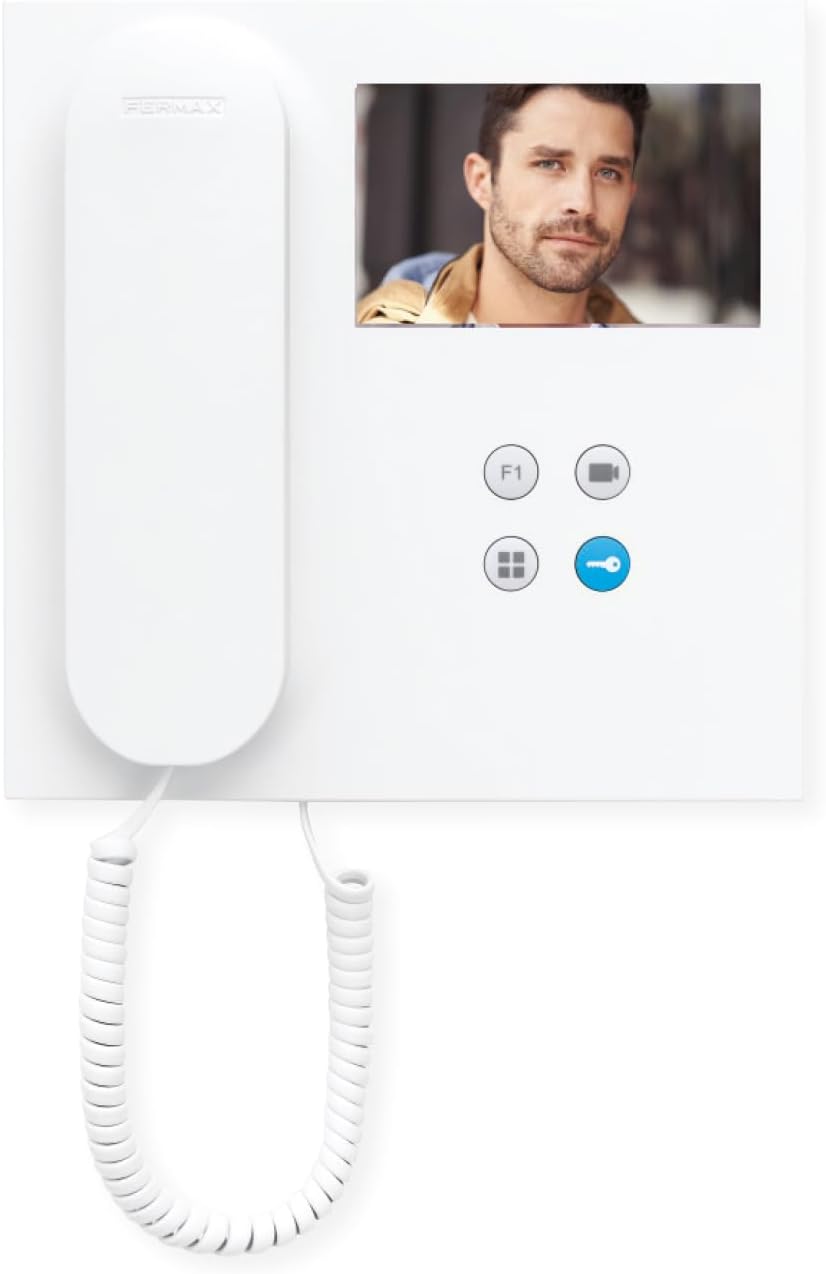
Image: Front view of the FERMAX Duox Plus Veo 4.3" Monitor, showing the display, handset, and control buttons.
Setup and Installation
1. Mounting the Monitor
- Choose Location: Select a suitable indoor location, away from direct heat sources or moisture.
- Mark Drilling Points: Use the mounting bracket as a template to mark the drilling points on the wall.
- Drill Holes: Drill holes at the marked points and insert wall plugs.
- Secure Bracket: Attach the mounting bracket to the wall using the provided screws.
2. Wiring Connections
Warning: Ensure power is disconnected before making any electrical connections. Refer to your system's wiring diagram for specific connections.
- Connect the Duox Plus bus wires (data and power) to the designated terminals on the monitor.
- Connect any additional wires for auxiliary functions (e.g., second door release, panic button) as per your system's requirements.
- Ensure all connections are secure and properly insulated.
3. Attaching the Monitor
- Carefully align the monitor with the mounting bracket.
- Slide the monitor onto the bracket until it clicks securely into place.
- Restore power to the system.
Operating Instructions
Receiving a Call
- When a visitor calls from the outdoor panel, the monitor will ring and display the visitor's image.
- To answer the call, press the Answer Button (typically indicated by a phone icon).
- To end the call, press the End Call Button (often the same button or a distinct hang-up icon).
Opening the Door
- During a call, or when monitoring the outdoor panel, press the Door Release Button (typically indicated by a key icon) to open the main entrance door.
Monitoring the Outdoor Panel
- To view the outdoor panel camera without an incoming call, press the Monitor Button (often indicated by a camera icon). The display will show the live feed.
Adjusting Settings
- Volume: Use the volume controls (if present, or via menu) to adjust the ringtone and conversation volume.
- Brightness/Contrast: Access the monitor's menu (refer to specific button layout) to adjust display settings.
Maintenance
- Cleaning: Use a soft, lint-free cloth to gently wipe the screen and casing. Do not use liquid cleaners, aerosols, or abrasive materials.
- Inspection: Periodically check all cables and connections for any signs of wear or damage.
- Software Updates: If applicable, check the manufacturer's website for any firmware updates for your Duox Plus system.
Troubleshooting
| Problem | Possible Cause | Solution |
|---|---|---|
| No image on screen. | No power; loose connection; camera issue. | Check power supply. Ensure all cables are securely connected. Verify outdoor panel camera is functioning. |
| No audio during call. | Volume too low; faulty connection; microphone/speaker issue. | Increase volume. Check audio cable connections. Contact support if issue persists. |
| Door release not working. | Incorrect wiring; faulty lock mechanism; system error. | Verify wiring to the door strike. Test the lock mechanism independently. Consult system installer. |
| Monitor not ringing. | Ringtone volume off; system not registered; faulty outdoor panel button. | Check ringtone volume. Ensure monitor is properly registered to the system. Test outdoor panel button. |
If the problem persists after attempting these solutions, please contact FERMAX technical support or your installer.
Technical Specifications
| Feature | Detail |
|---|---|
| Model | 90b61eff-c290-484c-aba5-73e26c52e3da |
| Screen Size | 4.3 Inches |
| Resolution | 800 x 600 |
| Aspect Ratio | 4:3 |
| Image Contrast Ratio | 2000:1 |
| Screen Surface | Glossy |
| Manufacturer | FERMAX |
| Package Dimensions | 8.74 x 8.15 x 2.01 inches |
Warranty and Support
FERMAX products are designed for durability and reliability. For information regarding warranty terms and conditions, please refer to the warranty card included with your product or visit the official FERMAX website.
For technical support, installation assistance, or service inquiries, please contact your local FERMAX distributor or visit the support section of the FERMAX website:

Image: FERMAX brand logo with the slogan "Connectivity for All".
Related documents90b61eff-c290-484c-aba5-73e26c52e3da


Ask a question about this manual
Ask about setup, troubleshooting, compatibility, parts, safety, or missing instructions. Manuals+ will review the question and use this page’s manual context to help answer it.