
1. Product Overview
The BIGTREETECH Pi V1.2 + TFT35 SPI V2.1 Control Board Kit is designed for FDM 3D printers, enabling them to run Klipper firmware. This kit combines a powerful processing unit with an intuitive display for enhanced 3D printing control.
Key Features
- BIGTREETECH Pi V1.2: Equipped with a quad-core 64-bit ARM Cortex-A53 @ 1.5GHz processor and 1GB DDR3L memory for powerful performance.
- Display Interface: Features an HDMI2.0A display interface supporting 4K resolution.
- Connectivity: Includes 4-way USB2.0 ports, 40-pin GPIO, 3.5mm audio interface, and an onboard 100M Ethernet interface with WIFI transmission support.
- Graphics: GPU is Mali G31 MP2, supporting OpenGL3.2.
- TFT35 SPI V2.1 Display: Utilizes SPI for display and I2C for touch communication, sharing the main control chip with the motherboard to reduce cost.
- Easy Connection: The TFT35 SPI display connects to the main board via an FPC cable for simple operation.
- Power Options: Each motor drive can select power supply from either the motor power supply or the main power supply (heating rod power supply).
2. BIGTREETECH Pi V1.2 Board Details
The BIGTREETECH Pi V1.2 is a compact and powerful single-board computer designed to run Klipper firmware, offering robust control for your 3D printer.

Figure 1: BIGTREETECH Pi V1.2 board with highlighted 64-bit Quad-Core Architecture, ARM Cortex-A53 Processor, and 1GB DDR3L RAM.

Figure 2: Overview of BIGTREETECH Pi V1.2 board showing PWM Fan Port, SPI Port for ADXL345, Dedicated CAN bus Port, and Multiple Display Options.

Figure 3: Detailed view of BIGTREETECH Pi V1.2 power options (DC 12V-24V, DC 5V±5%/2A via USB Type-C) and connectivity (40-pin GPIO, 4 x USB 2.0).

Figure 4: BIGTREETECH Pi V1.2 network connections, including onboard RJ45 port for 100Mbps wired network and built-in 2.4G WiFi module.
BIGTREETECH Pi Overview Video
Video 1: This video provides an overview of the BIGTREETECH BTT Pi, showcasing its features and connectivity options. It highlights the robust chip, 1GB DDR3L SDRAM, and its compatibility with Klipper firmware. The video also details various ports like UART to USB, Audio, HDMI, CAN, Ethernet-100M, USB2.0, 40-pin GPIO, Infrared Receiver Tube, CNC FAN, ADXL345, and Power In.
3. TFT35 SPI V2.1 Display Details
The TFT35 SPI V2.1 is a 3.5-inch color touchscreen display designed for intuitive and responsive operation with your 3D printer.

Figure 5: The 3.5-inch TFT Color Touchscreen display, highlighting its size, 480x320 resolution, SPI & I2C interface, and touch control capabilities.
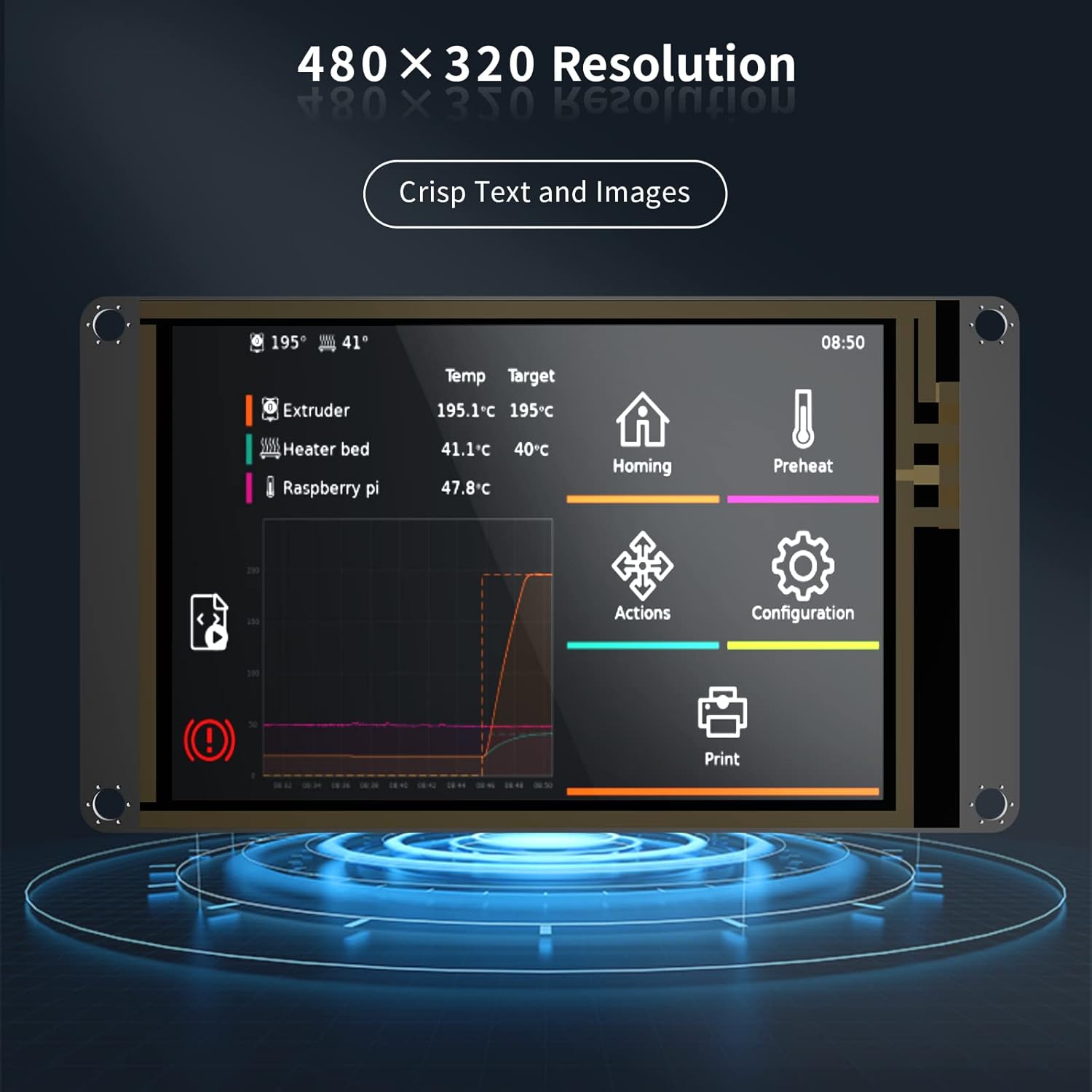
Figure 6: The TFT35 SPI V2.1 display showcasing its 480x320 resolution, providing crisp text and images for clear readability.
Touch Screen Controller Display Overview
Video 2: This video demonstrates a BIGTREETECH Touch Screen Controller Display, showing its features and how to switch between Serial Touch Screen and LCD12864 Simulator modes. It also illustrates connecting the display to a motherboard and using SD card/USB flash drive for printing.
4. Specifications
| Feature | Detail |
|---|---|
| Manufacturer | BIGTREETECH |
| ASIN | B0C9DHBKT2 |
| Color | Black |
| Brand | BIGTREETECH |
| Display Type | LCD |
| Processor | Quad-core 64-bit ARM Cortex-A53 @ 1.5GHz |
| Memory | 1GB DDR3L |
| GPU | Mali G31 MP2 (supports OpenGL3.2) |
| HDMI | HDMI2.0A (supports 4K display) |
| USB Ports | 4 x USB2.0 |
| GPIO | 40-pin |
| Audio Interface | 3.5mm |
| Ethernet | 100M |
| WIFI | Supported |
| TFT35 Display Type | SPI (display), I2C (touch) |
5. Setup and Installation
This section provides general guidance for setting up your BIGTREETECH Pi V1.2 and TFT35 SPI V2.1 kit. For detailed wiring and specific Klipper firmware configuration, please refer to the official BIGTREETECH documentation and Klipper project documentation.
Connecting the TFT35 SPI V2.1 Display
The TFT35 SPI V2.1 display connects to the main board using an FPC cable. Ensure proper orientation and secure connection to avoid damage.
Klipper Firmware Configuration
The BIGTREETECH Pi V1.2 is designed to run Klipper firmware. Configuration involves setting up the Klipper environment on the Pi and configuring the printer.cfg file to match your specific 3D printer and the BIGTREETECH Pi V1.2 + TFT35 SPI V2.1 kit.
- Install Klipper on the BIGTREETECH Pi V1.2.
- Configure the
printer.cfgfile with the correct pin assignments and settings for your printer's components (steppers, heaters, thermistors, endstops, etc.). - Ensure the communication between the Pi and your printer's mainboard is correctly established.
6. Operating Instructions
Once installed and configured, the TFT35 SPI V2.1 display provides an interface to control your 3D printer running Klipper firmware.
Using the TFT35 SPI V2.1 Display
- The display supports both Serial Touch Screen mode and LCD12864 Simulator mode, which can be switched via a button.
- In Serial Touch Screen mode, you can navigate menus and control printer functions directly.
- Firmware upgrades for the display can be performed using an SD card.
- Printing files can be initiated from TFT SD, Onboard SD, or a USB Disk when in Serial Touch Screen mode.
7. Maintenance
Regular maintenance ensures the longevity and optimal performance of your BIGTREETECH Pi V1.2 and TFT35 SPI V2.1 kit.
- Keep the boards clean and free from dust and debris.
- Ensure proper ventilation to prevent overheating of the Pi board.
- Regularly check all cable connections for security and integrity.
- Keep Klipper firmware and display firmware updated to the latest versions for bug fixes and new features.
8. Troubleshooting
If you encounter issues, refer to the following general troubleshooting steps:
- No Power: Check all power connections to the BIGTREETECH Pi and your printer's mainboard. Ensure the power supply is adequate.
- Display Not Working: Verify the FPC cable connection between the TFT35 SPI V2.1 and the main board. Check if the display mode is correctly set.
- Klipper Connection Issues: Ensure the Klipper firmware is correctly flashed and configured. Check network connectivity (Ethernet/WIFI) for the Pi.
- Printer Not Responding: Verify all motor, endstop, heater, and thermistor connections. Check the
printer.cfgfile for any errors. - Firmware Update Failure: Double-check the firmware files and the update procedure. Ensure the SD card or USB drive is correctly formatted.
For more specific troubleshooting, consult the BIGTREETECH GitHub page or the Klipper documentation.
9. Warranty and Support
BIGTREETECH products typically come with a manufacturer's warranty. Please retain your proof of purchase for warranty claims.
- Warranty Period: Refer to the product packaging or the official BIGTREETECH website for specific warranty duration.
- Technical Support: For technical assistance, visit the official BIGTREETECH website or their GitHub repository for detailed guides, firmware, and community support.
- Contact: If you require further assistance, please contact BIGTREETECH customer service through their official channels.
