
SPROLINK NeoLive R2 Plus
SPROLINK NeoLive R2 Plus Video Switcher Instruction Manual
Model: NeoLive R2 Plus | Brand: SPROLINK
1. Introduction
The SPROLINK NeoLive R2 Plus is a multi-functional video mixer designed for live streaming and video production. It integrates a 5.5-inch 1080p LCD screen, multiple HDMI inputs and outputs, and advanced features like virtual chroma key and various transition effects, providing a comprehensive solution for professional and amateur broadcasters alike.

Figure 1.1: Front view of the SPROLINK NeoLive R2 Plus Video Switcher.
2. Setup and Connections
Before operating your NeoLive R2 Plus, ensure all necessary connections are made securely.
2.1 Power Connection
Connect the provided power adapter to the DC 12V input port on the rear of the device and plug it into a suitable power outlet. The device will power on automatically or can be powered on using the dedicated power button.
2.2 Video Inputs and Outputs
The NeoLive R2 Plus features four HDMI inputs and two HDMI outputs for versatile video routing.
- HDMI Inputs (IN1-IN4): Connect your cameras, gaming consoles, or other HDMI video sources to these ports.
- HDMI Outputs (PGM OUT1, PGM OUT2): Use these outputs to connect to external monitors for multi-view monitoring or to display the program output.

Figure 2.1: HDMI Input and Output connections.
2.3 Audio Connections
The switcher includes two microphone interfaces and a headphone output for audio management.
- MIC 1 / MIC 2: Connect external microphones for audio input.
- PHONES: Connect headphones for real-time audio monitoring of any channel.

Figure 2.2: Audio input and headphone output ports.
2.4 Network and USB Connections
For streaming and recording, connect to your network and storage devices.
- LAN (Ethernet): Connect an Ethernet cable for direct RTMP streaming to platforms like TikTok, YouTube, and Facebook without needing a computer.
- USB (Type-C & USB-A): The Type-C output supports high-quality live streaming and recording at 60 fps. The USB-A port allows for convenient recording directly to a USB disk or HDD.

Figure 2.3: RTMP streaming setup.

Figure 2.4: USB Disk/HDD recording setup.
Video 2.1: Official SPROLINK video demonstrating the switcher's features and connectivity.
3. Operating Instructions
The NeoLive R2 Plus is designed for intuitive operation with its comprehensive control panel and touch screen.
3.1 Control Panel Overview
The device features a 5.5-inch 1080p LCD screen for multi-view monitoring and a joystick for controlling PTZ cameras. Dedicated buttons provide quick access to various functions.

Figure 3.1: Flexible Control Panel layout.
3.2 Video Switching and Transitions
Seamlessly switch between your 4 HDMI inputs using the numbered buttons. Utilize the T-Bar for smooth transitions or select from a variety of built-in transition effects including Fade, Dip, DVE, and Mix.
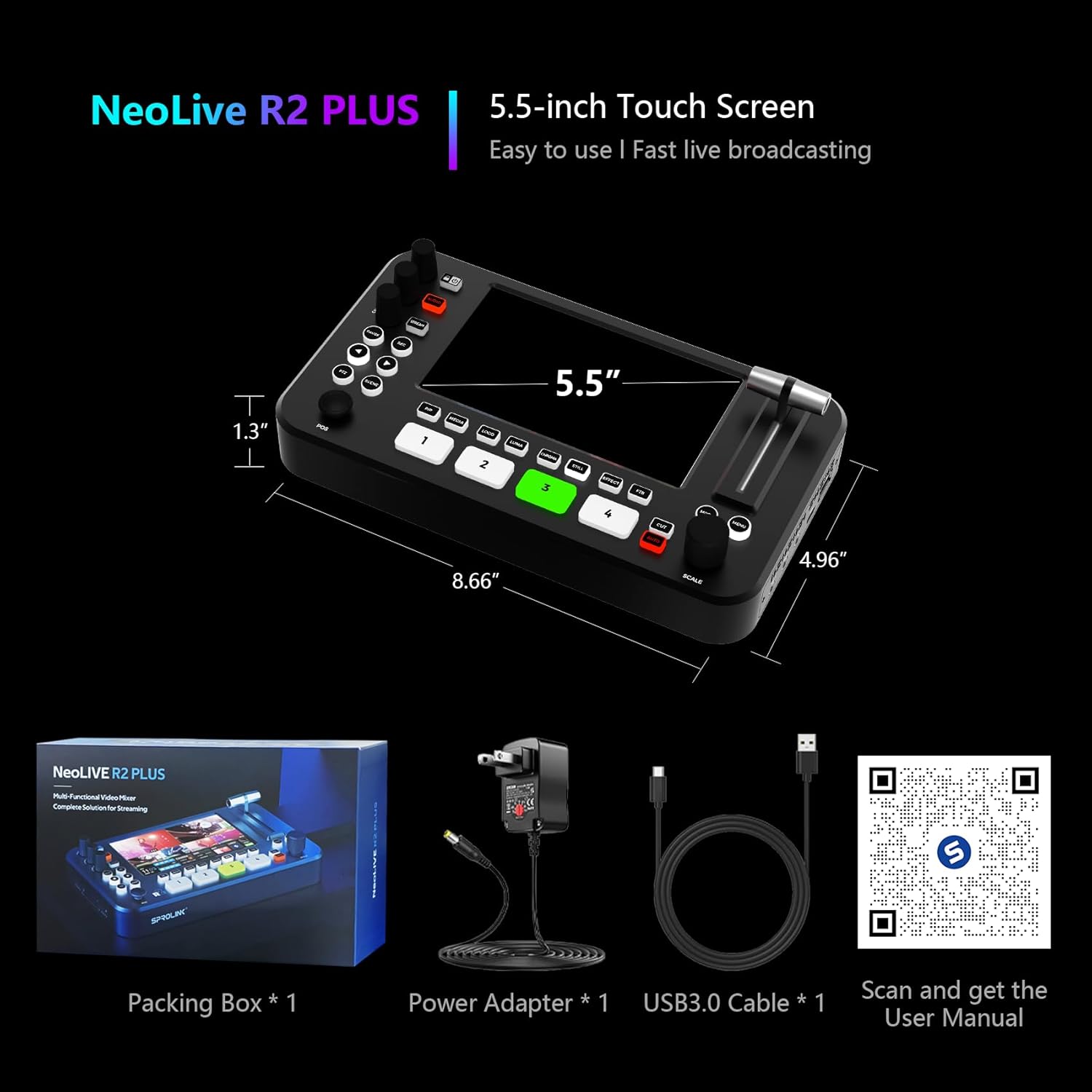
Figure 3.2: Built-in Multi Transition Effects.
3.3 Chroma Key and Logo Overlay
The switcher provides a cinema-level chroma key algorithm for professional background removal. You can also overlay custom logos and graphics onto your live feed.

Figure 3.3: Chroma Key and Logo Overlay in action.
3.4 Recording and Streaming
Initiate recording to a connected USB disk or HDD by pressing the 'REC' button. For live streaming, press the 'STREAM' button after configuring your RTMP settings via the network connection.
3.5 PTZ Camera Control
Utilize the integrated joystick to control compatible PTZ (Pan-Tilt-Zoom) cameras connected to the switcher, allowing for dynamic camera movements during your production.
4. Maintenance
Proper maintenance ensures the longevity and optimal performance of your SPROLINK NeoLive R2 Plus.
- Cleaning: Use a soft, dry cloth to clean the exterior of the device. For the LCD screen, use a screen-specific cleaning solution and a microfiber cloth. Avoid abrasive cleaners or solvents.
- Ventilation: Ensure the device is placed in a well-ventilated area to prevent overheating. Do not block the ventilation openings.
- Storage: When not in use for extended periods, store the switcher in a cool, dry place away from direct sunlight and extreme temperatures.
5. Troubleshooting
This section addresses common issues you might encounter with your NeoLive R2 Plus.
| Problem | Possible Cause | Solution |
|---|---|---|
| No video signal on screen. | Incorrect HDMI connection; Source device not powered on or outputting signal. | Check all HDMI cables and ensure they are securely connected. Verify source devices are powered on and configured to output video. |
| No audio output. | Microphones not connected properly; Audio levels too low; Incorrect audio monitoring selection. | Ensure microphones are plugged into the correct input jacks. Adjust volume knobs. Check audio monitoring settings on the device. |
| Recording fails to start. | USB drive not formatted correctly; Insufficient storage space; Drive not properly inserted. | Ensure USB drive is formatted to a compatible file system (e.g., FAT32, exFAT). Check available storage. Re-insert the USB drive. |
| Streaming issues (buffering, disconnection). | Unstable network connection; Incorrect RTMP settings; Low internet bandwidth. | Verify network cable connection. Double-check RTMP server URL and stream key. Ensure stable and sufficient internet bandwidth. |
6. Specifications
| Feature | Detail |
|---|---|
| Product Dimensions | 8.66 x 4.96 x 1.3 inches |
| Item Weight | 2.75 pounds |
| Item Model Number | NeoLive R2 Plus |
| Manufacturer | SPROLINK |
| Connector Type | HDMI |
| Compatible Devices | Monitor |
| Cable Type | USB |
| Number of Ports | 6 |
7. Warranty and Support
The SPROLINK NeoLive R2 Plus comes with a 1-Year Warranty from the manufacturer. For technical support, troubleshooting assistance beyond this manual, or warranty claims, please contact SPROLINK customer service directly.
You can find contact information and additional resources on the official SPROLINK website or through your purchase platform.

Figure 7.1: SPROLINK Customer Support Information.
Related documentsNeoLive R2 Plus


Ask a question about this manual
Ask about setup, troubleshooting, compatibility, parts, safety, or missing instructions. Manuals+ will review the question and use this page’s manual context to help answer it.