
Introduction
Welcome to the user manual for your new TECLAST F16 Plus 15.6-inch Laptop. This guide provides essential information to help you set up, operate, maintain, and troubleshoot your device. Please read this manual carefully to ensure proper use and to maximize the performance and lifespan of your laptop.
Setup
Unboxing and Initial Setup
Carefully remove the laptop and all accessories from the packaging. Ensure all components are present: the TECLAST F16 Plus laptop, power adapter, and this user manual. Connect the power adapter to the laptop's charging port and then to a power outlet. Allow the laptop to charge for at least 30 minutes before its first use.
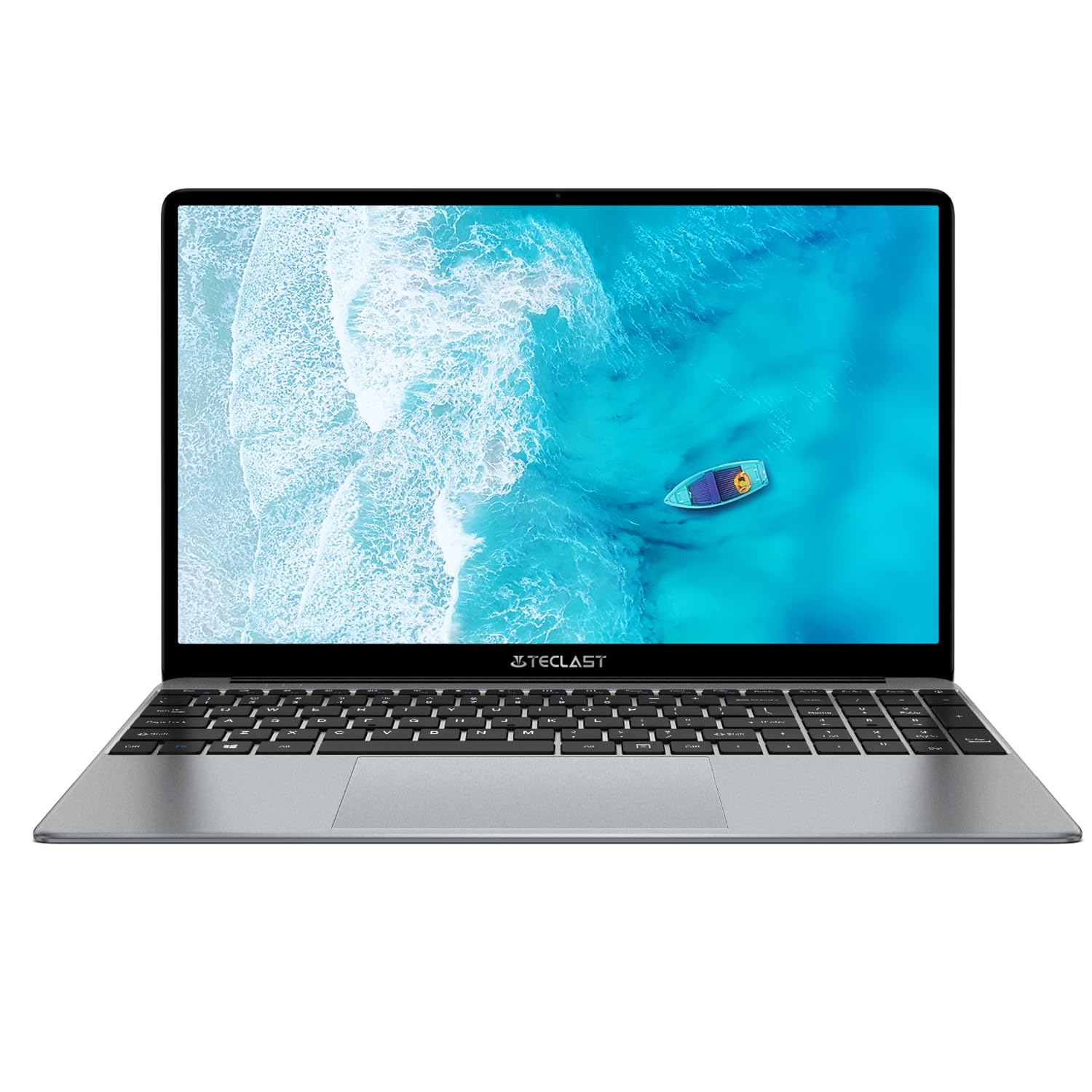
Image: The TECLAST F16 Plus laptop, showcasing its sleek design and 15.6-inch display with the Windows 11 operating system interface.
Powering On/Off
- To Power On: Press and hold the power button located on the top right of the keyboard until the screen illuminates.
- To Shut Down: Click the Start button in Windows 11, then select the Power icon, and choose 'Shut down'.
- To Restart: Click the Start button, select the Power icon, and choose 'Restart'.
Connecting Peripherals
Your TECLAST F16 Plus laptop is equipped with multiple ports for connecting external devices. Insert USB devices such as mice, keyboards, or external storage drives into the available USB ports. For external displays, use the appropriate video output port (e.g., HDMI) if available, and configure display settings in Windows.
Operating
Keyboard and Touchpad
The laptop features a full-sized keyboard and a responsive touchpad. Use the touchpad for navigation and gestures. Many function keys (F1-F12) have secondary functions, activated by pressing the 'Fn' key simultaneously. For example, 'Fn + F5' may control keyboard backlighting.
Display Settings
Adjust screen brightness using the dedicated function keys (often Fn + F5/F6 or similar). To change display resolution or scaling, right-click on the desktop, select 'Display settings', and make your adjustments.
Audio Settings
Control volume using the dedicated function keys (often Fn + F2/F3 or similar) or through the sound icon in the Windows taskbar. Connect headphones or external speakers to the audio jack for private listening or enhanced sound.
Network Connectivity
To connect to Wi-Fi, click the network icon in the taskbar, select your desired network, enter the password, and click 'Connect'. Bluetooth devices can be paired via 'Settings > Bluetooth & devices'.
Windows 11 Basics
Your laptop runs on Windows 11. Familiarize yourself with the Start menu, taskbar, and File Explorer for efficient navigation and file management. Regular Windows updates are crucial for security and performance.
Maintenance
Cleaning the Laptop
Use a soft, lint-free cloth slightly dampened with water or a screen cleaner to clean the display. For the keyboard and chassis, use a soft brush or compressed air to remove dust. Avoid harsh chemicals or abrasive materials.
Battery Care
To prolong battery life, avoid fully discharging the battery frequently. It is recommended to keep the battery charge between 20% and 80% when possible. Store the laptop in a cool, dry place when not in use for extended periods.
Software Updates
Regularly check for and install Windows updates and driver updates to ensure your system has the latest security patches and performance enhancements. This can be done through 'Settings > Windows Update'.
Storage Management
The 256GB SSD provides fast storage. To maintain optimal performance, regularly delete unnecessary files, empty the recycle bin, and consider using cloud storage for large files to free up local space.
Troubleshooting
Common Issues and Solutions
- Laptop not turning on: Ensure the power adapter is securely connected and the battery has sufficient charge. Try holding the power button for 15-20 seconds for a hard reset.
- No display on screen: Connect an external monitor to check if the issue is with the laptop's display. Ensure brightness is not set to minimum.
- Wi-Fi not connecting: Check if Wi-Fi is enabled in Windows settings. Restart your router and the laptop. Verify the Wi-Fi password.
- Slow performance: Close unnecessary applications. Check for background processes in Task Manager. Ensure sufficient free storage space.
- USB devices not recognized: Try connecting the device to a different USB port. Ensure device drivers are installed. Restart the laptop.
If you encounter persistent issues not covered here, please refer to the support section for further assistance.
Specifications
Technical Details
| Feature | Detail |
| Brand | TECLAST |
| Model | F16 Plus |
| Screen Size | 15.6 Inches |
| Processor | Intel Celeron N (4 Cores) |
| RAM | 12 GB |
| Storage | 256 GB SSD |
| Operating System | Windows |
| Color | New Gray |
| Battery Composition | Lithium-polymer |
| Input Interface | Keyboard |
| Package Dimensions | 50.79 x 29.2 x 7.9 cm |
| Package Weight | 2.62 Kilograms |
Warranty and Support
Your TECLAST F16 Plus laptop comes with a standard manufacturer's warranty. Please refer to the warranty card included in your product packaging for specific terms and conditions. For technical support, driver downloads, or service inquiries, visit the official TECLAST website or contact their customer service department. Keep your purchase receipt and product serial number handy when seeking support.


