
Powkiddy X28
Powkiddy X28 Handheld Game Console User Manual
1. Introduction
Welcome to the user manual for your new Powkiddy X28 Handheld Game Console. This guide will help you understand the device's features, set it up, operate it efficiently, and maintain it for optimal performance. Please read this manual thoroughly before using your console.
2. Product Overview
The Powkiddy X28 is a versatile handheld gaming device running on Android 11, designed for both classic retro games and modern mobile titles. It features a powerful T618 processor, a vibrant 5.5-inch IPS display, and a comprehensive set of controls.
2.1. Device Layout and Controls

Image: Powkiddy X28 Handheld Game Console with labels for all buttons and ports.
The image above illustrates the various buttons, joysticks, and ports on your Powkiddy X28 console. Familiarize yourself with their locations and functions:
- Direction Keys (D-Pad): Located on the left, used for directional input in games and menu navigation.
- Rocker (Analog Sticks): Two analog joysticks for precise 3D movement and camera control.
- A/B/X/Y Buttons: Standard action buttons on the right side.
- Select/Start Buttons: For in-game actions and menu selections.
- L1/L2/R1/R2 Buttons: Shoulder and trigger buttons located on the top edge for additional in-game controls.
- Power Button: Located on the top edge, used to turn the device on/off or put it to sleep.
- Card Slot: For inserting a TF (microSD) card to expand storage.
- OTG Port: For connecting external USB devices.
- HD Charging Port: Type-C port for charging and HDMI output.
- Volume Keys: For adjusting the audio volume.
- Headphone Jack (3.5mm): For connecting wired headphones.
- Map/Menu Button: Accesses mapping or in-game menu functions.
- Return Button: Navigates back in menus or applications.
- Home Button: Returns to the main Android home screen.

Image: Front view of the Powkiddy X28 Handheld Game Console, showcasing its compact design and central screen.

Image: The Powkiddy X28 console highlighting its IPS large screen and Android operating system, suitable for classic and nostalgic games.
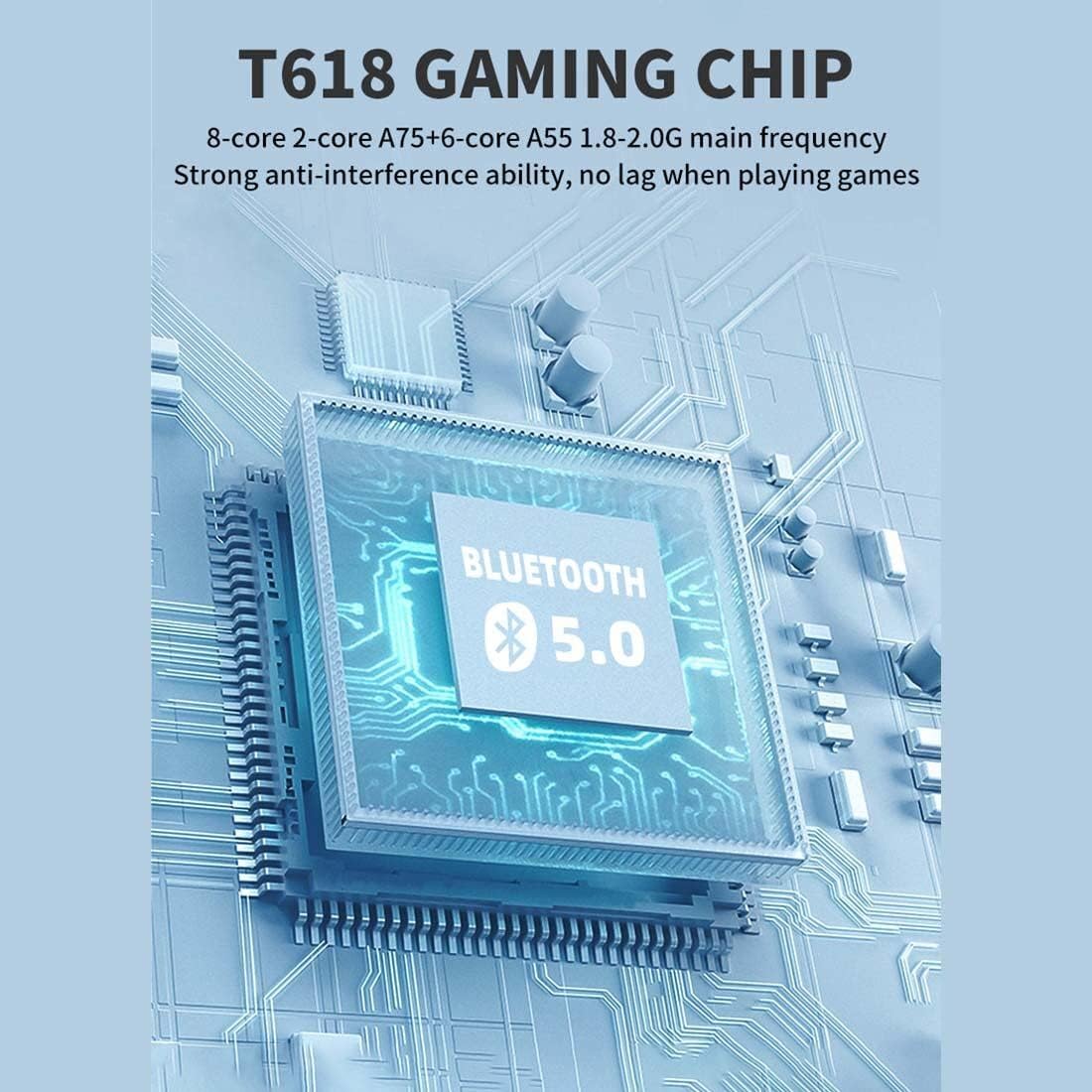
Image: A diagram illustrating the T618 Gaming Chip, emphasizing its 8-core processor (A75+A55) and Bluetooth 5.0 capabilities for smooth, lag-free gaming.

Image: The 5.5-inch IPS multi-touch screen of the Powkiddy X28, showing its 720x1280 resolution and full-fit technology for clear display and comfortable viewing, along with options for touch or button gameplay.
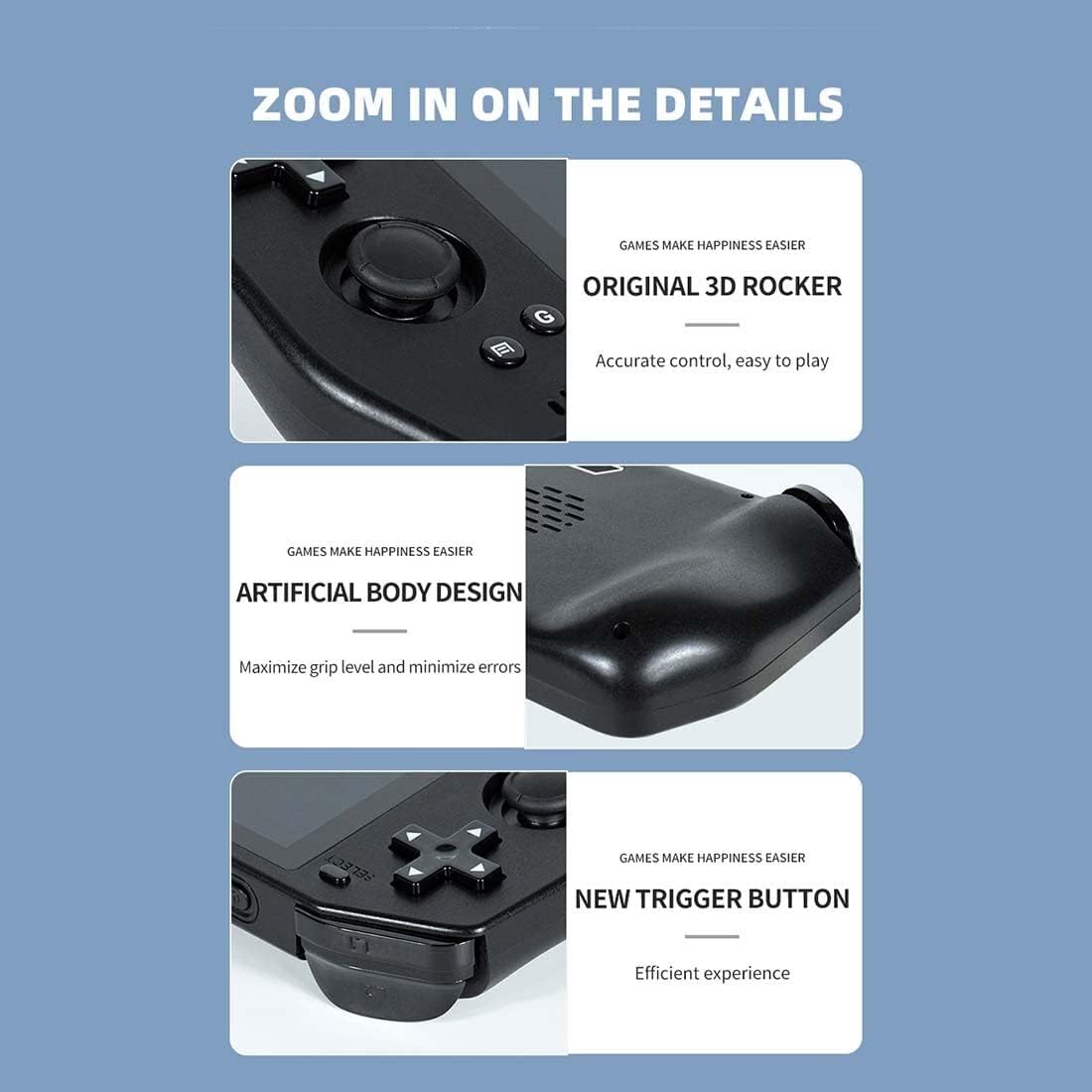
Image: Close-up views of the Powkiddy X28, highlighting the original 3D rocker for accurate control, the artificial body design for maximized grip and minimized errors, and the new trigger buttons for efficient gameplay.

Image: Details of the Powkiddy X28, showcasing its intimate anti-slip design for protection and aesthetics, and its stereo sound quality with a dual speaker design.
3. Specifications
| Feature | Description |
|---|---|
| LCD Screen | 5.5" (720 x 1280) IPS MIPI interface (fully laminated) |
| Touch Panel | G+G COB 5-point touch |
| Battery Capacity | 5000 mAh |
| Charger | 5V/2A Type-C |
| Charging Cable | Type-C 5V/2A |
| Headphone Jack | 3.5mm |
| Hardware Platform | UMS512/512T (T618) Octa-core (A75 + A55), 1.8-2.0 GHz |
| Memory (RAM/ROM) | LPDDR4/4X: 4GB, EMMC: 64GB |
| Wi-Fi | IEEE 802.11 ac/b/g/n |
| Bluetooth | 5.0 |
| USB Interface | Type-C X2 (both for charging, one supports external handle) |
| Sensors | G-sensor, Gyroscope, P/L sensor |
| Compass | Supported |
| Gyroscope | Supported |
| GPS | Supported |
| OTG | Supported |
| HD Output | Mini HDMI (Type-C interface), single display output (device screen turns black when HDMI is used) |
| FM | Compatible |
| Speaker | Two stereo speakers with built-in box |
| TF Card | Supported |
| Microphone | Supported |
| Vibration | Supported |
| Software System | Android 11 |
| Languages | Multiple languages supported |
| Audio Formats | MP3, MP2, AMR, AWB, APE, M4A, MIDI, OGG, WAV, FLAC3GP (License required: AAC, WMA) |
| Video Formats | MPEG4-SP, H.264/AVC, H.263, 3GP, 3G2, MP4, MKV, AVI |
| Product Dimensions | 8.2 × 3.2 × 1.05 inches |
| Package Weight | 400g |
4. Setup
4.1. Charging the Device
Before first use, fully charge your Powkiddy X28. Connect the provided Type-C charging cable to the console's HD Charging Port and the other end to a 5V/2A power adapter (not included) or a compatible USB port. The charging indicator light will show the charging status.
4.2. Powering On/Off
- To Power On: Press and hold the Power button until the screen lights up.
- To Power Off: Press and hold the Power button until a power-off menu appears. Select 'Power off' to shut down the device.
- Sleep Mode: Briefly press the Power button to put the device into sleep mode and turn off the screen. Press it again to wake up.
4.3. Initial Configuration
Upon first boot, you may be prompted to set up basic Android settings, including language, Wi-Fi connection, and Google account (optional). Follow the on-screen instructions.
4.4. Expanding Storage (TF Card)
To add more games or media, insert a TF (microSD) card into the dedicated card slot. Ensure the card is inserted correctly until it clicks into place. The device supports TF cards for additional storage.
5. Operating Instructions
5.1. Navigation
The Powkiddy X28 runs on Android 11, offering a familiar interface. You can navigate using the physical controls (D-Pad, analog sticks, A/B/X/Y buttons) or the 5-point multi-touch screen.
- Touch Screen: Tap, swipe, and pinch to interact with apps and menus.
- D-Pad/Analog Sticks: Use for precise movement in games and menu selection.
- A/B/X/Y Buttons: Typically used for confirmation (A), cancellation (B), and other in-game actions.
- Home Button: Returns to the Android home screen from any application.
- Return Button: Goes back to the previous screen or menu.
5.2. Game Management
Games can be installed from the pre-loaded arcade system, Android app stores, or by transferring files to the device's internal storage or TF card. Ensure games are compatible with the Android 11 operating system and the device's hardware.
5.3. Connecting to a TV (HDMI Output)
The Powkiddy X28 supports Mini HDMI output for connecting to an external display. Use a compatible Mini HDMI to HDMI cable (not included) to connect the device to your TV or monitor. When HDMI output is active, the console's screen will turn black, and the display will be mirrored on the external screen.

Image: The Powkiddy X28 demonstrating its capability to support HD TV output, allowing gameplay on a larger screen. Note that the console's screen will be black when connected via HDMI.
5.4. Bluetooth Connectivity
The device supports Bluetooth 5.0, allowing you to connect wireless headphones, gamepads, or other Bluetooth accessories. Go to Android Settings > Connected devices > Pair new device to connect.
5.5. Wi-Fi Connectivity
Connect to a Wi-Fi network via Android Settings > Network & internet > Wi-Fi to download games, browse the internet, or access online features.
6. Maintenance
6.1. Cleaning
Use a soft, dry, lint-free cloth to clean the console's screen and body. For stubborn smudges, slightly dampen the cloth with water. Avoid using harsh chemicals or abrasive materials.
6.2. Battery Care
- Avoid fully discharging the battery frequently.
- Do not expose the device to extreme temperatures.
- Use only the recommended 5V/2A Type-C charger.
6.3. Storage
When not in use for extended periods, store the console in a cool, dry place away from direct sunlight and extreme temperatures. It is advisable to charge the battery to about 50% before long-term storage.
7. Troubleshooting
| Problem | Possible Solution |
|---|---|
| Device won't turn on | Ensure the battery is charged. Connect to charger for at least 30 minutes. If still unresponsive, perform a hard reset by holding the power button for 10-15 seconds. |
| Screen is black when connected to TV via HDMI | This is normal behavior. The console's screen turns off when HDMI output is active. Ensure your TV input is set to the correct HDMI port. |
| Games are lagging or freezing | Close background applications. Ensure sufficient storage space. For demanding games, lower in-game graphics settings if available. |
| Wi-Fi or Bluetooth not connecting | Restart the device. Ensure Wi-Fi/Bluetooth is enabled in settings. Check router/accessory for issues. |
| Device not charging | Check the charging cable and adapter for damage. Try a different compatible Type-C cable and 5V/2A adapter. Ensure the charging port is clean. |
| Touch screen unresponsive | Restart the device. Ensure the screen is clean and free of debris. If the issue persists, contact customer support. |
8. Warranty and Support
Your Powkiddy X28 Handheld Game Console comes with a standard manufacturer's warranty. Please refer to the warranty card included in your package for specific terms and conditions. For technical support, troubleshooting assistance beyond this manual, or warranty claims, please contact the retailer or manufacturer's customer service department.
Keep your purchase receipt as proof of purchase for warranty purposes.
Related documentsX28


Ask a question about this manual
Ask about setup, troubleshooting, compatibility, parts, safety, or missing instructions. Manuals+ will review the question and use this page’s manual context to help answer it.