
1. Introduction
This manual provides essential instructions for setting up, operating, maintaining, and troubleshooting your Google Pixel 7 Pro GE2AE smartphone. Please read this guide thoroughly to ensure proper use and to maximize your device's capabilities.

Image: Google Pixel 7 Pro smartphone.
2. What's in the Box
Upon unboxing your Google Pixel 7 Pro, verify that the following items are included:
- Google Pixel 7 Pro Smartphone
- Power Adapter
- SIM Tray Ejector Tool
- USB Cable (USB-C to USB-C)
Note: As a renewed product, accessories may be generic but are fully functional.
3. Setup
3.1. Insert SIM Card
- Locate the SIM card tray on the side of your Pixel 7 Pro.
- Insert the SIM tray ejector tool into the small hole next to the tray and press firmly until the tray pops out.
- Place your nano-SIM card into the tray with the gold contacts facing down.
- Carefully reinsert the SIM tray into the phone.
3.2. Power On and Initial Setup
- Press and hold the Power button (located on the right side) until the Google logo appears.
- Follow the on-screen prompts to select your language, connect to a Wi-Fi network, and accept the terms and conditions.
- Sign in with your Google Account or create a new one. This is essential for accessing Google services and the Play Store.
- Transfer data from an old device (optional) or set up as a new device.
- Set up security features such as fingerprint unlock or face unlock.
4. Operating Your Device
4.1. Basic Navigation
- Home Screen: Swipe up from the bottom to access the app drawer. Swipe left or right to navigate between home screens.
- Notifications & Quick Settings: Swipe down from the top of the screen to view notifications and access quick settings toggles.
- Multitasking: Swipe up from the bottom and hold to view recent apps. Swipe left or right to switch between them, or swipe up on an app to close it.
- Back Gesture: Swipe inward from the left or right edge of the screen to go back.
4.2. Camera Features
The Pixel 7 Pro features an advanced camera system with a telephoto lens and various modes:
- Macro Focus: Automatically engages when you get close to a subject, allowing for detailed close-up shots.
- Cinematic Blur: Adds a shallow depth of field effect to videos, blurring the background for a professional look.
- Night Sight: Enhances photos taken in low-light conditions.
- Photo Unblur: Improves blurry photos using Google Tensor G2 processing.
4.3. Battery Management
The Pixel 7 Pro is equipped with a 5000 mAh battery. To optimize battery life:
- Enable Adaptive Battery in Settings > Battery.
- Reduce screen brightness or enable Adaptive Brightness.
- Limit background app activity for less frequently used applications.
- Use Battery Saver mode when battery is low.
5. Maintenance
5.1. Cleaning Your Device
- Use a soft, lint-free cloth to clean the screen and body.
- Avoid abrasive materials or harsh chemicals.
- For stubborn smudges, slightly dampen the cloth with water.
5.2. Software Updates
Regularly check for and install software updates to ensure your device has the latest features, security patches, and performance improvements. Go to Settings > System > System update.
5.3. Battery Care
To prolong battery lifespan, avoid extreme temperatures and do not leave the device fully charged or fully discharged for extended periods.
6. Troubleshooting
6.1. Common Issues
- Device Not Responding: Press and hold the Power button for about 30 seconds to force a restart.
- Connectivity Problems (Wi-Fi/5G): Try toggling Wi-Fi or cellular data off and on. Restart your device. For Wi-Fi, forget the network and reconnect.
- App Crashing: Clear the app's cache and data in Settings > Apps. If the issue persists, uninstall and reinstall the app.
- Battery Draining Quickly: Review battery usage in Settings > Battery to identify apps consuming excessive power. Adjust settings as needed.
6.2. Factory Reset
If you encounter persistent issues, a factory reset may resolve them. Warning: This will erase all data on your device. Back up important information before proceeding. Go to Settings > System > Reset options > Erase all data (factory reset).
7. Specifications
| Feature | Detail |
|---|---|
| Model Name | Google Pixel 7 Pro |
| Operating System | Android |
| Screen Size | 6.7 Inches |
| Resolution | 3120 x 1440 |
| Refresh Rate | 120 Hz |
| RAM | 8 GB |
| Internal Storage | 128 GB |
| Cellular Technology | 5G |
| Wireless Carrier | T-Mobile (Locked) |
| Battery Power Rating | 5000 Milliamp Hours |
| Phone Talk Time | 31 Hours |
| Connectivity Technologies | Wi-Fi, GPS |
| Other Camera Features | Front, Rear (with Telephoto lens, Macro Focus, Cinematic Blur) |
| Audio Jack | No headphone jack |
| Form Factor | Smartphone |
| Color | Obsidian |
8. Product Condition (Renewed)
This Google Pixel 7 Pro is an Amazon Renewed product. All Amazon Renewed products are fully functional and come with generic or original accessories and packaging. The condition of renewed products is categorized as follows:
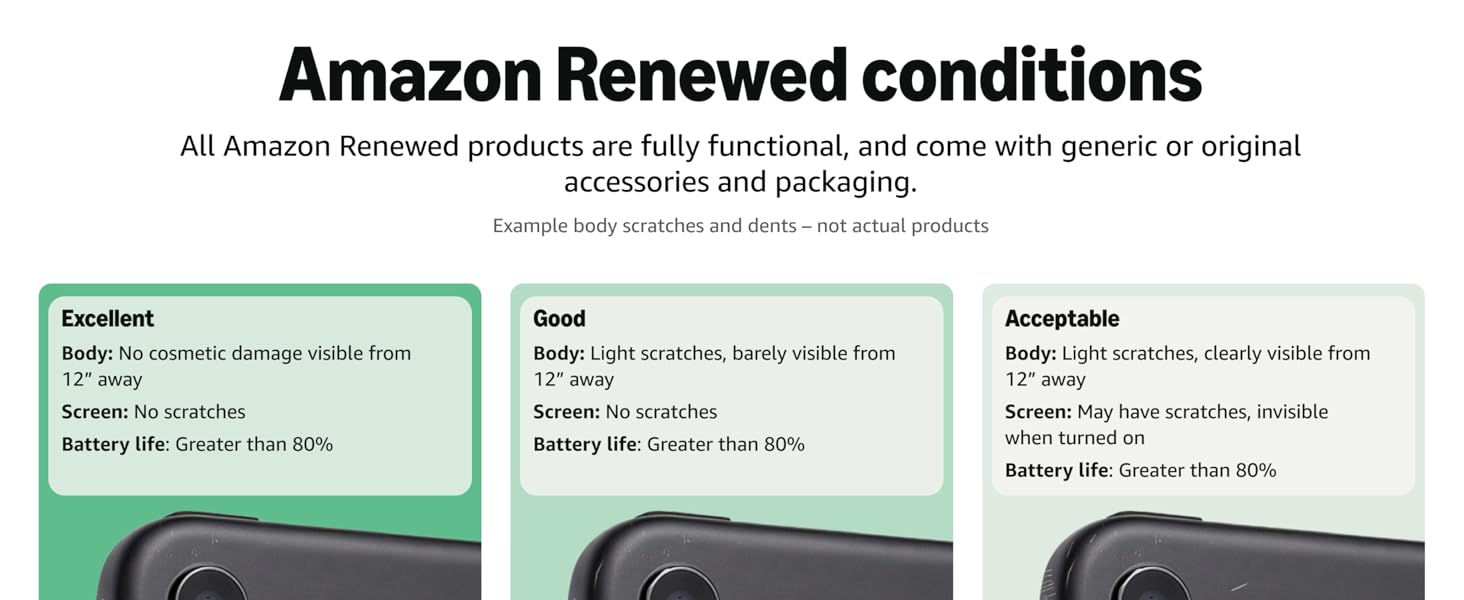
Image: Amazon Renewed conditions for electronic devices.
- Excellent: No cosmetic damage visible from 12 inches away. Screen has no scratches. Battery life is greater than 80%.
- Good: Light scratches, barely visible from 12 inches away. Screen has no scratches. Battery life is greater than 80%.
- Acceptable: Light scratches, clearly visible from 12 inches away. Screen may have scratches, invisible when turned on. Battery life is greater than 80%.
9. Warranty and Support
For information regarding warranty coverage for your renewed Google Pixel 7 Pro, please refer to the documentation provided at the time of purchase or contact the seller directly. For technical support and further assistance with your Google Pixel device, visit the official Google Support website.


