
Introduction
This manual provides helpful tips and instructions for operating and setting up your Samsung Galaxy A04 or A04s smartphone. It is designed to guide both new and experienced users through the device's features, ensuring you can utilize your smartphone effectively.
The guide covers numerous essential features, making it suitable for anyone looking to understand their Samsung Galaxy A04 or A04s device better.
Manual Overview
This section provides an overview of the manual itself, which is presented in book format.
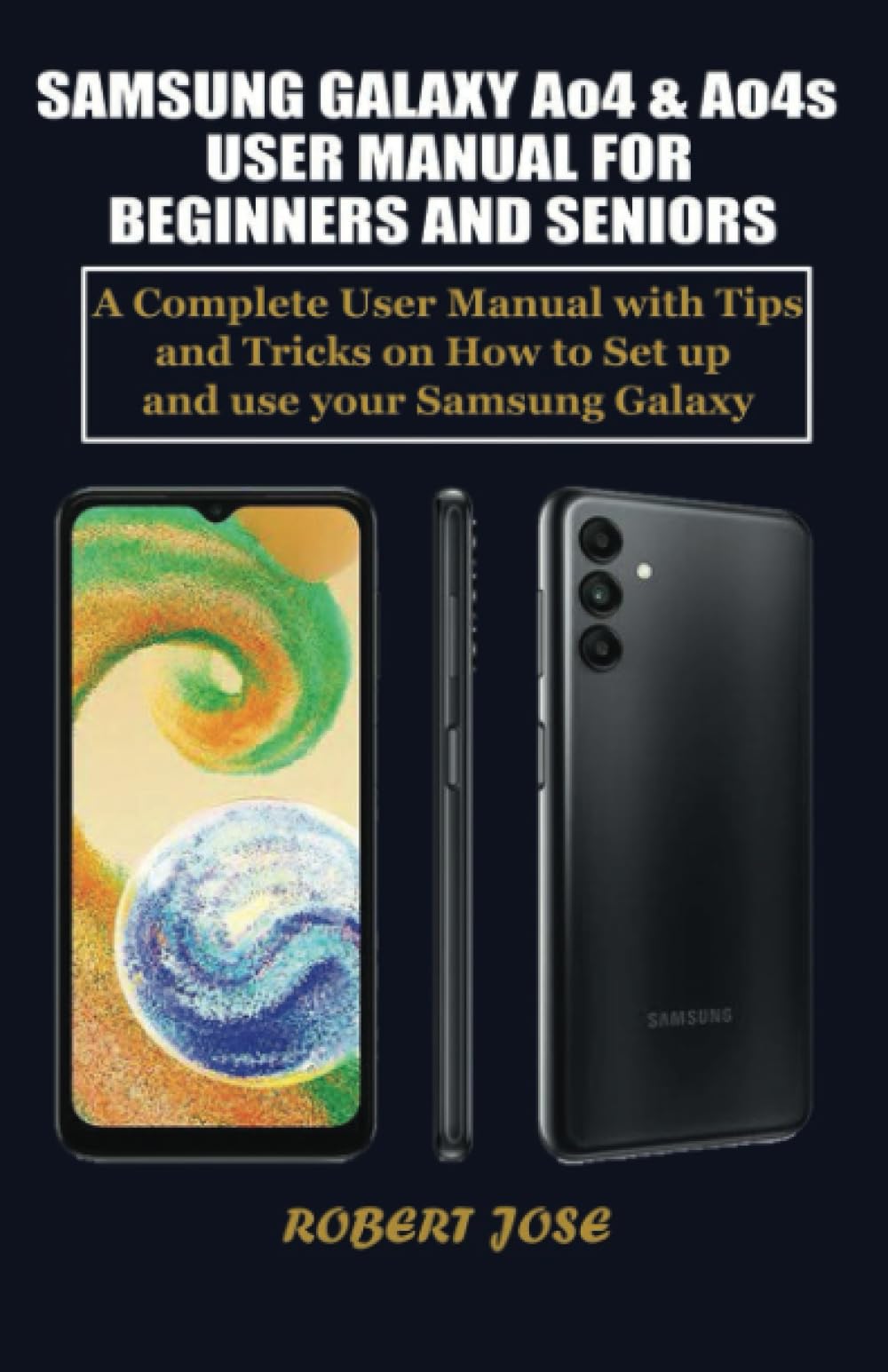
Image: Front cover of the user manual book, displaying the title "Samsung Galaxy A04 & A04s User Manual for Beginners and Seniors" and a smartphone graphic.

Image: Back cover of the user manual book, showing a dark background with "Copyrighted Material" text and an ISBN barcode (979-8399402291) at the bottom right.
This manual is structured to guide you through the following key areas of your Samsung Galaxy A04 or A04s smartphone:
- Setup Guide: Initial steps to get your device ready for use.
- Operating Your Device: Essential functions and daily usage.
- Maintenance: Tips for keeping your device in optimal condition.
- Troubleshooting Common Issues: Solutions for frequently encountered problems.
Setup Guide
Follow these steps to set up your Samsung Galaxy A04 or A04s for the first time:
- Insert SIM Card: Use the provided ejector tool to open the SIM/microSD card tray. Place your Nano-SIM card and optional microSD card into the tray, then reinsert it into the phone.
- Power On: Press and hold the Power button until the Samsung logo appears.
- Initial Configuration: Follow the on-screen prompts to select your language, connect to a Wi-Fi network, accept terms and conditions, and sign in with your Google account.
- Data Transfer (Optional): If you are upgrading from an old phone, you may be prompted to transfer data using Samsung Smart Switch or Google's data transfer tools.
- Set Up Security: Configure a screen lock (PIN, pattern, password, fingerprint, or face recognition) to protect your device.
Operating Your Device
Basic Navigation
- Home Screen: The main screen where you can access apps and widgets. Swipe left or right to navigate between pages.
- App Drawer: Swipe up from the Home screen to access all installed applications.
- Notification Panel: Swipe down from the top of the screen to view notifications and quick settings.
- Recent Apps: Tap the Recent Apps button (usually a square icon) to see and switch between recently used applications.
Making Calls and Sending Messages
- Phone App: Tap the Phone icon to make calls. Enter a number or select a contact.
- Messages App: Tap the Messages icon to send and receive text messages. Tap the '+' icon to compose a new message.
Camera Usage
- Open Camera: Tap the Camera icon.
- Take Photo: Tap the Shutter button.
- Record Video: Switch to Video mode and tap the Record button.
- Switch Cameras: Tap the camera switch icon to toggle between front and rear cameras.
Managing Applications
- Download Apps: Use the Google Play Store to download and install new applications.
- Uninstall Apps: Press and hold an app icon on the Home screen or App Drawer, then select "Uninstall" or drag it to the uninstall option.
- Update Apps: Open the Google Play Store, tap your profile icon, then select "Manage apps & device" to update applications.
Maintenance
Proper maintenance helps ensure the longevity and optimal performance of your Samsung Galaxy A04 or A04s.
- Battery Care: To prolong battery life, avoid extreme temperatures, use the original charger, and try to keep the charge between 20% and 80% for daily use.
- Software Updates: Regularly check for and install software updates. Go to Settings > Software update > Download and install. Updates provide new features, security patches, and performance improvements.
- Cleaning Your Device: Use a soft, lint-free cloth to clean the screen and body. Avoid harsh chemicals. For ports, use a dry, soft brush gently.
- Storage Management: Periodically review your storage usage (Settings > Battery and device care > Storage) and delete unnecessary files or apps to free up space.
Troubleshooting Common Issues
This section addresses common problems you might encounter with your Samsung Galaxy A04 or A04s and provides potential solutions.
- Device Not Turning On: Ensure the battery is charged. Connect the charger and wait a few minutes before attempting to power on again. If unresponsive, try a forced restart by holding the Power and Volume Down buttons simultaneously for about 7-10 seconds.
- Apps Crashing or Freezing: Close the app from recent apps, then reopen it. If the issue persists, clear the app's cache (Settings > Apps > [App Name] > Storage > Clear cache) or reinstall the app.
- Poor Wi-Fi/Cellular Connection: Toggle Wi-Fi or Mobile Data off and on. Restart your device. For Wi-Fi, try forgetting the network and reconnecting. For cellular, ensure your SIM card is properly inserted and your plan is active.
- Slow Performance: Close unnecessary background apps. Clear cache for frequently used apps. Restart your device regularly. Consider freeing up storage space.
- Battery Draining Quickly: Check battery usage in Settings > Battery and device care > Battery to identify power-hungry apps. Reduce screen brightness, disable unnecessary features like GPS or Bluetooth when not in use, and enable power-saving mode.
Book Specifications
This section details the specifications of the Samsung Galaxy A04 & A04s User Manual for Beginners and Seniors book.
| Feature | Detail |
|---|---|
| ASIN | B0C91RMDSX |
| Publisher | Independently published |
| Publication Date | June 22, 2023 |
| Language | English |
| Print Length | 144 pages |
| ISBN-13 | 979-8399402291 |
| Item Weight | 8.6 ounces |
| Dimensions | 5.5 x 0.33 x 8.5 inches |
Support for This Manual
This document serves as a comprehensive guide based on the content of the Samsung Galaxy A04 & A04s User Manual for Beginners and Seniors book. For any inquiries regarding the content of this manual or the book itself, please refer to the publisher, Independently published, or the author, Robert Jose.
Please note that this manual provides instructions for the Samsung Galaxy A04 and A04s smartphones. For device-specific warranty or technical support for your Samsung phone, please contact Samsung customer service or your device retailer directly.