
Introduction
This manual provides detailed instructions for the setup, operation, and maintenance of your Vilros 2.4G Wireless & Wired Touch Keyboard with Built-in Touchpad. This versatile keyboard offers both 2.4G wireless and wired USB connectivity, along with an integrated touchpad, making it suitable for a wide range of devices including Raspberry Pi, Windows, and Android systems.
What's in the Box
Upon unpacking, please ensure all items are present:
- Vilros 2.4G Wireless & Wired Touch Keyboard
- USB Cable
- 2.4G USB Wireless Receiver (often stored in the keyboard's battery compartment)
Note: Batteries are not included and must be purchased separately.
Setup
1. Battery Installation
- Locate the battery compartment on the underside of the keyboard.
- Open the battery compartment cover.
- Insert two AAA batteries (not included), ensuring correct polarity (+/-).
- Close the battery compartment cover.
2. Connecting Wirelessly (2.4G USB Receiver)
- Locate the 2.4G USB wireless receiver, typically stored within the keyboard's battery compartment.
- Plug the USB receiver into an available USB port on your device (e.g., computer, Raspberry Pi, smart TV).
- Turn on the keyboard using the power switch, usually located on the top edge of the keyboard.
- The keyboard should automatically connect to your device. If not, ensure the receiver is properly inserted and the keyboard is powered on.

Image: The Vilros keyboard offers seamless connectivity via its 2.4GHz USB receiver, shown alongside USB-A and USB-C cables for wired connection options.
3. Connecting Wired (USB Cable)
- Connect one end of the included USB cable to the keyboard's USB port.
- Connect the other end of the USB cable to an available USB port on your device.
- The keyboard will function immediately as a wired device. Batteries are not required for wired operation.
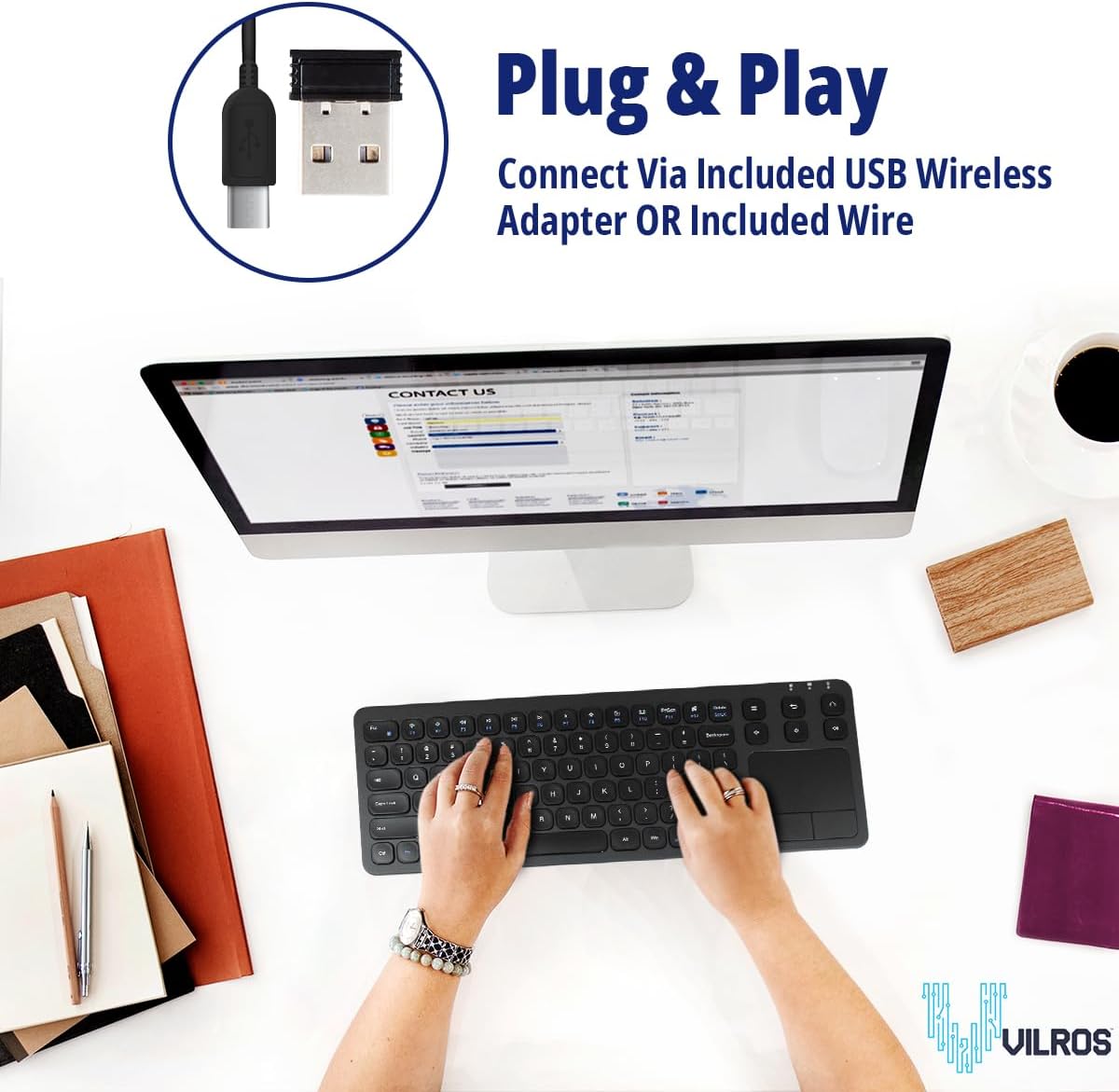
Image: The keyboard connected to a computer via USB, demonstrating its plug-and-play capability for both wired and wireless modes.
Operating Instructions
Power On/Off
Use the power switch located on the top edge of the keyboard to turn the device on or off. Turning off the keyboard when not in use helps conserve battery life.
Compatibility
The Vilros keyboard is compatible with a wide range of operating systems and devices, including:
- Windows
- Mac (basic functionality)
- Android
- Chrome OS
- Tablets
- Smart TVs
- Raspberry Pi

Image: The keyboard's broad compatibility with multiple operating systems and devices, emphasizing its wireless functionality.
Typing Experience
The keyboard features low-profile keys designed for a comfortable and quiet typing experience. The US layout (QWERTY) provides a familiar setup for most users.

Image: A close-up view of the keyboard keys, illustrating their low-profile design for a responsive and quiet typing experience.
Touchpad Gestures
The integrated touchpad provides precise navigation and supports multi-touch gestures for enhanced control:
- Single Finger Tap: Left-click.
- Two Finger Tap: Right-click.
- Two Finger Scroll: Drag two fingers up or down to scroll vertically.
- Pinch to Zoom: Use two fingers to pinch in or out to zoom.
- Single Finger Drag: Click and drag to select items or move windows.

Image: A hand demonstrating the use of the precision touchpad, highlighting its accurate input and multi-touch capabilities.
Multimedia Hotkeys
The keyboard includes dedicated multimedia hotkeys for convenient control of media playback and system functions. These keys are typically located above the touchpad or integrated into the function (Fn) row.
- Volume Control: Keys for Volume Up, Volume Down, and Mute.
- Media Playback: Keys for Play/Pause, Previous Track, and Next Track.
- Home Key: Returns to the home screen or desktop.
- Search Key: Opens search functionality.
Maintenance
Cleaning the Keyboard
- Ensure the keyboard is powered off before cleaning.
- Use a soft, lint-free cloth slightly dampened with water or a mild cleaning solution.
- Avoid excessive moisture and do not spray cleaners directly onto the keyboard.
- For stubborn dirt between keys, use compressed air.
Battery Replacement
When the keyboard's performance degrades or the power indicator light signals low battery, replace the AAA batteries following the "Battery Installation" steps in the Setup section.
Troubleshooting
| Problem | Possible Cause | Solution |
|---|---|---|
| Keyboard not responding (Wireless) | Low batteries; USB receiver not properly connected; Keyboard not powered on; Out of range. | Replace batteries; Ensure USB receiver is fully inserted; Turn on keyboard; Move keyboard closer to receiver (within 10m). |
| Keyboard not responding (Wired) | USB cable not properly connected; Faulty USB port. | Ensure USB cable is fully inserted into both keyboard and device; Try a different USB port on your device. |
| Touchpad not working | Driver issue (less common); Accidental disablement (if feature exists); Software conflict. | Restart your device; Ensure no software is interfering; Check device settings for touchpad options. |
| Keys are sticky or unresponsive | Dirt or debris under keys; Physical damage. | Clean the keyboard using compressed air; If damage is suspected, contact support. |
| LED indicators not working | Minor software glitch; Specific to certain operating modes. | This is often a minor issue and may not affect functionality. If it persists and affects usability, contact support. |
Specifications
| Feature | Detail |
|---|---|
| Model Number | VILP261 |
| Connectivity | 2.4G Wireless (via USB receiver), Wired (via USB cable) |
| Wireless Range | Up to 10 meters (33 feet) |
| Compatible Devices | Laptop, PC, Tablet, Raspberry Pi, Android, Smart TV |
| Keyboard Layout | US (QWERTY) |
| Special Features | Built-in Touchpad (Multi-touch support), Multimedia Hotkeys, Low-profile keys |
| Power Source | 2 x AAA Batteries (for wireless mode), USB powered (for wired mode) |
| Product Dimensions | 14.76 x 5.09 x 0.69 inches (37.49 x 12.93 x 1.75 cm) |
| Item Weight | 1.39 pounds (0.63 kg) |
| Material | Galvanized, ABS |
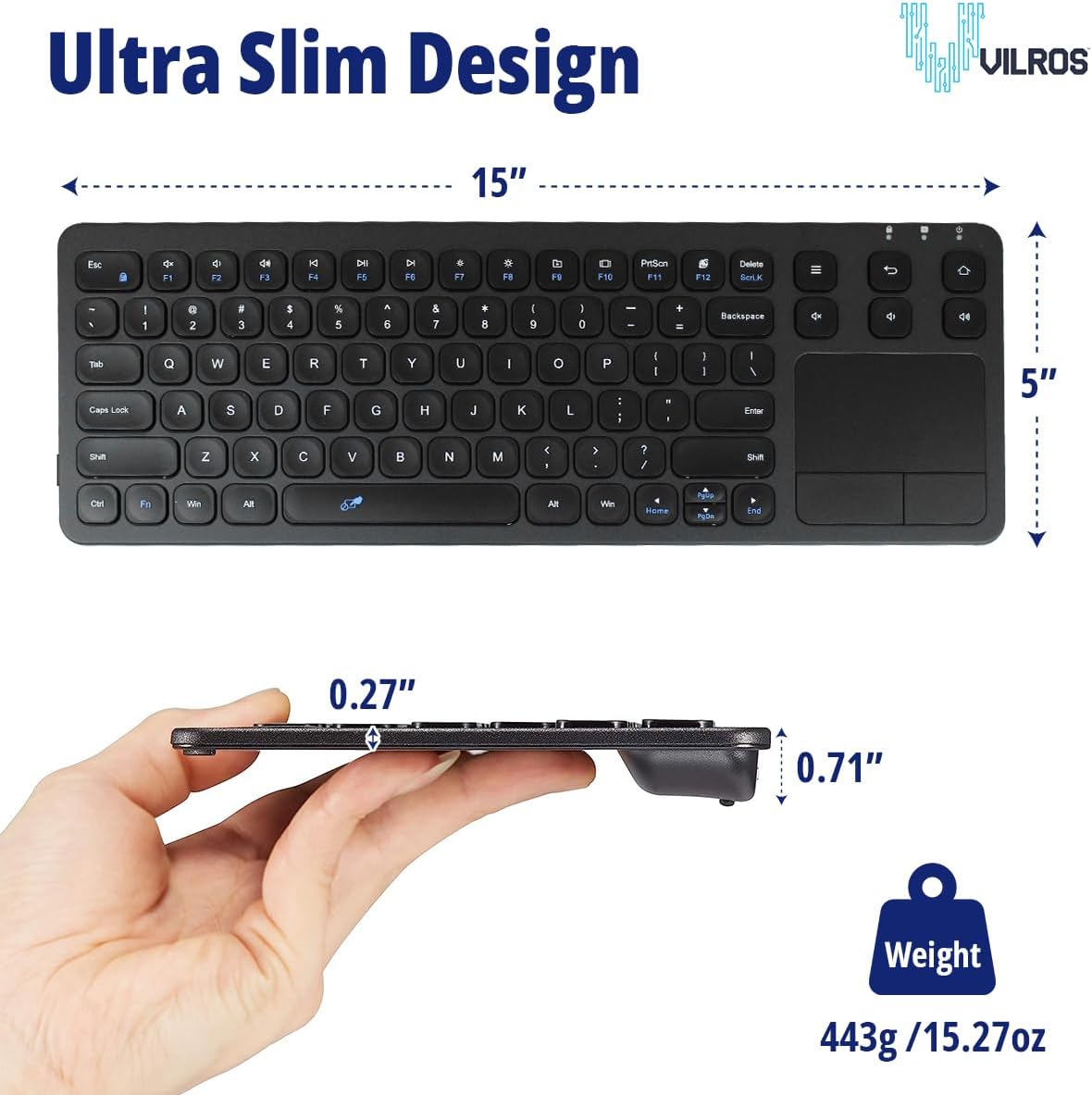
Image: Dimensions of the Vilros keyboard, highlighting its ultra-slim design and compact form factor.

Image: The underside of the keyboard, displaying the model number VILP261 and regulatory information.
Warranty Information
Vilros products are typically covered by a limited warranty against defects in materials and workmanship. Please refer to the product packaging or the official Vilros website for the most current and detailed warranty terms and conditions. Keep your proof of purchase for warranty claims.
Support
For technical assistance, troubleshooting, or warranty inquiries, please contact Vilros customer support:
- Website: Visit the official Vilros website for FAQs, support resources, and contact forms.
- Email: Refer to the product packaging or website for direct email support.
When contacting support, please have your product model number (VILP261) and proof of purchase readily available.