1. Introduction
This manual provides comprehensive instructions for the installation, configuration, and operation of your ASUS TUF GAMING B650M-E AMD mATX Motherboard. Please read this manual thoroughly before installing or using the product to ensure proper functionality and to prevent damage.
The ASUS TUF GAMING B650M-E is designed to support AMD Ryzen 7000 Series processors and features an 8+2 DrMOS power solution, DDR5 memory support, PCIe 5.0, and multiple M.2 slots for high-performance storage. It is built for durability and stable performance.
2. Safety Information
Observe the following safety precautions to prevent damage to the motherboard and injury to yourself:
- Always disconnect the power cable from the wall socket before touching any internal components.
- Wear an anti-static wrist strap or frequently touch a grounded metal object to discharge static electricity before handling the motherboard or other components.
- Handle the motherboard by its edges to avoid touching sensitive components.
- Ensure all cables are connected correctly and securely before powering on the system.
- Keep the motherboard away from moisture and extreme temperatures.
3. Package Contents
Verify that all items are present in your motherboard package. If any item is damaged or missing, contact your retailer.
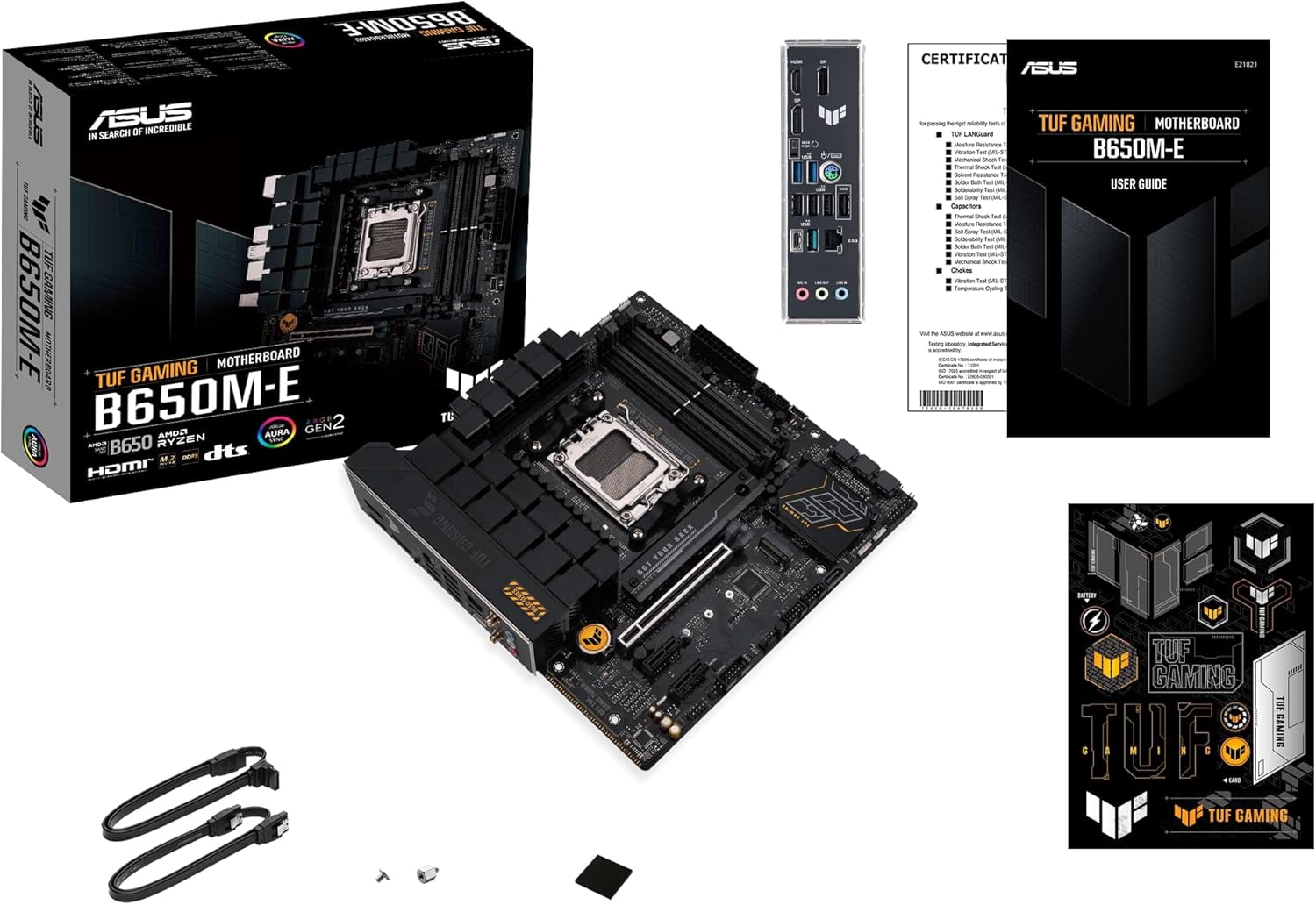
Image 3.1: Contents of the ASUS TUF GAMING B650M-E package. This image displays the motherboard, user guide, SATA cables, M.2 screws, and TUF Gaming stickers.
- ASUS TUF GAMING B650M-E Motherboard
- User Guide
- SATA 6Gb/s cables
- M.2 SSD screw package
- TUF Gaming stickers
4. Motherboard Layout
Familiarize yourself with the various components and connectors on the motherboard before installation.
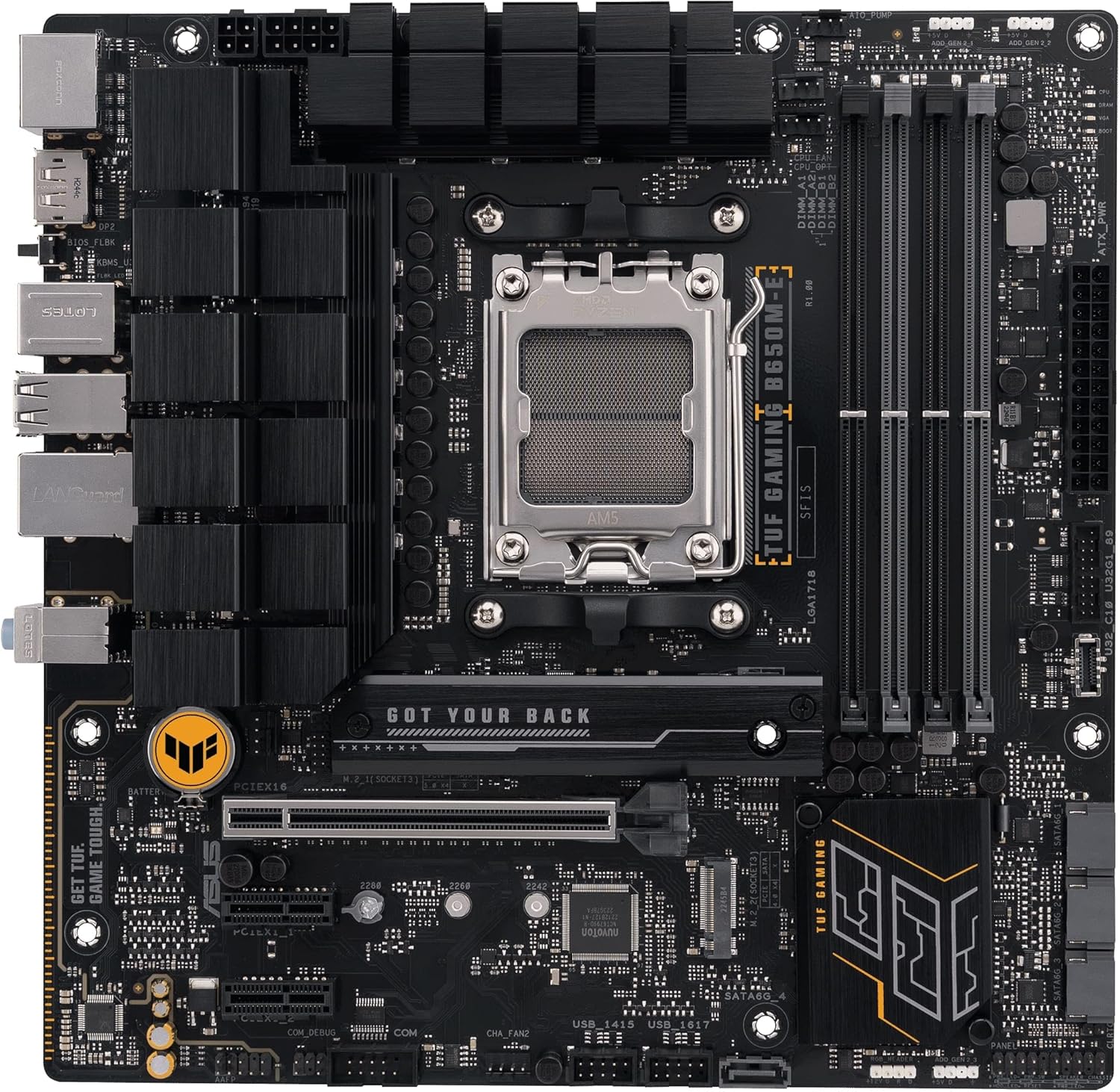
Image 4.1: Top-down view of the ASUS TUF GAMING B650M-E motherboard, highlighting the CPU socket, DIMM slots, PCIe slots, and M.2 slots.
4.1. Rear I/O Panel
The rear I/O panel provides various ports for connecting external devices.

Image 4.2: Close-up view of the rear I/O panel, showing ports for USB, DisplayPort, HDMI, LAN, and audio.
- DisplayPort (DP): For connecting display devices.
- HDMI: For connecting display devices.
- USB 2.0 Ports: For connecting peripherals.
- USB 3.2 Gen 1 Ports: For connecting high-speed USB devices.
- USB 3.2 Gen 2 Type-C Port: For connecting USB Type-C devices.
- 2.5 Gb Ethernet Port: For network connectivity.
- Audio Jacks: For connecting audio devices (Line In, Line Out, Mic In).
- BIOS FlashBack Button: For updating BIOS without a CPU or RAM.
5. Setup and Installation
Follow these steps to install the motherboard and its components into your PC case.
5.1. CPU Installation
- Locate the AM5 CPU socket on the motherboard.
- Open the CPU socket lever and remove the protective cover.
- Carefully align the CPU with the socket, ensuring the triangular mark on the CPU matches the mark on the socket.
- Gently place the CPU into the socket without applying force.
- Close the socket lever to secure the CPU.
- Install the CPU cooler according to its manufacturer's instructions.
5.2. Memory (RAM) Installation
This motherboard supports DDR5 memory modules. Refer to the motherboard's QVL (Qualified Vendor List) for compatible memory.
- Open the clips at both ends of the DIMM slots.
- Align the notch on the DDR5 memory module with the key in the DIMM slot.
- Insert the memory module firmly into the slot until the clips snap into place.
- For dual-channel configuration, install modules into the recommended slots (usually A2 and B2).
5.3. Storage (M.2 and SATA) Installation
M.2 SSD Installation
- Locate the M.2 slots on the motherboard.
- Remove the M.2 heatsink (if present) and the standoff screw.
- Insert the M.2 SSD into the slot at a 30-degree angle.
- Gently push down the M.2 SSD and secure it with the standoff screw.
- Reinstall the M.2 heatsink (if applicable).
SATA Device Installation
- Connect one end of the SATA data cable to a SATA port on the motherboard.
- Connect the other end of the SATA data cable to your SATA storage device (HDD/SSD).
- Connect a SATA power cable from your power supply unit (PSU) to the SATA storage device.
5.4. Expansion Card (PCIe) Installation
This motherboard features PCIe 5.0 x16 and other PCIe slots for graphics cards and other expansion cards.
- Locate the desired PCIe slot.
- Remove the corresponding expansion slot cover from your PC case.
- Align the expansion card with the slot and press down firmly until it is seated correctly.
- Secure the card with a screw or the case's retention mechanism.
5.5. Power Connections
Connect the power supply unit (PSU) cables to the motherboard.
- 24-pin ATX Power Connector: Connect the main 24-pin power cable from the PSU.
- 8-pin + 4-pin ATX 12V Power Connectors: Connect the CPU power cables from the PSU. Ensure both are connected for stable power delivery, especially with high-end CPUs.
5.6. Front Panel Connections
Connect the cables from your PC case's front panel to the corresponding headers on the motherboard.
- Front Panel Header (F_PANEL): For power button, reset button, HDD LED, and power LED. Refer to the user guide for pin assignments.
- USB Headers: Connect front panel USB ports (USB 2.0, USB 3.2 Gen 1, USB 3.2 Gen 2 Type-C).
- Front Panel Audio Header (AAFP): For front panel headphone and microphone jacks.
6. Operating Instructions
6.1. BIOS/UEFI Setup
The BIOS (Basic Input/Output System) or UEFI (Unified Extensible Firmware Interface) is firmware that initializes hardware during the booting process and provides runtime services for the operating system. You can access the BIOS/UEFI setup utility to configure system settings.
- Accessing BIOS/UEFI: During system startup, press the Delete key or F2 key repeatedly.
- Navigation: Use the arrow keys to navigate and Enter to select. Many ASUS UEFI interfaces also support mouse input.
- Key Settings:
- Boot Order: Configure the sequence of storage devices for booting the operating system.
- Overclocking (OC) Settings: Adjust CPU and memory frequencies/voltages (use with caution).
- Fan Control: Monitor and adjust fan speeds.
- SATA Configuration: Set SATA mode (AHCI/RAID).
- Saving Changes: Always save changes before exiting the BIOS/UEFI setup.
6.2. Driver Installation
After installing your operating system, install the necessary drivers for optimal performance and functionality. Drivers can be found on the ASUS support website for your motherboard model.
- Chipset Drivers: Essential for motherboard functionality.
- LAN Drivers: For network connectivity.
- Audio Drivers: For sound output and input.
- Graphics Drivers: If using integrated graphics or a dedicated GPU.
- USB Drivers: For optimal USB device performance.
6.3. Software Utilities
ASUS provides various software utilities to enhance your user experience:
- Armoury Crate: A central hub for managing drivers, utilities, and Aura Sync lighting.
- Aura Sync: For customizing RGB lighting effects on compatible components.
- AI Noise Reduction: Enhances audio clarity for communication.
7. Maintenance
7.1. BIOS Updates
Regularly updating your BIOS can improve system stability, compatibility, and performance. Visit the ASUS support website for the latest BIOS versions and update instructions.
- EZ Flash 3: Update BIOS directly from the UEFI interface using a USB flash drive.
- BIOS FlashBack: Update BIOS without a CPU or RAM installed by using the dedicated USB port and button on the rear I/O panel.
7.2. Cleaning
To ensure optimal performance and longevity, periodically clean your motherboard and PC case.
- Disconnect all power before cleaning.
- Use compressed air to remove dust from heatsinks, fans, and other components.
- Use a soft, lint-free cloth to gently wipe surfaces. Avoid using liquid cleaners directly on components.
8. Troubleshooting
This section addresses common issues you might encounter.
| Problem | Possible Solution |
|---|---|
| System does not power on. |
|
| No display output. |
|
| System reboots or crashes randomly. |
|
| Operating system not detected. |
|
9. Specifications
Key technical specifications for the ASUS TUF GAMING B650M-E Motherboard.
| Feature | Detail |
|---|---|
| Brand | ASUS |
| Model Name | TUF Gaming B650M-E |
| CPU Socket | Socket AM5 |
| Compatible Processors | AMD Ryzen 7000 Series (and future compatible generations) |
| Chipset Type | AMD B650 |
| RAM Memory Technology | DDR5 |
| Memory Clock Speed | Up to 2400 MHz (JEDEC), higher with EXPO/OC |
| PCIe Slots | 1 x PCIe 5.0 x16, additional PCIe slots |
| M.2 Slots | 2 x M.2 slots |
| LAN | 2.5 Gb Ethernet |
| Video Output | 2 x DisplayPort, 1 x HDMI |
| USB Ports | USB 2.0, USB 3.2 Gen 1, USB 3.2 Gen 2 Type-C |
| Form Factor | mATX |
| Item Weight | 2.2 pounds |
10. Warranty and Support
For detailed warranty information, please refer to the warranty card included in your product package or visit the official ASUS website.
ASUS Support: For technical assistance, driver downloads, and further information, please visit the official ASUS support website: www.asus.com/support/
When contacting support, please have your motherboard model (TUF GAMING B650M-E) and serial number ready.


