
1. Introduction
This manual provides detailed instructions for the installation, operation, and maintenance of your Turing TP-MMD8MV2 Smart 8MP IR Zoom Dome IP Camera. This high-performance camera is designed for both indoor and outdoor surveillance, offering 8-megapixel resolution, a motorized varifocal lens, and advanced infrared capabilities for clear imaging in various lighting conditions. Please read this manual thoroughly before using the product to ensure proper setup and functionality.
2. Safety Information
- Power Supply: Use only the specified power adapter (DC 12V) or Power over Ethernet (PoE) compliant with IEEE 802.3af. Ensure the power source is stable and meets the camera's requirements (Max 9W).
- Installation: Installation should be performed by qualified personnel. Ensure the mounting surface can support the camera's weight (2.14 pounds).
- Environment: The camera is rated IP67 for weather resistance and IK10 for vandal resistance, suitable for outdoor use. Avoid exposing the camera to extreme temperatures outside its operating range.
- Cleaning: Disconnect power before cleaning. Use a soft, dry cloth. Do not use strong detergents or abrasive materials.
- Disassembly: Do not attempt to disassemble or modify the camera. This may void the warranty and cause damage.
3. Package Contents
Verify that all items are present and in good condition upon unpacking:
- Turing TP-MMD8MV2 Smart 8MP IR Zoom Dome IP Camera
- Mounting Screws and Wall Plugs
- Waterproof Connector for Ethernet Cable
- Drilling Template
- Quick Start Guide
- Turing Vision Core License (included)
4. Product Overview
The Turing TP-MMD8MV2 is an advanced dome IP camera featuring an 8-megapixel sensor for high-resolution video. Its 2.8-12mm motorized varifocal lens allows for flexible adjustment of the field of view and focus. Smart IR technology provides night vision up to 40 meters (131 feet). The camera supports local storage via a microSD card (up to 256 GB) and includes a built-in microphone for audio capture. It is designed for robust performance with IP67 weather resistance and IK10 vandal resistance.
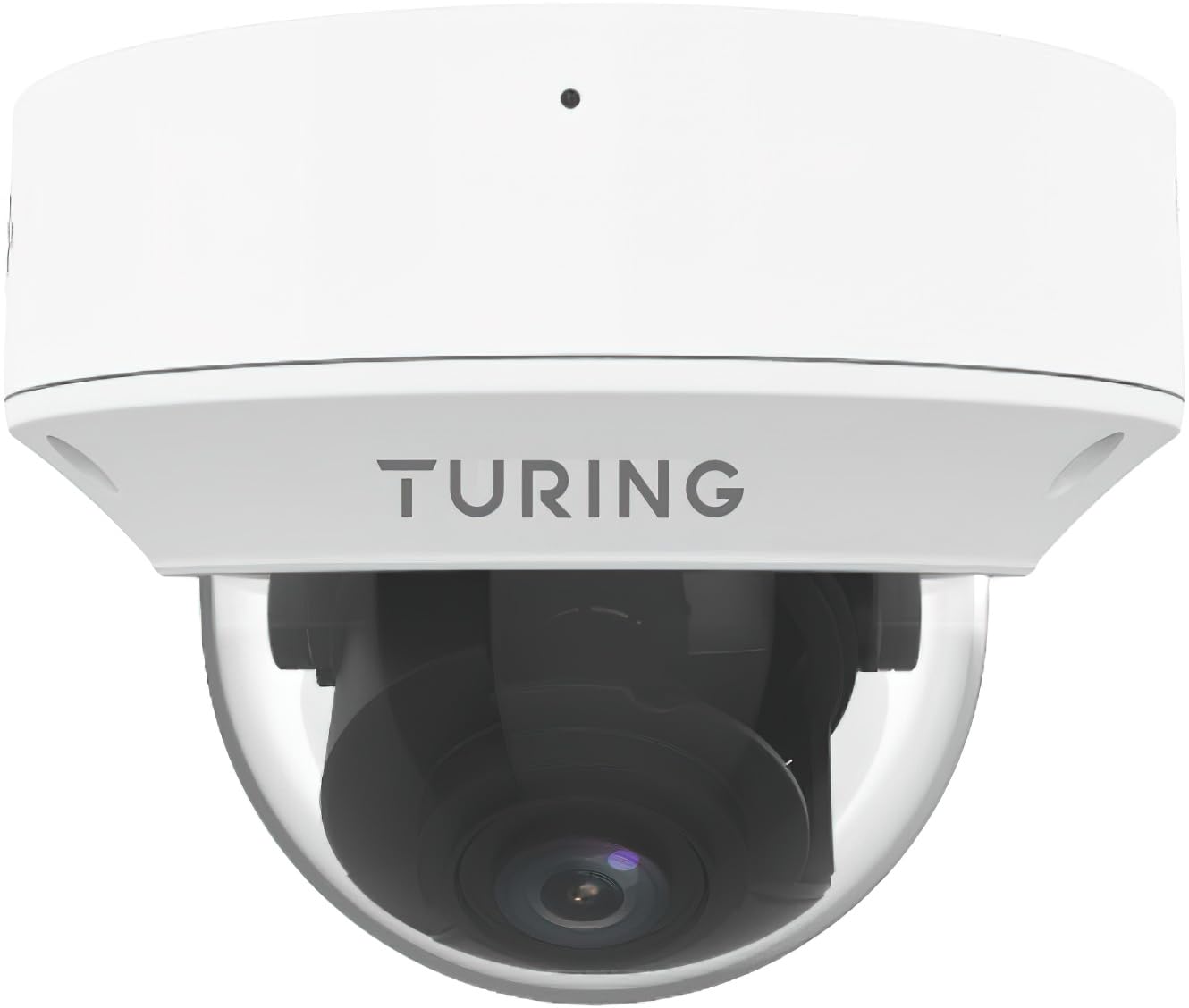
Figure 1: Front view of the Turing TP-MMD8MV2 Smart 8MP IR Zoom Dome IP Camera. This image shows the dome housing, lens, and IR illuminators.
Key Features:
- Max. 8MP (3840x2160) resolution at 20fps
- 2.8-12mm motorized varifocal lens with auto-focus
- Smart IR up to 40m (131ft)
- TwilightVision for optimal image clarity in low light
- IP67 weather-resistant and IK10 vandal-resistant housing
- Support for 256 GB microSD card for edge storage
- Built-in microphone
- PoE (IEEE 802.3af) and DC 12V power options
- People and Vehicle Search with SMART series NVR and Turing Vision Cloud
- Tampering Alert functionality
5. Setup
5.1 Physical Installation
- Choose a Location: Select a suitable indoor or outdoor location. The camera is designed for wall mount. Ensure the chosen area provides the desired field of view and is within network cable reach.
- Mounting: Use the provided drilling template to mark the screw holes on the mounting surface. Drill pilot holes and insert wall plugs if necessary. Secure the camera base using the supplied screws.
- Cable Management: Route the Ethernet cable and power cable (if not using PoE) through the designated cable entry points. Use the waterproof connector for the Ethernet cable to ensure environmental protection.
5.2 Power and Network Connection
- PoE Connection: Connect an Ethernet cable from a PoE-enabled switch or NVR to the camera's Ethernet port. The camera will receive both power and data through this single cable.
- DC 12V Connection: If PoE is not available, connect a DC 12V power adapter (not included) to the camera's power input port. Then, connect an Ethernet cable from your network to the camera's Ethernet port for data transmission.
- Wi-Fi (Wireless Technology): While the primary connectivity protocol is Ethernet, the camera supports Wi-Fi for wireless data transmission. Refer to the Turing Vision software for wireless setup instructions after initial wired connection.
5.3 Initial Configuration
After physical installation and power-up, the camera requires initial configuration using a compatible Network Video Recorder (NVR) or Turing Vision Cloud. The camera is compatible with Turing SMART NVR: TR-MR(P) models.
- Connect to NVR/Network: Ensure the camera is connected to the same network as your Turing SMART NVR or has internet access for Turing Vision Cloud integration.
- Discover Camera: Use the Turing Vision software or NVR interface to discover the camera on the network.
- Set IP Address: Assign a static or dynamic IP address to the camera.
- Change Default Password: For security, immediately change the default password for the camera.
- Lens Adjustment: Utilize the motorized lens feature through the software to adjust the zoom and focus (2.8-12mm) to achieve the desired field of view and image clarity.
6. Operating
6.1 Video Monitoring
- Resolution: The camera supports a maximum resolution of 8MP (3840x2160) at 20 frames per second (fps). It also supports 720p video capture.
- Video Compression: Utilizes Ultra 265, H.265, H.264, and MJPEG compression formats for efficient storage and streaming.
- Digital Noise Reduction: Features 2D and 3D DNR for cleaner images, especially in low-light conditions.
6.2 Motorized Lens and Zoom
The 2.8-12mm motorized varifocal lens allows for remote adjustment of the camera's focal length and zoom level. This optical zoom feature provides flexibility in monitoring different areas without physical access to the camera. Use the Turing Vision software to control the lens and achieve optimal focus (Auto Focus).
6.3 Smart IR and Night Vision
The camera is equipped with Smart IR technology, providing clear black-and-white images in complete darkness up to 40 meters (131 feet). The IR-cut filter with auto switch ensures seamless transition between day and night modes. TwilightVision technology enhances image clarity in low-light environments before IR activation.
6.4 Motion Detection and Alerts
Configure motion detection zones and sensitivity settings through the Turing Vision software. The camera can trigger alerts (Alert Type: Motion Only) upon detecting movement, notifying you of activity in monitored areas. Tampering alerts are also supported.
6.5 MicroSD Card Storage
The camera supports a microSD card up to 256 GB for edge storage. This allows for local recording, providing a backup or primary storage solution independent of an NVR. Insert the microSD card into the designated slot (typically under the dome cover) and format it via the camera's web interface or Turing Vision software.
6.6 Audio Features
A built-in microphone allows for audio capture alongside video. Audio compression uses G.711 at an 8 KHz sampling rate. Audio input impedance is 35kohms with an amplitude of 2Vp-p. Audio output impedance is 600ohms with an amplitude of 2Vp-p.
6.7 People and Vehicle Search
When integrated with a Turing SMART series NVR and Turing Vision Cloud, the camera supports advanced analytics such as People and Vehicle Search, enhancing surveillance efficiency and event retrieval.
7. Maintenance
7.1 Cleaning
- Regularly clean the camera's dome cover with a soft, lint-free cloth to remove dust, dirt, or smudges that may affect image quality.
- For stubborn marks, use a mild glass cleaner applied to the cloth, not directly to the camera.
- Ensure the camera is powered off before cleaning.
7.2 Firmware Updates
Periodically check the Turing website or your Turing Vision software for available firmware updates. Firmware updates can provide new features, performance improvements, and security enhancements. Follow the instructions provided with the firmware update package carefully.
7.3 Storage Management
If using a microSD card for storage, regularly review recorded footage and manage storage space. Configure recording settings (e.g., continuous, motion-triggered) to optimize card usage. The camera supports up to 256 GB microSD cards.
8. Troubleshooting
| Problem | Possible Cause | Solution |
|---|---|---|
| No image/video feed | No power; Network connection issue; Incorrect IP address | Check power supply (PoE or DC 12V). Verify Ethernet cable connection. Ensure camera is discoverable on the network and has a correct IP address. |
| Poor image quality | Dirty lens/dome; Incorrect focus/zoom; Low bandwidth | Clean the dome cover. Adjust motorized lens focus and zoom via software. Check network bandwidth. |
| Night vision not working | IR LEDs blocked; IR-cut filter stuck | Ensure no obstructions are blocking the IR LEDs. Restart the camera. Check settings for IR mode. |
| MicroSD card not recording | Card full; Card not formatted; Faulty card | Check card capacity. Format the microSD card through the camera interface. Try a different compatible microSD card. |
| Cannot connect to Wi-Fi | Incorrect Wi-Fi password; Out of range; Network interference | Verify Wi-Fi credentials. Move camera closer to the router or access point. Check for other wireless devices causing interference. |
9. Specifications
| Feature | Detail |
|---|---|
| Model Number | TP-MMD8MV2 |
| Sensor | 1/2.8-inch, 8.0 megapixel, progressive scan, CMOS |
| Lens | 2.8 - 12 mm; AF automatic focusing and motorized zoom lens |
| Angle of View (H/V/O) | H: 107.4 - 29.2 degrees; V: 54.2 - 16.3 degrees; O: 111.0 - 33.1 degrees |
| Minimum Illumination | Color: 0.003 Lux (F1.6, AGC on); 0 Lux with IR on |
| Video Resolution | Max. 8MP (3840x2160) at 20fps; also 720p |
| Video Compression | Ultra 265, H.265, H.264, MJPEG |
| Digital Noise Reduction | 2D and 3D DNR |
| Smart IR Range | Up to 40m (131ft) |
| Audio Compression | G.711 (8 KHz sampling rate) |
| Edge Storage | microSD, up to 256 GB |
| Connectivity | Ethernet (PoE IEEE 802.3af), Wi-Fi |
| Power Supply | DC 12V, PoE (IEEE 802.3af) |
| Power Consumption | Max 9W |
| Ingress Protection | IP67 (Waterproof Rating) |
| Vandal Resistance | IK10 |
| Dimensions (Diameter x H) | 5.8 x 4.4 inches |
| Weight | 2.14 pounds |
| Operating Environment | Indoor/Outdoor |
| Compatible NVR | Turing SMART NVR: TR-MR(P) models |
10. Warranty and Support
Turing products are designed for reliability and performance. For specific warranty terms and conditions, please refer to the warranty card included with your product or visit the official Turing website. If you encounter any issues or require technical assistance, please contact Turing customer support. Have your product model number (TP-MMD8MV2) and purchase information ready when contacting support.
Online Support: Visit the Turing support portal for FAQs, troubleshooting guides, and software downloads.
Contact Information: Refer to the Turing official website for the most up-to-date contact details for technical support.


