
FUWANG A2567/A2568/A2569
FUWANG Touchpad Keyboard Case User Manual
Model: A2567/A2568/A2569
Product Overview
The FUWANG Touchpad Keyboard Case is designed to enhance the functionality of your iPad Mini, transforming it into a versatile laptop-like device. It features a responsive keyboard with 7-color backlighting, a multi-touch trackpad, and a durable 360° rotatable case for multiple viewing angles. This manual provides detailed instructions for setup, operation, and maintenance.
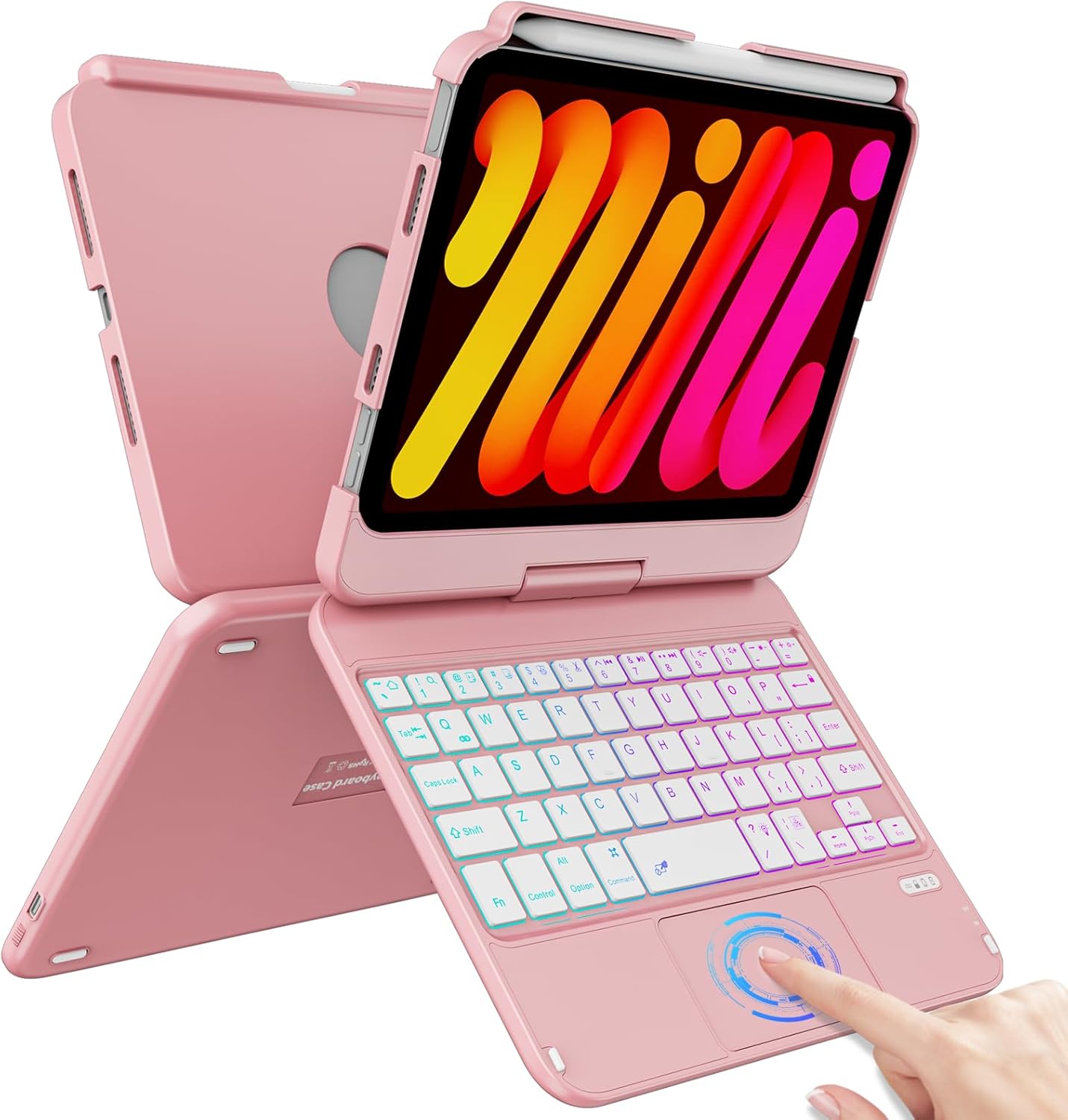
Image: The FUWANG Touchpad Keyboard Case in Rose Gold, shown with an iPad Mini inserted, highlighting its keyboard and trackpad features.
Compatibility
This keyboard case is specifically compatible with the following iPad Mini models:
- iPad Mini 7th Generation (A17 Pro) 2024 (Models: A2993, A2995, A2996)
- iPad Mini 6th Generation 2021 (Models: A2567, A2568, A2569)
Note: This case is not compatible with iPad Mini 5th Generation, iPad Mini 4th Generation, or any other iPad models.
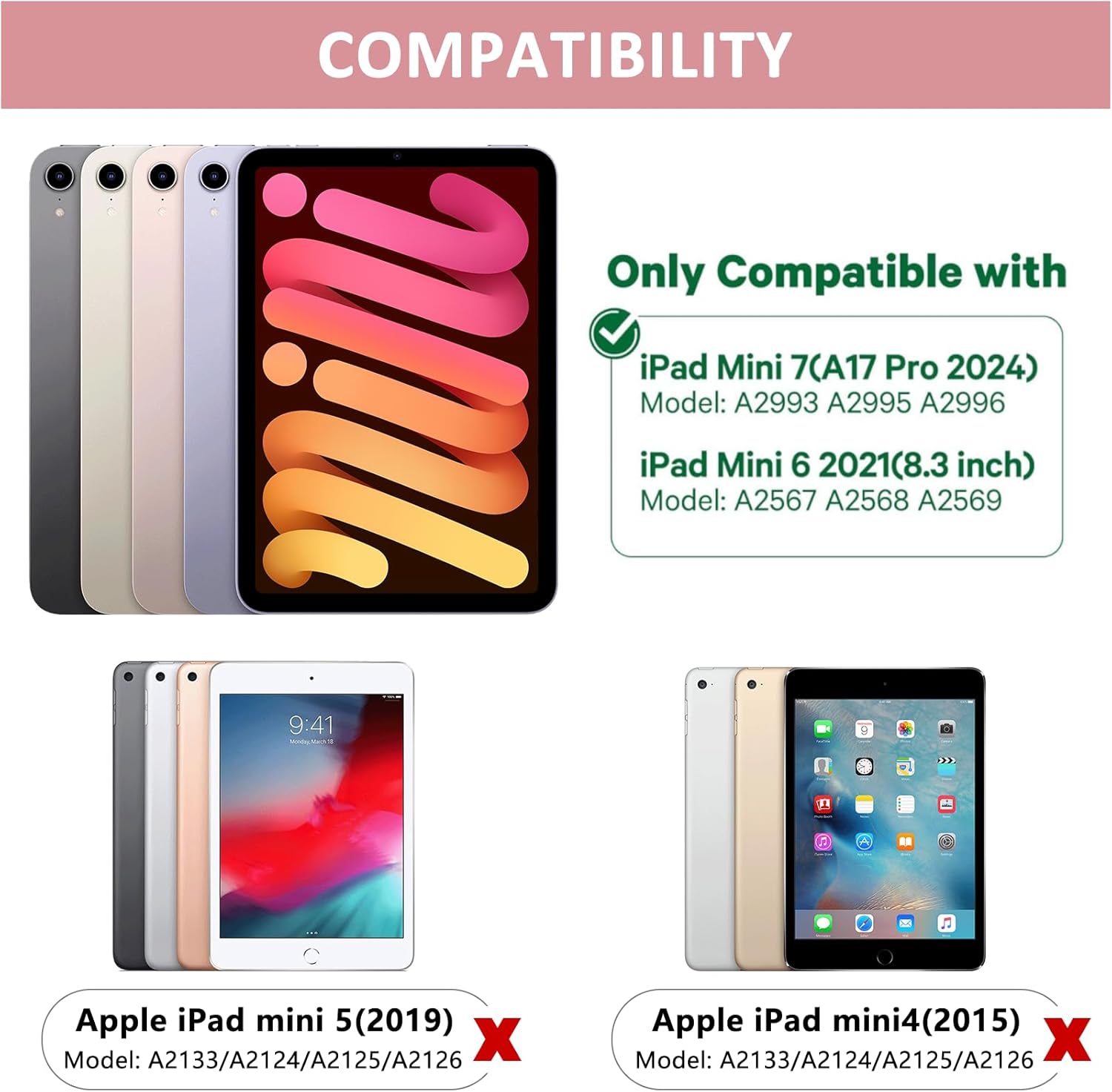
Image: A visual guide illustrating the compatible iPad Mini 7th and 6th generation models, and explicitly showing incompatibility with iPad Mini 5th and 4th generations.
Package Contents
Upon opening your package, please ensure all the following items are included:
- 1 x FUWANG Touchpad Keyboard Case for iPad Mini 7th/6th Generation
- 1 x Micro USB Charging Cable (Note: Power adapter not included)
- 1 x User Manual

Image: An illustration showing the protective box, the touchpad keyboard case, the USB charging cable, and the user guide included in the package.
Setup Guide
1. Charging the Keyboard
Before first use, fully charge the keyboard. Connect the provided Micro USB charging cable to the keyboard's charging port and a USB power source (e.g., computer USB port, USB wall adapter). The charging indicator light will illuminate during charging and turn off when fully charged.
- Charging Time: Approximately 2-3 hours
- Usable Time: Up to 100 hours of continuous use

Image: A close-up view of the keyboard case showing the Type-C fast charge port and a charging cable connected.
2. Inserting Your iPad
Carefully align your iPad Mini with the case's frame and gently press it into place until it is securely seated. Ensure all ports and buttons are accessible through the precise cutouts.

Image: A person demonstrating how to securely place the iPad Mini into the keyboard case.
3. Bluetooth Pairing
- Slide the power switch on the keyboard to the "ON" position.
- Press the "Pair" key (often indicated by a Bluetooth symbol) for 3 seconds. The Bluetooth indicator light will flash blue, indicating it's in pairing mode.
- On your iPad, go to Settings > Bluetooth and enable Bluetooth.
- Your iPad will automatically search for nearby devices. Select "Bluetooth Keyboard" (or similar name) from the list to connect.
- Once connected, the Bluetooth indicator light on the keyboard will turn off.

Image: A diagram illustrating the steps to connect the keyboard to an iPad via Bluetooth, including turning on the keyboard, pressing the pair key, and selecting the device on the iPad.
Operating Instructions
Keyboard Backlight Control
The keyboard features 7-color backlighting for enhanced visibility in various lighting conditions.
- Adjusting Monochrome Backlight: Press Fn + Lightbulb key to cycle through different single colors.
- Adjusting Backlight Brightness: Press Fn + PgUp (increase brightness) or Fn + PgDn (decrease brightness).
- Switching Keyboard Backlight Color: Press Fn + RGB key to change the backlight color.

Image: The keyboard displaying its 7-color backlit keys, illustrating the various color options available.
Trackpad Functions
The integrated multi-touch trackpad provides precise control and navigation, similar to a laptop.
- Enable/Disable Trackpad: Press Fn + Spacebar to toggle the trackpad on or off.
- Multi-touch Gestures: Supports standard iPadOS gestures such as slide up/down, zoom in/out, and switching apps.
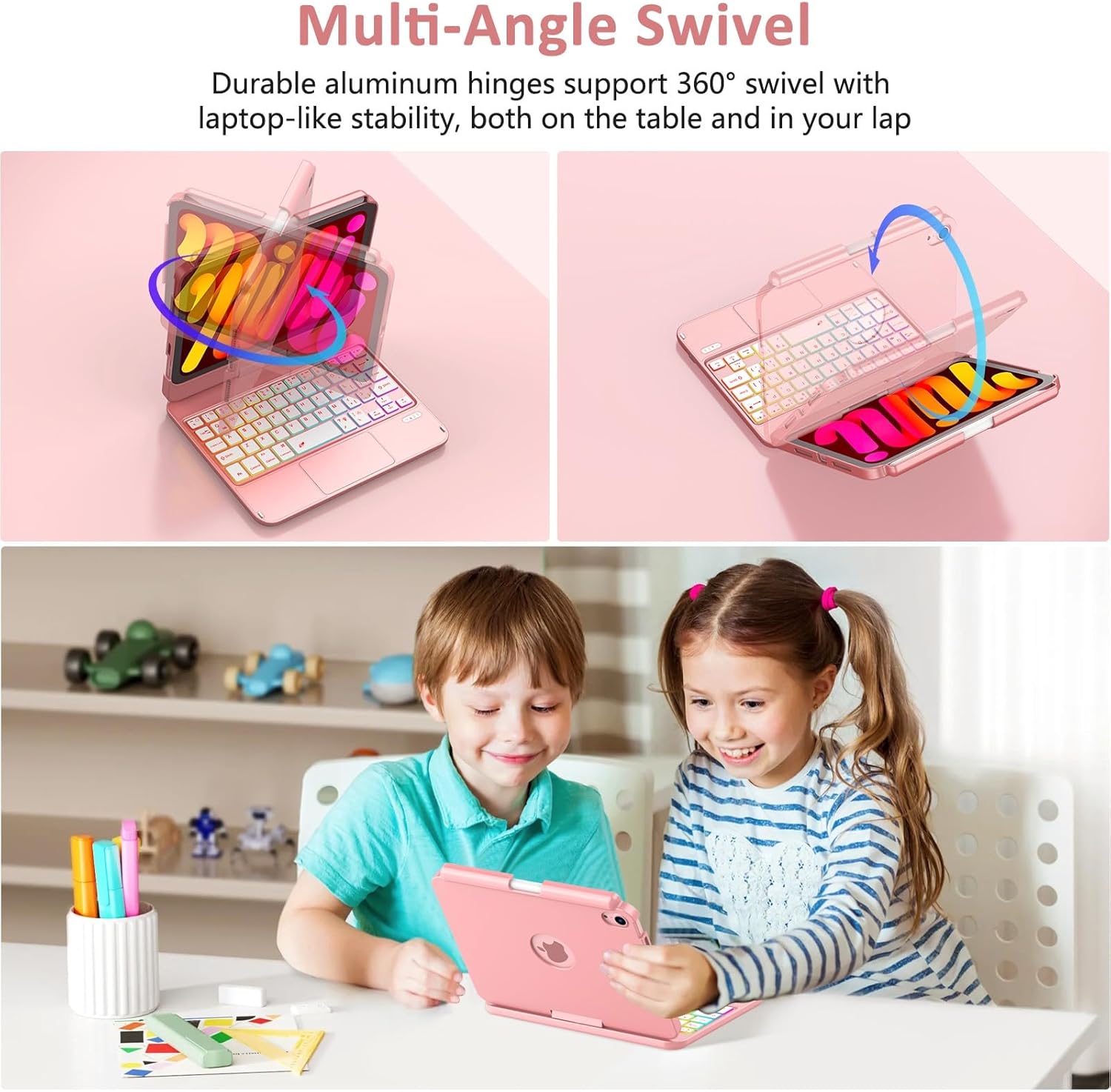
Image: A close-up of the multi-touch trackpad with visual cues for common gestures like slide up/down, zoom in/out, switching apps, and clicking.
360° Rotation and Multi-Angle Use
The case features a 360° high-precision adjustable shaft, allowing you to rotate and position your iPad at various angles for optimal viewing and typing comfort. It can be used in laptop mode, tablet mode, or tent mode.
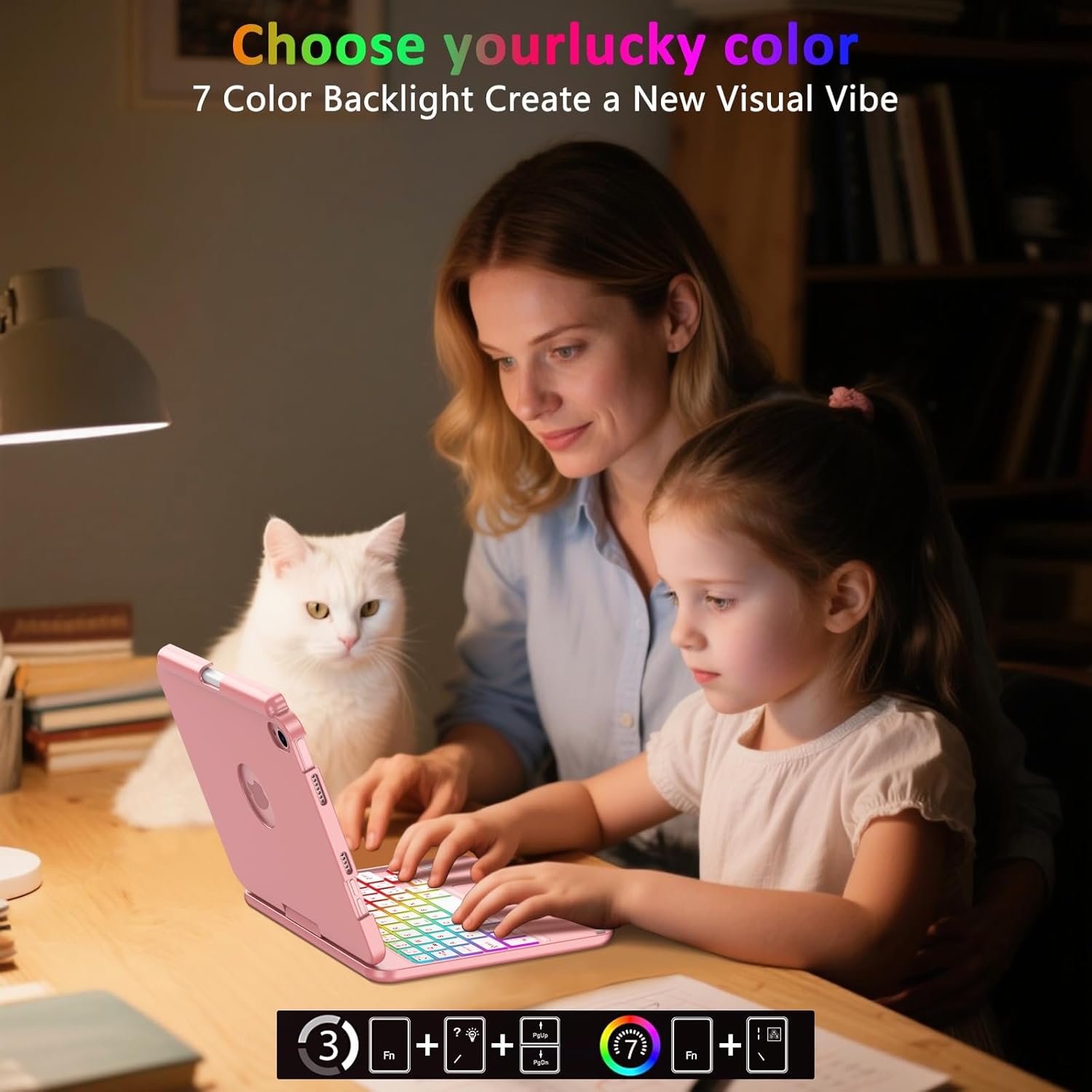
Image: Illustrations showing the keyboard case rotating 360 degrees and flipping 180 degrees, demonstrating its versatility for different viewing angles and modes.
Auto Sleep/Wake Feature
The keyboard cover includes an auto sleep/wake feature. Opening the case will automatically wake your iPad, and closing it will put your iPad to sleep, conserving battery life.

Image: A diagram illustrating the auto sleep/wake function, showing the iPad screen turning on when the case is opened and turning off when closed.
Pencil Holder
The case includes a dedicated pencil holder that supports magnetic attachment and wireless charging for your Apple Pencil (Pencil not included).
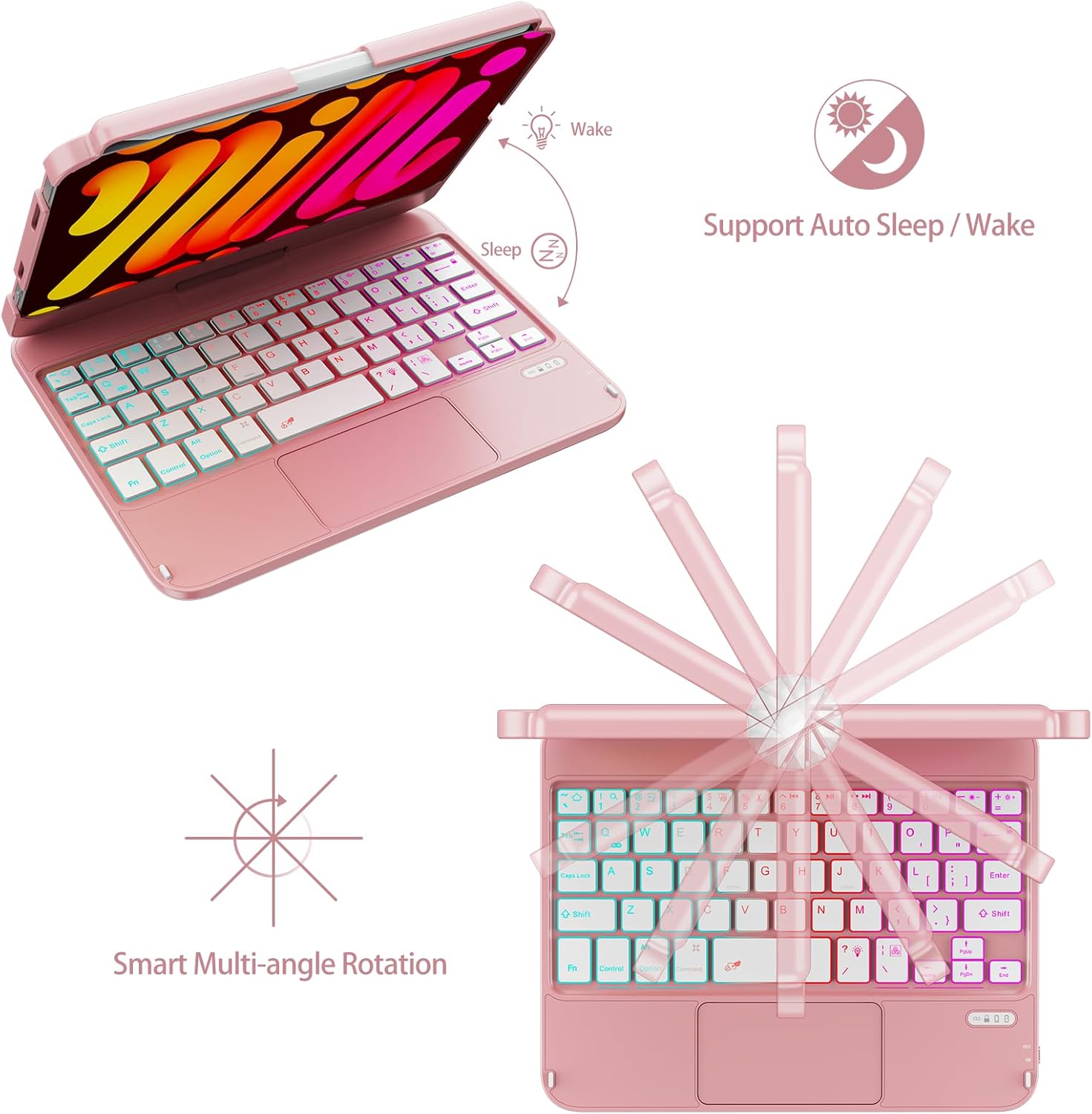
Image: A detailed view of the integrated pencil holder on the keyboard case, designed to securely hold and charge the Apple Pencil.
Maintenance
To ensure the longevity and optimal performance of your FUWANG Touchpad Keyboard Case, follow these maintenance guidelines:
- Cleaning: Use a soft, lint-free cloth slightly dampened with water to clean the exterior of the case and keyboard. Avoid harsh chemicals or abrasive cleaners.
- Storage: When not in use for extended periods, store the case in a cool, dry place. Ensure the keyboard is turned off to conserve battery.
- Protection: While the case offers robust protection, avoid dropping it or exposing it to extreme temperatures or direct sunlight.
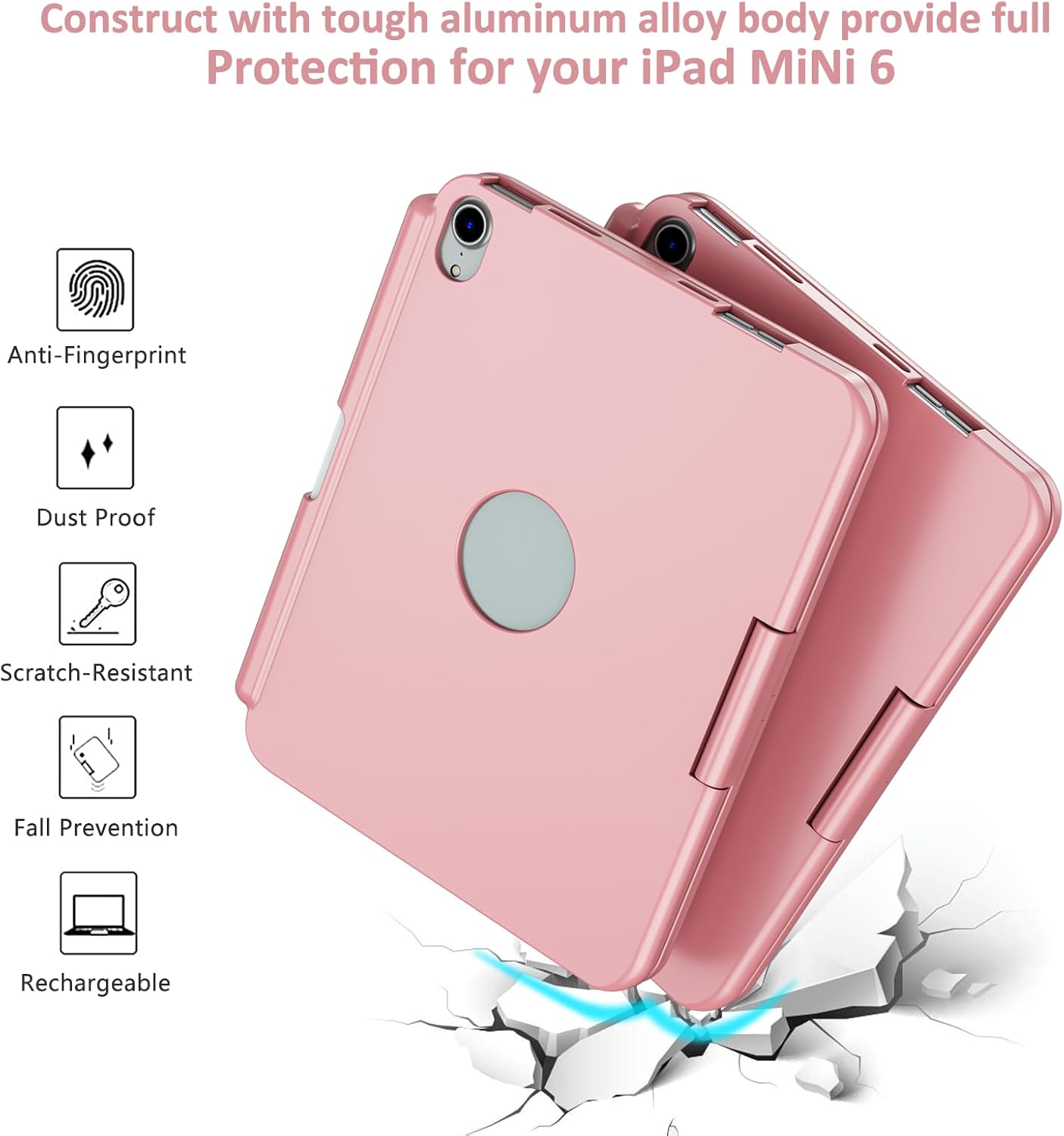
Image: A visual representation of the case's durable construction, highlighting features like anti-fingerprint, dust-proof, scratch-resistant, and fall prevention.
Troubleshooting
| Problem | Possible Cause | Solution |
|---|---|---|
| Keyboard not connecting via Bluetooth | Keyboard is off or low battery; Bluetooth not enabled on iPad; incorrect pairing procedure. | Ensure keyboard is charged and turned on. Enable Bluetooth on iPad. Re-attempt pairing by pressing the "Pair" button. Forget and re-pair the device on iPad. |
| Keys not responding | Low battery; connection issue; keyboard malfunction. | Charge the keyboard. Reconnect Bluetooth. Restart both iPad and keyboard. |
| Trackpad not working | Trackpad disabled; software glitch. | Press Fn + Spacebar to ensure trackpad is enabled. Restart iPad and keyboard. |
| Backlight not working or changing colors | Low battery; incorrect key combination. | Charge the keyboard. Ensure correct Fn key combinations are used for backlight control. |
Specifications
- Product Dimensions: 8.94 x 6.7 x 0.98 inches
- Item Weight: 0.65 ounces
- Model Number: A2567/A2568/A2569
- Batteries: 1 Lithium Ion battery (included)
- OS Compatibility: iPadOS
- Connectivity: Bluetooth
- Special Features: 360° Rotate/180° Flip, Backlit Keyboard, Integrated Stand, Smart Trackpad
- Color: Rose Gold
- Manufacturer: FUWANG
- Number of Keys: 78
- Keyboard Backlighting: RGB (7 colors)
Warranty and Support
FUWANG products are designed for durability and performance. For any issues or inquiries regarding your keyboard case, please refer to the following:
- User Guide (PDF): A digital version of this manual is available for download: Download PDF User Guide
- Manufacturer Support: For direct support, please contact FUWANG customer service through the retailer's platform or visit the official FUWANG store page on Amazon: FUWANG Store
- Warranty Information: Specific warranty details may vary by region and retailer. Please retain your purchase receipt for warranty claims.
Related documentsA2567/A2568/A2569

Ask a question about this manual
Ask about setup, troubleshooting, compatibility, parts, safety, or missing instructions. Manuals+ will review the question and use this page’s manual context to help answer it.