
1. Introduction
This manual provides detailed instructions for the installation, operation, and maintenance of your Turing TP-MMD4MV2 Smart Series TwilightVision 4MP IR Zoom Dome IP Camera. This advanced surveillance camera features a 2.7-13.5mm motorized varifocal lens, Smart IR illumination up to 40m (131ft), and TwilightVision technology for optimal image clarity in low-light conditions. It supports up to a 256GB MicroSD card for edge storage and is designed for outdoor use with IP67 weather resistance and IK10 vandal resistance. Please read this manual thoroughly before using the product to ensure proper setup and functionality.
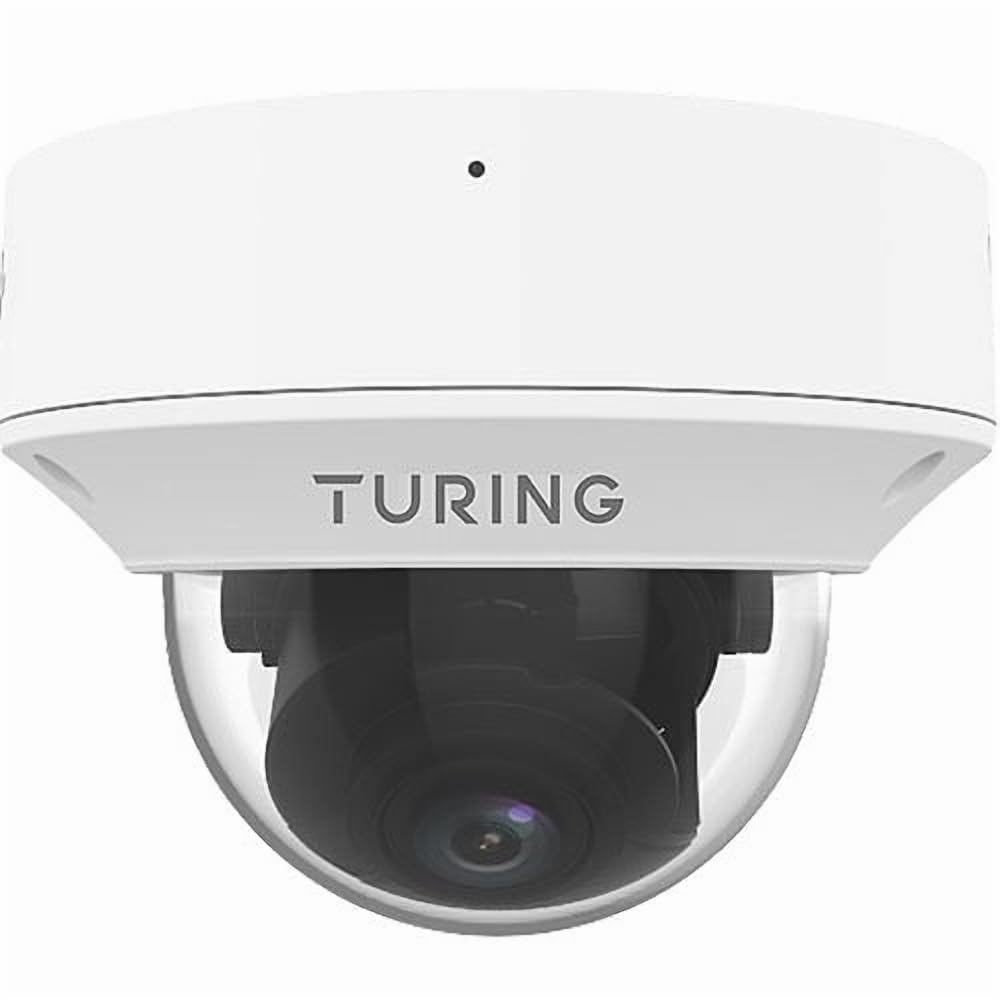
Figure 1: Turing TP-MMD4MV2 Smart Series TwilightVision 4MP IR Zoom Dome IP Camera. This image shows the white dome camera with its protective casing.
2. Safety Information
Please observe the following safety precautions to prevent injury or damage to the product:
- Electrical Safety: Ensure power supply meets the camera's requirements (DC 12V+/-25% or PoE IEEE 802.3af). Do not overload power outlets.
- Installation: Installation should be performed by qualified personnel. Mount the camera securely to prevent it from falling.
- Environment: Do not expose the camera to extreme temperatures, humidity, or corrosive environments beyond its specified operating conditions.
- Cleaning: Use a soft, dry cloth for cleaning. Do not use strong detergents or abrasive materials.
- Disassembly: Do not attempt to disassemble or modify the camera. This will void the warranty and may cause damage.
3. Package Contents
Verify that all items are present in your package:
- Turing TP-MMD4MV2 IP Dome Camera
- Mounting Screw Kit (screws, wall anchors)
- Waterproof Connector for Ethernet Cable
- Drill Template
- Quick Start Guide / User Manual (this document)
Note: A MicroSD card and DC 12V power adapter are not included and must be purchased separately if not using Power over Ethernet (PoE).
4. Product Overview
The TP-MMD4MV2 camera is designed for robust outdoor surveillance, offering high-resolution imaging and intelligent features.
4.1 Key Features
- 4 Megapixel Resolution: Captures video at 2688x1520 pixels at 30/25fps.
- Motorized Varifocal Lens: 2.7-13.5mm lens with auto-focus for flexible viewing angles.
- TwilightVision Technology: Enhances image clarity in extremely low-light conditions (down to 0.002 Lux).
- Smart IR: Infrared illumination up to 40 meters (131 feet) for clear night vision.
- People and Vehicle Search: Advanced analytics when used with Turing SMART series NVRs and Turing Vision Cloud.
- Built-in Microphone: For audio monitoring.
- Edge Storage: Supports up to 256GB MicroSD card (not included).
- Durable Design: IP67 weather-rated and IK10 vandal-resistant.
- Power Options: Supports Power over Ethernet (PoE) and DC 12V.
4.2 Camera Components
The camera consists of the main dome unit, a mounting base, and various ports. While a specific diagram is not provided, typical components include:
- Dome Cover: Protective, vandal-resistant casing.
- Camera Module: Contains the lens, image sensor, and IR LEDs.
- Ethernet Port (RJ45): For network connection and PoE.
- DC Power Input: For optional 12V DC power supply.
- Reset Button: To restore factory default settings.
- MicroSD Card Slot: Located internally, accessible by removing the dome cover.
Figure 2: Illustrative diagram of camera components (image not available). This diagram would typically show the external parts of the dome camera, including the lens, IR LEDs, and the location of the cable connections and reset button.
5. Setup and Installation
Follow these steps for proper installation of your camera.
5.1 Mounting the Camera
- Choose a Location: Select a suitable outdoor location for wall mounting, ensuring a clear field of view and within range of your network cable. The camera is IP67 and IK10 rated for outdoor use.
- Prepare the Surface: Use the provided drill template to mark the screw holes on the mounting surface. Drill pilot holes as indicated.
- Secure the Base: Attach the camera's mounting base to the surface using the supplied screws and wall anchors.
- Cable Management: Route the Ethernet cable through the mounting base or side cable entry point. Use the waterproof connector for outdoor installations to protect the RJ45 connection.
Figure 3: Illustrative diagram of camera mounting (image not available). This diagram would show the steps for securing the camera base to a wall or ceiling, including drilling and cable routing.
5.2 Powering the Camera
The camera can be powered in two ways:
- Power over Ethernet (PoE): Connect an Ethernet cable from a PoE-enabled switch or NVR to the camera's RJ45 port. This provides both power and data.
- DC 12V Power Adapter: If PoE is not available, connect a 12V DC power adapter (not included) to the camera's DC power input. Then, connect an Ethernet cable for data transmission.
5.3 Network Connection
Connect the camera to your network via an Ethernet cable. The camera supports Ethernet connectivity. While 'Wireless Communication Technology: Wi-Fi' is listed in some specifications, the primary and most robust connection method for this model is wired Ethernet, especially for PoE. For initial setup, a wired connection is recommended.
5.4 MicroSD Card Installation
To install a MicroSD card for local storage (up to 256GB):
- Power Off: Disconnect power from the camera before proceeding.
- Remove Dome Cover: Carefully twist and remove the outer dome cover to access the internal components.
- Insert MicroSD Card: Locate the MicroSD card slot and gently insert the card until it clicks into place.
- Replace Dome Cover: Reattach the dome cover, ensuring it is securely sealed to maintain weather resistance.
Figure 4: Illustrative diagram of MicroSD card slot location (image not available). This diagram would show the internal view of the camera with the dome cover removed, highlighting the MicroSD card slot.
6. Operating the Camera
Once installed and powered, the camera can be accessed and configured.
6.1 Initial Access and Configuration
The camera is designed to integrate with Turing SMART NVRs (TR-MR(P) models) and the Turing Vision Cloud for full functionality, including People and Vehicle Search. Refer to your NVR's manual or Turing Vision Cloud documentation for specific integration steps.
- Network Discovery: Use Turing's network discovery tool to find the camera's IP address on your network.
- Web Interface: Access the camera's web interface via a web browser using its IP address. Log in with default credentials (refer to the Quick Start Guide for defaults).
- Change Password: For security, immediately change the default password upon first login.
- Network Settings: Configure IP address, subnet mask, and gateway if necessary.
6.2 Adjusting the Motorized Lens
The 2.7-13.5mm motorized varifocal lens allows you to remotely adjust the zoom and focus:
- Access the camera's live view through the NVR interface or web browser.
- Locate the zoom and focus controls.
- Adjust the zoom to achieve the desired field of view. The camera will automatically adjust focus (AF).
6.3 Smart IR and TwilightVision
The camera automatically switches between day and night modes. Smart IR adjusts the intensity of the infrared LEDs to prevent overexposure of close-up objects, ensuring balanced illumination up to 40m (131ft). TwilightVision technology provides enhanced color images in extremely low-light conditions before switching to IR mode.
6.4 Recording and Storage
- NVR Recording: Configure recording schedules and motion detection settings on your Turing SMART NVR.
- MicroSD Card Recording: If a MicroSD card is installed, configure event-triggered or continuous recording via the camera's web interface.
- Video Encoding: The camera supports Ultra 265, H.265, H.264, and MJPEG video encoding formats.
6.5 Audio Monitoring
The built-in microphone captures audio. Ensure audio recording is enabled in the camera's settings if desired. Audio compression uses G.711.
7. Maintenance
Regular maintenance ensures optimal performance and longevity of your camera.
- Cleaning: Periodically clean the dome cover with a soft, damp cloth to remove dust, dirt, or water spots that may affect image quality. Do not use harsh chemicals.
- Firmware Updates: Check the Turing website for the latest firmware updates. Regularly updating firmware can improve performance, add features, and enhance security. Follow the provided instructions carefully during updates.
- Cable Inspection: Periodically inspect all cables and connections for wear, damage, or corrosion, especially for outdoor installations.
- Environmental Checks: Ensure the camera's environment remains within its operating temperature and humidity ranges.
8. Troubleshooting
Refer to the following table for common issues and their solutions.
| Problem | Possible Cause | Solution |
|---|---|---|
| No power to camera | Incorrect power supply; PoE not active; loose connection | Verify 12V DC power or PoE source. Check all cable connections. |
| No video feed | Network issue; incorrect IP address; camera not configured | Check network cable. Ensure camera is powered. Verify IP address and network settings. Restart camera. |
| Poor image quality | Dirty lens/dome; improper focus; low light conditions | Clean the dome cover. Adjust focus via the motorized lens controls. Ensure sufficient lighting or proper IR operation. |
| Cannot access camera via network | IP address conflict; firewall blocking; incorrect network settings | Use network discovery tool. Check network configuration. Temporarily disable firewall for testing. Reset camera to factory defaults if necessary. |
| MicroSD card not recording | Card full; card not formatted; recording schedule not set | Check card status in settings. Format card if needed. Configure recording schedule. Ensure card is properly inserted. |
9. Specifications
Detailed technical specifications for the Turing TP-MMD4MV2 camera:
| Feature | Specification |
|---|---|
| Model Number | TP-MMD4MV2 |
| Image Sensor | 1/3-inch, 4.0 megapixel, progressive scan, CMOS |
| Max. Resolution | 4MP (2688x1520) at 30/25fps |
| Lens | 2.7-13.5mm motorized varifocal, AF automatic focusing |
| Angle of View | H: 98.26 - 31.35 degrees; V: 54.76 - 18.55 degrees; D: 127.74 - 36.99 degrees |
| Minimum Illumination | Color: 0.002 Lux (F1.2, AGC on); 0 Lux with IR on |
| IR Range | Smart IR up to 40m (131ft) |
| Video Compression | Ultra 265, H.265, H.264, MJPEG |
| Audio Compression | G.711 |
| Digital Noise Reduction | 2D and 3D DNR |
| Edge Storage | MicroSD card, up to 256 GB (not included) |
| Power Supply | DC 12V+/-25%, PoE (IEEE 802.3af) |
| Power Consumption | Max 7.0W |
| Ingress Protection | IP67 |
| Vandal Resistance | IK10 |
| Dimensions (D x H) | 5.88 x 4.4 inches (149.35 x 111.76 mm) |
| Weight | 2.03 lbs (0.92 kg) |
| Operating Temperature | Refer to manufacturer's official specifications for exact range |
| Connectivity Protocol | Ethernet |
| Supported NVR | Turing SMART NVR: TR-MR(P) models |
10. Warranty Information
Turing products are covered by a limited warranty. For specific warranty terms, conditions, and duration, please refer to the official Turing website or the warranty card included with your product. Keep your proof of purchase for warranty claims.
11. Customer Support
If you encounter any issues or have questions not covered in this manual, please contact Turing customer support:
- Website: Visit the official Turing website for FAQs, support resources, and contact information.
- Technical Support: Contact details for technical assistance can typically be found on the manufacturer's website or in your product's packaging.
12. Product Videos
No official product videos from the seller were provided in the product data for embedding in this manual.


