
1. Introduction
The AutoSky Wireless CarPlay Adapter converts your vehicle's factory-wired Apple CarPlay system into a wireless connection, allowing you to enjoy all CarPlay features without needing to plug in your iPhone. This manual provides detailed instructions for installation, operation, and troubleshooting to ensure a smooth and convenient user experience.
2. What's in the Box
- AutoSky Wireless CarPlay Adapter - Dongle Edition
- User Manual
- USB-A Female to USB-C Male Adapter
- Warranty Card
3. Product Overview
The AutoSky Wireless CarPlay Adapter is a compact device designed to provide a seamless wireless CarPlay experience. It features a USB-A connector for easy integration with your car's existing wired CarPlay port. The adapter is engineered for optimal connectivity and includes vents to prevent overheating, ensuring reliable performance.
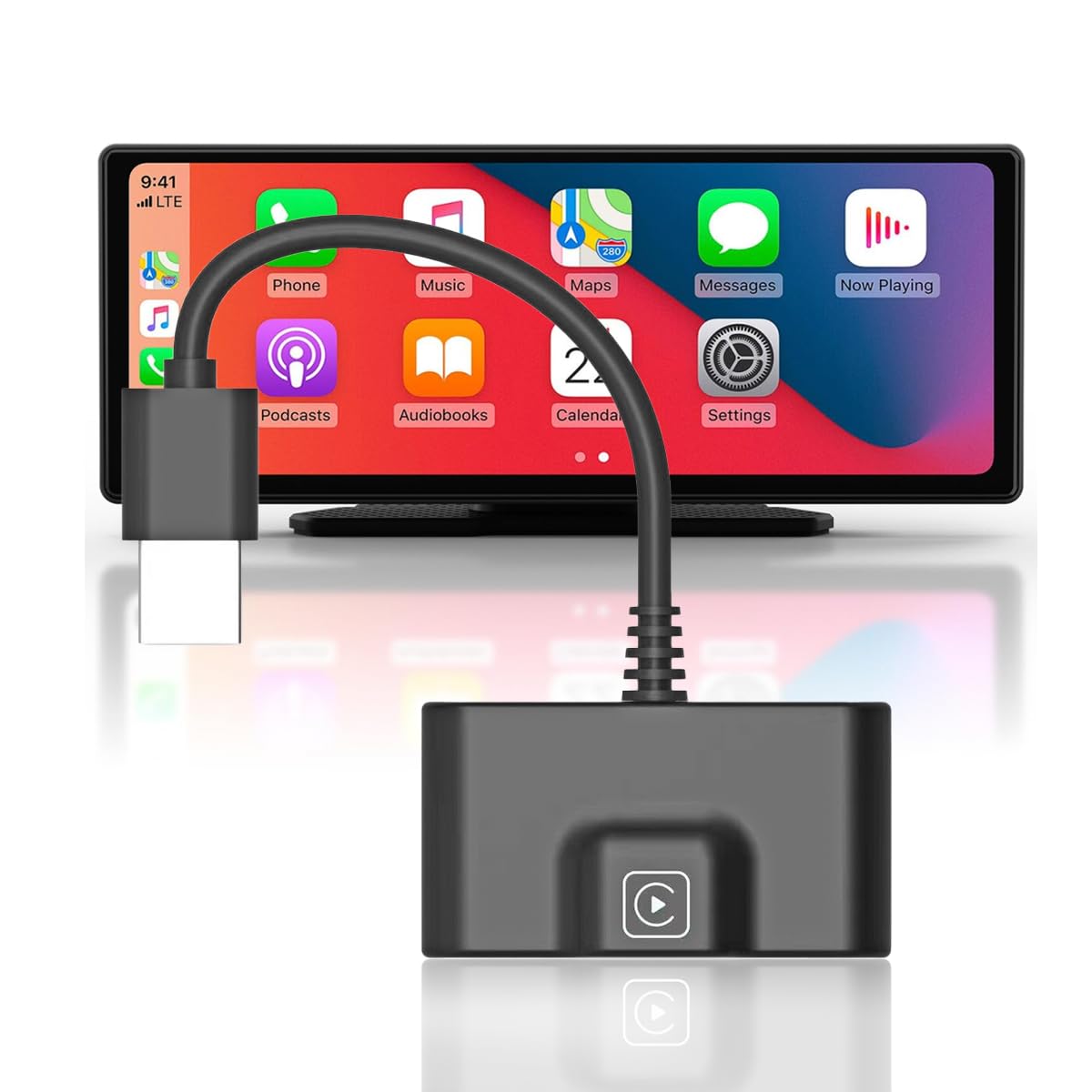
Image: The AutoSky Wireless CarPlay Adapter, a compact black dongle with a short USB cable.
4. Setup Instructions
Follow these steps to set up your AutoSky Wireless CarPlay Adapter:
- Connect the Adapter: Plug the AutoSky Wireless CarPlay Adapter into your vehicle's USB-A port that supports wired Apple CarPlay. If your vehicle has a USB-C port, use the included USB-A Female to USB-C Male Adapter.
- Vehicle System Recognition: Your car's infotainment system should recognize the adapter and display a CarPlay icon or prompt.
- Pair with iPhone via Bluetooth:
- On your iPhone, go to Settings > Bluetooth.
- Look for a Bluetooth device named "CarPlayBox-XXXX" (where XXXX is a unique identifier) and tap to connect.
- Confirm the pairing request on both your iPhone and the car's display.
- When prompted, select "Use CarPlay" on your iPhone.
- Automatic Connection: After the initial pairing, the adapter will automatically connect to your iPhone when you start your car, provided Bluetooth and Wi-Fi are enabled on your phone.

Image: A hand connecting the AutoSky Wireless CarPlay Adapter to a car's USB port, with a smartphone displaying the CarPlay logo nearby.
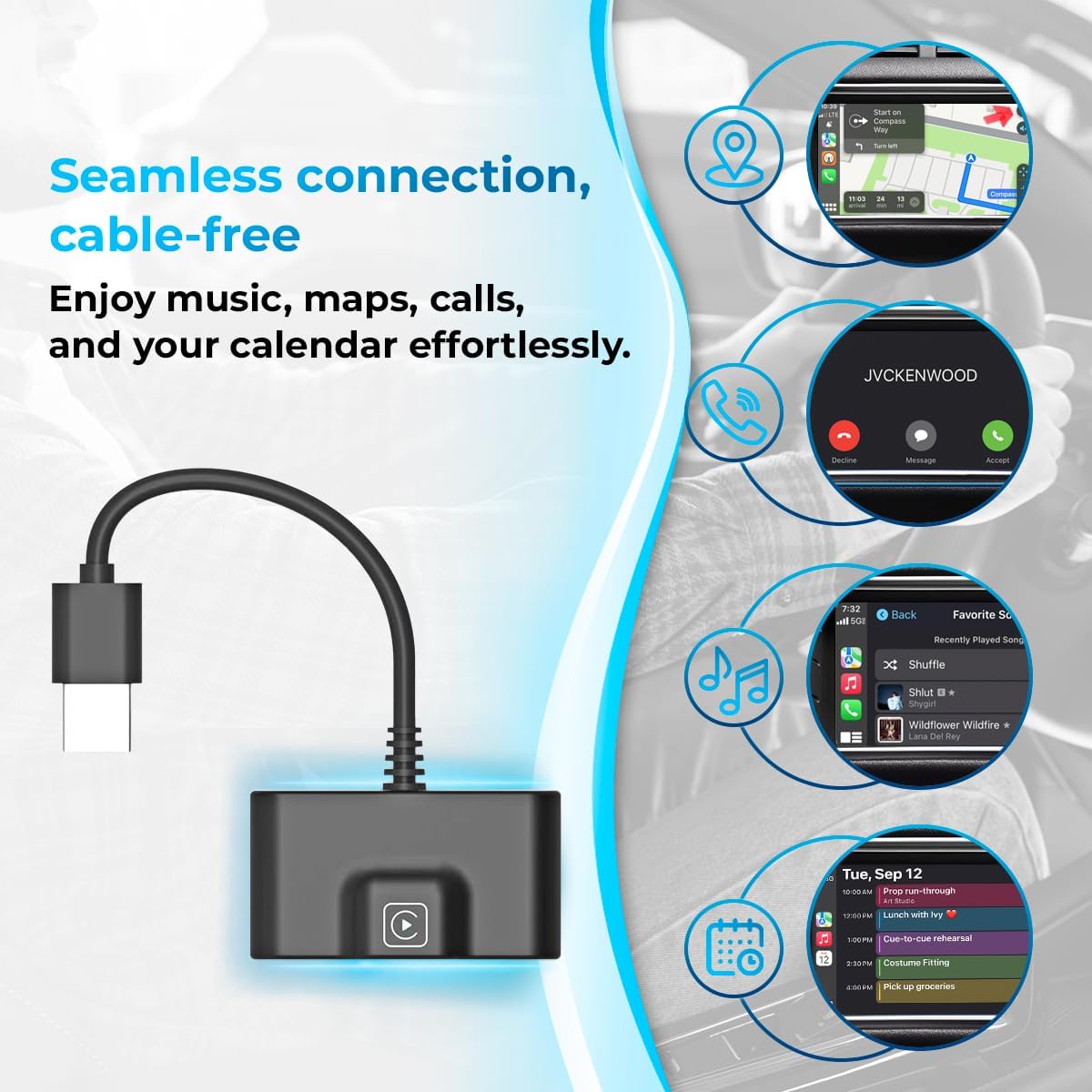
Image: A car's infotainment screen displaying the CarPlay interface with various app icons, indicating a successful connection.
Video: A demonstration of connecting the AutoSky Wireless CarPlay Adapter and pairing it with an iPhone to activate wireless CarPlay on a car's infotainment system.
5. Operating Instructions
Once connected, your wireless CarPlay experience will be similar to wired CarPlay. You can interact with the system using your car's touchscreen, steering wheel controls, or voice commands via Siri.
5.1 Accessing Apps
All your compatible CarPlay apps, including Navigation (Maps), Music, Phone, Messages, and more, will be displayed on your car's screen. Tap on an app icon to open it.

Image: A car's infotainment screen displaying the CarPlay home screen with icons for Phone, Music, Maps, Messages, and other applications.
5.2 Music Playback
Stream music wirelessly from your favorite apps like Spotify or Apple Music directly to your car's sound system. Use the car's controls or Siri to manage playback.

Image: A car's infotainment screen showing the music playback interface within CarPlay, displaying album art and playback controls.
5.3 Voice Control (Siri)
Activate Siri by pressing and holding the voice command button on your steering wheel or by saying "Hey Siri" (if enabled on your iPhone). Use Siri for navigation, making calls, sending messages, and controlling music, all hands-free.

Image: A car's dashboard showing the CarPlay screen with a Siri voice bubble, indicating active voice control for navigation or communication.
6. Compatibility
The AutoSky Wireless CarPlay Adapter is designed for broad compatibility with vehicles that have factory-installed wired Apple CarPlay. It requires an iPhone running iOS 12 or newer.
6.1 Vehicle Compatibility
This adapter works with most cars equipped with wired CarPlay from model year 2016 or newer. Compatibility may vary by specific vehicle model and year. Ensure your car supports wired CarPlay before purchasing.

Image: A parking lot with various car models, illustrating the wide compatibility of the adapter with different vehicles.
6.2 iPhone Compatibility
The adapter is compatible with iPhones running iOS 12 or a newer version.

Image: The AutoSky Wireless CarPlay Adapter shown alongside a USB-C converter and several iPhone models, highlighting its compatibility.
7. Troubleshooting
If you encounter issues with your AutoSky Wireless CarPlay Adapter, refer to the following table for common problems and solutions:
| Problem | Possible Cause | Solution |
|---|---|---|
| Adapter not recognized by car | Incorrect USB port, loose connection, car's CarPlay not active. | Ensure the adapter is plugged into the correct USB port that supports wired CarPlay. Check for a secure connection. Verify your car's CarPlay system is enabled. |
| iPhone not connecting wirelessly | Bluetooth/Wi-Fi off, incorrect pairing, iPhone iOS version. | Ensure Bluetooth and Wi-Fi are enabled on your iPhone. Forget previous Bluetooth connections to the adapter and re-pair. Confirm your iPhone runs iOS 12 or newer. |
| Intermittent connection or lag | Interference, outdated firmware, phone issues. | Minimize other wireless devices near the adapter. Check for firmware updates for the adapter (refer to AutoSky support). Restart your iPhone and car's infotainment system. |
| No audio or distorted audio | Volume settings, Bluetooth audio issues. | Adjust volume on both your car and iPhone. Ensure no other Bluetooth audio devices are connected to your iPhone. |
8. Specifications
| Feature | Detail |
|---|---|
| Product Dimensions | 4 x 2.3 x 1 inches |
| Item Weight | 2.08 ounces |
| Model Number | I4-F0M2-9MFR |
| Compatible Devices | iPhone (iOS 12 or newer) |
| Connector Type | USB Type A |
| Color | Black |
| Manufacturer | Promaster Electronic LLC |
9. Maintenance
To ensure the longevity and optimal performance of your AutoSky Wireless CarPlay Adapter, follow these simple maintenance guidelines:
- Cleaning: Use a soft, dry cloth to wipe the adapter. Avoid using liquid cleaners or solvents, as they may damage the device.
- Storage: When not in use for extended periods, store the adapter in a cool, dry place away from direct sunlight and extreme temperatures.
- Handling: Handle the adapter with care. Avoid dropping it or subjecting it to strong impacts.
- Connectivity: Ensure the USB port in your vehicle is clean and free of debris to maintain a stable connection.
10. Warranty and Support
The AutoSky Wireless CarPlay Adapter comes with a standard manufacturer's warranty. Please refer to the included Warranty Card for specific terms and conditions. For technical support, troubleshooting assistance, or warranty claims, please contact AutoSky customer service through the contact information provided on the Warranty Card or visit the official AutoSky website.
Keep your purchase receipt as proof of purchase for warranty purposes.


