
1. Introduction
The MOTU Digital Performer 11 (DP11) is a professional audio workstation software designed for comprehensive music and audio production, as well as live performance. This manual provides essential information for installing, operating, and maintaining your DP11 software, ensuring you can effectively utilize its extensive features for your creative projects.

Figure 1.1: MOTU Digital Performer 11 software box alongside a screenshot of its main user interface, displaying various tracks and editing elements.
2. Setup
2.1. System Requirements
To ensure optimal performance, verify your system meets the following general requirements:
- Operating System: Compatible with macOS and Windows operating systems. Refer to the official MOTU website for specific version compatibility.
- Processor: Multi-core Intel or Apple Silicon processor (for Mac), or multi-core Intel/AMD processor (for Windows).
- RAM: Minimum 4 GB RAM; 8 GB or more recommended for demanding projects.
- Storage: At least 10 GB of free disk space for installation, plus additional space for project files and sound libraries.
- Internet Connection: Required for software activation, updates, and online resources.
2.2. Installation Process
Follow these steps to install Digital Performer 11 on your computer:
- Download/Insert Media: If you purchased a digital version, download the installer from the MOTU website. If you have a boxed version, insert the installation media.
- Run Installer: Locate and double-click the installer file. Follow the on-screen prompts.
- Accept License Agreement: Read and accept the software license agreement to proceed.
- Select Installation Location: Choose the desired installation directory. The default location is usually recommended.
- Complete Installation: Allow the installer to complete the process. This may take several minutes.
- Software Activation: Upon first launch, you will be prompted to activate the software using your provided serial number or MOTU account credentials. An active internet connection is required for activation.
3. Operation
3.1. Core Features Overview
Digital Performer 11 offers a robust set of tools for audio production and live performance. Key capabilities include:
- Unlimited Tracks: Create an unlimited number of sequences, songs, V-racks, tracks, and audio voices.
- Customizable Interface: The user interface is highly customizable to suit individual workflows and preferences.
- Comprehensive Undo History: Extensive undo history allows for flexible experimentation and revision.
3.2. MIDI and Audio Editing
DP11 provides advanced tools for editing both MIDI and audio data with precision.

Figure 3.1: The main Digital Performer 11 interface displaying a complex arrangement of MIDI and audio tracks, with various editing windows open.
The software features dedicated editors for detailed manipulation of musical notes, velocities, and timing for MIDI, and waveform editing, time stretching, and pitch correction for audio.

Figure 3.2: A detailed view of the Nanosampler's waveform editor within Digital Performer 11, showing controls for sample manipulation, stretching, and looping.
3.3. Live Performance with Clips Window
The Clips window is designed for intuitive live performance and real-time arrangement.

Figure 3.3: The Clips window in Digital Performer 11, showing a grid of audio and MIDI clips ready for real-time triggering and arrangement, alongside a MIDI controller interface.
Users can trigger and arrange audio and MIDI clips in real-time, making it suitable for improvisational performances and dynamic song construction.
3.4. Recording, Takes, and Comping
DP11 supports advanced recording workflows, including:
- Takes: Record multiple passes of a performance without stopping.
- Comping: Combine the best sections from multiple takes to create a perfect composite performance.
- Loop-Recording: Continuously record over a looped section, capturing every pass.
3.5. Mixing and Processing
The software includes state-of-the-art mixing and processing capabilities.

Figure 3.4: A detailed view of the Digital Performer 11 mixer, showing multiple channels with faders, pan controls, and various effects inserts.
DP11 features a comprehensive mixer with flexible routing, automation, and a wide array of built-in effects and virtual instruments.
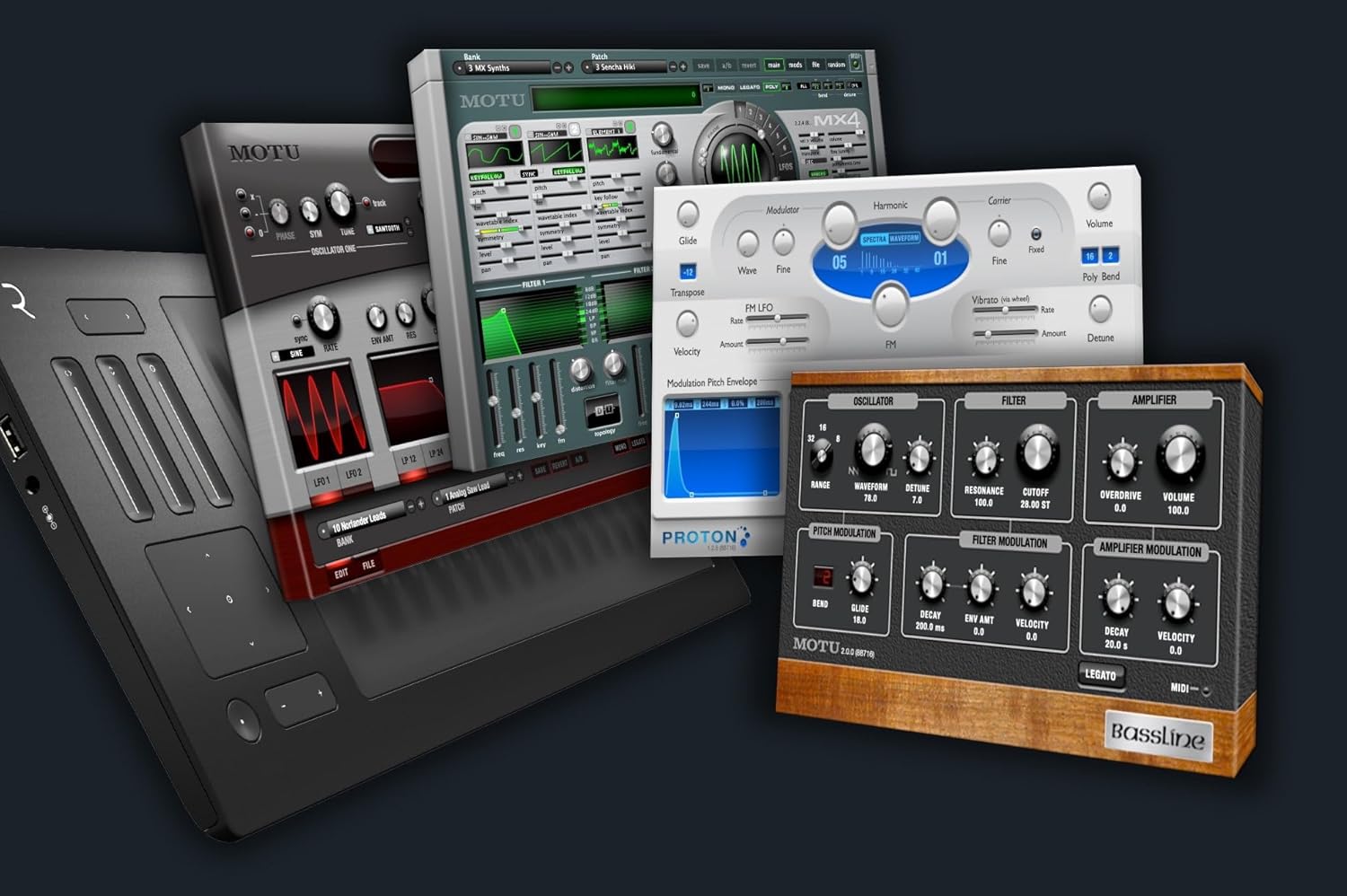
Figure 3.5: A collage of various plugin interfaces available in Digital Performer 11, including synthesizers, effects, and other processing tools.

Figure 3.6: A collection of virtual instrument interfaces within Digital Performer 11, showcasing different synthesizers and sound modules.
3.6. Advanced Video/Film Scoring
Digital Performer 11 includes features specifically tailored for scoring to picture, offering precise synchronization and workflow tools for film, television, and game audio.
3.7. Music Notation
DP11 provides elegant music notation entry, editing, and printing capabilities, with support for MusicXML exporting.

Figure 3.7: A printed music notation sheet generated from Digital Performer 11, displaying musical scores with various instruments and dynamics.
The Articulation Map Setup allows for detailed control over instrument articulations and performance nuances.

Figure 3.8: The Articulation Map Setup window in Digital Performer 11, showing options for defining and assigning various musical articulations to tracks.
3.8. Chunks Window and Set Lists
The Chunks window provides a powerful way to organize and manage different sections of your project, including songs, sequences, and V-racks. Set Lists allow for flexible arrangement and playback of these chunks.

Figure 3.9: The Chunks window in Digital Performer 11, illustrating how different project sections (chunks) are organized into folders and set lists, with color-coding for visual identification.
4. Maintenance
4.1. Software Updates
Regularly check for and install software updates to ensure you have the latest features, bug fixes, and performance enhancements. Updates are typically available through the MOTU website or via an in-application update mechanism.
4.2. Backup Procedures
It is crucial to regularly back up your project files and any custom settings or templates. Consider using cloud storage or external hard drives for secure backups. This prevents data loss due to hardware failure or accidental deletion.
5. Troubleshooting
This section addresses common issues you might encounter with Digital Performer 11.
- No Audio Output:
- Verify your audio interface is correctly connected and powered on.
- Check DP11's audio hardware settings (Setup > Configure Audio System > Configure Hardware) to ensure the correct device is selected.
- Ensure track outputs are routed to the master output and the master fader is not muted or at zero.
- Software Crashes/Freezes:
- Ensure your operating system and DP11 are up to date.
- Check for incompatible or outdated plugins. Try disabling third-party plugins to isolate the issue.
- Increase your audio buffer size in DP11's audio settings.
- MIDI Device Not Recognized:
- Confirm your MIDI device is properly connected and its drivers are installed.
- Check DP11's MIDI settings (Setup > Configure Audio System > Configure MIDI System) to ensure the device is enabled.
- Activation Issues:
- Ensure you have an active internet connection during activation.
- Double-check your serial number or MOTU account credentials for accuracy.
- Contact MOTU support if problems persist.
6. Specifications
| Feature | Detail |
|---|---|
| Product Dimensions | 7.75 x 6.5 x 1.5 inches (boxed version) |
| Item Model Number | 11.32 |
| Weight | 14.08 ounces (boxed version) |
| Manufacturer | MOTU |
| First Available | January 26, 2024 |
7. Support & Warranty
7.1. Technical Support
For technical assistance, please visit the official MOTU support website. You can find FAQs, knowledge base articles, and contact information for direct support.
- Online Resources: motu.com/support
- Contact: Refer to the support website for phone numbers or email contact forms.
7.2. Warranty Information
Warranty terms for MOTU Digital Performer 11 software are typically outlined in the End User License Agreement (EULA) provided with the software. Please review the EULA for specific details regarding warranty coverage and limitations. For any warranty-related inquiries, contact MOTU customer service directly.


