
Weiser 1704140
Weiser SmartCode Touchpad Electronic Deadbolt and Handleset Combo Pack User Manual
Model: 1704140
Introduction
The Weiser SmartCode Touchpad Electronic Deadbolt and Handleset Combo Pack offers enhanced security and convenience for your home. This system combines a sleek handleset with a modern electronic deadbolt featuring a backlit keypad for easy access. With SmartKey re-key technology, you can re-key your lock yourself in seconds, providing advanced protection against break-in techniques.
Key features of this product include:
- Easy Installation: Designed for straightforward setup.
- One-Touch Locking: Simplifies securing your home.
- Weiser Smartkey Security: Advanced re-keying technology.
- Backlit Keypad & Alarm Sounds: Enhances visibility and security alerts.
- ANSI/BHMA Grade 2 Certified: Ensures security and quality.
- Microban Antimicrobial Protection: Integrated into the handleset for hygiene.

Figure 1: Weiser SmartCode Touchpad Electronic Deadbolt and Handleset Combo Pack, showing the black finish and integrated design.
Setup and Installation
Before beginning installation, ensure all components are present. The package includes the SmartCode touchpad electronic deadbolt, handleset & interior lever, strike plates, latches, 2 keys, mounting hardware, and 4 x AA Batteries.

Figure 2: Product packaging for the Weiser SmartCode system, illustrating the contents and branding.
Installation Steps:
- Prepare the Door: Verify door preparation (bore holes, backset) matches the lock requirements.
- Install Latch and Strike Plate: Secure the deadbolt latch and handleset latch into the door edge. Install the strike plates on the door frame.
- Install Exterior Assembly: Mount the exterior keypad assembly of the deadbolt and the exterior handleset onto the door.
- Install Interior Assembly: Attach the interior mounting plate and then the interior deadbolt assembly and handleset lever.
- Install Batteries: Insert the 4 AA alkaline batteries into the battery pack. Ensure correct polarity.
- Perform Door Handing Process: This step is crucial for the lock to learn the orientation of your door. Follow the specific instructions in the included manual for this process.
- Test Operation: Manually test the deadbolt and handleset for smooth operation before programming codes.
Operating Instructions
Locking the Door:
- One-Touch Locking: Press the Lock button (padlock icon) on the keypad. The deadbolt will extend.
- Auto-Locking: If enabled, the deadbolt will automatically extend 30 seconds after unlocking.
Unlocking the Door:
- Using a User Code: Enter your 4-8 digit user code on the backlit keypad, then press the Checkmark button. The deadbolt will retract.
- Using the Key: Insert the physical key into the cylinder and turn to unlock.
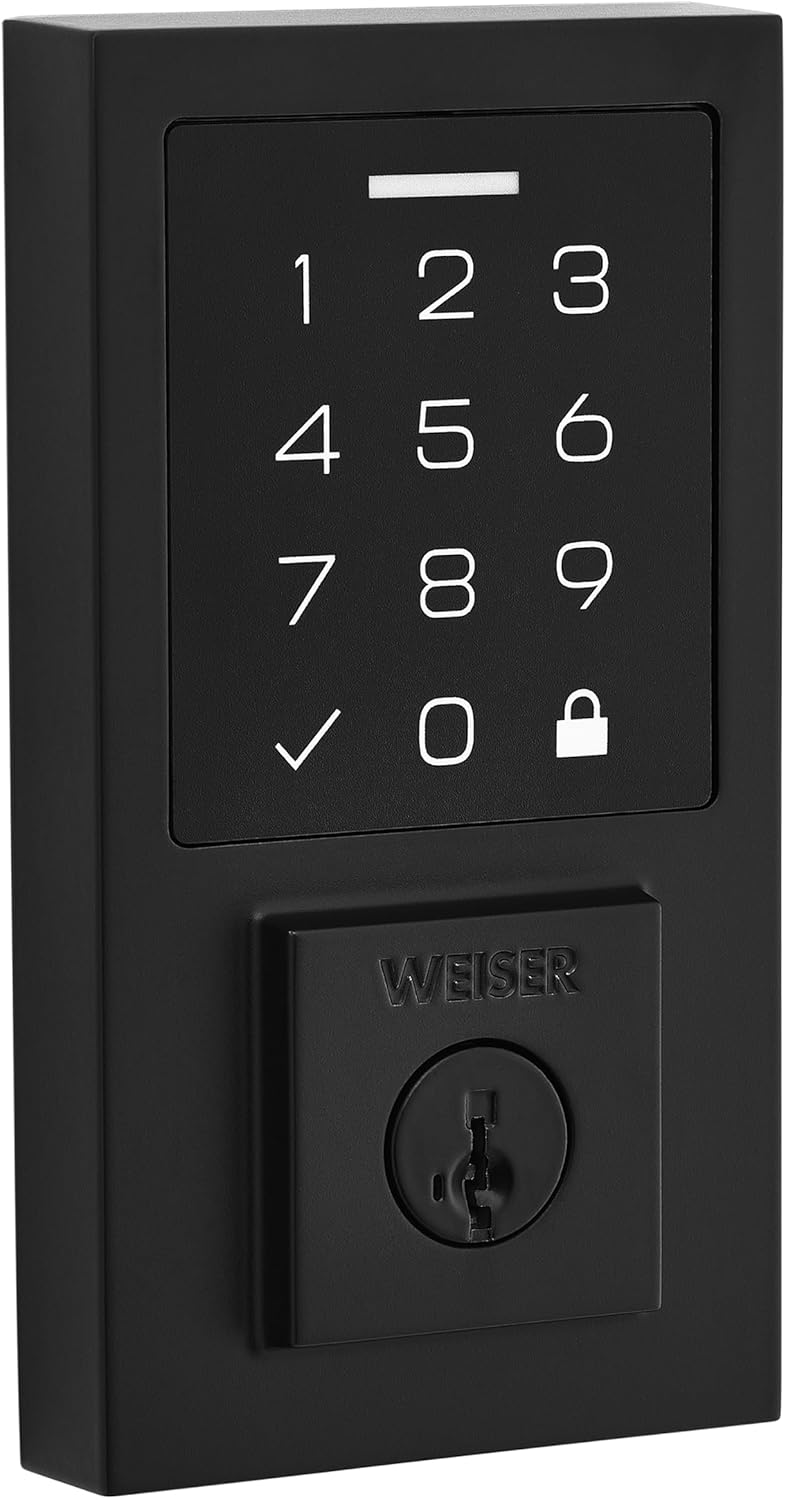
Figure 3: Close-up view of the SmartCode touchpad, highlighting the numerical keys, checkmark, and lock buttons.
Programming User Codes:
Refer to the detailed programming instructions in your included manual for adding, deleting, or changing user codes. Typically, this involves using the programming button on the interior assembly and entering new codes on the keypad.
SmartKey Re-key Technology:
The SmartKey feature allows you to re-key your lock to work with any other Weiser SmartKey key. This process requires your existing key, the new key, and the SmartKey learn tool. Follow the instructions provided with your lock for this procedure.
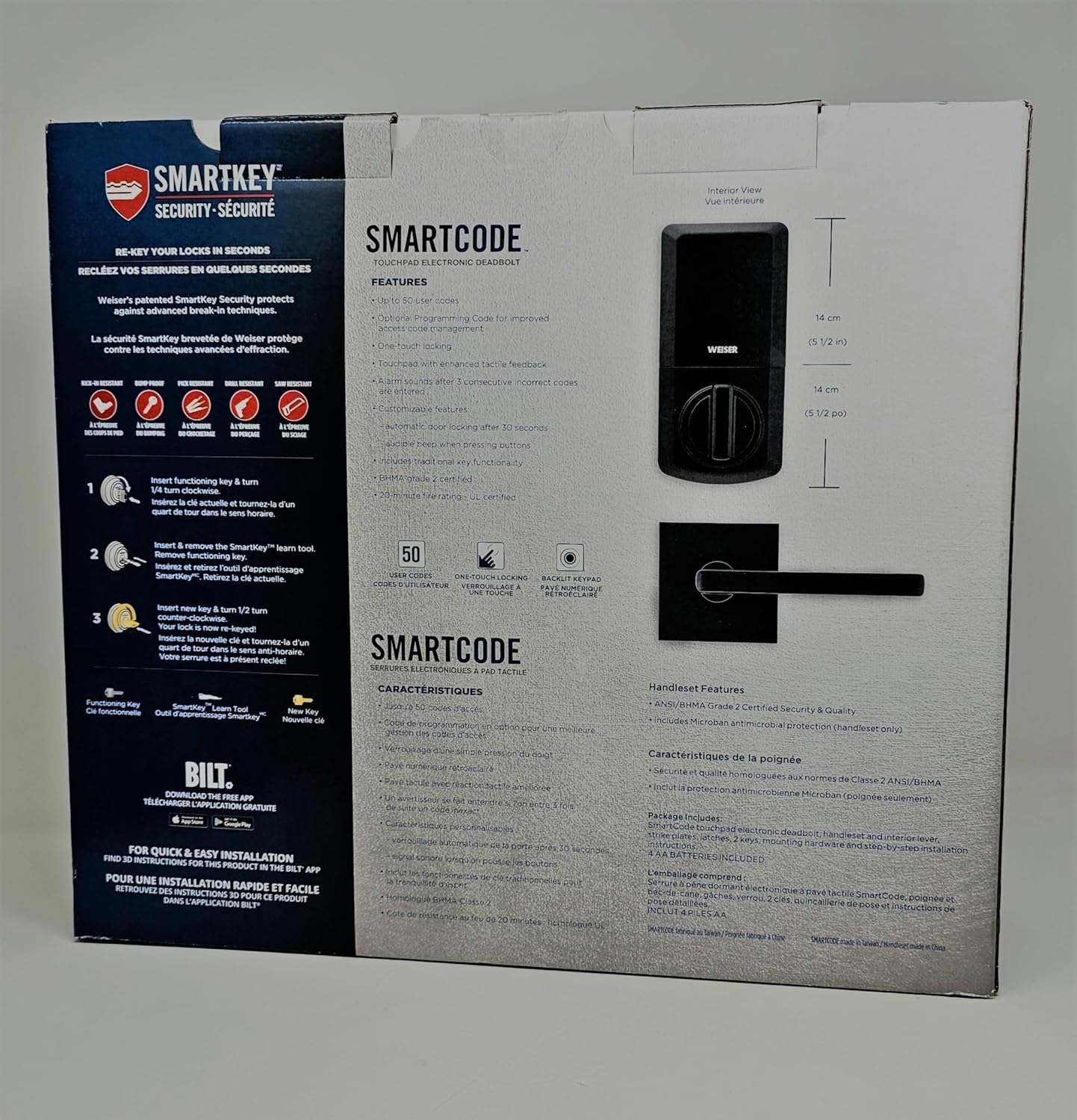
Figure 4: Diagram illustrating the SmartKey Security features and re-keying process, as shown on the product packaging.
Maintenance
- Battery Replacement: Replace all four AA alkaline batteries when the low battery indicator activates (usually a series of beeps or a flashing light). Always replace all batteries at once with new, high-quality alkaline batteries.
- Cleaning: Clean the keypad and exterior surfaces with a soft, damp cloth. Avoid abrasive cleaners or solvents, as they can damage the finish and electronic components.
- Lubrication: Do not lubricate the deadbolt cylinder with oil-based lubricants. Use a graphite-based lubricant if necessary, but typically, SmartKey cylinders do not require lubrication.
- Regular Checks: Periodically check that all mounting screws are secure and that the lock operates smoothly.
Troubleshooting
| Problem | Possible Cause | Solution |
|---|---|---|
| Lock does not respond or keypad is dark. | Dead batteries. | Replace all four AA alkaline batteries. |
| Lock beeps multiple times and does not lock/unlock. | Incorrect user code entered; door handing process not completed or incorrect. | Re-enter correct user code. Perform door handing process again as per manual. Check for obstructions. |
| Keypad is unresponsive after multiple incorrect entries. | Security lockout feature activated. | Wait 60 seconds for the keypad to reset. |
| SmartKey re-keying not working. | Incorrect key insertion; improper use of learn tool. | Ensure the existing key is fully inserted and turned correctly. Follow SmartKey instructions precisely. |
For more detailed troubleshooting, refer to the complete instruction manual included with your product or contact Weiser customer support.
Specifications
| Feature | Detail |
|---|---|
| Model Number | 1704140 |
| Product Dimensions | 41.91 x 10.8 x 36.83 cm |
| Item Weight | 3.84 kg |
| Colour | Black |
| Style | Modern |
| Material | Metal |
| Number of Pieces | 2 (Handleset & Deadbolt) |
| Special Features | Alarm, Back-Lit Keypad |
| Lock Type | Keypad |
| Batteries Required | Yes (4 x AA Alkaline) |
| Security Certification | ANSI/BHMA Grade 2 |
Warranty and Support
Warranty Information:
The Weiser SmartCode Touchpad Electronic Deadbolt and Handleset Combo Pack comes with a One-Year Electronic Warranty. This warranty covers defects in materials and workmanship for the electronic components of the lock.
Customer Support:
For technical assistance, troubleshooting, or warranty claims, please contact Weiser customer support:
- Manufacturer: Spectrum Brands Inc.
- Phone: 1-800-501-9471
- Website: Visit the official Weiser website for additional resources and contact options.
Please have your product model number (1704140) and purchase date available when contacting support.
Related documents1704140


Ask a question about this manual
Ask about setup, troubleshooting, compatibility, parts, safety, or missing instructions. Manuals+ will review the question and use this page’s manual context to help answer it.