
1. Introduction
The QIIZCP HDMI Wireless Display Adapter (Model C41) allows you to mirror or cast content from your smartphone, tablet, or laptop to a larger display such as a TV or projector. Enjoy your favorite videos, photos, and presentations in high definition (1080P/4K) with stable wireless transmission. This device supports multiple protocols including Miracast, AirPlay, and DLNA, offering broad compatibility without the need for dedicated applications or complex mode switching.
2. Package Contents
Please check the package for the following items:
- QIIZCP HDMI Wireless Display Adapter (Model C41)
- USB Power Cable (with Wi-Fi antenna)
- User Manual

Image: The QIIZCP HDMI Wireless Display Adapter and its included USB power cable.
3. Setup Guide
Follow these steps to set up your QIIZCP HDMI Wireless Display Adapter:
- Connect to TV/Projector: Insert the HDMI connector of the adapter into an available HDMI port on your TV or projector.
- Power On: Connect the USB power cable to the adapter and then plug the USB end into a 5V/1A USB power source (e.g., a USB port on your TV or a USB wall adapter). Important: Ensure a stable 5V/1A power supply for optimal performance.
- Select HDMI Input: Switch your TV or projector's input source to the corresponding HDMI port where the adapter is connected. You should see the adapter's startup screen.
- Initial Wi-Fi Setup (First Use):
- On the TV screen, you will see the adapter's Wi-Fi name (SSID) and password.
- On your smartphone, tablet, or laptop, go to Wi-Fi settings and connect to the adapter's Wi-Fi network using the provided SSID and password.
- Open a web browser on your device and enter the IP address displayed on the TV screen (e.g., 192.168.xxx.xxx).
- In the adapter's web interface, select "Internet" or "Wi-Fi Setup" and connect the adapter to your home/office Wi-Fi network. This allows the adapter to access the internet.
- Once connected, your device will automatically switch back to your home/office Wi-Fi, and the adapter will be ready for use.

Image: Connecting the wireless display adapter to a TV and mirroring a smartphone screen. No dedicated app is required for operation.

Image: Detailed connection diagram for the HDMI wireless display adapter, illustrating how to connect it to a TV's HDMI port and a USB power source.
4. Operating Instructions
The QIIZCP HDMI Wireless Display Adapter supports Miracast, AirPlay, and DLNA protocols. No mode switching is required; the adapter automatically detects the protocol.
4.1. For iOS Devices (AirPlay)
- Ensure your iOS device (iPhone, iPad) and the adapter are connected to the same Wi-Fi network.
- Swipe down from the top-right corner (or up from the bottom for older models) to open Control Center.
- Tap "Screen Mirroring" or "AirPlay Mirroring".
- Select the QIIZCP adapter from the list of available devices. Your iOS device screen will now be mirrored to the TV.
4.2. For Android Devices (Miracast/Google Cast)
- Ensure your Android device and the adapter are connected to the same Wi-Fi network.
- Go to your Android device's settings and look for "Cast," "Smart View," "Wireless Display," "Screen Mirroring," or similar options. The exact name may vary by device manufacturer.
- Enable the feature and select the QIIZCP adapter from the list. Your Android device screen will now be mirrored to the TV.
- Note: Some Android devices may require Miracast to be explicitly enabled in developer options or system settings.
4.3. For Windows/macOS Laptops
- Windows: Press Windows key + P, then select "Connect to a wireless display" and choose the QIIZCP adapter.
- macOS: Ensure your Mac and the adapter are on the same Wi-Fi network. Click the AirPlay icon in the menu bar and select the QIIZCP adapter.

Image: A family enjoying content mirrored from a smartphone to a large TV screen, demonstrating the ease of sharing media.

Image: A user casting content from their smartphone to a curved TV, highlighting the screen mirroring and casting capabilities in 4K resolution.
5. Compatibility
The QIIZCP HDMI Wireless Display Adapter offers broad compatibility with various operating systems and devices:
- Operating Systems: Android 5.0 and above, iOS 8.0 and above, Windows 7 and above, macOS 10 and above.
- Protocols: Miracast, AirPlay, DLNA, EZmira.
- Devices: Smartphones, Tablets, Laptops, MacBooks.
Important Note: Due to copyright protection and technical restrictions, this adapter is generally not compatible with paid streaming services such as Netflix, Amazon Video, Hulu Plus, and certain YouTube content. These platforms often implement Digital Rights Management (DRM) that prevents screen mirroring or casting.
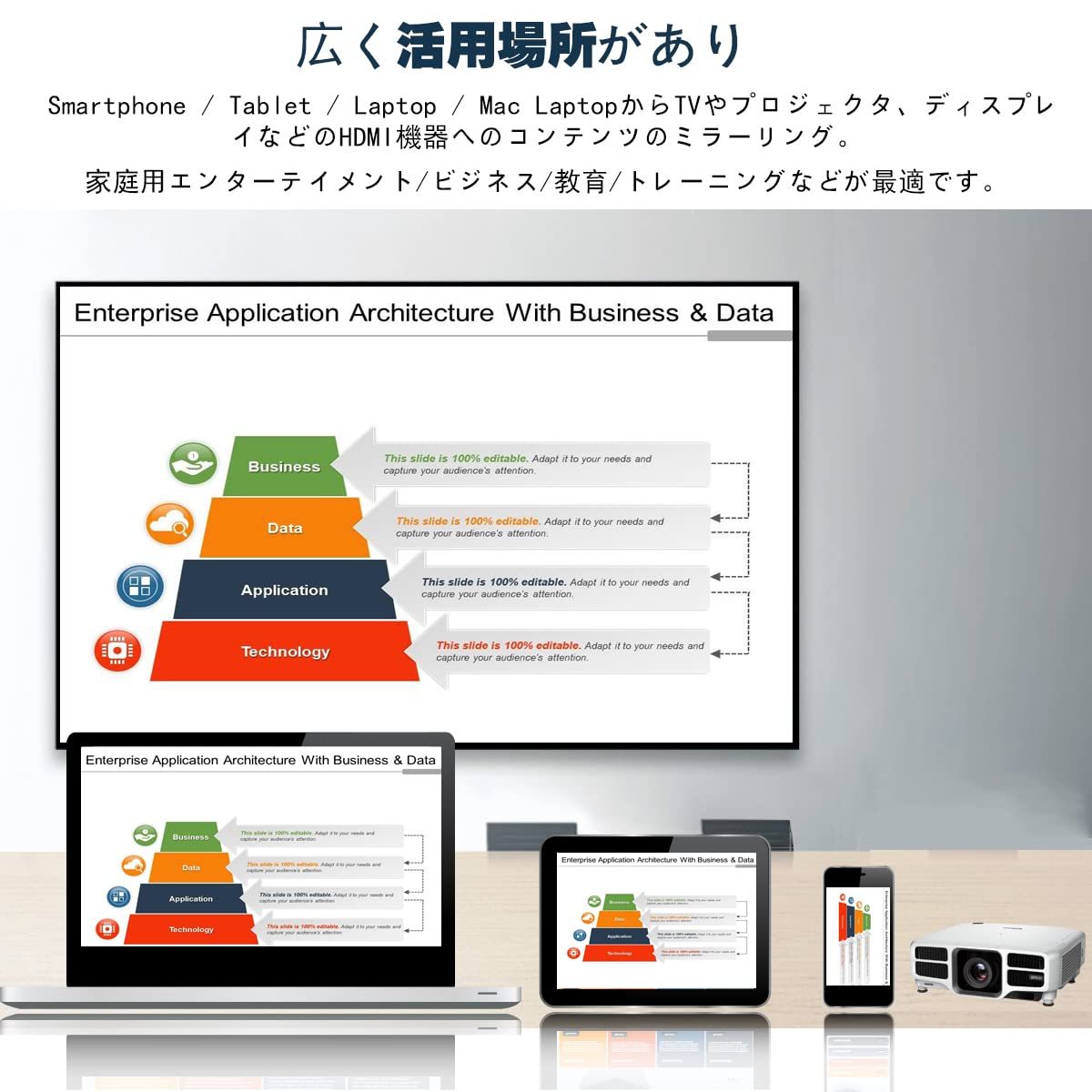
Image: A compatibility chart showing which streaming services are supported for mirroring. Note that Netflix, Amazon Video, and Hulu are typically not supported due to DRM.

Image: Visual representation of the adapter's compatibility with iOS, Android, macOS, and Windows devices, showing content mirrored to a large screen.
6. Maintenance and Care
- Keep the device in a dry environment and avoid exposure to moisture or extreme temperatures.
- Clean the device with a soft, dry cloth. Do not use liquid cleaners or aerosols.
- Avoid dropping or subjecting the device to strong impacts.
- Ensure proper ventilation around the device during operation to prevent overheating. The device is designed to be heat-resistant, but good airflow is always recommended.
7. Troubleshooting
- No display on TV/Projector:
- Ensure the adapter is securely plugged into the HDMI port.
- Verify the TV/projector input source is set to the correct HDMI port.
- Check if the USB power cable is properly connected and receiving sufficient power (5V/1A recommended). Try a different USB power source if available.
- Unable to connect to Wi-Fi:
- Make sure your device is within range of the adapter's Wi-Fi signal during initial setup.
- Double-check the Wi-Fi password.
- If the adapter is trying to connect to your home Wi-Fi, ensure the password entered during the web interface setup was correct.
- Restart the adapter by unplugging and re-plugging the USB power cable.
- Mirroring/Casting is unstable or lags:
- Ensure your device and the adapter are close to your Wi-Fi router for a strong signal.
- Reduce interference by moving other wireless devices away from the adapter and router.
- Check your internet connection speed if streaming online content.
- Ensure the adapter is receiving adequate power (5V/1A).
- Cannot mirror paid streaming services (Netflix, Amazon Video, etc.):
This is a known limitation due to Digital Rights Management (DRM) implemented by these services. The adapter cannot bypass these protections. This is not a defect of the product.
8. Product Specifications
| Feature | Detail |
|---|---|
| Brand | QIIZCP |
| Model Number | C41 |
| Connectivity Technology | HDMI |
| Connector Type | HDMI |
| Supported Protocols | Miracast, AirPlay, DLNA, EZmira |
| Max Resolution | 4K (Video output 1080P) |
| Video Codec | H.264 |
| Compatible OS | Android 5.0+, iOS 8.0+, Windows 7+, macOS 10+ |
| Power Input | 5V/1A (via USB) |
| Color | Black |
| Form Factor | TV Stick |
9. Warranty and Support
9.1. Warranty Information
This product comes with a limited warranty. Please refer to the product packaging or the official QIIZCP website for detailed warranty terms and conditions. Keep your purchase receipt as proof of purchase for warranty claims.
9.2. Customer Support
For technical assistance, troubleshooting, or any questions regarding your QIIZCP HDMI Wireless Display Adapter, please contact our customer support team. Contact information can typically be found on the product packaging or the official QIIZCP website.
Online Resources: For additional support and FAQs, please visit the official QIIZCP support page (if available).