
1. Introduction
This manual provides instructions for the setup, operation, and maintenance of your Cuifati G20 1080P HDMI Dongle Media Receiver. This device allows you to mirror content from your smartphone, tablet, or laptop to a larger display such as a TV, projector, or monitor via HDMI, supporting 1080P video and audio output.
2. Safety Information
- Ensure the device is powered by a stable 5V/1A power supply.
- Do not expose the device to water or excessive moisture.
- Avoid extreme temperatures.
- Do not attempt to disassemble or repair the device yourself. Contact qualified personnel for service.
- Keep out of reach of children.
3. Package Contents
Verify that all items are present in your package:
- G20 HDMI Dongle Media Receiver
- USB Power Cable with Wi-Fi Antenna
- User Manual (this document)

Image: The G20 HDMI Dongle Media Receiver shown alongside its USB power cable, which also integrates the Wi-Fi antenna.
4. Product Overview
The G20 HDMI Dongle is a compact device designed for wireless display mirroring. It features an HDMI connector for direct plug-in to your display and a Micro USB port for power and the external Wi-Fi antenna.

Image: A front view of the G20 HDMI Dongle, showcasing its circular body and integrated HDMI cable.

Image: A close-up side view of the G20 HDMI Dongle, highlighting the Micro USB power input port and a small function button.
5. Setup Instructions
Follow these steps to set up your G20 HDMI Dongle:
- Connect to Display: Plug the HDMI connector of the G20 dongle into an available HDMI port on your TV, projector, or monitor.
- Connect Power: Connect the Micro USB end of the provided USB power cable to the dongle's Micro USB port. Connect the standard USB-A end of the cable to a 5V/1A USB power adapter (not included) or a powered USB port on your display. Ensure the power supply is sufficient.
- Select Input: Use your display's remote control to select the correct HDMI input source that the dongle is connected to.
- Initial Screen: Once powered on, the dongle will display a setup screen on your display, showing Wi-Fi information and instructions for connecting your mobile device.

Image: A hand demonstrating the simple setup by plugging the HDMI dongle directly into an HDMI port on the back of a television.

Image: A diagram illustrating the connection method, showing the dongle connected to a display (TV, monitor, projector) via HDMI and powered by a USB adapter, with wireless connection to a smartphone, tablet, or laptop.
6. Operating Instructions
The G20 dongle supports Miracast, AirPlay, and DLNA protocols. The mode can be switched by pressing the small function button on the side of the dongle or through its web interface (refer to on-screen instructions).
6.1. Connecting Your Device
Once the dongle is powered and displaying its setup screen, connect your mobile device (smartphone, tablet, or laptop) to the dongle's Wi-Fi network. The Wi-Fi name (SSID) and password will be displayed on the screen.
6.2. Mirroring Content
- For Android Devices (Miracast): On your Android device (Android 4.4+), enable the screen mirroring feature (often called 'Smart View', 'Screen Mirroring', 'Wireless Display', 'Cast', etc.) and select the G20 dongle from the list of available devices.
- For iOS Devices (AirPlay): On your iOS device (iOS 8.0+), swipe down from the top-right corner (or up from the bottom for older models) to open Control Center, tap 'Screen Mirroring', and select the G20 dongle.
- For Windows Devices (Miracast): On Windows 8.1/10, press Windows key + P, then select 'Connect to a wireless display' and choose the G20 dongle.
- For macOS Devices (AirPlay): On macOS 10.9+, click the AirPlay icon in the menu bar and select the G20 dongle.

Image: The G20 HDMI dongle connected to a television, wirelessly displaying content from a smartphone, illustrating the screen mirroring functionality.
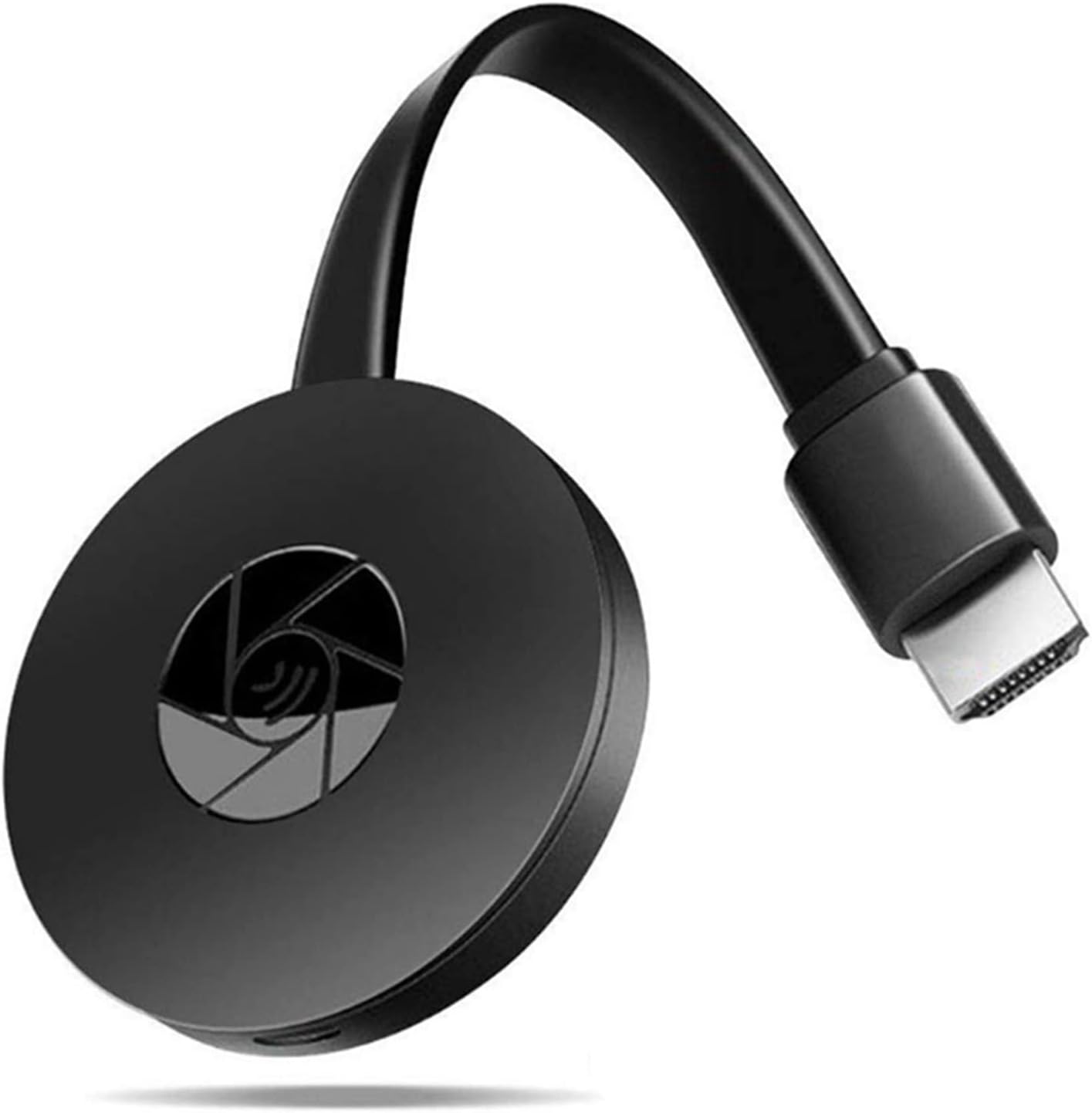
Image: A laptop screen being mirrored onto a large television display, demonstrating the dongle's capability for presentations or extended viewing.

Image: A collage of scenarios depicting the dongle's versatility, including watching TV, connecting to projectors, playing games, and for early education purposes.
7. Troubleshooting
- No display on TV:
- Ensure the dongle is securely plugged into the TV's HDMI port.
- Verify the dongle is receiving adequate power (5V/1A).
- Check that the TV's input source is set to the correct HDMI port.
- Cannot connect mobile device:
- Confirm your device's operating system meets the minimum requirements (Android 4.4+, iOS 8.0+, OS X 10.9+, Windows 8.1/10).
- Ensure your mobile device's mirroring function is enabled and working correctly.
- Check that your mobile device is connected to the dongle's Wi-Fi network.
- Try restarting both the dongle (by unplugging and replugging power) and your mobile device.
- Poor video quality or lag:
- Ensure the dongle has a clear line of sight to your mobile device and is not obstructed.
- Reduce the distance between the dongle and your mobile device.
- Minimize interference from other wireless devices.
8. Specifications
| Feature | Detail |
|---|---|
| Model Name | Cuifatii26gec0o3s |
| Resolution | 1080p |
| Connectivity Technology | HDMI |
| Connector Type | HDMI, Micro USB |
| Supported Operating Systems | Android 4.4+, iOS 8.0+, OS X 10.9+, Windows 8.1/10 |
| Item Weight | 2.82 ounces |
| Package Dimensions | 4.72 x 4.69 x 1.57 inches |
| RAM Memory Installed Size | 256 MB |
| Color | Red |

Image: The G20 HDMI Dongle highlighting its 1080p resolution support and dual-band 2.4G/5G Wi-Fi capabilities.
9. Maintenance
- Keep the device clean and free from dust. Use a soft, dry cloth for cleaning.
- Store the device in a cool, dry place when not in use.
- Avoid bending or stressing the HDMI cable or USB power cable excessively.
10. Warranty and Support
For warranty information and technical support, please refer to the product packaging or visit the official Cuifati website. Keep your purchase receipt for warranty claims.