
Turing TP-MFD4A28
Turing TP-MFD4A28 Smart Series 4MP IR Dome IP Camera User Manual
Model: TP-MFD4A28
1. Introduction
This manual provides detailed instructions for the installation, operation, and maintenance of the Turing TP-MFD4A28 Smart Series 4MP IR Dome IP Camera. This camera features 4-megapixel resolution, TwilightVision technology for optimal low-light performance, Smart IR up to 30 meters (98 feet), and robust IP67 and IK10 ratings for outdoor and vandal-resistant use. It supports Power over Ethernet (PoE) and a 256GB MicroSD card for local storage.
Key features include:
- Max. 4MP (2688x1520) resolution at 30/25fps
- 2.8mm fixed lens
- TwilightVision for optimal image clarity in low light
- Smart IR up to 30m (98ft) night vision
- IP67 weather resistance and IK10 vandal resistance
- Wide Dynamic Range (WDR)
- Power over Ethernet (PoE) support
- Support for 256GB MicroSD card
- People and Vehicle Search capabilities when used with Turing Smart Series NVR and Turing Vision Cloud
2. Safety Information
Please read these safety instructions carefully before using the product to prevent damage or injury.
- Power Supply: Use only the specified power adapter (12V DC) or a compliant Power over Ethernet (PoE) switch/injector. Incorrect voltage may damage the camera.
- Installation: Ensure the camera is securely mounted to prevent it from falling. Professional installation is recommended for outdoor or high-altitude mounting.
- Environment: Do not expose the camera to extreme temperatures, humidity, or corrosive environments beyond its IP67 rating. Avoid direct sunlight for prolonged periods.
- Cleaning: Disconnect power before cleaning. Use a soft, dry cloth. Do not use strong detergents or solvents.
- Disassembly: Do not attempt to disassemble or modify the camera. This will void the warranty and may cause damage.
- Cables: Protect network and power cables from being walked on or pinched, especially at plugs and the point where they exit the camera.
3. Package Contents
Verify that all items are present and in good condition upon unpacking:
- Turing TP-MFD4A28 IP Dome Camera
- Mounting Screws and Wall Plugs
- Waterproof Connector for Ethernet Cable
- Quick Start Guide / Instruction Manual (this document)
- Drill Template (may be included)
Note: A power adapter (12V DC) is not always included as the camera supports PoE. A PoE switch or injector is required for PoE power.
4. Product Overview
The Turing TP-MFD4A28 is a compact dome-style IP camera designed for discreet surveillance. Its robust housing provides protection against weather and vandalism.
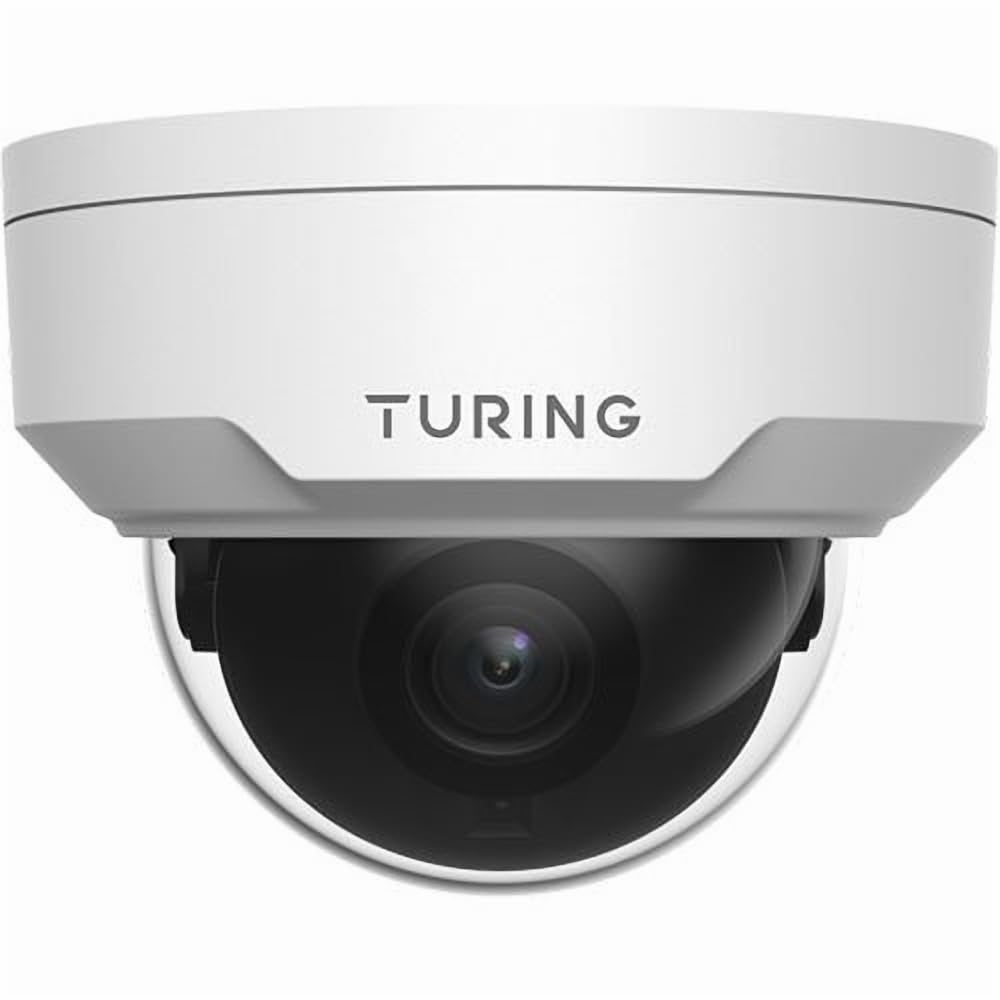
Figure 4.1: Front view of the Turing TP-MFD4A28 4MP IR Dome IP Camera, showing its white dome design and lens.
Key Components:
- Dome Cover: Protective cover for the lens and IR LEDs.
- Lens: 2.8mm fixed lens for a wide field of view.
- IR LEDs: Infrared illuminators for night vision.
- MicroSD Card Slot: Located internally, accessible by removing the dome cover.
- Reset Button: Located internally, used for factory reset.
- Ethernet Port (RJ45): For network connection and Power over Ethernet (PoE).
- Power Input (DC 12V): Optional power input if PoE is not used.
5. Setup
5.1 Physical Installation (Wall Mount)
- Choose a Location: Select a suitable wall-mount location that provides the desired viewing angle and is within range of your network cable.
- Prepare the Surface: Use the provided drill template (if available) to mark the screw holes on the wall. Drill pilot holes.
- Mount the Camera Base: Secure the camera's mounting base to the wall using the provided screws and wall plugs.
- Route Cables: Pass the Ethernet cable through the cable entry point on the mounting base.
5.2 Power and Network Connection
- Ethernet Connection: Connect an Ethernet cable from your PoE switch/injector or network router to the camera's RJ45 port. Use the waterproof connector for outdoor installations.
- Power (Optional): If not using PoE, connect a 12V DC power adapter (not included) to the camera's power input.
- Verify Power: The camera's indicator light (if present) should illuminate, indicating power.
5.3 MicroSD Card Installation
The camera supports up to a 256GB MicroSD card for local storage.
- Disconnect Power: Ensure the camera is powered off before installing or removing the MicroSD card.
- Remove Dome Cover: Carefully twist or unclip the outer dome cover to access the internal components.
- Insert MicroSD Card: Locate the MicroSD card slot and insert the card with the contacts facing down until it clicks into place.
- Replace Dome Cover: Securely reattach the dome cover, ensuring a watertight seal for IP67 protection.
- Format Card: After powering on, format the MicroSD card via the camera's web interface or connected NVR for proper operation.
5.4 Initial Configuration
For initial setup and advanced configuration, access the camera via its web interface or connect it to a Turing Smart Series NVR or Turing Vision Cloud.
- Find IP Address: Use a network scanner tool or your NVR to discover the camera's IP address on your local network.
- Access Web Interface: Open a web browser and enter the camera's IP address. Log in using the default credentials (refer to the Quick Start Guide for default username/password).
- Change Default Password: For security, immediately change the default password upon first login.
- Network Settings: Configure network settings (e.g., static IP, DNS) if required by your network environment.
- Time Settings: Set the correct date and time for accurate recording timestamps.
6. Operating
6.1 Live View and Recording
Access the live video feed through your NVR, Turing Vision Cloud, or the camera's web interface. You can initiate manual recordings or configure scheduled/motion-triggered recordings.
- Resolution: The camera supports up to 4MP (2688x1520) resolution. Adjust settings as needed for bandwidth and storage.
- Frame Rate: Records at 30/25 frames per second for smooth video.
6.2 Night Vision (Smart IR)
The camera automatically switches to night vision mode in low-light conditions, utilizing its Smart IR LEDs to provide clear black-and-white video up to 30 meters (98 feet). TwilightVision technology enhances low-light performance before IR activation.
6.3 Wide Dynamic Range (WDR)
WDR technology helps balance areas of high contrast in the image, ensuring details are visible in both bright and dark regions simultaneously. This is particularly useful in scenes with strong backlighting.
6.4 Motion Detection and Analytics
Configure motion detection zones and sensitivity via the camera's web interface or NVR. When integrated with a Turing Smart Series NVR or Turing Vision Cloud, the camera supports advanced analytics like People and Vehicle Search.
- Alert Type: Motion Only alerts are supported.
- Configuration: Set up email notifications or NVR alarms for detected events.
7. Maintenance
7.1 Cleaning the Camera
Regular cleaning helps maintain optimal image quality.
- Gently wipe the dome cover and lens with a soft, lint-free cloth.
- For stubborn dirt, use a cloth lightly dampened with water. Avoid abrasive cleaners.
- Ensure no moisture enters the camera housing.
7.2 Firmware Updates
Periodically check the Turing website or your NVR system for available firmware updates. Firmware updates can improve performance, add new features, and enhance security. Follow the provided instructions carefully when performing updates.
7.3 MicroSD Card Management
If using a MicroSD card for recording, it is recommended to format it periodically (e.g., monthly) to maintain performance and prevent data corruption. Back up any important recordings before formatting.
8. Troubleshooting
| Problem | Possible Cause | Solution |
|---|---|---|
| No Power / Camera Not Turning On |
|
|
| No Video Feed |
|
|
| Poor Image Quality |
|
|
| MicroSD Card Not Recording |
|
|
9. Specifications
| Model Number | TP-MFD4A28 |
| Effective Still Resolution | 4 MP (2688x1520) |
| Lens | 2.8mm Fixed Lens |
| Frame Rate | 30 fps |
| Night Vision Range | Up to 30m (98.43 Feet) with Smart IR |
| Low Light Technology | TwilightVision |
| International Protection Rating | IP67 (Weatherproof) |
| Vandal Resistance | IK10 |
| Wide Dynamic Range (WDR) | Yes |
| Power Source | PoE (Power over Ethernet) or 12V DC |
| Connectivity Technology | Wired (Ethernet) |
| MicroSD Card Support | Up to 256 GB |
| Mounting Type | Wall Mount |
| Form Factor | Dome |
| Dimensions (L x W x H) | 4.3 x 4.3 x 3.2 inches |
| Item Weight | 14.9 ounces (0.93 Pounds) |
| Color | White |
| Alert Type | Motion Only |
| Photo Sensor Technology | CMOS |
10. Warranty and Support
Turing products are covered by a manufacturer's warranty. Please refer to the official Turing website or your purchase documentation for specific warranty terms and conditions.
For technical support, troubleshooting assistance, or warranty claims, please contact Turing customer service through their official website or the contact information provided with your purchase.
Online Resources:
- Official Turing Website: www.turing.com
- Support Portal: (Check Turing website for specific support links)
Related documentsTP-MFD4A28


Ask a question about this manual
Ask about setup, troubleshooting, compatibility, parts, safety, or missing instructions. Manuals+ will review the question and use this page’s manual context to help answer it.