
Introduction
This instruction manual provides essential information for the safe and efficient use of your Philips 10KmAh 20W Power Bank (Model: DLP2711CB/00). Please read this manual thoroughly before using the product and retain it for future reference.
The Philips 10KmAh 20W Power Bank is designed to provide portable power for your mobile devices, featuring a large 10000mAh capacity and fast-charging capabilities with dual USB-A and USB-C ports supporting QC 3.0 and PD3.0. It also includes smart protection features for enhanced safety.
Safety Information
To ensure safe operation and prevent damage, please observe the following safety precautions:
- Do not expose the power bank to extreme temperatures (above 60°C / 140°F) or direct sunlight.
- Do not expose the power bank to water or other liquids.
- Do not disassemble, open, or attempt to repair the power bank yourself. This will void the warranty and may cause injury.
- Keep the power bank away from children.
- Use only certified charging cables and adapters.
- Avoid dropping or subjecting the power bank to strong impacts.
- Dispose of the power bank responsibly according to local regulations. Do not dispose of it in household waste.
- The power bank is equipped with smart protection against overheating, overvoltage, and overcurrent. If the device becomes excessively hot during charging or discharging, disconnect it immediately.
Package Contents
Please check the package for the following items:
- 1 x Philips 10KmAh 20W Power Bank (Model: DLP2711CB/00)
- 1 x USB-C charging cable
- 1 x User Manual (this document)
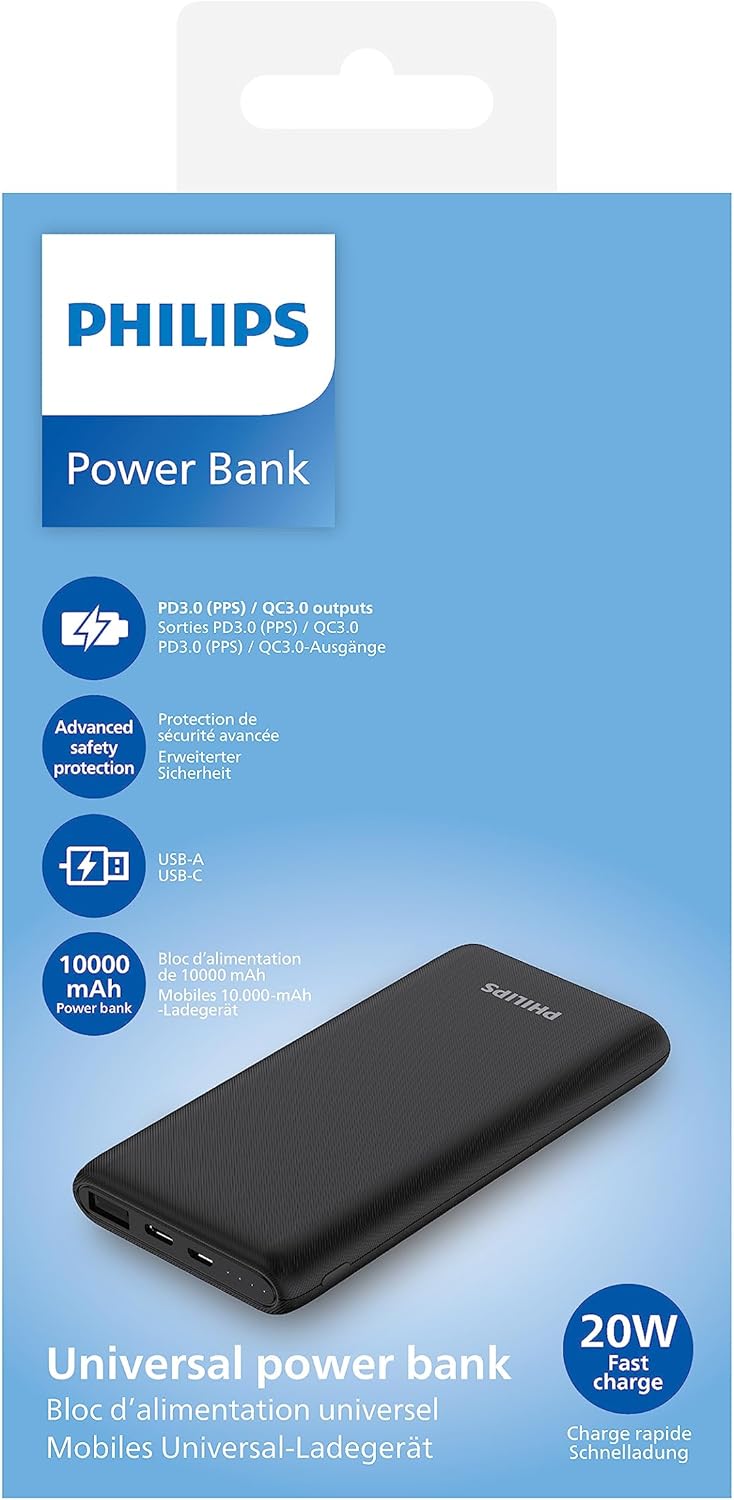
Image: The retail packaging of the Philips 10KmAh 20W Power Bank, showing product features and branding.
Product Overview
Familiarize yourself with the components of your power bank:

Image: A top-down view of the Philips 10KmAh 20W Power Bank, showcasing its textured black surface and port layout on one end.
- USB-A Output Port: Used for charging devices that support USB-A.
- USB-C Input/Output Port: Used for charging the power bank itself or for charging devices that support USB-C, including Power Delivery (PD) and Programmable Power Supply (PPS).
- LED Indicators: Typically indicate the remaining battery level of the power bank.
- Power Button (if present): Used to check battery level or initiate charging for some devices.
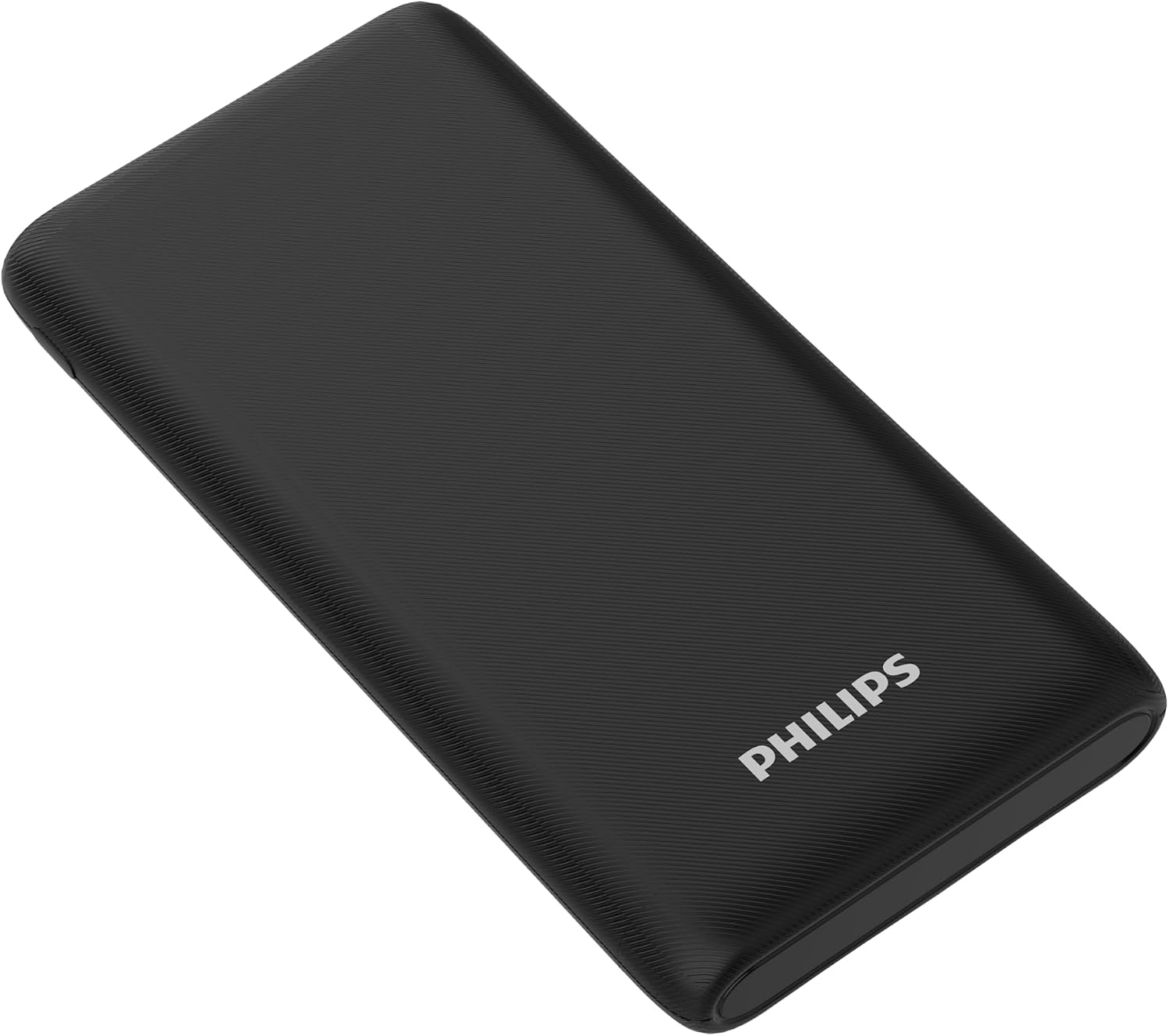
Image: An angled view of the Philips 10KmAh 20W Power Bank, highlighting its slim profile and the Philips logo on the surface.
Setup
Before first use, it is recommended to fully charge your power bank.
- Connect the supplied USB-C charging cable to the USB-C port on the power bank.
- Connect the other end of the USB-C cable to a compatible USB wall adapter (not included) or a computer's USB port. For fastest charging, use a 20W or higher PD-compatible wall adapter.
- The LED indicators will illuminate to show the charging status. Once all indicators are solid, the power bank is fully charged.
Operating Instructions
Charging Your Devices
The Philips Power Bank can charge two devices simultaneously using its USB-A and USB-C output ports.
- Connect your device's charging cable to the appropriate port on the power bank (USB-A or USB-C).
- Connect the other end of the cable to your device.
- Charging should begin automatically. The LED indicators on the power bank will show its remaining battery level.
- Disconnect your device once it is fully charged.
Note: For optimal fast charging, ensure your device and cable support Quick Charge (QC 3.0) or Power Delivery (PD3.0/PPS) standards.
Recharging the Power Bank
When the LED indicators show a low battery level, recharge the power bank as described in the "Setup" section.
- Connect the USB-C charging cable to the power bank's USB-C port.
- Connect the other end to a power source (e.g., wall adapter, computer USB port).
- The LED indicators will flash during charging and become solid when fully charged.
Maintenance
- Clean the power bank with a soft, dry cloth. Do not use abrasive cleaners or solvents.
- Store the power bank in a cool, dry place when not in use.
- If storing for an extended period, charge the power bank to approximately 50% every three months to maintain battery health.
Troubleshooting
| Problem | Possible Cause | Solution |
|---|---|---|
| Power bank not charging. | Cable or adapter faulty; power source issue; power bank fully charged. | Try a different cable or adapter. Ensure the power source is active. Check LED indicators; if all are solid, it's fully charged. |
| Device not charging from power bank. | Power bank low on battery; cable faulty; device not compatible; power bank in protection mode. | Recharge the power bank. Try a different cable. Ensure your device is compatible. Disconnect and reconnect the device. |
| Slow charging. | Cable or adapter not fast-charge compatible; device not supporting fast charge; multiple devices charging. | Use a fast-charge compatible cable and adapter. Ensure your device supports fast charging. Charging multiple devices simultaneously may reduce individual charging speeds. |
| Power bank gets hot. | Normal during high-power charging/discharging; overcurrent/overvoltage protection activated. | Slight warmth is normal. If excessively hot, disconnect immediately and allow to cool. Ensure proper ventilation. If problem persists, contact support. |
Specifications
| Feature | Detail |
|---|---|
| Brand | Philips |
| Model | DLP2711CB/00 |
| Battery Capacity | 10000 mAh |
| Battery Cell Composition | Lithium Polymer |
| Max Wattage Output | 20 Watts |
| Input Voltage | 5 Volts |
| Number of Ports | 2 (1x USB-A, 1x USB-C) |
| Connector Type | USB Type C, USB Type A |
| Special Features | Fast Charging (QC 3.0, PD3.0, PPS), Smart Protection (overheating, overvoltage, overcurrent) |
| Compatible Devices | Tablets, Smartphone, Fitness Band, Smartwatches |
| Dimensions (approx.) | 20 x 9.8 x 3 cm |
| Weight (approx.) | 225.89 g |
| Date First Available | 19 June 2023 |
Warranty and Support
Philips products are designed and manufactured to the highest quality standards. For warranty information and customer support, please refer to the warranty card included with your product or visit the official Philips support website.
For technical assistance or service inquiries, please contact Philips customer support through their official channels. Keep your purchase receipt as proof of purchase for warranty claims.
You can visit the Philips Store on Amazon for more information: Philips Store


