
Fastsun T31
Fastsun T31 Car OBD2 Scanner User Manual
Model: T31
1. Introduction
The Fastsun T31 Car OBD2 Scanner is a diagnostic tool designed to help vehicle owners and technicians identify and resolve engine-related issues. This device provides comprehensive support for detecting American cars manufactured after 1996 and European cars made after 2000. It effectively identifies the cause of fault light activation, analyzes, and clears fault codes. This manual provides detailed instructions for the proper use, maintenance, and troubleshooting of your T31 OBD2 scanner.
2. Safety Information
Always observe the following safety precautions when using the T31 OBD2 Scanner:
- Ensure the vehicle's ignition is off before connecting or disconnecting the scanner.
- Do not operate the scanner while driving.
- Keep the scanner away from water, moisture, and extreme temperatures.
- Avoid dropping the device or subjecting it to strong impacts.
- Only use the scanner for its intended purpose as an automotive diagnostic tool.
- Consult a qualified mechanic if you are unsure about any diagnostic results or repair procedures.
3. Package Contents
Verify that all items are present in your package:
- 1 x Fastsun T31 Car OBD2 Scanner
- 1 x User Manual
4. Product Overview
The T31 Car OBD2 Scanner is a compact and user-friendly diagnostic tool. It features a backlit LCD screen for clear display of information and intuitive navigation buttons.
Key Features:
- Wide Compatibility: Supports American cars manufactured after 1996 and European cars made after 2000, covering CAN and general OBD-II protocols.
- Multi-Functions: Reads and clears engine fault codes, retrieves VIN, CIN, and CVN information.
- User-Friendly Interface: Multilingual menu (English, French, etc.) with DTC definitions.
- LCD Display: Allows viewing of freeze frame data and live data stream. Features a large, easy-to-read backlit LCD screen.
- Plug & Play: Simple connection and operation with bright color-coded LEDs and built-in speakers for readiness verification.
- Code Retrieval: Retrieves generic (P0, P2, P3, U0) and manufacturer-specific (P1, P3, U1) codes.
- MIL Control: Can turn off the Check Engine Light (MIL), clear codes, and reset monitors.
Components:

Figure 4.1: Fastsun T31 OBD2 Scanner. This image shows the compact design of the scanner, its LCD screen, navigation buttons, and the integrated OBD2 connector cable.

Figure 4.2: T31 Diagnostic Functions. This image highlights the main diagnostic capabilities of the T31 scanner, including reading and erasing codes, viewing live data, and checking I/M readiness.
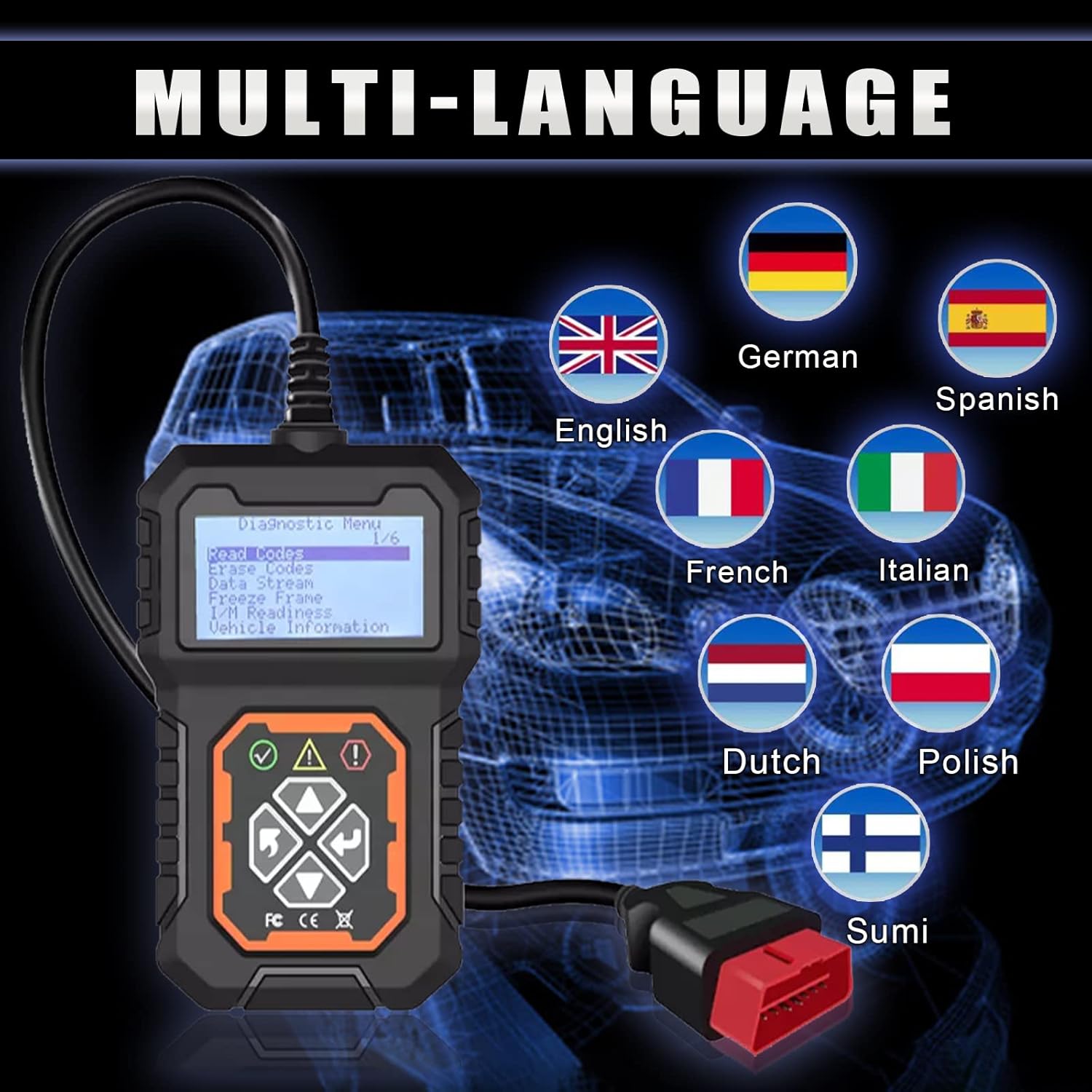
Figure 4.3: Multi-Language Support. The scanner supports multiple languages, making it accessible to a wider range of users.
5. Setup and Connection
Follow these steps to connect and power on your T31 OBD2 Scanner:
- Turn Ignition On: Turn the vehicle's ignition to the "ON" position, but do not start the engine.
- Locate OBD2 Port: Locate the 16-pin Data Link Connector (DLC) in your vehicle. This port is usually located under the dashboard on the driver's side.
- Connect Scanner: Plug the T31 scanner's OBD2 connector into the vehicle's DLC. The scanner will power on automatically.
- Select Diagnostic Menu: Once powered on, the scanner will display the main diagnostic menu.
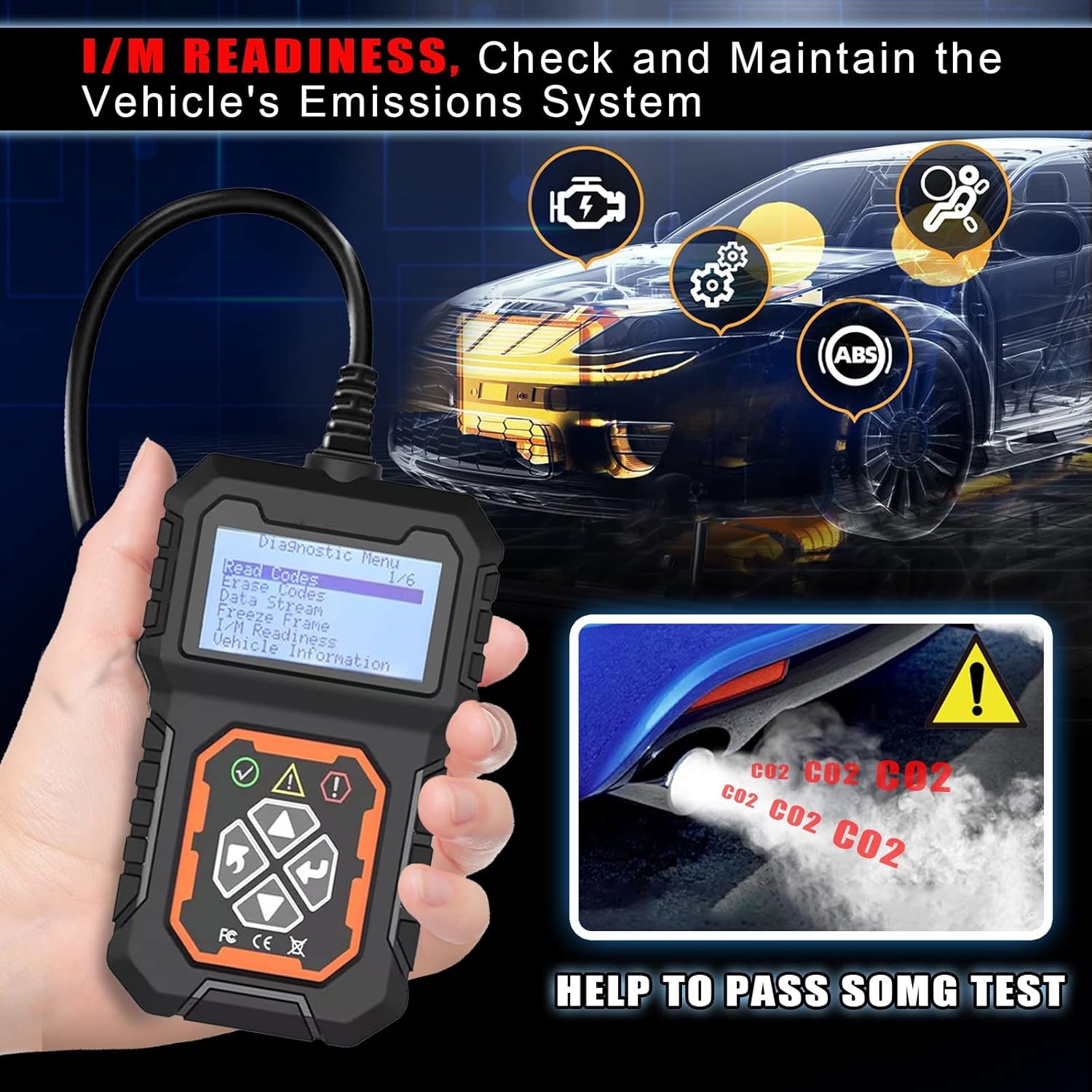
Figure 5.1: Easy Installation and Use. This image illustrates the simple four-step process for connecting and initiating the T31 scanner.
6. Operating Instructions
Navigate the scanner using the directional buttons and the OK/Enter button. The main menu provides access to various diagnostic functions.
6.1. Read Codes
This function retrieves Diagnostic Trouble Codes (DTCs) from the vehicle's engine control unit (ECU). These codes indicate specific issues detected by the vehicle's onboard diagnostic system.
- From the main menu, select "Read Codes".
- Press the OK button.
- The scanner will display any stored or pending fault codes.
6.2. Erase Codes
This function clears all stored DTCs from the vehicle's ECU and turns off the Check Engine Light (MIL). Ensure the underlying issue has been resolved before clearing codes.
- From the main menu, select "Erase Codes".
- Press the OK button.
- Confirm your choice when prompted.
- The MIL will turn off, and codes will be cleared.

Figure 6.1: Code Reading and Clearing. This image illustrates the scanner's ability to quickly read and delete emission codes, helping users identify and resolve issues efficiently.
6.3. Live Data Stream
View real-time operational data from the vehicle's sensors and components. This can help diagnose intermittent problems or verify repairs.
- From the main menu, select "Data Stream".
- Press the OK button.
- The scanner will display various live data parameters. Use the up/down buttons to scroll.
6.4. Freeze Frame
When an emission-related fault occurs, the ECU stores certain vehicle operating conditions at the time of the fault. This "freeze frame" data can help pinpoint the cause of the problem.
- From the main menu, select "Freeze Frame".
- Press the OK button.
- The scanner will display the stored freeze frame data.
6.5. I/M Readiness
This function checks the readiness of the vehicle's emission monitoring systems. It indicates whether all monitors have completed their diagnostic tests, which is crucial for passing emissions inspections.
- From the main menu, select "I/M Readiness".
- Press the OK button.
- The scanner will display the status of various emission monitors (e.g., "OK", "INC" for incomplete).
Figure 6.2: I/M Readiness Check. This function helps verify the vehicle's emissions system status, assisting in preparation for smog tests.
6.6. Vehicle Information
This function retrieves vehicle information such as the Vehicle Identification Number (VIN), Calibration Identification Number (CIN), and Calibration Verification Number (CVN).
- From the main menu, select "Vehicle Information".
- Press the OK button.
- The scanner will display the available vehicle information.
7. Maintenance
Proper maintenance ensures the longevity and optimal performance of your T31 OBD2 Scanner.
- Cleaning: Use a soft, damp cloth to clean the scanner's exterior. Do not use abrasive cleaners or solvents.
- Storage: Store the scanner in a dry, cool place, away from direct sunlight and extreme temperatures.
- Cable Care: Avoid bending or crimping the OBD2 cable excessively. Store it neatly to prevent damage.
- Software Updates: Check the manufacturer's website periodically for any available software updates to ensure compatibility with newer vehicles and improved functionality.
8. Troubleshooting
If you encounter issues with your T31 OBD2 Scanner, refer to the following common problems and solutions:
| Problem | Possible Cause | Solution |
|---|---|---|
| Scanner does not power on. | Loose connection to DLC; Vehicle ignition not on; Vehicle battery low. | Ensure the OBD2 connector is securely plugged in. Turn the vehicle ignition to the "ON" position. Check vehicle battery voltage. |
| "Link Error" or "Communication Error" message. | Incorrect protocol; Faulty connection; Vehicle not OBDII compliant. | Verify the vehicle is OBDII compliant (1996 US, 2000 EU). Check the connection. Try on another OBDII compliant vehicle if possible. |
| Cannot clear codes. | Underlying fault still present; Ignition not on. | Ensure the vehicle's ignition is on (engine off). The fault must be repaired before codes can be permanently cleared. |
| Screen is dim or unreadable. | Low power; Screen settings. | Ensure proper connection to vehicle. Check if there are brightness settings on the device (refer to device menu). |
9. Specifications
| Specification | Detail |
|---|---|
| Model | T31 |
| Brand | Fastsun |
| Item Weight | 8.5 ounces |
| Package Dimensions | 6.89 x 4.53 x 2.17 inches |
| Screen Size | 2.8 Inches |
| Supported Protocols | CAN, OBD-II (all protocols) |
| Supported Languages | English, French, German, Spanish, Italian, Dutch, Polish, Sumi |
| UPC | 724873545504 |

Figure 9.1: T31 Scanner Dimensions and Display. This image provides a visual representation of the scanner's compact size and its clear LCD screen.
10. Warranty and Support
The Fastsun T31 Car OBD2 Scanner comes with a 5-year warranty. For any questions, compatibility concerns, or technical support, please contact Fastsun customer service. They offer 7*24hrs customer service online to assist you.
Additionally, a 180-day free return for refund or replacement is provided if you are not satisfied with the product.
Ask a question about this manual
Ask about setup, troubleshooting, compatibility, parts, safety, or missing instructions. Manuals+ will review the question and use this page’s manual context to help answer it.