
1. Introduction
This manual provides comprehensive instructions for the operation and maintenance of your Luqeeg Smart Translation Pen, Model Luqeegb3i9ezsy02. Please read this manual thoroughly before using the device to ensure proper functionality and to maximize your user experience.
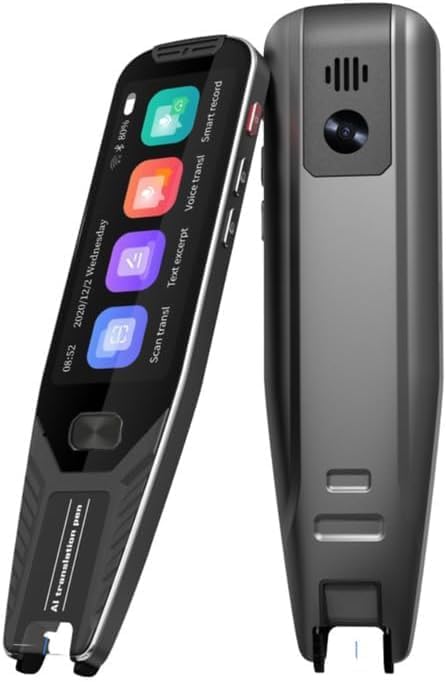
Image 1.1: Front and back view of the Luqeeg Smart Translation Pen. The front features a display screen with various application icons, while the back shows the camera and speaker grille.
2. Safety Information
- Do not expose the device to extreme temperatures, direct sunlight, or high humidity.
- Avoid dropping or subjecting the device to strong impacts.
- Keep the device away from water and other liquids.
- Do not attempt to disassemble or repair the device yourself. Contact authorized service personnel for assistance.
- Use only the provided charging cable and a compatible power adapter.
- Keep out of reach of children.
3. Product Components
The Luqeeg Smart Translation Pen package includes the following items:
- Luqeeg Smart Translation Pen
- USB Charging Cable
- Protective Silicone Case (if included)
- User Manual (this document)

Image 3.1: The Luqeeg Smart Translation Pen shown alongside its protective silicone case and a USB charging cable.
4. Setup
4.1. Charging the Device
Before first use, fully charge the translation pen. Connect the USB charging cable to the device's charging port and plug the other end into a compatible USB power adapter (not included) or a computer's USB port. The charging indicator on the device will show its status.
4.2. Powering On/Off
- Power On: Press and hold the power button (usually located on the side) for a few seconds until the screen lights up.
- Power Off: Press and hold the power button until a power-off option appears on the screen. Select "Power Off" to shut down the device.
4.3. Initial Setup and Network Connection
Upon first power-on, follow the on-screen prompts to select your preferred language, time zone, and connect to a Wi-Fi network. A stable Wi-Fi connection is recommended for optimal performance of online translation features and software updates.
- Navigate to "Settings" on the device's main screen.
- Select "Wi-Fi" and turn it on.
- Choose your desired Wi-Fi network from the list and enter the password if prompted.
- Once connected, the Wi-Fi icon will appear on the status bar.
5. Operating Instructions
5.1. Scanning and Text Translation
The device supports rapid scanning and translation of text. It can scan single or multiple lines and provides phonetic symbols, lexical nature, and interpretation.
- Select the "Scan Transl" or "Text Excerpt" function from the main menu.
- Position the pen's scanning head over the text you wish to translate.
- Gently glide the pen across the text. Ensure even pressure and a steady movement for accurate recognition.
- The recognized text and its translation will appear on the screen.

Image 5.1: The translation pen actively scanning text from a printed document. The screen displays the device's interface with translation options.
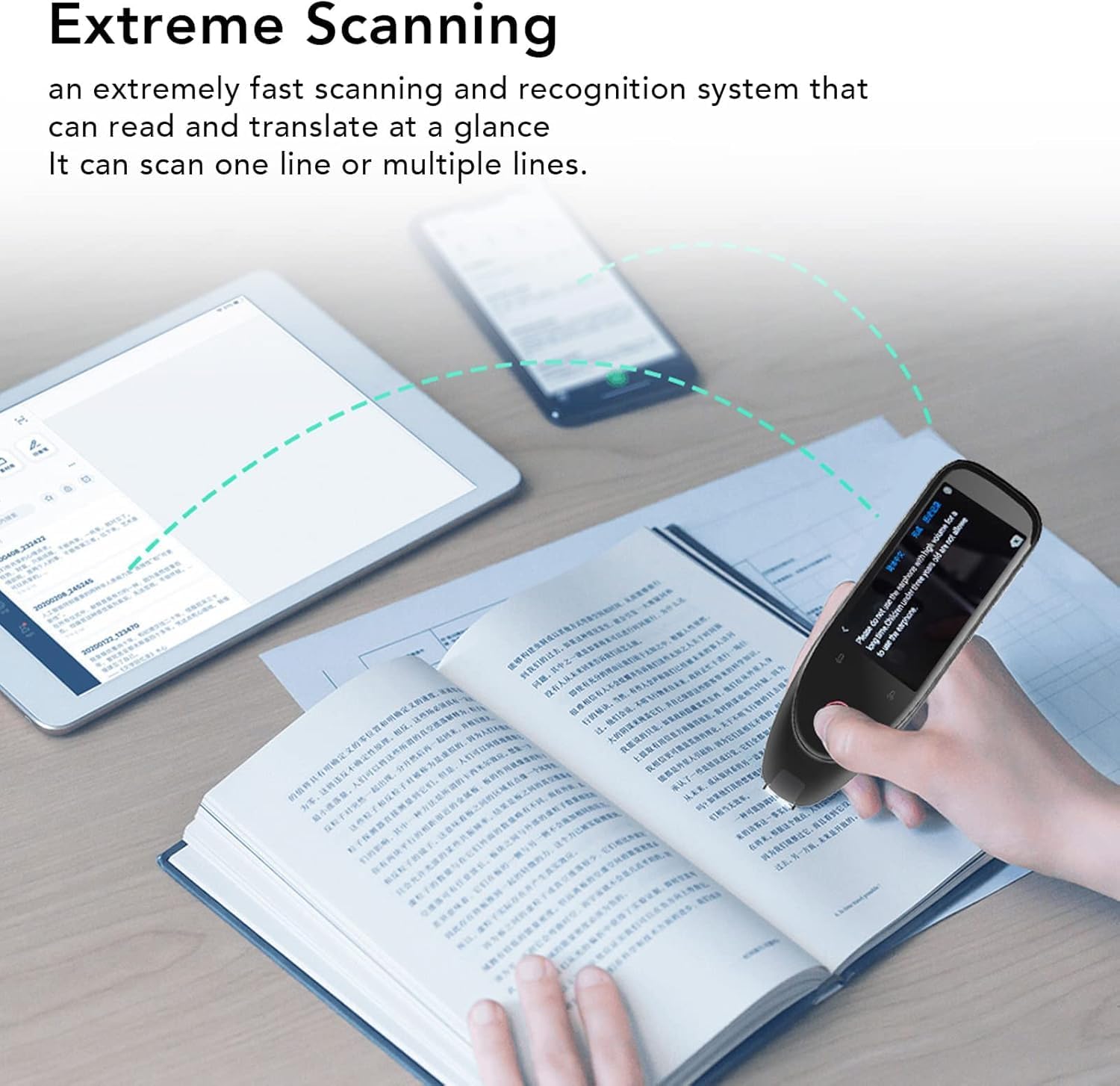
Image 5.2: A user scanning text from a book with the Luqeeg Smart Translation Pen. The image illustrates the device's capability to scan and process text, potentially syncing with other devices shown in the background.
5.2. Real-Time Voice Translation
The device supports up to 134 languages for real-time mutual voice translation, facilitating communication across different linguistic backgrounds.
- Select the "Voice Transl" function.
- Choose the source and target languages.
- Press and hold the voice input button, then speak clearly into the microphone.
- Release the button, and the device will translate and speak the translation aloud.
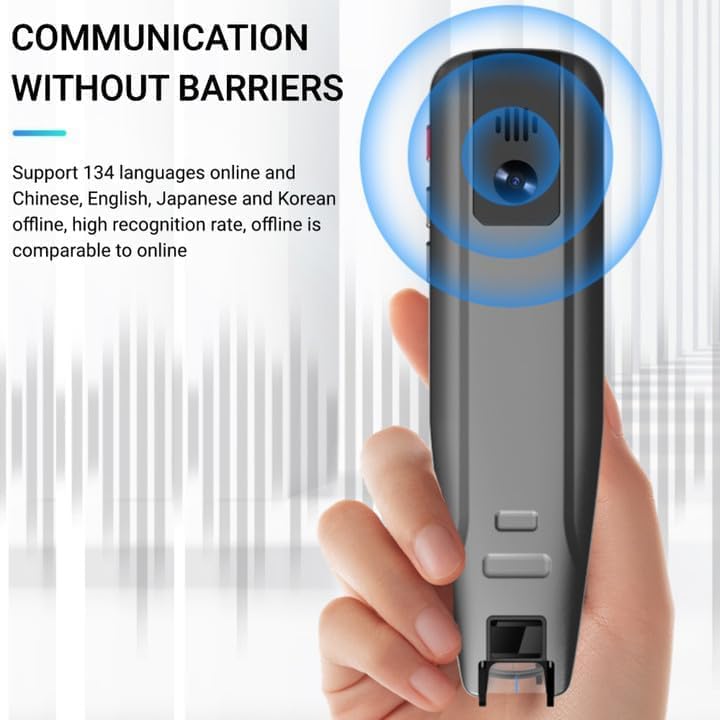
Image 5.3: The back of the Luqeeg Smart Translation Pen, emphasizing its speaker and microphone components, crucial for voice translation and communication.

Image 5.4: The translation pen displaying a real-time translation of text from a physical sticky note, demonstrating its immediate translation capabilities.
5.3. Photo Translation
Utilize the built-in camera to translate text from images. This feature is useful for signs, menus, or documents.
- Select the "Photo Transl" function (if available on your model).
- Point the camera at the text you wish to translate.
- Tap the screen to capture the image.
- The device will process the image and display the translated text.
5.4. Offline Translation and Dictionary
The device supports offline scanning, photo translation, and an electronic dictionary for 29 languages, allowing use without an internet connection.
- Ensure the necessary offline language packages are downloaded via Wi-Fi in the settings menu.
- When offline, the device will automatically use the downloaded data for translation.
- Access the electronic dictionary for definitions and vocabulary learning.

Image 5.5: The Luqeeg Smart Translation Pen's screen showing an offline translation, indicating its capability to function without an internet connection after downloading language packs.
5.5. Word Collection and Learning
The device includes features for collecting words and supporting language learning.
- During scanning or translation, you can often tap on words to add them to a personal word collection.
- Review collected words for targeted listening, reading, and memorization.
5.6. Diverse Applications
The Luqeeg Smart Translation Pen is designed for various scenarios, including travel, business meetings, language learning, and daily communication.
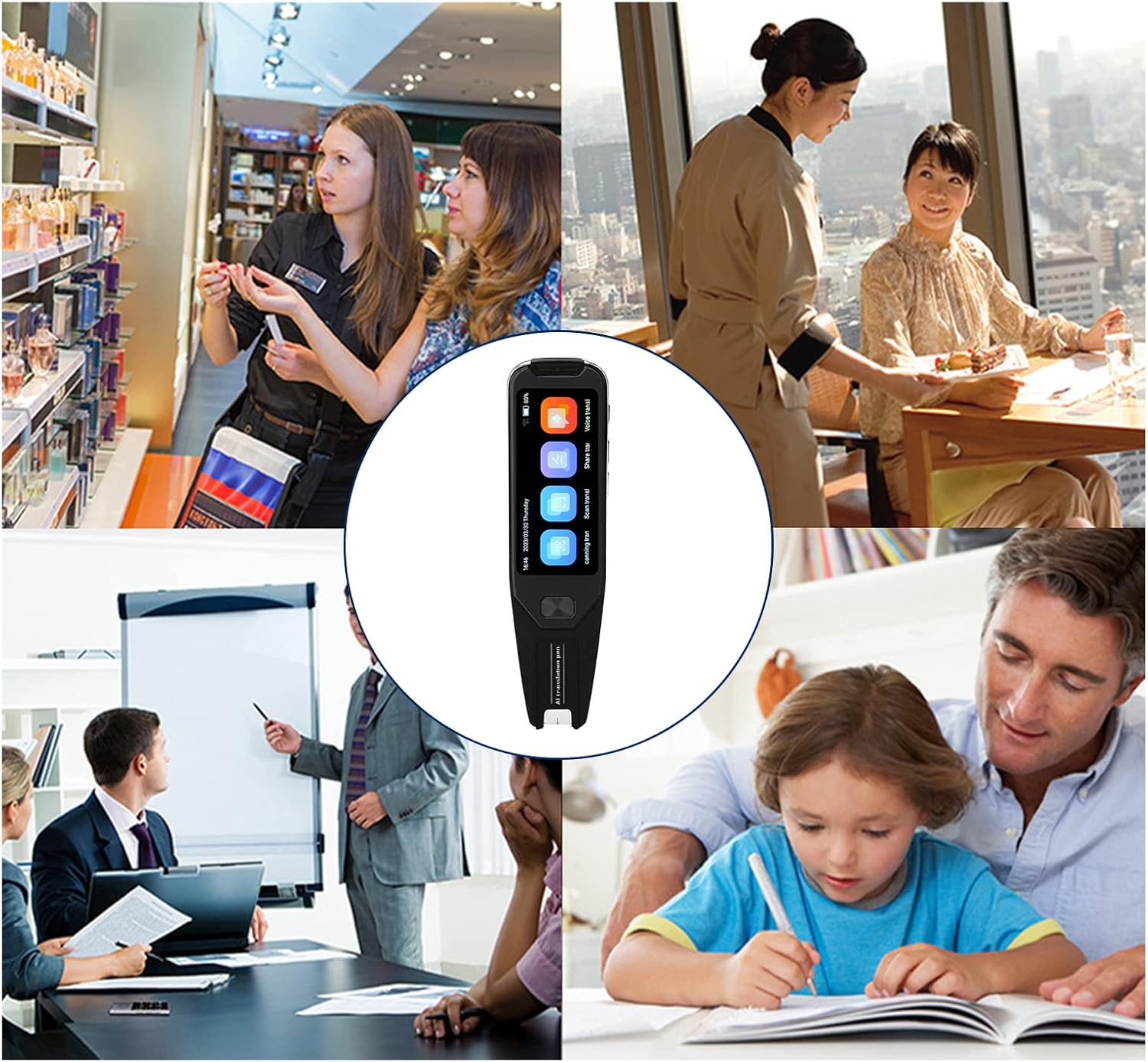
Image 5.6: A collage illustrating various applications of the translation pen, including use in travel, business, and educational settings.
6. Maintenance
- Cleaning: Use a soft, dry cloth to clean the device's screen and body. Do not use liquid cleaners or abrasive materials.
- Scanning Head: Keep the scanning head free from dust and debris to ensure accurate scanning. Use a soft brush if necessary.
- Storage: Store the device in a cool, dry place when not in use. Avoid extreme temperatures.
- Battery: To prolong battery life, avoid fully discharging the device frequently. Charge it regularly.
7. Troubleshooting
| Problem | Possible Cause | Solution |
|---|---|---|
| Device does not power on. | Low battery; device frozen. | Charge the device for at least 30 minutes. If still unresponsive, try a hard reset (refer to device support for specific instructions, usually holding power button for longer). |
| Scanning is inaccurate or fails. | Uneven scanning speed/pressure; dirty scanning head; poor lighting; text too small/blurry. | Ensure steady, even scanning. Clean the scanning head. Provide adequate lighting. Ensure text is clear and legible. |
| Voice translation is incorrect or not working. | Poor microphone input; incorrect language settings; no internet connection (for online translation). | Speak clearly and close to the microphone. Verify source and target language settings. Ensure a stable Wi-Fi connection for online translation. |
| Cannot connect to Wi-Fi. | Incorrect password; out of range; network issue. | Double-check the Wi-Fi password. Move closer to the Wi-Fi router. Restart the device and the router. |
| Offline translation not working. | Offline language packages not downloaded. | Connect to Wi-Fi and download the required offline language packages from the settings menu. |
8. Specifications
| Feature | Detail |
|---|---|
| Model Number | Luqeegb3i9ezsy02 |
| Display | 3.5 Inch HD Screen |
| Online Translation Languages | Up to 134 languages (Voice, Text, Photo) |
| Offline Translation Languages | 29 languages (Scanning, Photo, Electronic Dictionary) |
| Scanning Recognition | Fast scanning, multi-line support, phonetic symbols, lexical nature, interpretation |
| Camera | 8MP (for photo translation) |
| Accuracy | Over 98% (with multiple AI engines) |
| Item Weight | 9.3 ounces |
| Package Dimensions | 7.56 x 2.83 x 1.57 inches |
| Manufacturer | Luqeeg |
9. Warranty and Support
This Luqeeg product is covered by a standard manufacturer's warranty. For specific warranty terms and conditions, please refer to the documentation included with your purchase or visit the official Luqeeg website.
For technical support, troubleshooting assistance, or service inquiries, please contact Luqeeg customer support through their official channels. You may find contact information on the product packaging or the brand's website.
Online Resources: For additional information and updates, please visit the Luqeeg Store on Amazon.