1. Introduction
Thank you for purchasing the ZEBRONICS Juke BAR 9102 PRO 240W Dolby Soundbar. This manual provides essential information for the proper setup, operation, and maintenance of your soundbar system. Please read this manual thoroughly before use to ensure optimal performance and safety.
2. Safety Instructions
- Power Source: Use only the specified power adapter. Ensure the voltage is compatible with your local power supply.
- Ventilation: Do not block any ventilation openings. Maintain adequate space around the unit for proper airflow.
- Water and Moisture: Do not expose the soundbar or subwoofer to water, rain, or moisture. Avoid placing objects filled with liquids, such as vases, on or near the unit.
- Heat Sources: Keep the unit away from heat sources such as radiators, heat registers, stoves, or other heat-producing appliances.
- Cleaning: Disconnect the power before cleaning. Use a soft, dry cloth. Do not use liquid cleaners or aerosol cleaners.
- Servicing: Do not attempt to service this product yourself. Refer all servicing to qualified service personnel.
- Placement: Place the soundbar on a stable, flat surface or mount it securely on a wall as instructed.
3. Package Contents
Verify that all items listed below are included in your package:
- Soundbar - 1 Unit
- Subwoofer - 1 Unit
- Remote Control - 1 Unit
- QR Code User Manual - 1 Unit (Digital access)
- Wall Mount Bracket and Fasteners
4. Product Overview
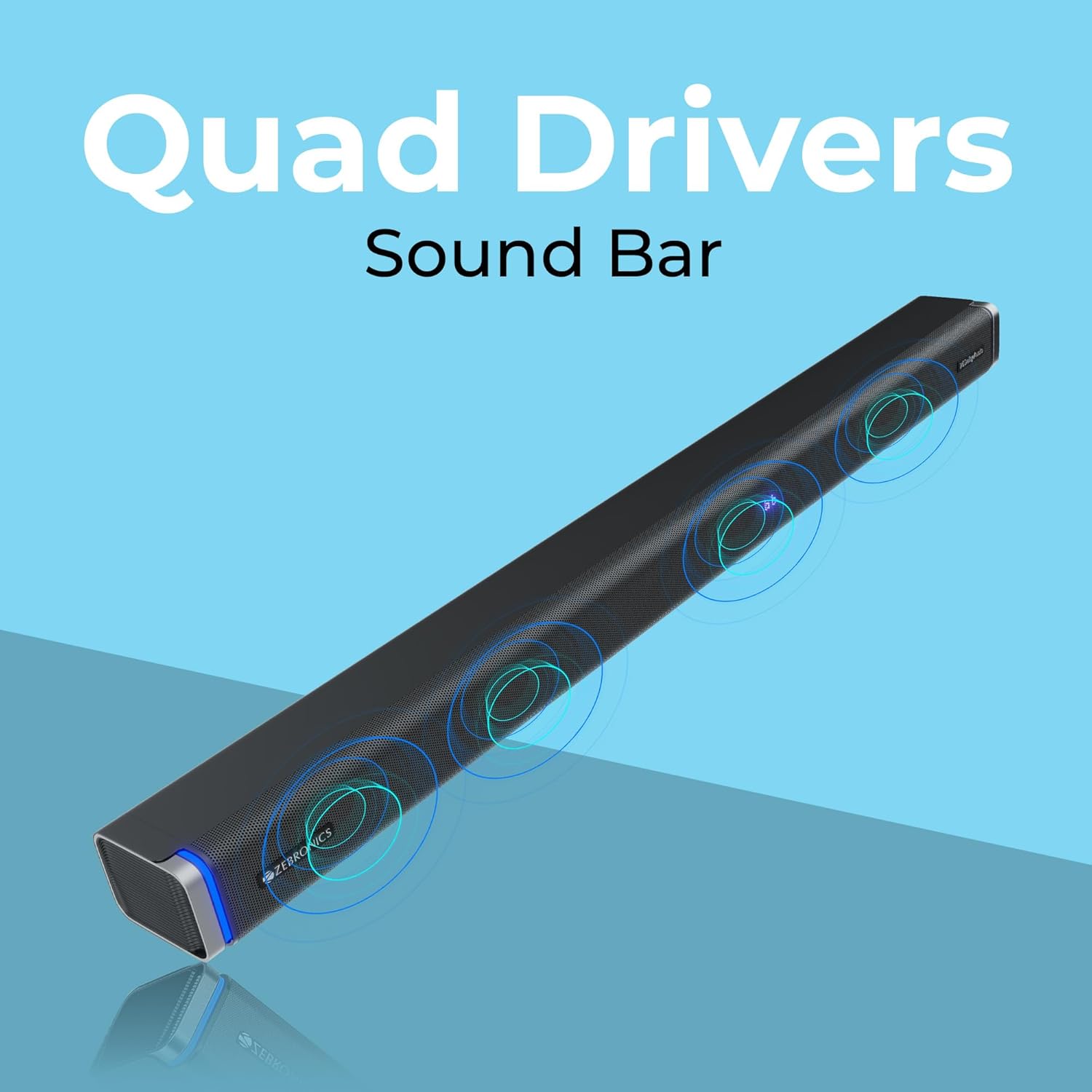
The ZEBRONICS Juke BAR 9102 PRO is a 240W output Dolby soundbar system designed to enhance your audio experience. It features a soundbar with quad drivers and a powerful 6.5-inch wired subwoofer.



5. Setup
5.1 Initial Placement
- Place the soundbar centrally below your television.
- Position the subwoofer on the floor near the soundbar for optimal bass response.
5.2 Power Connection
- Connect the power cable to the soundbar's power input.
- Connect the power cable to the subwoofer's power input.
- Plug both power cables into a suitable wall outlet.
5.3 Subwoofer Connection
The subwoofer connects to the soundbar via a wired connection. Ensure the subwoofer cable is securely connected to both units.
6. Operating Instructions
6.1 Power On/Off
Press the power button on the soundbar or the remote control to turn the unit on or off. The LED display will indicate the power status.
6.2 Volume Control
Use the volume up (+) and volume down (-) buttons on the soundbar or remote control to adjust the audio level.
6.3 Mode Selection
Press the 'Mode' button on the soundbar or remote control to cycle through available input modes (Bluetooth, HDMI ARC, Optical, AUX, USB). The LED display will show the current mode (e.g., 'BT' for Bluetooth, 'ARC' for HDMI ARC).
6.4 Equalizer (EQ) Modes
The soundbar features 3D EQ alternatives. Use the EQ button on the remote to switch between modes. The LED display will show 'E1', 'E2', 'E3' for different sound profiles, and '3D' for the virtual 5.1 effect. Common EQ modes include:
- E1: Music mode
- E2: Movie mode
- E3: News/Voice mode
- 3D: Virtual Surround Sound mode
6.5 RGB LED Lights
The soundbar includes RGB LED lights. These can be controlled and changed using the remote control to suit your preference.
7. Connectivity Options
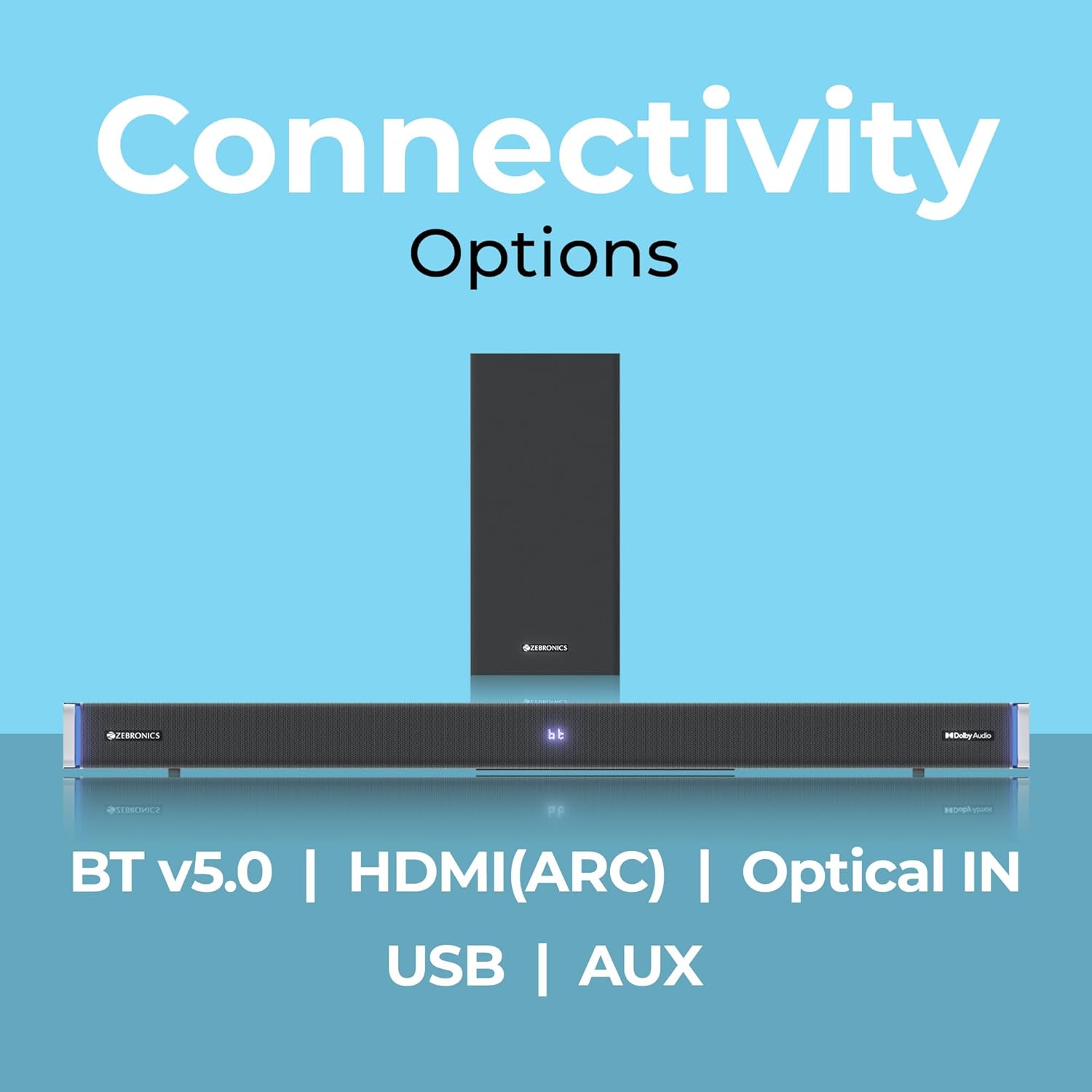
The ZEBRONICS Juke BAR 9102 PRO offers multiple connectivity options for versatile use.
7.1 Bluetooth v5.0
- Press the 'Mode' button until 'BT' appears on the LED display.
- On your mobile device or computer, search for Bluetooth devices and select 'ZEB-JUKE BAR 9102 PRO'.
- Once paired, audio will stream wirelessly to the soundbar.
7.2 HDMI (ARC)
- Connect an HDMI cable (ARC compatible) from the HDMI ARC port on your television to the HDMI ARC port on the soundbar.
- Select 'ARC' mode on the soundbar.
- Ensure your TV's audio output is set to HDMI ARC.
7.3 Optical IN
- Connect an optical cable from your audio source (e.g., TV, DVD player) to the 'Optical IN' port on the soundbar.
- Select 'OPT' mode on the soundbar.
7.4 3.5mm AUX Cable
- Connect a 3.5mm AUX cable from your audio source to the 'AUX' port on the soundbar.
- Select 'AUX' mode on the soundbar.
7.5 USB Playback
- Insert a USB pen drive (up to 32GB, supporting MP3 audio format) into the USB port on the soundbar.
- Select 'USB' mode on the soundbar. The soundbar will automatically begin playing compatible audio files.
8. Wall Mounting
The soundbar can be wall-mounted to save space. A wall mount bracket and fasteners are included in the package.
- Determine the desired mounting location on the wall, ensuring it is structurally sound and can support the weight of the soundbar.
- Mark the positions for drilling holes using the wall mount bracket as a template.
- Drill pilot holes and insert appropriate wall anchors if necessary.
- Secure the wall mount bracket to the wall using the provided fasteners.
- Carefully attach the soundbar to the mounted bracket. Ensure it is securely fastened before releasing.
Note: Professional installation is recommended for wall mounting to prevent damage or injury.
9. Maintenance
9.1 Cleaning
Wipe the surfaces of the soundbar and subwoofer with a soft, dry, lint-free cloth. Do not use abrasive cleaners, waxes, or solvents as they may damage the finish.
9.2 Storage
If storing the unit for an extended period, disconnect it from the power supply and store it in a cool, dry place, away from direct sunlight and extreme temperatures.
10. Troubleshooting
| Problem | Possible Cause | Solution |
|---|---|---|
| No power | Power cable not connected; Power outlet not active | Ensure power cables are securely connected and the outlet is functional. |
| No sound | Incorrect input mode; Volume too low; Cables not connected properly | Select the correct input mode. Increase volume. Check all audio cables for secure connection. |
| Bluetooth pairing issues | Soundbar not in pairing mode; Device too far; Interference | Ensure soundbar is in 'BT' mode. Move device closer. Restart both devices. |
| Remote control not working | Batteries depleted; Obstruction between remote and soundbar | Replace remote control batteries. Remove any obstructions. |
| Distorted sound | Volume too high; Poor audio source quality; Incorrect EQ setting | Reduce volume. Try a different audio source. Adjust EQ settings. |
11. Specifications
| Feature | Detail |
|---|---|
| Model Name | ZEB-JUKE BAR 9102 PRO |
| Output Power | 240 Watts (RMS) |
| Subwoofer Diameter | 6.5 Inches |
| Audio Driver Size | 5.5 cm (Quad Drivers) |
| Connectivity | Bluetooth v5.0, HDMI (ARC), Optical IN, 3.5mm AUX, USB |
| Surround Sound Configuration | Virtual 5.1 |
| Frequency Response | 20 Hz - 20 KHz |
| Signal-to-Noise Ratio | 65 dB |
| Impedance | 15 Ohms |
| Control Method | Remote Control |
| Product Dimensions (Soundbar) | Approx. 98.5W x 17.3D x 40.2H Centimeters |
| Item Weight | 5.8 kg |
| Power Source | Corded Electric |
| Special Features | Dolby Audio, LED Display, RGB LED Lights, Wall Mountable |
12. Warranty and Support
12.1 Warranty Information
This ZEBRONICS product comes with a 1-year warranty from the date of purchase. The warranty covers manufacturing defects under normal use. Please retain your purchase receipt for warranty claims.
12.2 Customer Support
For technical assistance, troubleshooting, or warranty inquiries, please contact ZEBRONICS customer support. Refer to the official ZEBRONICS website or the QR Code User Manual for contact details.


