
1. Introduction
The ISNATCH HEYROLL+ Smart Wi-Fi Shutter Module is designed to transform traditional roller shutter buttons into a smart, controllable solution. This module allows for convenient management of your roller shutters via a smartphone application, voice assistants, a traditional wired button, and the included RF remote control. It supports integration into a standard 503 electrical box or DIN rail, offering flexibility in installation.
2. Safety Information
WARNING: Electrical installation should only be performed by a qualified electrician. Ensure the main power supply is disconnected before installation to prevent electric shock. Do not exceed the maximum load specifications of the device. This device is for indoor use only. Keep out of reach of children.
3. Package Contents
- HEYROLL+ Smart Wi-Fi Shutter Module
- RF Remote Control
- DIN Rail Support
- User Manual (this document)
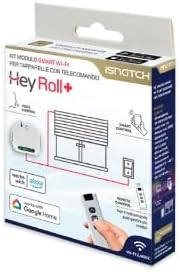
Figure 3.1: The HEYROLL+ Smart Wi-Fi Shutter Module packaging, showing the module, remote, and compatibility logos.
4. Specifications
| Model Name | HEYROLL+ |
| Model Number | 8023389766659 |
| Type | Smart Wi-Fi + RF Shutter Module |
| Max Load | 500 W |
| Max Current | 2 A |
| Voltage | 100-250 V |
| Electrical Connection | Screw Terminals |
| Outputs | 2 |
| Wireless Connectivity | Wi-Fi 2.4GHz + RF + BLE |
| Material | Plastic |
| Color | White |
| Dimensions (L x W x H) | 52 x 47 x 18 mm |
| Weight | 40 g |
| Compatible Devices | Roller Shutter Motors |
| Control Type | Button Control, App Control, Voice Control, Remote Control |
5. Setup
5.1 Electrical Installation
- Disconnect Power: Before starting any electrical work, ensure the main power supply to the circuit is turned off at the breaker.
- Prepare Wiring: Identify the live (L), neutral (N), and motor control wires (Up/Down) for your roller shutter.
- Connect Module: Connect the HEYROLL+ module according to the wiring diagram. The module features screw terminals for secure connections.
- Connect Live (L) and Neutral (N) to the corresponding terminals on the module.
- Connect the motor's Up and Down control wires to the module's output terminals.
- If using a traditional wired button, connect its output to the designated input on the module.
- Mount Module: The compact design allows installation inside a standard 503 electrical box or on a DIN rail using the included support. Ensure the module is securely placed and wires are not pinched.
- Restore Power: Once all connections are secure and the module is mounted, restore power to the circuit.

Figure 5.1: Diagram illustrating the electrical connection of the HEYROLL+ module to a roller shutter motor and power supply (90-250V AC).

Figure 5.2: Conceptual diagram showing the HEYROLL+ module integrated into a shutter system, controllable via smartphone app and remote.
5.2 App Pairing (HeySmart App)
- Download App: Download the "HeySmart" app from your smartphone's app store (available for iOS and Android).
- Register/Login: Open the app and register a new account or log in with an existing one.
- Add Device: In the HeySmart app, tap the "+" icon to add a new device. Select the "Shutter Module" or similar category.
- Enter Pairing Mode: Follow the app's instructions to put the HEYROLL+ module into pairing mode. This usually involves pressing and holding a button on the module for a few seconds until an indicator light flashes.
- Connect to Wi-Fi: Ensure your smartphone is connected to a 2.4GHz Wi-Fi network. Enter your Wi-Fi password in the app if prompted.
- Complete Pairing: The app will search for and connect to the module. Once connected, you can rename the device and assign it to a room.
5.3 Remote Control Pairing
The included RF remote control is typically pre-paired with the module. If re-pairing is necessary or if you wish to pair additional remotes:
- Enter Pairing Mode: Refer to the module's specific instructions (often a quick double-press or long press of a button on the module) to put it into remote pairing mode.
- Press Remote Button: While the module is in pairing mode, press any button on the RF remote control. The module's indicator light should confirm successful pairing.
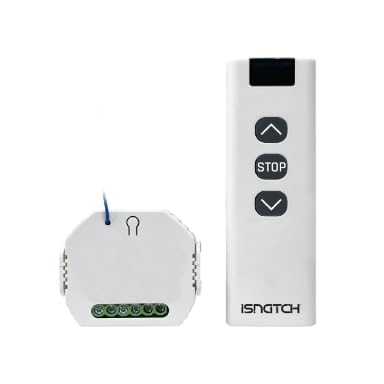
Figure 5.3: A user operating a roller shutter with the HEYROLL+ remote control.
6. Operating the Device
6.1 Using the HeySmart App
Once paired, the HeySmart app provides comprehensive control over your roller shutters:
- Open/Close: Tap the respective buttons in the app to fully open or close the shutter.
- Partial Control: Adjust the shutter to any desired position by sliding the control bar.
- Scheduling: Set up daily or weekly schedules for automatic opening and closing of your shutters.
- Group Control: If you have multiple HEYROLL+ modules, group them together to control several shutters simultaneously.
- Scenarios: Create custom scenarios (e.g., "Good Morning" to open shutters and turn on lights) by integrating with other HeySmart devices.

Figure 6.1: The HEYROLL+ module and remote, alongside a smartphone displaying the HeySmart app, highlighting compatibility with Alexa and Google Home.
6.2 Using the RF Remote Control
The included RF remote control provides direct local control:
- Up Button: Press to open the roller shutter.
- Down Button: Press to close the roller shutter.
- Stop Button: Press to stop the shutter at its current position.
The remote control functions even in the absence of a Wi-Fi connection.
6.3 Using the Traditional Wired Button
If you have connected a traditional wired shutter button to the module, it will continue to function as usual, providing a familiar manual control option.
6.4 Voice Control
The HEYROLL+ module is compatible with Google Home and Amazon Alexa. To enable voice control:
- Link Accounts: In the Google Home or Alexa app, link your HeySmart account.
- Discover Devices: Once linked, ask your voice assistant to discover new devices.
- Voice Commands: You can then use commands such as:
- "Alexa, open [Shutter Name]"
- "Hey Google, close [Shutter Name]"
- "Alexa, set [Shutter Name] to 50%"
7. Maintenance
- Cleaning: Wipe the module and remote control with a soft, dry cloth. Do not use liquid cleaners or aerosols.
- Firmware Updates: Periodically check the HeySmart app for available firmware updates for the module to ensure optimal performance and security.
- Battery Replacement (Remote): If the remote control's range or responsiveness decreases, replace its battery (type typically alkaline, refer to remote for specific model).
8. Troubleshooting
| Problem | Possible Cause | Solution |
|---|---|---|
| Module not responding | No power; incorrect wiring; module malfunction. | Check power supply. Verify wiring connections (ensure power is off first). If issues persist, contact support. |
| Cannot connect to Wi-Fi | Incorrect Wi-Fi password; 5GHz network; module too far from router; router issues. | Ensure correct 2.4GHz Wi-Fi network and password. Move module closer to router. Restart router. Try re-pairing. |
| Remote control not working | Battery low/dead; remote not paired; interference. | Replace remote battery. Re-pair the remote control (see Section 5.3). Ensure no obstructions. |
| Voice control not working | HeySmart account not linked; device not discovered; incorrect commands. | Verify HeySmart account is linked in Alexa/Google Home app. Ask assistant to discover devices. Use correct voice commands. |
| Shutter moves in wrong direction | Motor wires (Up/Down) reversed during installation. | Disconnect power. Swap the motor's Up and Down control wires at the module terminals. Restore power. |
9. Warranty and Support
For warranty information, please refer to the documentation provided at the time of purchase or contact your retailer. For technical support, assistance with installation, or troubleshooting not covered in this manual, please contact ISNATCH customer service through their official website or the HeySmart application.
