
Introduction
This manual provides detailed instructions for the setup, operation, and maintenance of your Pomya Mini Camera. This compact device offers 1080p HD video recording, night vision, motion detection, and loop recording capabilities, making it suitable for various indoor and outdoor surveillance needs. It supports up to 128GB memory card storage and features a 350mAh built-in battery for portable use.
Package Contents
Verify that all items listed below are included in your package:
- 1 x Mini Camera
- 1 x Instruction Manual
- 1 x Magnetic Stand
- 1 x Charging Cable

Image: The Pomya Mini Camera, along with its magnetic stand and charging cable, as included in the package.
Product Features
- 1080p HD Video Recording: Captures clear, high-definition video footage.
- Night Vision Function: Provides clear visibility in low-light conditions.
- Motion Detection: Automatically records when motion is detected, suitable for security monitoring.
- Loop Recording: Supports up to 128GB memory card storage. When the memory is full, the camera automatically overwrites the oldest footage, ensuring continuous recording.
- Long Battery Life: Equipped with a 350mAh built-in battery, offering approximately 60 minutes of recording in Ultra HD video format when disconnected from a power source.
- Cell Phone APP Connection: Allows live viewing and access to stored footage anytime, anywhere via a mobile application.
- Compact and Portable Design: Ultra-small body for easy carrying and discreet placement.
- Magnetic Module Design: Features a strong magnetic force for attachment to iron surfaces. The included magnetic stand assists in adjusting the shooting angle.

Image: The compact Pomya Mini Camera with its magnetic stand, illustrating its small size and versatile mounting options.
Setup Guide
1. Charging the Camera
Before initial use, fully charge the camera. Connect the provided charging cable to the camera's Micro USB port and a 5V1A power adapter. A full charge takes approximately 30 minutes from 0% battery.

Image: A close-up view of the camera's Micro USB charging port, ready for connection to the charging cable.
2. Memory Card Installation
Insert a memory card (up to 128GB, not included) into the designated slot on the camera. Ensure the card is inserted correctly until it clicks into place. The camera supports continuous recording for up to 21 hours with a 128GB card.
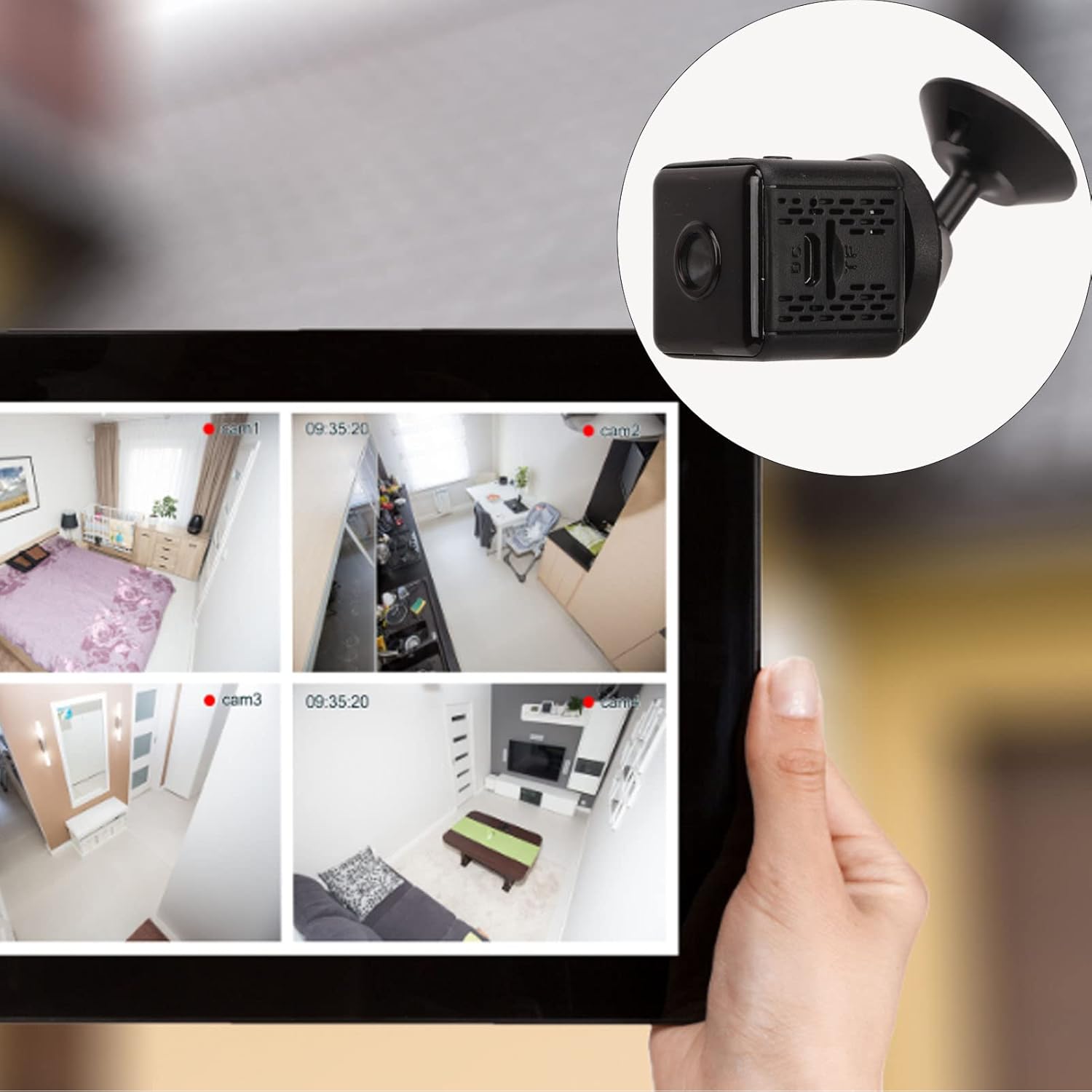
Image: The Pomya Mini Camera showing the memory card slot, indicating where to insert the storage card.
3. Mobile App Connection
Download the dedicated mobile application (refer to the instruction manual included in the package for app name and QR code). Follow the in-app instructions to connect your camera to your smartphone via Wi-Fi. This enables live viewing and remote access to recordings.

Image: A smartphone screen displaying a live feed from the Pomya Mini Camera, demonstrating the app connection feature.
4. Mounting the Camera
Use the included magnetic stand to position the camera. The camera's magnetic back allows it to attach to iron surfaces directly or to the magnetic stand for adjustable angles. Ensure the camera is securely placed for stable recording.

Image: The Pomya Mini Camera attached to a surface using its magnetic stand, illustrating a typical mounting scenario.
Operating Instructions
1. Power On/Off
Refer to the physical instruction manual for specific button locations and sequences to power the camera on or off. Typically, a long press of the power button initiates this action.
2. Recording Video
Once powered on and a memory card is inserted, the camera will begin recording. The 1080p HD video is stored on the memory card. The loop recording feature ensures continuous operation by overwriting the oldest files when the card is full.
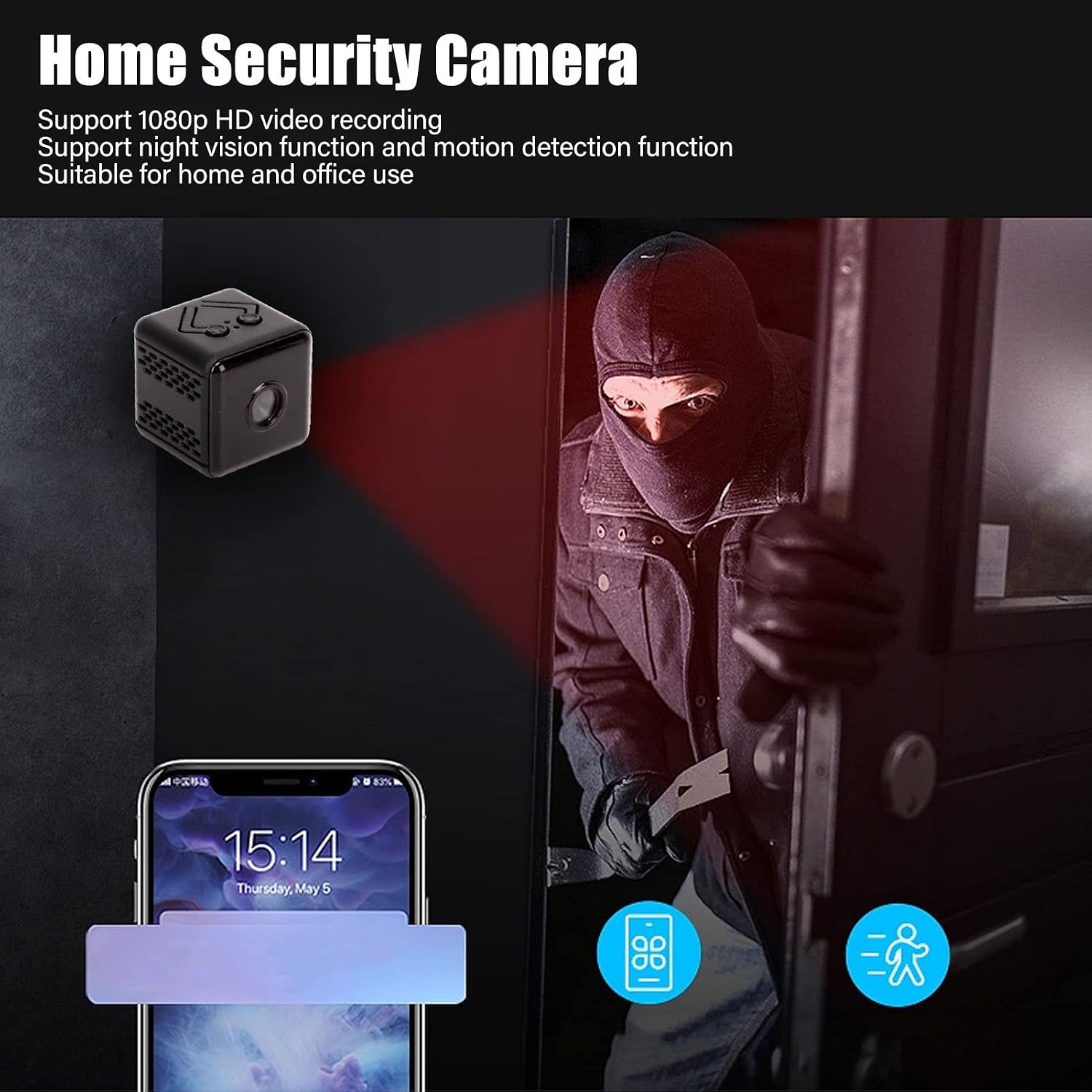
Image: The Pomya Mini Camera positioned to record, illustrating its function as a home security device.
3. Night Vision Mode
The camera features a night vision function. This mode can be set to manual or timed open, providing clear video capture even in low-light or dark environments. Consult the app or physical manual for activation details.
4. Motion Detection
Activate motion detection through the mobile application. When enabled, the camera will automatically begin recording when movement is detected within its field of view, conserving battery and storage space.
5. Remote Viewing via App
After connecting the camera to the mobile app, you can view live footage, access recorded videos, and adjust settings from your smartphone. Ensure a stable Wi-Fi connection for optimal performance.
Maintenance
- Cleaning: Use a soft, dry cloth to clean the camera lens and body. Avoid using liquid cleaners or abrasive materials.
- Battery Care: To prolong battery life, avoid fully discharging the camera frequently. Charge the camera regularly, especially if it will be stored for an extended period.
- Storage: Store the camera in a cool, dry place away from direct sunlight and extreme temperatures.
- Firmware Updates: Check the mobile application periodically for any available firmware updates to ensure optimal performance and access to new features.
Troubleshooting
- Issue: Camera cannot be viewed remotely (only works at home).
- Possible Cause: Network configuration issues, firewall restrictions, or incorrect app settings for remote access.
- Solution:
- Ensure your home Wi-Fi network has internet access.
- Check the mobile app settings to confirm remote viewing is enabled and configured correctly.
- Verify that your router's firewall is not blocking the camera's connection to the internet for remote access. You may need to consult your router's manual or ISP for port forwarding or UPnP settings.
- Restart both the camera and your router.
- Issue: Difficulty with initial setup.
- Possible Cause: Incorrect Wi-Fi password, camera not in pairing mode, or app compatibility issues.
- Solution:
- Double-check the Wi-Fi network name (SSID) and password. Ensure you are connecting to a 2.4GHz Wi-Fi network, as 5GHz networks are often not supported by security cameras.
- Reset the camera to factory settings (refer to the physical manual for the reset button location and procedure).
- Ensure your smartphone's operating system is up to date and the camera app is the latest version.
- Try the setup process again, closely following the steps in the physical instruction manual and the app.
Specifications
| Item Type | Mini Camera |
| Material | ABS (Acrylonitrile Butadiene Styrene) |
| Product Size (L x W x H) | Approx. 3 x 3 x 3cm / 1.2 x 1.2 x 1.2in |
| Video Resolution | 1080p, 720p |
| Battery Life | 60 Minutes (Ultra HD Video Format) |
| Battery Capacity | 350mAh (Built-in Lithium Polymer Battery) |
| Connection Mode | Cell Phone APP Connection, Wi-Fi |
| Memory Maximum Expansion Capacity | 128GB (Memory Card Not Included) |
| Night Vision Mode | Manual, Timed Open, Night Color |
| Charging Power | 5V1A |
| Charging Interface | Micro USB |
| Charging Time | 30 Minutes (0% to 100%) |
| Compression Standard | H.264 MP, H.264 BP, MJPEF, JPEG Baseline |
| Recommended Uses | Indoor, Outdoor |
| Indoor/Outdoor Usage | Indoor |
| Compatible Devices | Smartphone (Android) |
| Mount Type | Wall Mount (Magnetic Stand) |
| Alert Type | Motion Only |
| Waterproof Rating | IP54 |
| Control Method | App |
| Video Capture Format | MP4 |
| Power Source | Battery Powered |
| Wattage | 5 watts |
Warranty and Support
For warranty information and technical support, please refer to the contact details provided in the physical product packaging or visit the official Pomya website. Keep your purchase receipt for warranty claims.