
1. Introduction
This manual provides detailed instructions for the setup, operation, and maintenance of your SUBSONIC Superdrive GS950-X Steering Wheel. Please read this manual carefully before using the product to ensure proper functionality and to maximize your gaming experience.

Image: The SUBSONIC Superdrive GS950-X Steering Wheel, featuring the wheel, manual shifter, and pedal unit.
2. Compatibility
The SUBSONIC Superdrive GS950-X Steering Wheel is compatible with the following gaming platforms:
- PlayStation 4 (PS4)
- Xbox Series X/S
- Xbox One
Note: This product is not compatible with PlayStation 5 (PS5) or PC.
3. Product Features
- 900° Rotation Angle: Experience realistic steering with a full 900-degree rotation, adjustable to 270 degrees for different game types.
- Manual Gearshift: Includes a dedicated manual shifter for enhanced control.
- 3-Pedal System: Features accelerator, brake, and clutch pedals for a complete driving simulation. The pedal unit includes a footrest system.
- Paddle Shifters: Integrated paddle shifters on the steering wheel provide quick gear changes.
- Double Vibration Motor: Provides haptic feedback, active only in sequential mode via shift paddles.
- Adjustable Sensitivity: Three sensitivity levels can be adjusted to suit your driving style and game requirements.
- Fixing System: Secure the steering wheel using either suction cups or a screw clamping system.
- Gaming Headset Compatible: Connect your gaming headset directly to the steering wheel.

Image: The steering wheel illustrating its 900-degree and 270-degree rotation capabilities.

Image: Detail of the switch to select between 900 and 270 degrees of rotation.

Image: Visual representation of adjustable sensitivity and programmable keys on the steering wheel.

Image: The paddle shifters located behind the steering wheel for quick gear changes.
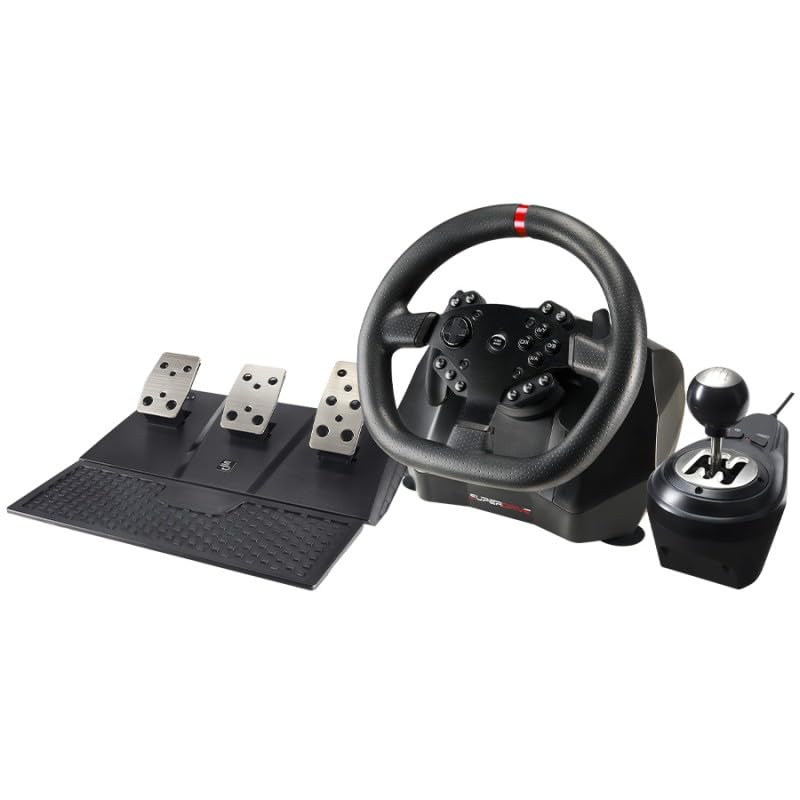
Image: The three-pedal unit, including accelerator, brake, and clutch pedals.

Image: A close-up view of the manual gear shifter.
4. Setup Instructions
Follow these steps to connect your Superdrive GS950-X Steering Wheel to your console:
- Ensure your console (Xbox Series X/S, Xbox One, or PS4) is powered OFF.
- Connect the steering wheel's USB cable directly to a USB port on your console.
- Connect your official console controller (Xbox or PS4) to the USB port on the steering wheel using the provided cable. Ensure the controller is also powered OFF.
- Power ON your console.
- Press the 'HOME' button on the steering wheel. The steering wheel should now be recognized by your console.

Image: Quick setup diagram illustrating the connection process for Xbox Series X/S, Xbox One, and PS4.
Video: Official setup guide for the Superdrive steering wheel, demonstrating the connection steps to various consoles.
5. Operating Instructions
5.1. Adjusting Sensitivity
The steering wheel features three sensitivity levels. Refer to the product's on-screen display or specific game settings for detailed adjustment procedures. Generally, a switch or button combination on the wheel allows you to cycle through sensitivity options.
5.2. Programming Keys
The Superdrive GS950-X allows for programming certain keys to customize your control layout. This feature enables you to assign specific functions to buttons or paddles for a personalized gaming experience.
- Press and hold the 'PROG' button for 3 seconds. The red LED on the steering wheel will flash rapidly.
- Press the programmable key you wish to assign a new function to. The red LED will light up steadily.
- Press the button or function you want to assign to the programmable key. The red LED will turn off, indicating successful programming.
Video: Official guide demonstrating the programming procedure for the steering wheel's keys.
5.3. Using the Manual Shifter and Paddle Shifters
The manual gearshift provides a traditional driving experience. Use the gear lever to select gears. For sequential shifting, the paddle shifters located behind the steering wheel allow for quick upshifts and downshifts. The double vibration motor is active when using sequential mode via the paddle shifters.
6. Maintenance
To ensure the longevity and optimal performance of your steering wheel, follow these maintenance guidelines:
- Cleaning: Use a soft, dry cloth to clean the steering wheel, shifter, and pedals. Avoid using abrasive cleaners or solvents, as these can damage the surfaces.
- Storage: Store the device in a cool, dry place away from direct sunlight and extreme temperatures.
- Cable Care: Avoid bending or twisting cables excessively. Disconnect cables by pulling the plug, not the cord.
7. Troubleshooting
If you encounter issues with your Superdrive GS950-X Steering Wheel, refer to the following common solutions:
- Steering Wheel Not Recognized:
- Ensure the console is powered off before connecting the steering wheel and controller.
- Verify that the official console controller is connected to the steering wheel's USB port and is also powered off before turning on the console.
- Try connecting to a different USB port on your console.
- Ensure all cables are securely connected.
- No Force Feedback/Vibration:
- Confirm that the game you are playing supports force feedback.
- Ensure the steering wheel is in sequential mode if expecting double vibration motor feedback.
- Check in-game settings for force feedback options.
- Incorrect Button Mapping:
- Refer to the 'Programming Keys' section (5.2) to reset or reconfigure button assignments.
- Check the game's control settings for customization options.
If problems persist, please contact SUBSONIC customer support.
8. Specifications
| Feature | Detail |
|---|---|
| Model Number | SA5659 |
| Product Dimensions | 11.02 x 10.83 x 12.99 inches |
| Item Weight | 10.8 pounds |
| Manufacturer | Subsonic |
| Compatibility | PS4, Xbox Series X/S, Xbox One |
| Rotation Angle | 900° (adjustable to 270°) |
| Pedals | Accelerator, Brake, Clutch |
| Shifters | Manual Gearshift, Paddle Shifters |
9. Warranty and Support
For warranty information and customer support, please refer to the documentation included with your product or visit the official SUBSONIC website. Keep your proof of purchase for any warranty claims.


