Introduction
This manual provides comprehensive instructions for the setup, operation, maintenance, and troubleshooting of your UGREEN Revodok Pro 2101 USB C Docking Station. This 10-in-1 docking station is designed to expand the connectivity of your MacBook and Windows laptops, enabling dual 4K monitor support, high-speed data transfer, and efficient power delivery.
Package Contents
Verify that all items listed below are included in your package:
- 1x UGREEN Revodok Pro 2101 10-in-1 USB C Docking Station
- 1x USB-C to USB-C Cable (1.6 ft)
- 1x User Manual
Note: Power adapter and HDMI cables are not included and must be purchased separately.

Image: The UGREEN Revodok Pro 2101 docking station and its included 1.6ft USB-C to USB-C cable, illustrating the package contents.
Product Overview
The UGREEN Revodok Pro 2101 offers a comprehensive set of ports to enhance your laptop's connectivity:
- 2x HDMI 4K Ports: For connecting external displays. Note that HDMI 2 requires driver installation for full functionality.
- 1x PD 3.0 100W USB-C Port: For power delivery to your host laptop.
- 2x USB-A 3.2 Gen 2 Ports (10Gbps): For high-speed data transfer.
- 1x USB-C 3.2 Gen 2 Port (10Gbps): For high-speed data transfer.
- 1x USB-A 3.0 Port (5Gbps): For standard data transfer.
- 1x Gigabit Ethernet Port: For stable wired network connection.
- SD/TF Card Reader: For accessing data from memory cards.

Image: A detailed view of the UGREEN Revodok Pro 2101 docking station, highlighting and labeling each of its 10 ports for easy identification.
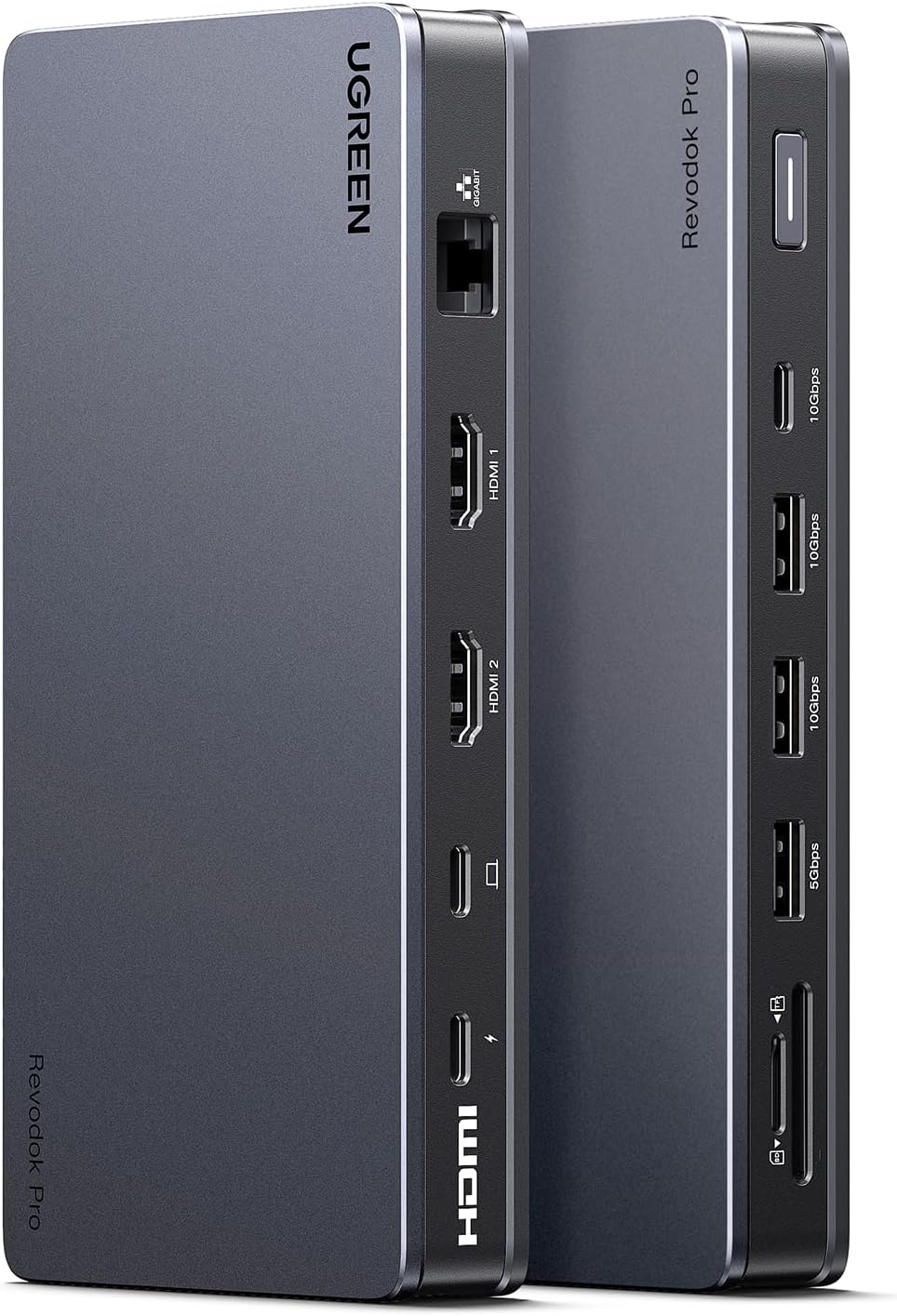
Image: The UGREEN Revodok Pro 2101 docking station displayed from two angles, illustrating its sleek design and the arrangement of its input and output ports.
Setup Instructions
Follow these steps for the initial setup of your docking station:
- Connect to Host Laptop: Use the provided USB-C to USB-C cable to connect the docking station's "Connect to Host" port to your laptop's USB-C port.
Video: A demonstration of connecting the UGREEN Revodok Pro 2101 docking station to a laptop's host port using the provided USB-C cable.
- Connect Monitors: Connect your external monitors to the "HDMI 1" and "HDMI 2" ports on the docking station using HDMI cables (not included).
- Power On: Press the power button on the docking station to turn it on.
- Install DisplayLink Driver (Crucial for HDMI 2): For dual monitor extended display functionality, especially for macOS and for HDMI 2 on Windows, you must install the Silicon Motion driver.
- Visit the official UGREEN website (ugreen.com).
- Navigate to the "Download" section (usually found in the footer).
- Search for the driver using the product model number: 15963 or "Revodok Pro 2101".
- Download and install the appropriate driver for your operating system (macOS or Windows).
- Restart your computer after installation if prompted.
Note: Without the correct driver, HDMI 2 may not function, or display modes may be limited.
- Connect Power Adapter (Optional but Recommended): For optimal performance and to charge your laptop, connect a 100W PD 3.0 compatible power adapter (not included) to the docking station's PD 3.0 USB-C port.
- Connect Peripherals: Connect any other peripherals (USB devices, Ethernet cable, SD/TF cards) to the available ports on the docking station.
Operating Instructions
Display Operation for macOS
After installing the Silicon Motion driver, you can configure your display settings:
- Open "Displays" in "System Preference" (or "System Settings" on newer macOS versions).
- Click "Arrange" to manage your displays. You can drag and drop displays to change their order or position.
- Select any display to adjust its settings.
- Choose between "Mirror Mode" (duplicate display) or "Extended Display" (separate display) from the "Use as" dropdown.
- Set your desired resolution and refresh rate for each display.

Image: Visual representation of various display configurations, including extended and mirrored modes, achievable with the docking station on both macOS and Windows operating systems.
Video: A step-by-step guide demonstrating how to configure display settings, including arrangement, resolution, and refresh rate, on macOS when using the UGREEN Revodok Pro 2101 docking station.
Display Operation for Windows
For Windows users, follow these steps to configure your display settings:
- Right-click on your desktop and select "Display Settings".
- In the "System > Display" window, you should see all connected displays. You can drag and drop them to arrange their positions.
- Select any display to set it as the main display or to configure "Mirror Mode" (Duplicate) or "Extended Mode".
- Adjust the display resolution from the "Display resolution" dropdown.
- To set the refresh rate, click "Advanced Display" and choose the desired refresh rate for each display.
Video: A step-by-step guide demonstrating how to configure display settings, including arrangement, resolution, and refresh rate, on Windows when using the UGREEN Revodok Pro 2101 docking station.
Data Transfer and Charging
- High-Speed Data: Utilize the USB-A 3.2 Gen 2 (10Gbps) and USB-C 3.2 Gen 2 (10Gbps) ports for rapid file transfers.
- Fast Charging: The 100W PD 3.0 port allows for fast charging of your laptop when connected to a compatible power adapter.
- Stable Network: The Gigabit Ethernet port provides a reliable and fast wired internet connection.
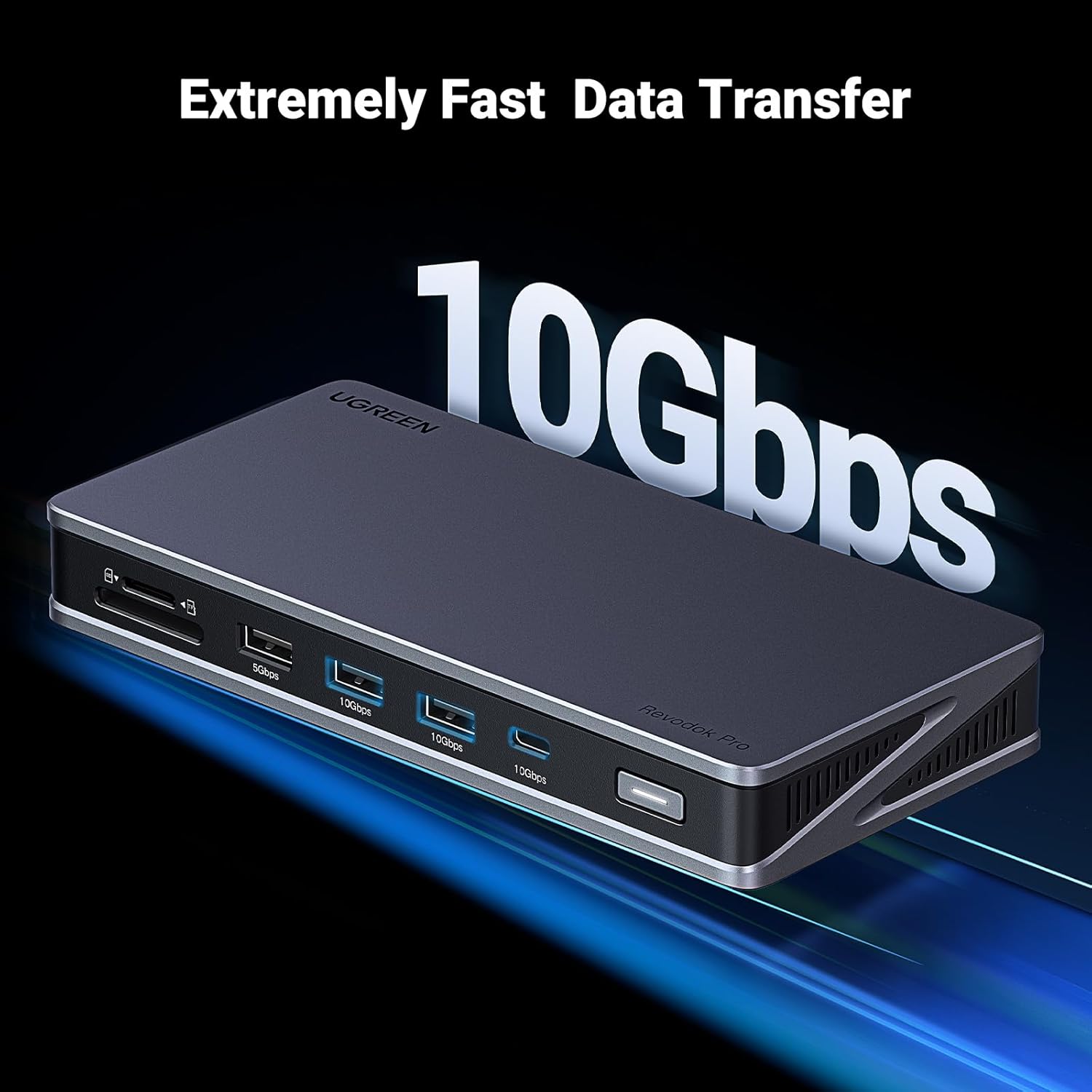
Image: The UGREEN Revodok Pro 2101 docking station with an overlay indicating its capability for extremely fast 10Gbps data transfer speeds.

Image: A laptop connected to the UGREEN Revodok Pro 2101 docking station, illustrating its 100W high-speed charging capability from a wall outlet.
Maintenance
To ensure the longevity and optimal performance of your UGREEN Revodok Pro 2101 docking station, follow these maintenance guidelines:
- Cleaning: Use a soft, dry, lint-free cloth to clean the surface of the docking station. Avoid using harsh chemicals, cleaning solvents, or strong detergents.
- Storage: When not in use for extended periods, store the docking station in a cool, dry place away from direct sunlight and extreme temperatures.
- Handling: Avoid dropping or subjecting the device to strong impacts. Do not attempt to disassemble or modify the docking station, as this will void the warranty and could cause damage.
- Ventilation: Ensure the docking station's vents are not obstructed to allow for proper airflow and prevent overheating. The device features an improved cooling system with dual vents and cooling silica gel.

Image: An exploded diagram of the docking station revealing its internal structure, highlighting the improved cooling system with dual vents and cooling silica gel for efficient heat dissipation.
Troubleshooting
If you encounter issues with your UGREEN Revodok Pro 2101, please refer to the following common solutions:
- No Display on HDMI 2:
The HDMI 2 port requires the installation of the Silicon Motion driver. Ensure you have downloaded and installed the latest driver from the official UGREEN website (ugreen.com) and restarted your computer. Verify that your display settings are correctly configured for extended or mirrored mode.
- Intermittent Connection/Display Issues:
Ensure all cables (USB-C to host, HDMI, power) are securely connected. Try unplugging and replugging the docking station and all connected peripherals. Restarting your laptop can also resolve temporary connection issues. Ensure your laptop's USB-C port supports video output (DisplayPort Alternate Mode).
- No Power Delivery/Slow Charging:
Confirm that you are using a 100W PD 3.0 compatible power adapter and a high-quality USB-C to USB-C cable that supports power delivery. The docking station itself does not include a power adapter.
- USB Devices Not Recognized:
Try connecting the USB device to a different port on the docking station. Ensure the device drivers are installed on your computer. If the issue persists, try connecting the USB device directly to your laptop to rule out a device-specific problem.
- Ethernet Connection Issues:
Check the Ethernet cable connection at both the docking station and your router/modem. Verify network settings on your computer. Try restarting your router/modem. Ensure the Ethernet port on the docking station is clean and free of debris.
If these steps do not resolve your issue, please contact UGREEN customer support for further assistance.
Specifications
| Feature | Detail |
|---|---|
| Brand | UGREEN |
| Model Number | 15963 |
| Product Dimensions | 6.5 x 3.1 x 0.86 inches (16.5 x 7.9 x 2.2 cm) |
| Item Weight | 9.2 ounces (0.26 Kilograms) |
| Color | Grey |
| Hardware Interface | USB Type C |
| Total USB Ports | 3 (2x USB-A 3.2 Gen 2, 1x USB-C 3.2 Gen 2) + 1x USB-A 3.0 |
| Total HDMI Ports | 2 (4K resolution support) |
| Power Delivery | 100W PD 3.0 |
| Ethernet | Gigabit Ethernet (1000Mbps) |
| Card Reader | SD/TF Card Reader |
| Compatible Devices | MacBook Pro/Air, Dell XPS, Surface Pro, HP Spectre x360, HP Victus, iMac, Lenovo Yoga, ASUS Zenbook Flip, Acer Swift Go 14, and more. |
| Compatible Systems | macOS (all versions, including M1/M2/M3 chips), Windows 11, 10, 8, 8.1, 7, XP. |
Warranty and Support
UGREEN products are designed for reliability and performance. For warranty information and technical support, please refer to the following:
- Warranty: Please refer to the warranty policy provided with your product packaging or visit the official UGREEN website for detailed warranty terms and conditions.
- Customer Support: For any questions, technical assistance, or troubleshooting not covered in this manual, please contact UGREEN customer support through the Amazon platform or the official UGREEN website.
- Online Resources: Additional resources, including updated drivers and FAQs, may be available on the UGREEN website.