1. Introduction
This manual provides detailed instructions for the installation, configuration, and operation of your Hiseeu 5MP 8-Channel NVR PoE CCTV Security Camera System. Please read this manual thoroughly before using the product to ensure proper functionality and safety. Keep this manual for future reference.
2. Package Contents
Verify that all items are present in your package:
- 1 x Hiseeu 8-Channel NVR with 10-inch Monitor
- 1 x 3TB Hard Drive (pre-installed in NVR)
- 4 x Hiseeu 5MP PoE PTZ IP Cameras
- 4 x Ethernet Cables (60ft each)
- 1 x Power Adapter for NVR
- 1 x USB Mouse
- Mounting Screws and Plugs
- Quick Start Guide

Image: Complete Hiseeu 5MP 8-Channel NVR PoE CCTV Security Camera System components.
3. Safety Information
- Ensure the power supply voltage matches the product specifications.
- Do not expose the NVR or cameras to extreme temperatures, humidity, or dust.
- Avoid placing the NVR in direct sunlight or near heat sources.
- Handle the hard drive with care to prevent data loss.
- Installation should be performed by qualified personnel if you are unsure.
- Keep cables organized to prevent tripping hazards and damage.
4. Setup Instructions
4.1 NVR and Monitor Setup
- Place the NVR on a stable, flat surface.
- Connect the included USB mouse to a USB port on the NVR.
- Connect the NVR to a power outlet using the provided power adapter. The NVR will power on automatically, and the integrated 10-inch monitor will display the boot screen.
4.2 Camera Installation (PoE)
The Hiseeu system utilizes Power over Ethernet (PoE) technology, simplifying installation as a single Ethernet cable provides both power and video transmission.
- Mounting: Choose suitable outdoor locations for your cameras, ensuring a clear field of view. Use the provided screws and plugs to securely mount each camera. The cameras are IP66 weatherproof, suitable for various outdoor conditions.
- Cable Connection: Connect one end of the Ethernet cable to the camera's PoE port and the other end to one of the PoE ports on the NVR. The NVR has 8 channels, allowing for expansion up to 8 cameras.
- Verification: Once connected, the camera feed should appear on the NVR's monitor.
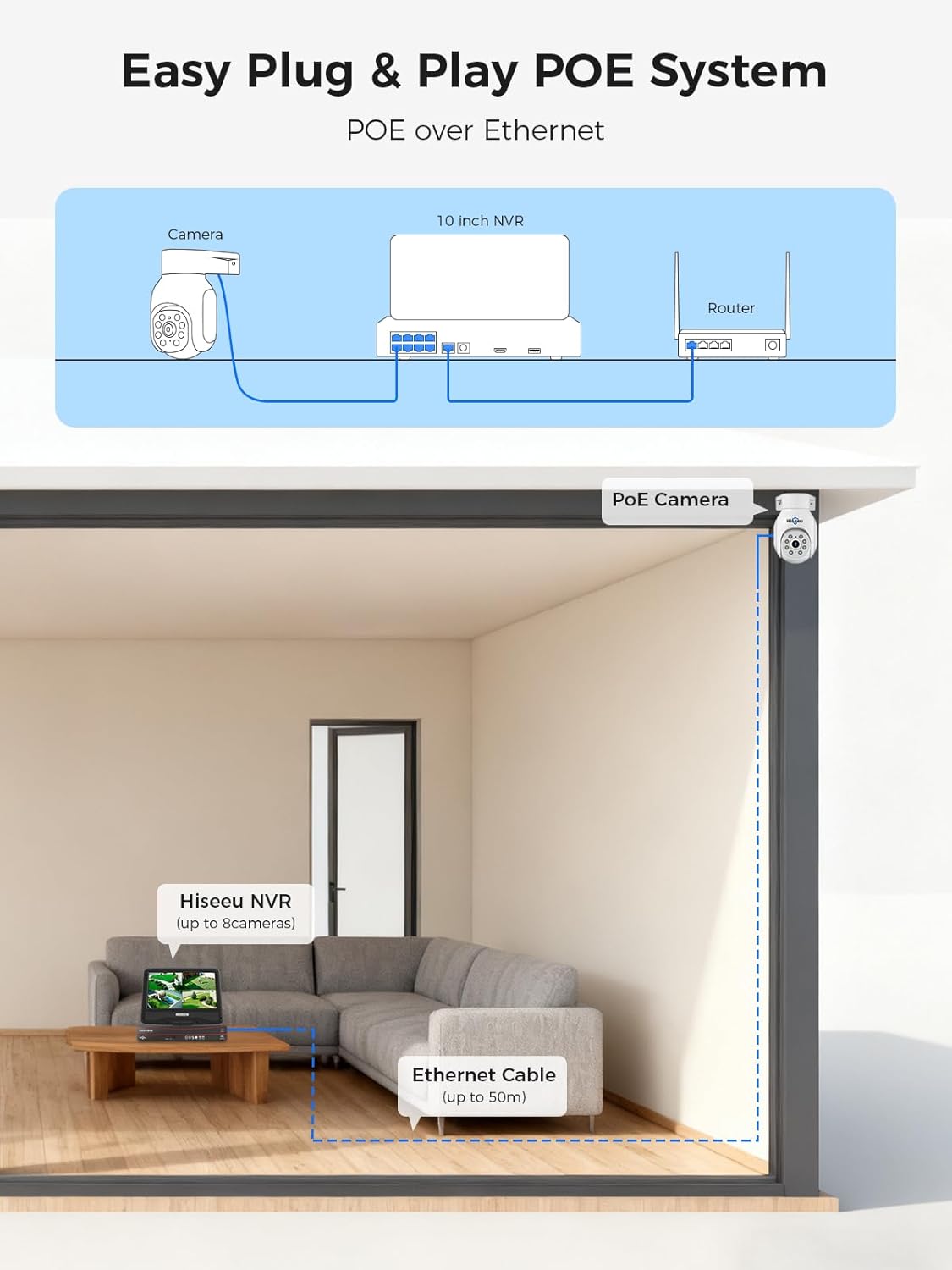
Image: Diagram illustrating the simple plug-and-play PoE connection between cameras, NVR, and router.

Image: Example of camera and NVR placement within a house, highlighting Ethernet cable routing.
4.3 Network Connection
To enable remote access and app functionality, connect the NVR to your local network:
- Connect an Ethernet cable from the NVR's LAN port to your router or network switch.
- The NVR will automatically obtain an IP address. Verify network status in the NVR's system settings.
4.4 Mobile App Setup (EseeCloud)
- Download the 'EseeCloud' app from your smartphone's app store (available on iOS and Android).
- Register an account and log in.
- Add your NVR system by scanning the QR code displayed on the NVR's monitor (usually found in the network settings or system info).
- Once added, you can view live feeds and manage your system remotely.

Image: Visual guide for connecting the system, downloading the EseeCloud app, and enabling remote access.
5. Operating Instructions
5.1 Live View
After successful setup, the NVR monitor will display live feeds from all connected cameras. You can switch between single-camera view and multi-camera grid view using the NVR's interface or the mobile app.
5.2 Recording
The system is equipped with a 3TB hard drive for continuous 24/7 recording without monthly fees.
- Continuous Recording: The system is configured for 24/7 recording by default.
- Scheduled Recording: You can customize recording schedules via the NVR's menu.
- Event Recording: Recordings are triggered by motion detection events.

Image: The NVR system demonstrating 24/7 recording capability with power connection.

Image: Smart Playback interface on the NVR monitor, indicating continuous 24/7 recording.
5.3 Motion Detection & Alarms
The system features smart AI motion detection to alert you to activity.
- Configuration: Access the NVR menu or app settings to enable and configure motion detection zones and sensitivity for each camera.
- Alerts: When motion is detected, you will receive instant push notifications on your smartphone via the EseeCloud app.
- Siren & Spotlight: The PTZ cameras can be configured to activate a siren and spotlight upon detection, serving as a deterrent.

Image: Illustration of smart AI motion detection, highlighting a detected person and a mobile app alert.

Image: Smart AI motion detection in action, showing an individual approaching a doorway and a corresponding smartphone notification.
5.4 PTZ Control
The PTZ (Pan-Tilt-Zoom) cameras offer flexible viewing angles.
- Manual Control: Use the NVR interface or the EseeCloud app to remotely pan (355° horizontal) and tilt (120° vertical) the cameras.
- Preset Positions: Configure preset viewing positions for quick navigation.
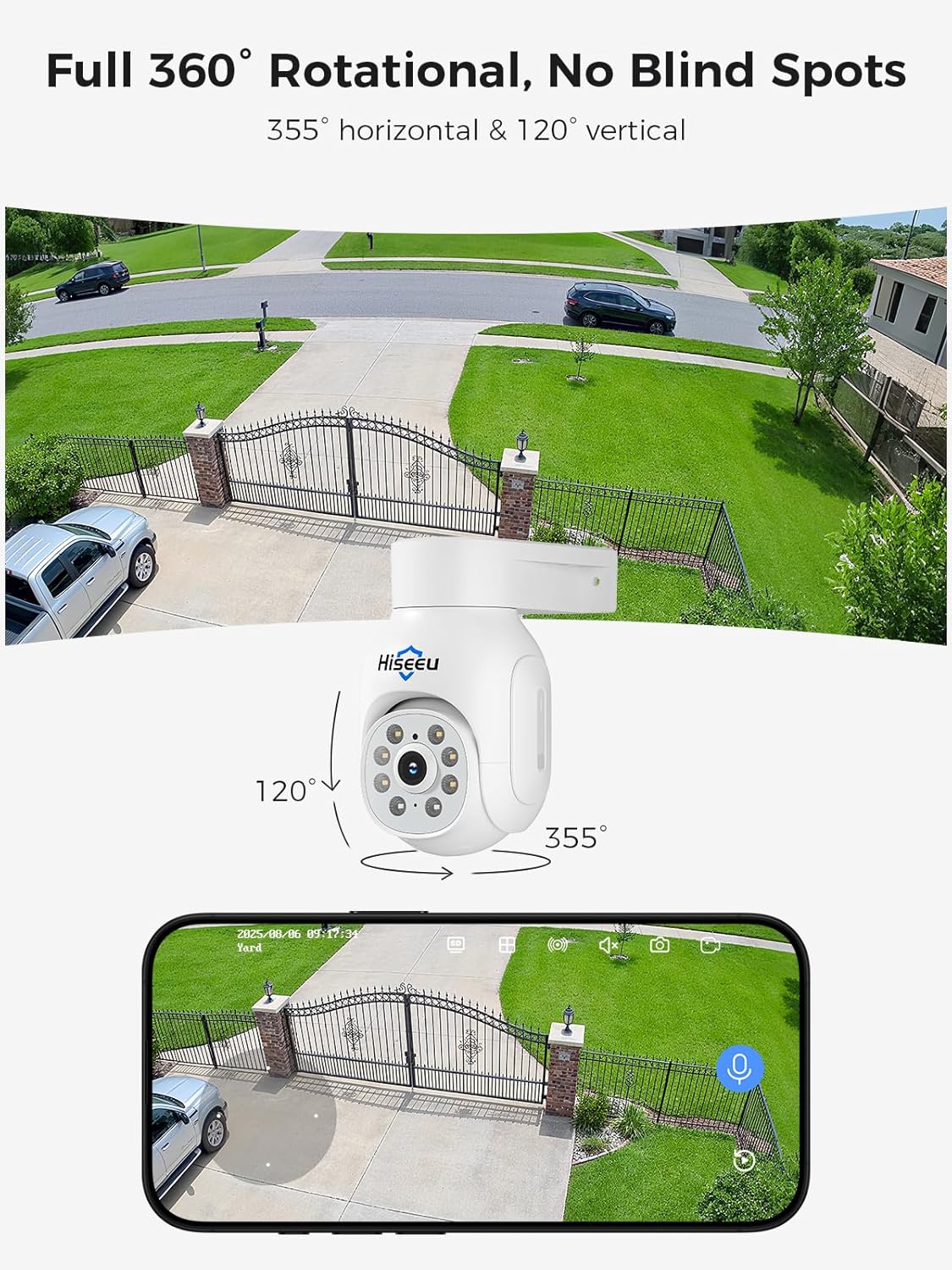
Image: A PTZ camera illustrating its 360-degree rotational capabilities, providing a wide, comprehensive view.

Image: The PTZ camera capturing a 360-degree panoramic view of a road and surrounding landscape.
5.5 Two-Way Audio
Each camera includes a built-in speaker and microphone for two-way communication.
- Activation: Use the EseeCloud app to initiate two-way audio.
- Applications: Communicate with visitors, delivery personnel, or deter intruders.

Image: A person using a smartphone to engage in real-time two-way audio communication through the camera system.

Image: An example of two-way audio functionality, showing a camera interacting with a child via speech bubbles.
5.6 Remote Access & Playback
Access your camera feeds and recorded footage from anywhere using the EseeCloud app.
- Live View: Monitor your property in real-time.
- Playback: Review recorded footage by selecting specific dates and times. The app provides a timeline for easy navigation.
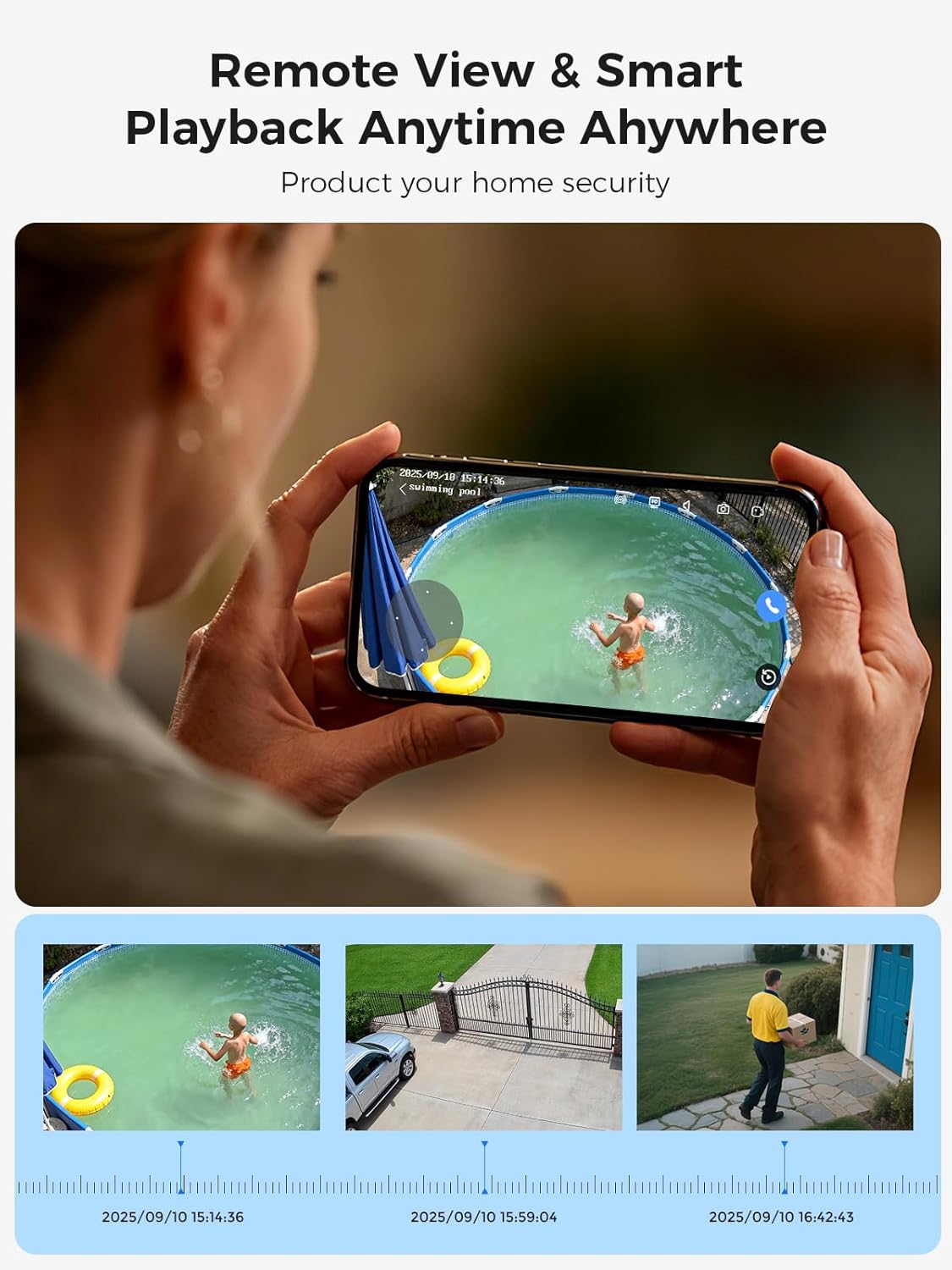
Image: A smartphone displaying remote view and smart playback features, showing a timeline of recorded events.

Image: Various smart devices (smartphone, laptop, tablet) demonstrating remote viewing capabilities of the camera system.
5.7 Night Vision
The cameras provide 5MP color night vision up to 30 meters.
- Color Night Vision: Captures high-quality, full-color images even in low-light conditions.
- Infrared Night Vision: Automatically switches to infrared mode in complete darkness for clear black and white footage.

Image: An example of 5MP Ultra HD image quality and color night vision in a nighttime outdoor setting.

Image: Comparison of crystal color night vision and traditional infrared night vision at a house entrance.
6. Maintenance
6.1 Hard Drive Management
The 3TB hard drive will automatically overwrite the oldest footage when full. Regularly back up important recordings if needed.
6.2 Cleaning
- Wipe camera lenses and NVR screen with a soft, dry cloth.
- Do not use harsh chemicals or abrasive cleaners.
6.3 Software Updates
Check the NVR system settings or the EseeCloud app periodically for available firmware updates to ensure optimal performance and security.
7. Troubleshooting
- No Video Feed: Check all cable connections between cameras and NVR. Ensure NVR is powered on.
- No Remote Access: Verify NVR is connected to the internet and has a valid IP address. Ensure the EseeCloud app is correctly configured and logged in.
- Poor Night Vision: Ensure camera lenses are clean and free from obstructions. Check for strong light sources directly facing the camera at night.
- Hard Drive Full: The system is designed to overwrite old footage. If you need more storage, consider upgrading the HDD (refer to specifications for compatible types) or backing up data more frequently.
- NVR Noise: Some NVRs may produce fan noise. Ensure adequate ventilation around the unit. If noise is excessive, contact support.
8. Specifications
| Feature | Specification |
|---|---|
| Brand | Hiseeu |
| Model Number | wk-10v405 |
| Video Capture Resolution | 5MP (2560x1920) |
| Number of Channels | 8 |
| Connectivity Technology | Ethernet, Wired (PoE) |
| Monitor Size | 10-inch LCD |
| Hard Drive Capacity | 3TB (pre-installed) |
| Night Vision | 30M Color Night Vision |
| PTZ Rotation | 355° Horizontal, 120° Vertical |
| Audio | Two-Way Audio |
| Weatherproof Rating | IP66 |
| Motion Detection | Smart AI Motion Detection, APP Alarm, Siren, Spotlight |
| Recording | 24/7 Recording, No Monthly Fee |
| Product Dimensions | 30.48 x 17.78 x 27.94 cm |
| Item Weight | 7.02 kg |
9. Warranty and Support
Hiseeu provides comprehensive support for your security camera system:
- Warranty: 2 years product coverage for manufacturing faults. Accidental or human-caused damage is not covered.
- Technical Support: Lifetime technical support is available.
- Software Updates: Complimentary software updates are provided for the product's lifetime.
Contact Support:
- Contact Hiseeu directly via the Amazon Message Center.
- Email support: Jason@hiseeu.com
- Inquire through the EseeCloud app for 24/7 quick response.

Image: Overview of user manual, technical support contact methods, and customer service details.