
1. Introduction
This manual provides instructions for the proper setup, operation, and maintenance of your Lapcare WL-102 2.4GHz Wireless Keyboard and Mouse Combo. Please read this manual thoroughly before using the product to ensure optimal performance and longevity.

Image 1.1: Lapcare WL-102 Wireless Keyboard and Mouse Combo.
2. Package Contents
Verify that all items are present in the package:
- Lapcare WL-102 Wireless Keyboard
- Lapcare WL-102 Wireless Mouse
- USB Nano Receiver
- 1 x AAA Battery (for keyboard)
- 1 x AA Battery (for mouse)
3. Setup
3.1. Battery Installation
- For the Keyboard: Locate the battery compartment on the underside of the keyboard. Open the cover and insert one AAA battery, ensuring correct polarity (+/-). Close the battery compartment cover.
- For the Mouse: Locate the battery compartment on the underside of the mouse. Open the cover and insert one AA battery, ensuring correct polarity (+/-). Close the battery compartment cover.
3.2. Connecting the USB Nano Receiver
The keyboard and mouse share a single USB Nano Receiver for wireless connectivity.
- Locate the USB Nano Receiver, typically stored within the mouse's battery compartment or packaged separately.
- Plug the USB Nano Receiver into an available USB port on your computer.
- The operating system will automatically detect and install the necessary drivers. This process may take a few moments.
- Once the drivers are installed, the keyboard and mouse are ready for use. No additional pairing is required.
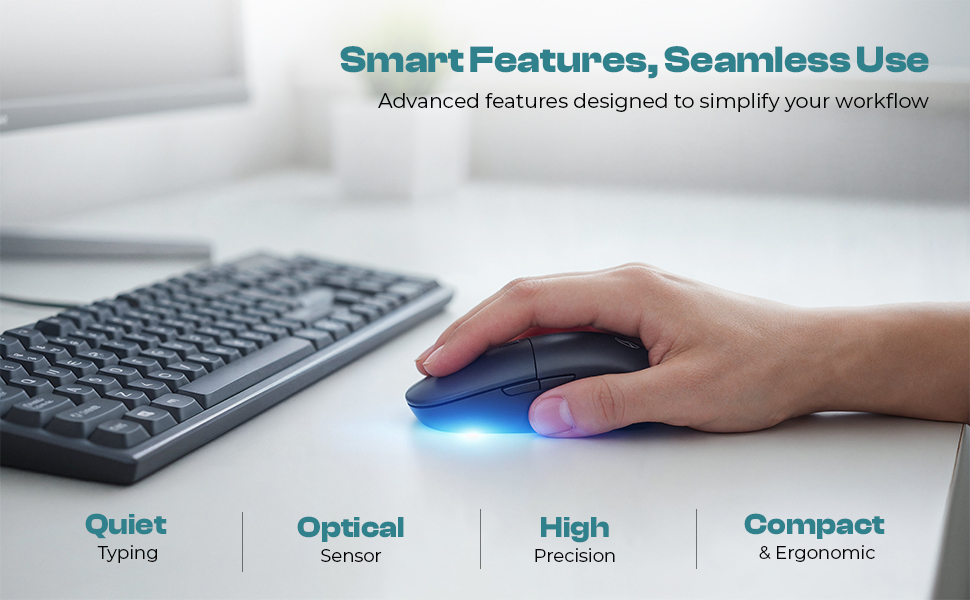
Image 3.2.1: The USB Nano Receiver enables seamless wireless connection.
4. Operating Instructions
4.1. Keyboard Functions
- Full-Size Layout: The keyboard features a standard 104-key layout for comprehensive input.
- Rupee Key: A dedicated Rupee symbol key is integrated for convenience.
- Silent Typing: Keys are designed for reduced noise during operation.
- UV-Printed Keycaps: Keycap legends are UV-printed for enhanced durability and fade resistance.

Image 4.1.1: The keyboard provides a comfortable typing experience with quiet keys.
4.2. Mouse Functions
- Ergonomic Design: The mouse is shaped for comfortable use.
- Optical Sensor: Equipped with a high-precision optical sensor for accurate tracking.
- DPI Adjustment: The mouse features a DPI button to cycle through sensitivity settings (up to 1600 DPI). Press the DPI button located on the top of the mouse to change sensitivity.
- Scroll Wheel: A rubberized scroll wheel provides tactile feedback for navigation.
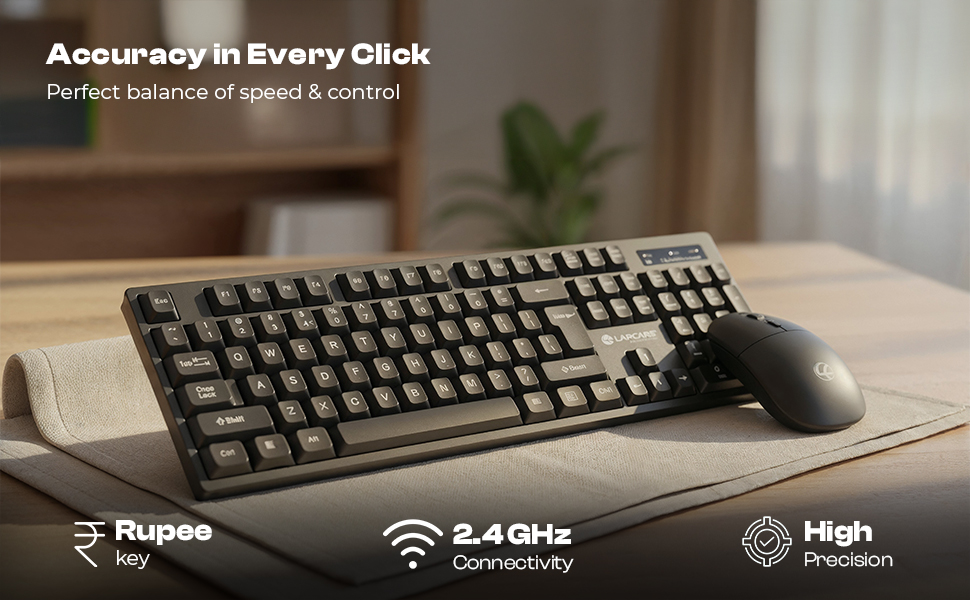
Image 4.2.1: The mouse offers adjustable DPI settings for varied precision requirements.

Image 4.2.2: Diagram illustrating the mouse's buttons and Nano USB receiver.
4.3. Power Saving Mode
Both the keyboard and mouse are equipped with an advanced power-saving mode. When not in use for a period, the devices will automatically enter a sleep state to conserve battery life. To reactivate, simply move the mouse or press any key on the keyboard.
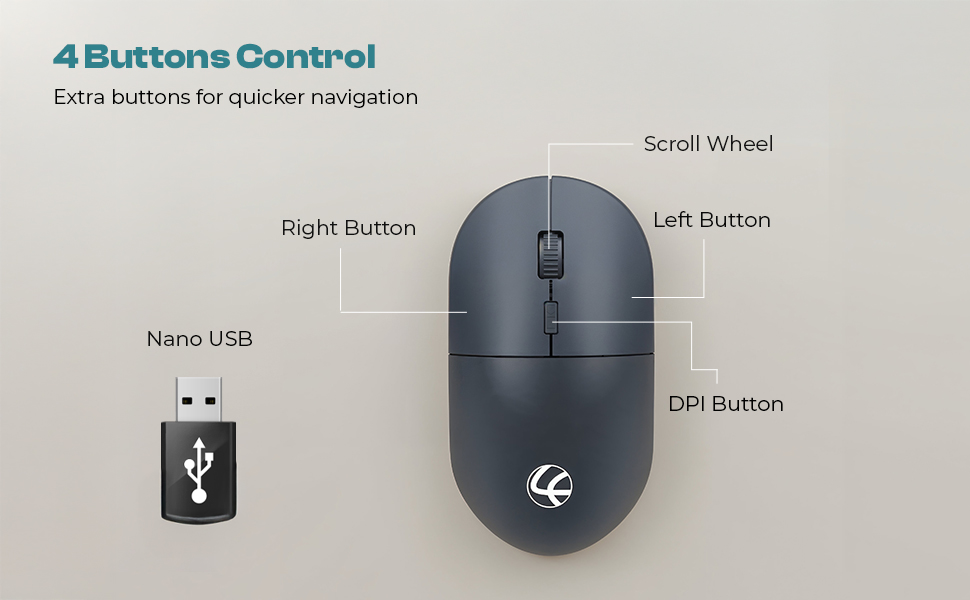
Image 4.3.1: The devices are designed for low energy consumption.
5. Maintenance
- Cleaning: Use a soft, dry cloth to clean the surfaces of the keyboard and mouse. For stubborn dirt, a slightly damp cloth with mild soap can be used, ensuring no liquid enters the device.
- Battery Replacement: Replace batteries when performance degrades. Use only specified battery types (AAA for keyboard, AA for mouse).
- Storage: When not in use for extended periods, remove batteries to prevent leakage. Store in a cool, dry place.
- Receiver Care: Keep the USB Nano Receiver free from dust and physical damage.
6. Troubleshooting
| Problem | Possible Cause | Solution |
|---|---|---|
| Keyboard/Mouse not responding | Low battery; Receiver not connected; Interference | Replace batteries; Ensure receiver is securely plugged in; Try a different USB port; Move devices closer to receiver. |
| Lag or intermittent connection | Distance from receiver; Obstructions; Other wireless devices | Reduce distance to receiver; Remove obstructions; Avoid placing near other 2.4GHz devices. |
| Mouse cursor erratic | Dirty optical sensor; Unsuitable surface | Clean the optical sensor with a soft cloth; Use on a clean, non-reflective mouse pad or surface. |
| Keyboard keys not working | Low battery; Physical damage | Replace keyboard battery; Check for physical obstructions under keys. |
7. Specifications
- Model: WL-102
- Connectivity: 2.4GHz Wireless (Radio Frequency)
- Receiver: USB Nano Receiver
- Keyboard Layout: Full-Size 104-Key with Rupee Key
- Keyboard Battery: 1 x AAA (included)
- Mouse DPI: Up to 1600 DPI (adjustable)
- Mouse Buttons: 4 (Left, Right, Scroll Wheel, DPI)
- Mouse Battery: 1 x AA (included)
- Operating System Compatibility: Windows XP, 7, 8, 10, 11; Mac OS
- Product Dimensions (Keyboard): Approximately 44 x 13.1 x 2.5 cm
- Item Weight (Combo): Approximately 400 g
- Keycap Durability: UV-Printed, fade-resistant
- Keystroke Life: Up to 10 million keystrokes
- Mouse Click Life: Up to 3 million clicks
8. Warranty and Support
For warranty information and technical support, please refer to the warranty card included with your product or visit the official Lapcare website. Keep your purchase receipt as proof of purchase for warranty claims.