
Introduction
This manual provides instructions for the proper use and care of your Samsung Smart Book Cover. This accessory is designed to protect your Samsung Galaxy Tab S9+ and enhance its functionality with versatile viewing angles.
- Detachable Design: The cover features a detachable design for flexible use.
- Versatile Stand: Offers both landscape and portrait viewing modes.
- S Pen Storage: Includes a dedicated compartment for your S Pen.
- Compatibility: Specifically designed for the Samsung Galaxy Tab S9+.
Setup: Attaching the Smart Book Cover
Follow these steps to correctly attach the Smart Book Cover to your Samsung Galaxy Tab S9+.
- Prepare your tablet: Ensure your Samsung Galaxy Tab S9+ is clean and free of dust or debris on its back surface.
- Align the cover: Position the Smart Book Cover so that the camera cutout aligns with your tablet's camera module. The magnetic attachment points on the cover should align with the corresponding areas on the back of your tablet.
- Attach the cover: Gently press the tablet onto the cover. The magnets will secure the cover in place. Ensure all edges are flush and the tablet is firmly seated.
- Secure the S Pen: If applicable, place your S Pen into its designated storage slot on the cover.
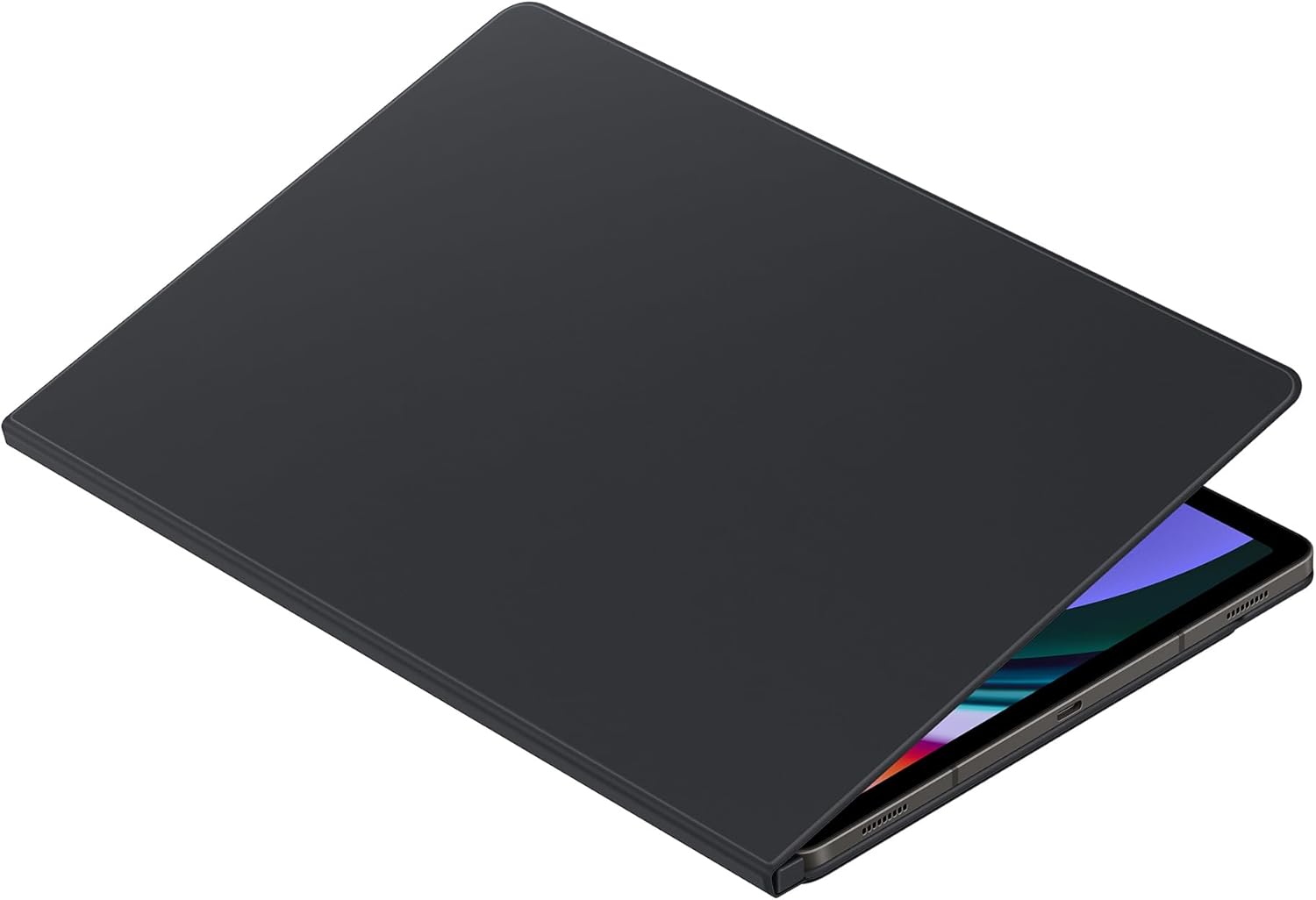
Figure 1: Attaching the Samsung Galaxy Tab S9+ to the Smart Book Cover.
Operating the Smart Book Cover
The Smart Book Cover offers multiple ways to use your tablet for optimal viewing and productivity.
Landscape Stand Mode
To use your tablet in landscape orientation for watching videos or typing:
- Open the front flap of the cover.
- Fold the flap along its creases to form a triangular stand behind the tablet.
- Rest the tablet's edge into the groove created by the folded cover.

Figure 2: Tablet positioned in landscape stand mode.
Portrait Stand Mode
For vertical viewing, such as reading documents or browsing social media:
- Open the front flap of the cover.
- Fold the flap along its creases to form a different triangular stand, supporting the tablet vertically.
- Ensure the tablet is stable before use.
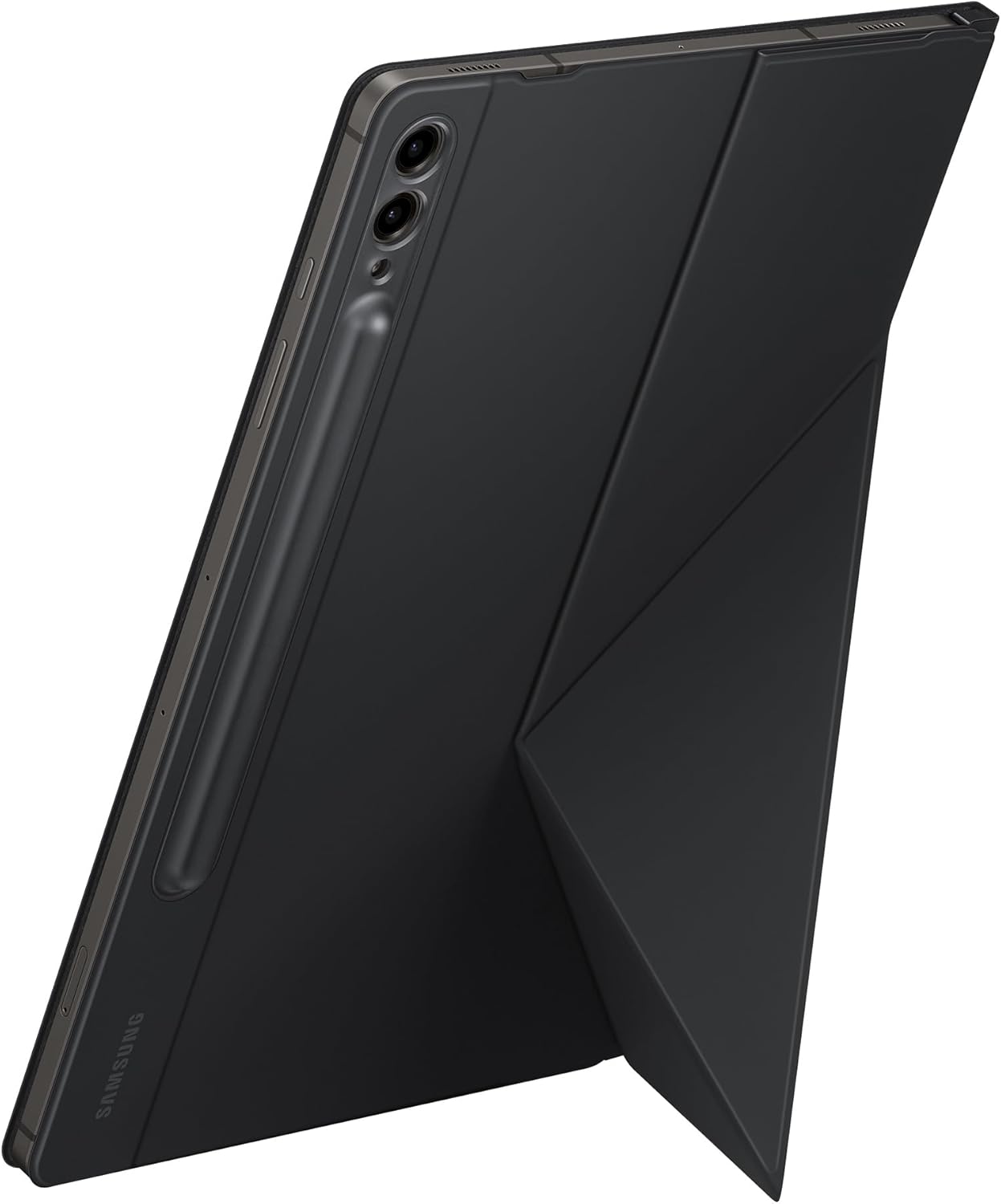
Figure 3: Tablet positioned in portrait stand mode.
S Pen Storage
The Smart Book Cover includes a dedicated slot to securely store your S Pen when not in use. This helps prevent loss and keeps your S Pen readily accessible.

Figure 4: S Pen securely stored in the cover's slot.
Maintenance
To ensure the longevity and appearance of your Smart Book Cover, follow these maintenance guidelines:
- Cleaning: Use a soft, dry, lint-free cloth to wipe the exterior of the cover. For stubborn marks, lightly dampen the cloth with water and gently wipe, then dry immediately. Avoid harsh chemicals or abrasive cleaners.
- Avoid Extreme Conditions: Do not expose the cover to extreme temperatures, direct sunlight for prolonged periods, or excessive moisture.
- Handle with Care: While durable, avoid bending the cover excessively or applying undue force, which could damage its structure or magnetic components.
Troubleshooting
If you encounter any issues with your Smart Book Cover, consider the following common solutions:
- Cover not attaching securely: Ensure the back of your tablet and the inside of the cover are clean and free of obstructions. Realign the tablet with the magnetic points on the cover.
- Stand is unstable: Verify that the cover is folded correctly into the desired stand configuration. Ensure the tablet is seated firmly in the groove. Uneven surfaces can also affect stability.
- S Pen not fitting in slot: Check for any debris in the S Pen slot. Ensure you are inserting the S Pen in the correct orientation.
If problems persist, please refer to the Warranty and Support section for further assistance.
Specifications
| Brand | Samsung |
| Model | Smart Book Cover |
| Color | Black |
| Compatible Devices | Samsung Galaxy Tab S9+ |
| Form Factor | Cover |
| Shell Type | Hard |
Warranty and Support
For detailed warranty information, product support, or to contact customer service, please visit the official Samsung website or refer to the documentation included with your Samsung Galaxy Tab S9+.
You can find more information on the Samsung Brand Store.


