
Introduction
This manual provides detailed instructions for the setup, operation, and maintenance of your Pomya Mini Programmable Keypad. This device features 15 programmable keys and 3 adjustable knobs, supporting Type C wired, Bluetooth, and 2.4G wireless connection modes. It is designed for various applications including office tasks, gaming, music control, and industrial use.
Package Contents
Please verify that all items are present in the package:
- 1 x Keyboard (with inbuilt battery)
- 1 x USB Receiver
- 1 x Type C Cable
- 6 x Footpads
- 1 x User Manual

Specifications
| Feature | Detail |
|---|---|
| Item Type | USB Mini 15 Key Keypad |
| Material | Acrylic, ABS |
| Color | White (Note: Product images show a clear/transparent base with black keys) |
| Number of Keys | 15 Keys |
| Switch Type | Mechanical Blue Switch |
| Knobs | 3 |
| Connection Modes | Type C wired, Bluetooth, 2.4G wireless |
| Battery Type | 300mAh Lithium Ion Battery (Inbuilt) |
| Item Weight | 10.7 ounces |
| Package Dimensions | 8.58 x 4.06 x 1.89 inches |
| Model Number | Pomyaw1hfyid492 |
Setup
The Pomya Mini Programmable Keypad offers three connection methods: Type C wired, Bluetooth, and 2.4G wireless.
1. Wired Connection
- Connect one end of the provided Type C cable to the keypad's Type C port.
- Connect the other end of the Type C cable to an available USB port on your computer.
- The keypad will be automatically recognized by your system. No additional drivers are required.

2. 2.4G Wireless Connection
- Insert the provided USB receiver into an available USB port on your computer.
- Power on the keypad. The keypad should automatically connect to the receiver.
- If the connection is not established, refer to the troubleshooting section or the manufacturer's software for pairing instructions.
3. Bluetooth Connection
- Ensure the keypad is powered on and in Bluetooth pairing mode (refer to manufacturer's software or specific key combination if available).
- On your computer or device, navigate to Bluetooth settings.
- Search for available devices and select the Pomya Mini Programmable Keypad.
- Follow any on-screen prompts to complete the pairing process.
The keypad has a storage function, meaning settings configured on one system (e.g., Windows) will be retained when used on other systems supporting USB protocol, such as Linux or OS X.
Operating Instructions
The Pomya Mini Programmable Keypad is designed for custom functionality.
Key Programming
The 15 keys on the keypad are fully programmable.
- Each key can be assigned a custom function.
- The keypad supports shortcut key overlays of up to 18 characters, allowing for complex actions with a single key press.
- Programming is typically done through dedicated software provided by the manufacturer. Please visit the Pomya website for software downloads and detailed programming guides.

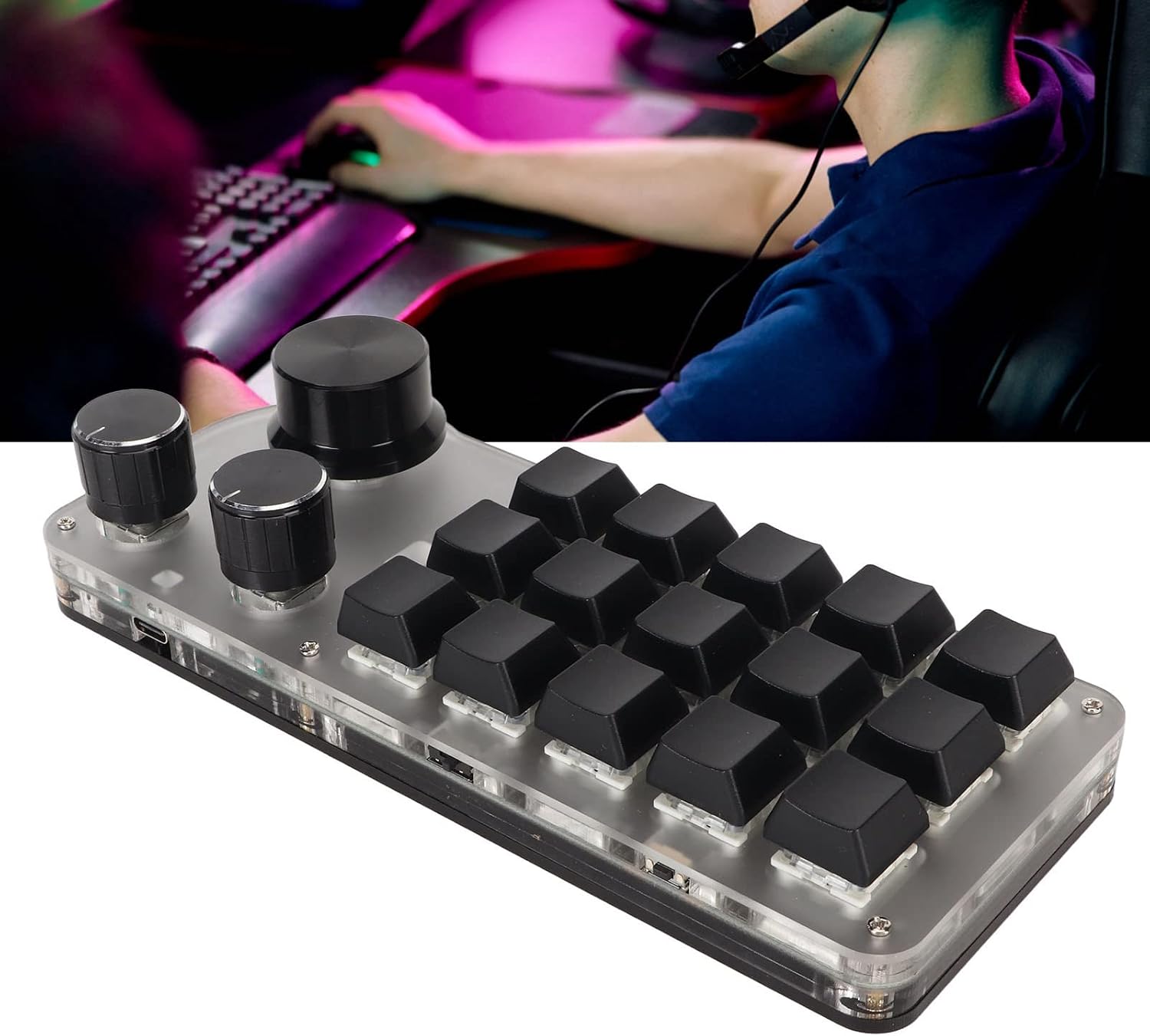
Knob Functionality
The keypad features 3 adjustable knobs, each with a click function.
- The click function of the knobs can be configured to act as left and right mouse buttons.
- Knobs can be assigned various functions, including:
- Zoom in/out
- Previous/Next track
- Volume up/down
- Pause/Play media
- Other custom functions via software

Maintenance
To ensure the longevity and optimal performance of your keypad, follow these maintenance guidelines:
- Keep the keypad clean by wiping it with a soft, dry cloth.
- Avoid exposing the keypad to excessive moisture or liquids.
- Do not use harsh chemicals or abrasive cleaners, as these can damage the surface and components.
- Store the keypad in a cool, dry place when not in use.
- Avoid dropping the device or subjecting it to strong impacts.
Troubleshooting
If you encounter issues with your Pomya Mini Programmable Keypad, consider the following troubleshooting steps:
Keypad Not Responding
- Wired Connection: Ensure the Type C cable is securely connected to both the keypad and your computer. Try a different USB port or cable.
- 2.4G Wireless Connection: Verify the USB receiver is properly inserted. Ensure the keypad is powered on. Try re-pairing the keypad with the receiver if possible (refer to software instructions).
- Bluetooth Connection: Check if Bluetooth is enabled on your device. Ensure the keypad is in pairing mode and successfully paired in your device's Bluetooth settings.
- Battery: If using wirelessly, ensure the keypad's internal battery is charged. Connect it via Type C cable to charge.
Keys or Knobs Not Functioning as Expected
- Software Configuration: Verify the key and knob assignments in the manufacturer's programming software. Incorrect settings can lead to unexpected behavior.
- Driver Issues: While no specific drivers are usually needed, ensure your operating system is up to date.
- Reset: If available, perform a factory reset through the programming software to revert to default settings.
Intermittent Connection
- Interference: For wireless connections (2.4G and Bluetooth), ensure there are no strong sources of interference nearby (e.g., other wireless devices, microwaves).
- Distance: Ensure the keypad is within the effective range of your computer's wireless receiver or Bluetooth adapter.
- Battery Level: A low battery can sometimes cause intermittent wireless connections. Charge the keypad fully.
Warranty and Support
This product is covered by a standard manufacturer's warranty. For specific warranty details, duration, and terms, please refer to the documentation included with your purchase or contact Pomya customer support directly.
For technical assistance, troubleshooting, or inquiries regarding product functionality, please visit the official Pomya website or contact their customer service department.