
1. Product Overview
The REVODATA I706-3-P-A-HS is a compact 5MP Mini Audio Fisheye POE IP Camera designed for indoor security. It features a built-in microphone for audio capture and a 1.7mm fisheye lens providing a 180° wide viewing angle, allowing comprehensive coverage of an area with a single camera. This camera supports Power over Ethernet (POE) for simplified installation and offers P2P cloud functionality for remote viewing via a smartphone application or web interface.

Figure 1: Front view of the REVODATA 5MP Mini Audio Fisheye POE IP Camera.

Figure 2: Overview of key features including POE, H.265/H.264 support, 5MP resolution, audio, 180° FOV, P2P, and motion detection.

Figure 3: Illustrates the compact design of the camera, ideal for discreet placement.
2. Safety Information
- Ensure the camera is installed in a stable location to prevent falling.
- Use only the specified power supply (POE or 12V 2A DC adapter, not included).
- Avoid exposing the camera to extreme temperatures, humidity, or direct water. Operating temperature range is -25°C to 60°C.
- Do not attempt to disassemble or modify the camera, as this will void the warranty and may cause damage.
- Keep the lens clean to ensure optimal image quality.
3. Package Contents
Verify that all items are present in the package:
- 1 x REVODATA 5MP Mini Audio Fisheye POE IP Camera
- 1 x User Manual
- 1 x Screw Set

Figure 4: Contents included in the product package.
4. Specifications
| Feature | Detail |
|---|---|
| Model | I706-3-P-A-HS |
| Resolution | 5MP (2880 x 1616P) |
| Sensor | 1/3 inch CMOS (FH8852V200+GC5053) |
| Lens | 1.7mm Fisheye Lens |
| Viewing Angle | 180 Degrees |
| Audio | Built-in Microphone (1-way audio) |
| Compression Format | H.264 / H.265 |
| Frame Rate | 25fps |
| Power Supply | POE (802.3AF standard 48V) or 12V 2A DC |
| Connectivity | Ethernet (RJ-45) |
| Storage | NVR or PC (No Cloud Storage via Linklemo app) |
| Intelligent Alarm | Motion Detection, Email Alarm |
| Operating Temperature | -25°C to 60°C |
| Dimensions (L x W x H) | 5.3cm x 4.5cm x 4cm (2.09 x 1.77 x 1.57 inches) |
| Weight | 0.2kg (6.3 ounces) |
5. Setup
5.1 Powering the Camera
This camera is primarily powered by POE (Power over Ethernet). It requires an external 802.3AF standard 48V POE switch. Connect the camera to a POE-enabled network switch using an Ethernet cable. The camera also has an auxiliary power interface for a standard 12V 2A DC power supply (not included), allowing it to function as a non-POE network camera.

Figure 5: Illustrates the POE cable connection for simplified wiring.
5.2 Network Connection and Initial Configuration
The camera can be connected to an NVR (Network Video Recorder) or a PC. It supports both H.264 and H.265 encoding. If your NVR does not support 5MP or H.265, you can adjust the camera's settings to 1080P (2MP) and H.264 via the web interface or VMS software.
5.3 Software and App Setup
The camera supports remote viewing and configuration through VMS software for Windows computers (not compatible with MAC OS and Linux) and the "Linklemo" mobile application for iOS and Android smartphones. The default username for both is 'admin'. The default password for VMS software is 'admin', and for the web interface it is '123456'.
Video 1: Demonstrates how to connect the camera to VMS software, a web browser interface, and the smartphone application for remote viewing and configuration.
6. Operation
6.1 Remote Viewing (P2P Cloud Function)
Utilize the "Linklemo" mobile app to access live feeds and playback surveillance images from anywhere. Ensure your phone and the camera are connected to the same network during initial setup. The app allows you to add devices, set names, and view the camera feed.

Figure 6: Explains the camera's audio recording capability and P2P cloud function for remote viewing.

Figure 7: Shows the user interface for both the Linklemo mobile application and the VMS software for viewing camera feeds.
6.2 Motion Detection and Alarms
The camera supports motion detection and can send alarm notifications to your smartphone via the Linklemo app. Configure motion detection zones and sensitivity settings through the camera's web interface or VMS software.
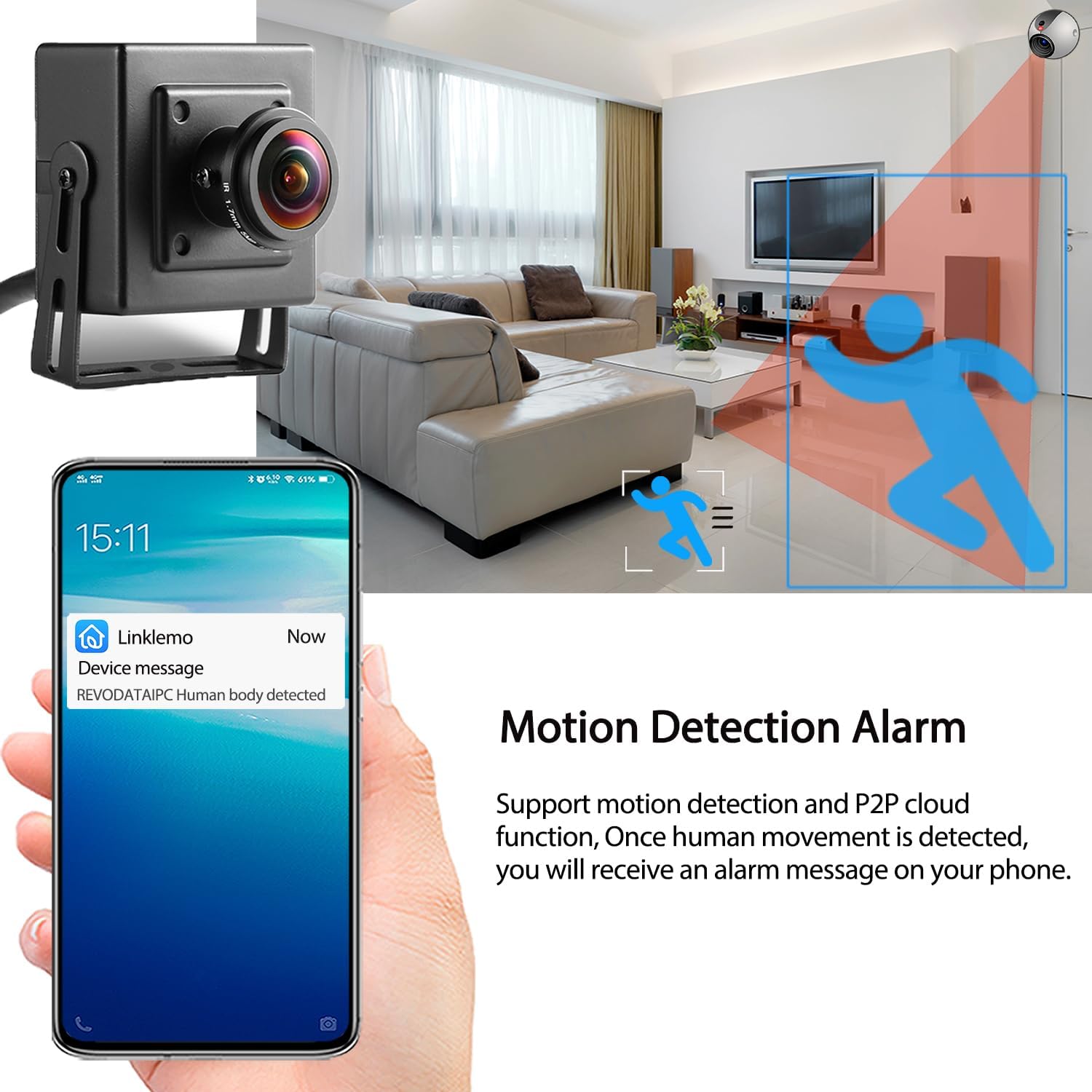
Figure 8: Illustrates how the motion detection alarm functions, sending notifications to your phone upon human movement.
6.3 Image Quality and Encoding
The camera provides 5MP resolution for clear images. It supports H.265/H.264 dual encoding, which helps save storage space and bandwidth. You can switch between HD and SD quality within the mobile app for different viewing needs.
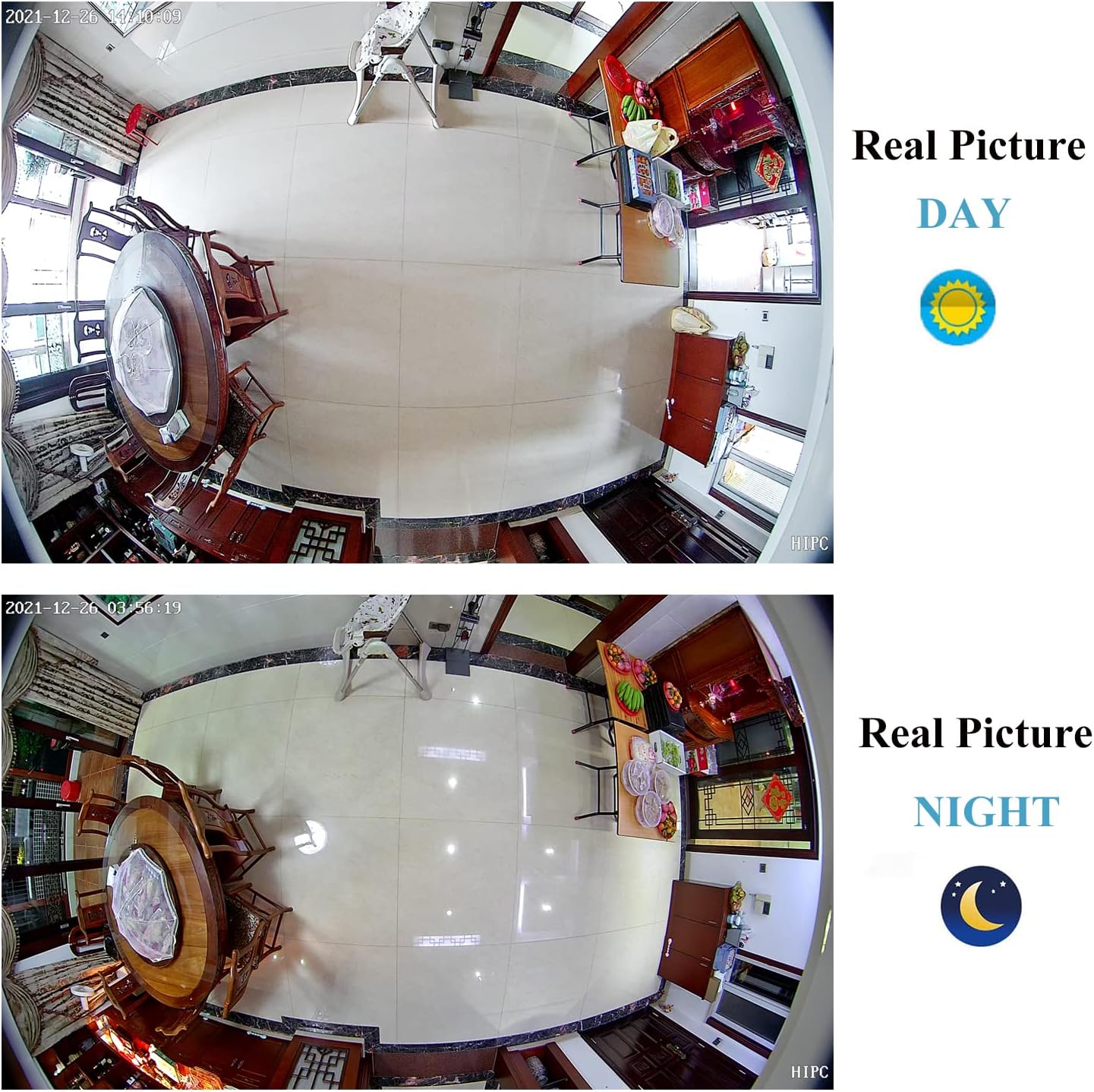
Figure 9: Comparison of real picture quality during day and night conditions.
7. Maintenance
- Cleaning: Use a soft, dry cloth to clean the camera lens and body. Avoid abrasive cleaners or solvents.
- Environmental Conditions: Ensure the camera operates within the specified temperature and humidity ranges to prevent damage.
- Firmware Updates: Periodically check the manufacturer's website or app for available firmware updates to ensure optimal performance and security.
8. Troubleshooting
- No Power: Ensure the POE switch is providing power or the 12V DC adapter is correctly connected and functional.
- No Image: Check network cable connections. Verify camera settings (resolution, encoding) are compatible with your NVR or viewing software. Restart the camera and viewing device.
- Cannot Connect to App/Web Interface: Ensure the camera is connected to the network. Verify the IP address and network settings. Check default username and password.
- Poor Image Quality: Clean the lens. Check network bandwidth. Adjust image settings (brightness, contrast) via the web interface.
- Motion Detection Not Working: Verify motion detection is enabled in settings. Adjust sensitivity and detection zones.
For further assistance, refer to the full user manual PDF available on the product page or contact REVODATA customer support.
9. Warranty and Support
This product is manufactured by REVODATA. For warranty information and technical support, please refer to the documentation included with your purchase or visit the official REVODATA store on Amazon: REVODATA Store.
A comprehensive User Manual (PDF) is also available for download: User Manual (PDF).