1. Introduction
This manual provides detailed instructions for the setup, operation, maintenance, and troubleshooting of your YUNZII B309 Wireless Typewriter Keyboard. Please read this manual thoroughly before using the product to ensure proper functionality and longevity.

Image 1: Top-down view of the YUNZII B309 Wireless Typewriter Keyboard in Baby Pink.
2. Package Contents
Verify that all items are present in the package:
- YUNZII B309 Wireless Typewriter Keyboard
- USB Cable (for wired connection and charging)
- Extra Red Keycap (for customization)
- User Manual

Image 2: Contents of the YUNZII B309 keyboard package.
3. Setup
3.1 Charging the Keyboard
- Locate the USB-C port on the keyboard.
- Connect the provided USB-C cable to the keyboard and the other end to a USB power source (e.g., computer, wall adapter).
- The battery indicator light will show charging status. A full charge is indicated when the light changes or turns off.
3.2 Power On/Off
Locate the power switch on the keyboard. Slide it to the 'ON' position to power on the device and to 'OFF' to power it down.
3.3 Connectivity Options
The YUNZII B309 keyboard supports both Bluetooth 5.0 wireless and USB-C wired connections.
3.3.1 Bluetooth Connection
- Ensure the keyboard is powered on.
- Spin the left knob on the keyboard to select a Bluetooth channel (1, 2, or 3). The corresponding blue LED indicator will blink.
- On your device (computer, tablet, smartphone), enable Bluetooth and search for available devices.
- Select "YUNZII B309" from the list of devices.
- If prompted, enter the pairing code displayed on your screen.
- To optimize for your operating system, press Fn + Q for Android, Fn + W for Windows, or Fn + E for iOS/Mac.
- The blue LED indicator will become solid once successfully paired.
3.3.2 Wired Connection
- Connect the provided USB-C cable to the keyboard's USB-C port.
- Connect the other end of the USB-C cable to an available USB port on your computer.
- The keyboard will automatically switch to wired mode. The green LED indicator will illuminate.
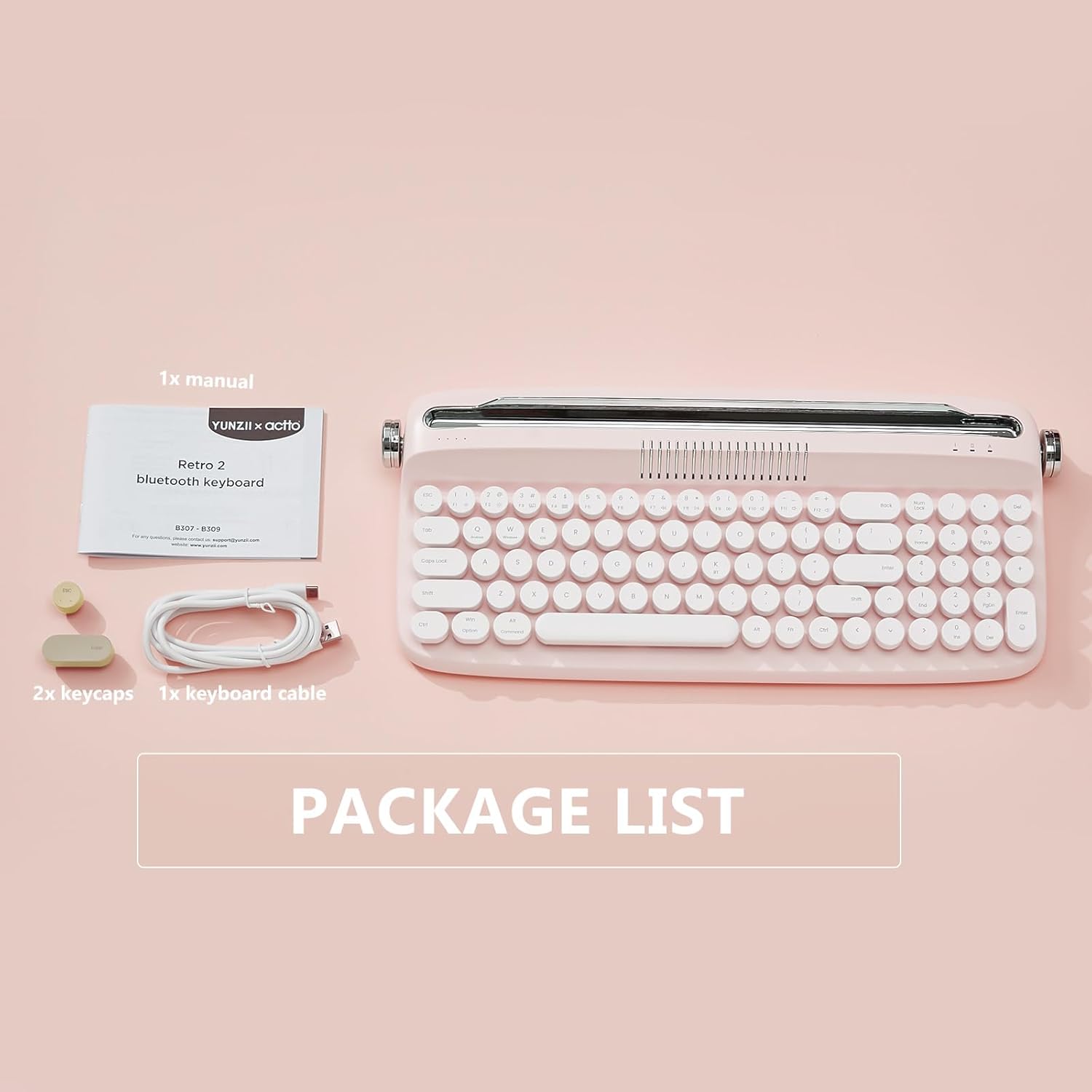
Image 3: Power, charging, and connection steps for the YUNZII B309 keyboard.

Image 4: Plug and Play functionality with Bluetooth and wired connections.
4. Operating Instructions
4.1 Knob Control
The keyboard features two functional knobs:
- Left Knob: Used to switch between connection channels (Wired, Bluetooth 1, Bluetooth 2, Bluetooth 3).
- Right Knob: Used to adjust the system volume. Turn clockwise to increase volume, counter-clockwise to decrease.

Image 5: Functional knob controls for connection and volume.
4.2 Integrated Stand
The keyboard includes an integrated stand designed to hold tablets, phones, and other devices. The stand measures approximately 13.7 x 0.5 inches (34.8 x 1.3 cm) and can accommodate most devices.
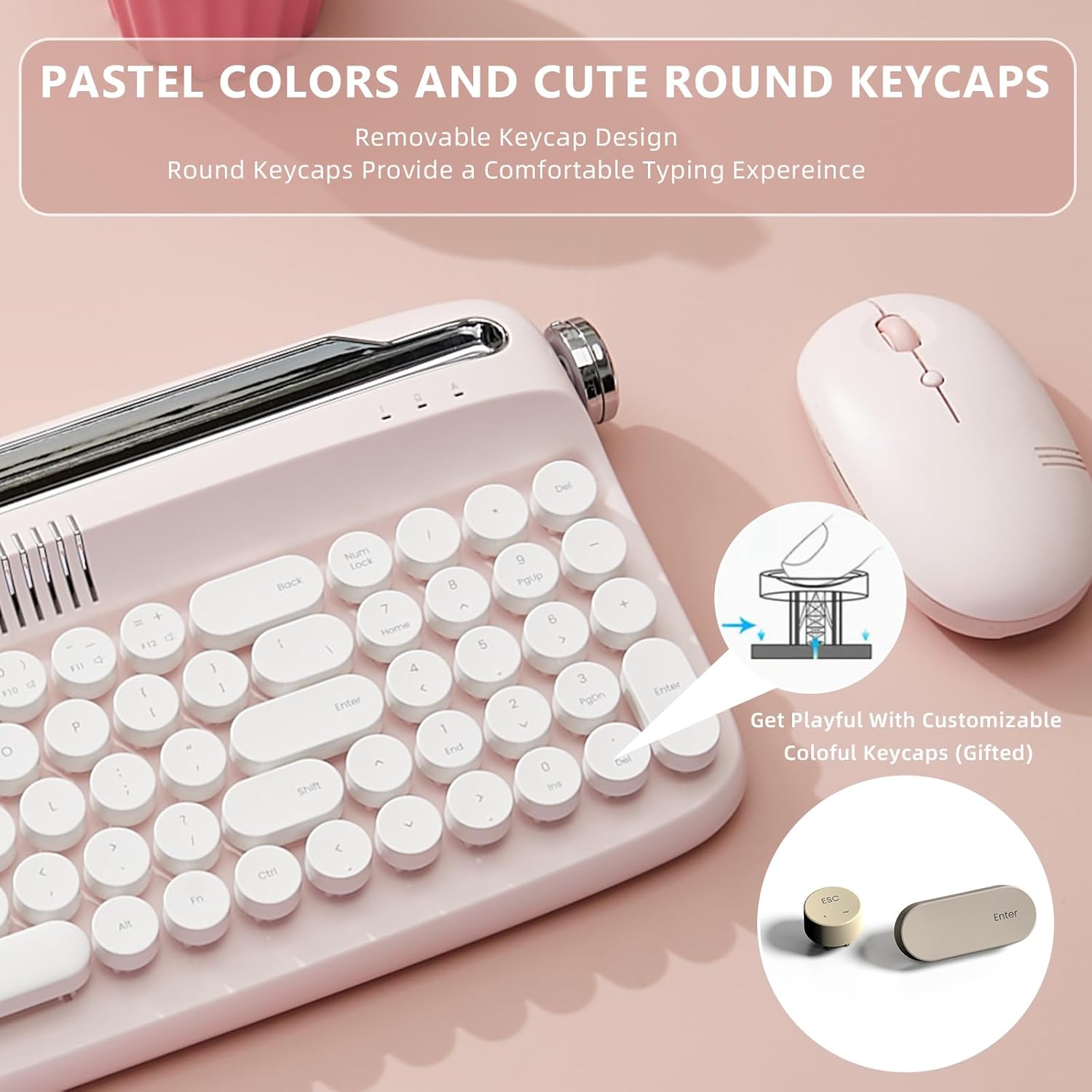
Image 6: Integrated stand holding a tablet.
4.3 Adjustable Feet
For enhanced typing comfort, the keyboard is equipped with adjustable feet on the underside. Flip these feet out to change the typing angle.
4.4 Multi-Device Switching
Once paired with multiple devices via Bluetooth, you can switch between them by rotating the left knob to the desired Bluetooth channel (1, 2, or 3).

Image 7: The keyboard's compatibility with multiple devices.
4.5 Indicator Lights
The keyboard features several indicator lights:
- Battery Indicator: Low battery is indicated by a blinking green LED. A solid green LED indicates charging.
- Caps Lock Indicator: LED illuminates when Caps Lock is active.
- Num Lock Indicator: LED illuminates when Num Lock is active.
- Connectivity Indicators: Green LED for wired mode, blue LEDs (1, 2, 3) for Bluetooth channels.

Image 8: Convenient indicator lights on the keyboard.
5. Maintenance
5.1 Cleaning the Keyboard
The YUNZII B309 features removable keycaps, allowing for easier cleaning. Gently pull the keycaps upwards to remove them. Use a soft brush or compressed air to clean dust and debris from beneath the keycaps. Wipe the keycaps and keyboard surface with a soft, damp cloth. Ensure the keyboard is completely dry before reattaching keycaps and using.

Image 9: Removable keycap design for easy cleaning.
5.2 Battery Care
To prolong battery life:
- Avoid fully discharging the battery frequently.
- Charge the keyboard regularly, even if not in constant use.
- Store the keyboard in a cool, dry place when not in use for extended periods.
6. Troubleshooting
| Problem | Possible Cause | Solution |
|---|---|---|
| Keyboard does not power on | Low battery; Power switch off | Charge the keyboard; Ensure power switch is in 'ON' position. |
| Cannot connect via Bluetooth | Keyboard not in pairing mode; Device Bluetooth off; Interference | Ensure left knob is on a Bluetooth channel (1, 2, or 3) and LED is blinking; Enable Bluetooth on your device; Move closer to the device; Try another Bluetooth channel. |
| Keys not responding or delayed input | Low battery; Connectivity issue; Software conflict | Charge the keyboard; Re-pair Bluetooth or switch to wired connection; Restart your device; Reset the keyboard (refer to manufacturer's website for specific reset instructions). |
| Integrated stand does not hold device securely | Device too thick or heavy | Ensure device thickness is within the stand's capacity (approx. 0.5 inches); Remove bulky cases if necessary. |
7. Specifications
- Model: B309
- Product Dimensions: 15.79 x 7.1 x 2.04 inches (40.1 x 18.0 x 5.2 cm)
- Item Weight: 0.035 ounces (approximately 1 gram, likely an error in source data, actual weight is 2.06 lbs / 0.93 kg as per image)
- Connectivity Technology: Bluetooth 5.0, USB-C
- Compatible Devices: Mac, PC, Laptop, Tablet, Smartphone (Windows, Android, iOS)
- Keyboard Description: Membrane
- Special Features: Integrated Stand, Rechargeable Battery
- Battery: 1 AAA battery required (included) - Note: Product features mention 'rechargeable battery' and 'built-in rechargeable battery' in feature bullets and images, contradicting '1 AAA batteries required'. Please refer to the product packaging for definitive battery information.
- Wireless Range: Up to 30 ft (9 meters)
- Integrated Stand Slot Max: 13.4 inches (34 cm)

Image 10: Battery and wireless range specifications.

Image 11: Keyboard dimensions and integrated stand capacity.
8. Warranty and Support
For warranty information, technical support, or further assistance, please refer to the official YUNZII website or contact their customer service. The package includes a user manual which may contain additional details.
Manufacturer: YUNZII


