
Wicked Audio WI-TW4550
Wicked Audio Mojo 300 True Wireless Earbuds User Manual
Model: WI-TW4550 | Brand: Wicked Audio
Introduction
The Wicked Audio Mojo 300 True Wireless Bluetooth Earbuds are designed to provide a high-quality audio experience with advanced features for everyday use. These earbuds offer long battery life, mobile app integration for custom EQ modes, GPS bud locator, transparency mode, low latency, and are sweat and water resistant, ensuring comfort and durability.
This manual provides detailed instructions on setting up, operating, and maintaining your Mojo 300 earbuds to ensure optimal performance and longevity.
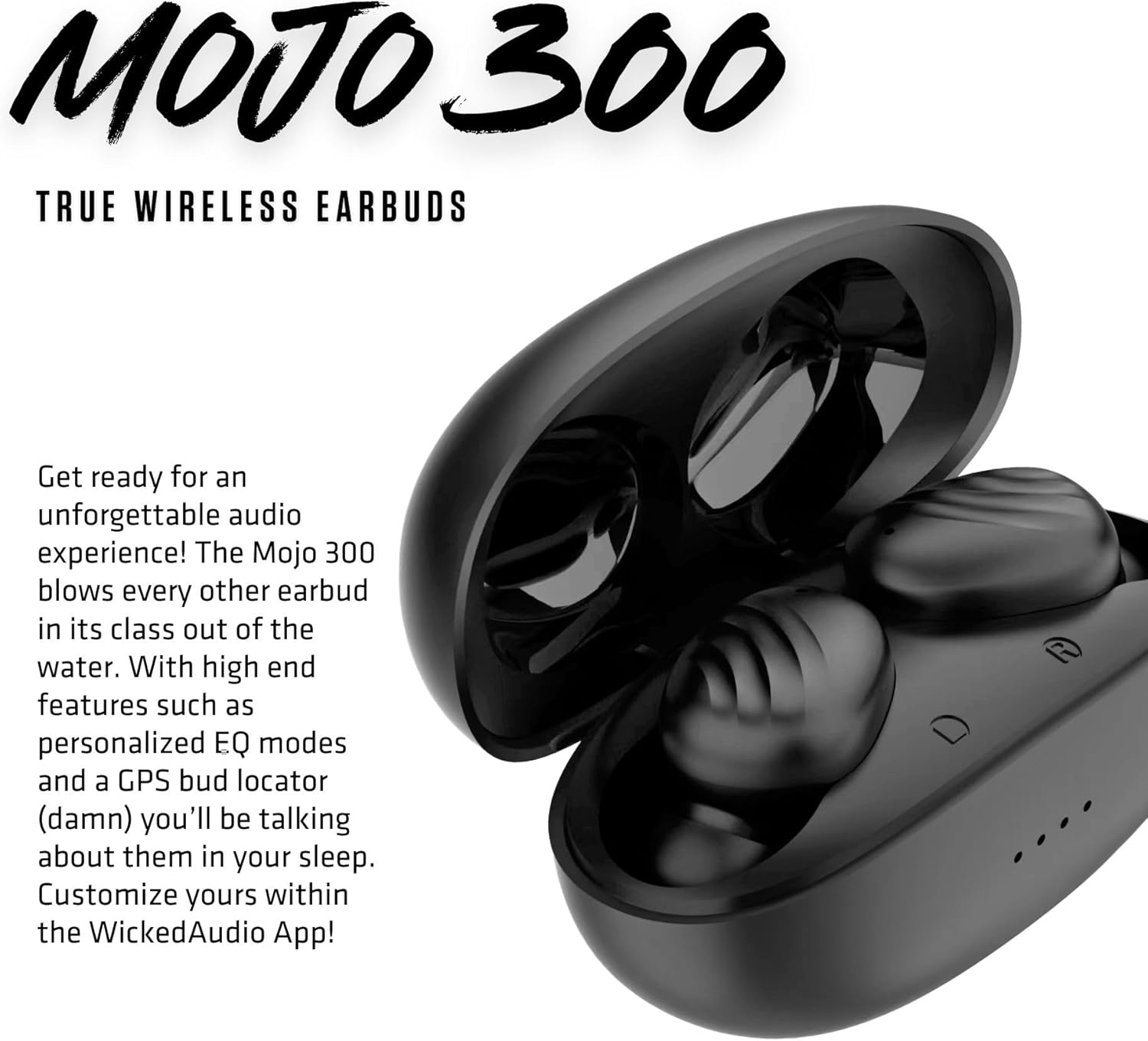
Image: The Mojo 300 True Wireless Earbuds and their charging case, showcasing their compact design.
What's in the Box
Upon opening your Wicked Audio Mojo 300 package, you should find the following components:
- True Wireless Earbuds (Left and Right)
- Portable Charging Case
- USB-C to USB-C Charging Cable
- User Manual (this document)
- Ear Cushions (3 sizes: Small, Medium, Large)

Image: A top-down view of the Wicked Audio Mojo 300 earbuds and their charging case, illustrating the main components.
Setup
1. Initial Charging
Before first use, fully charge your Mojo 300 earbuds and charging case. Place both earbuds into the charging case. Connect the provided USB-C cable to the charging port on the case and the other end to a USB power source. The LED indicators on the case will show charging status.

Image: A hand holding the open charging case with the earbuds nestled inside, ready for charging or use.
2. Pairing with Your Device
- Ensure the earbuds are charged and inside the charging case.
- Open the charging case lid. The earbuds will automatically enter pairing mode.
- On your device (smartphone, tablet, etc.), go to the Bluetooth settings.
- Select "Mojo 300" from the list of available devices.
- Once connected, you will hear an audio prompt, and the earbuds' indicator lights will change.
Easy Flex Connect: You can pair a single earbud or both. The ergonomic shape ensures a comfortable fit right out of the case.

Image: A woman wearing a Wicked Audio Mojo 300 earbud, demonstrating the comfortable and secure fit.
3. Download the Wicked Audio App
For full functionality and customization, download the Wicked Audio App from the Google Play Store or the Apple App Store. The app unlocks features like custom EQ modes, GPS bud locator, and more.
Operating Instructions
Touch Controls
The Mojo 300 earbuds feature intuitive touch controls. Refer to the in-app user guide for detailed customization options. Basic controls typically include:
- Play/Pause: Single tap on either earbud.
- Next Track: Double tap on the right earbud.
- Previous Track: Double tap on the left earbud.
- Answer/End Call: Single tap on either earbud.
- Reject Call: Press and hold on either earbud.
- Activate Voice Assistant: Triple tap on either earbud.
Noise Control Modes
The Mojo 300 offers three noise control modes to suit your environment:
- Transparency Mode: Allows ambient sound to pass through, keeping you aware of your surroundings.
- Passive Noise Cancelling: Achieved through the physical seal of the earbud tips, reducing external noise.
- Active Noise Cancellation (ANC): Electronically reduces unwanted background noise.
Switch between modes using the Wicked Audio App or customizable touch controls.
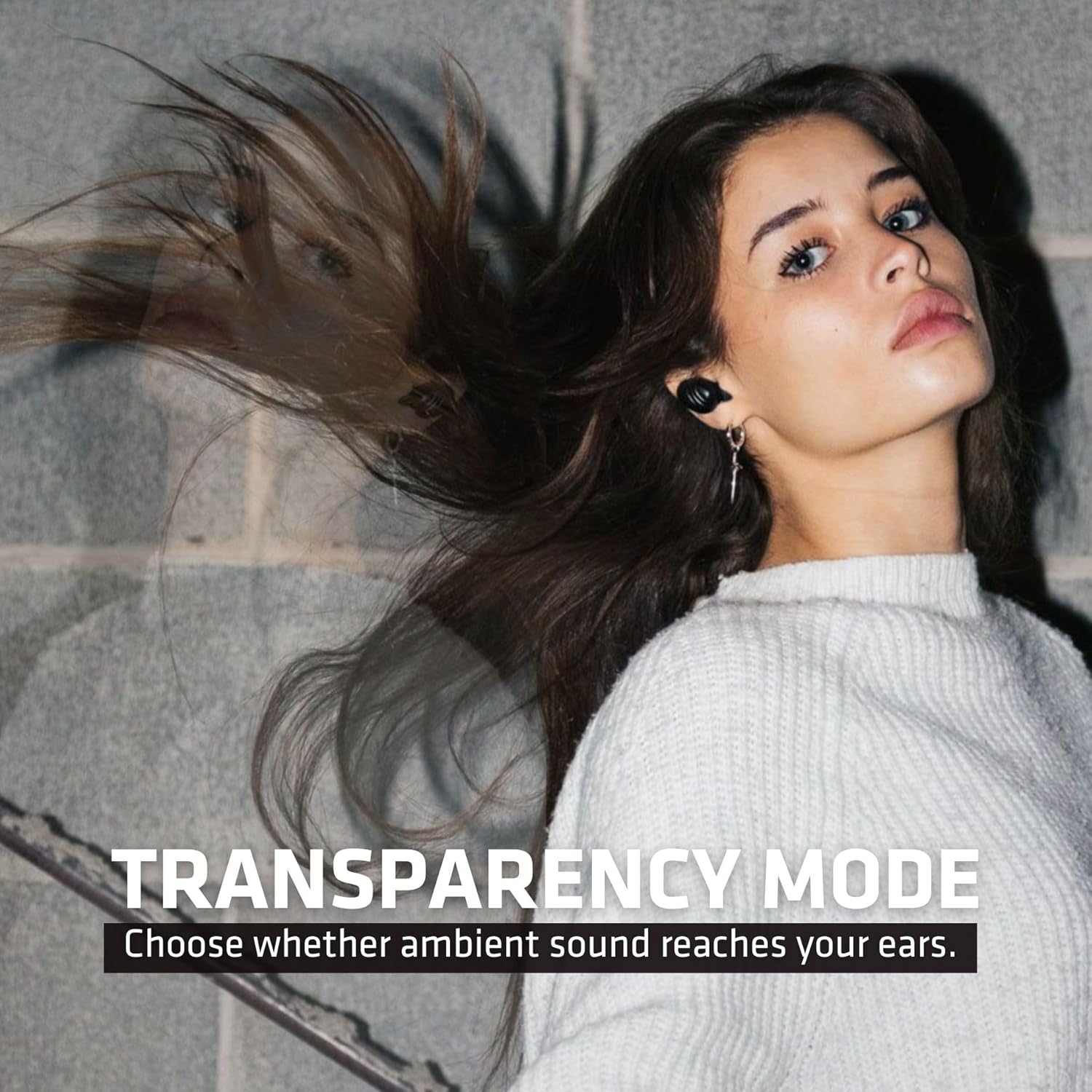
Image: A woman wearing the earbuds, with text indicating "TRANSPARENCY MODE," demonstrating the feature that allows ambient sound to be heard.
Wear Detect
The earbuds feature wear detection, which automatically pauses audio when an earbud is removed and resumes when reinserted.
Low Latency (Gaming Mode)
Activate Gaming Mode via the app for reduced audio latency, providing a more synchronized experience for gaming and video playback.
Official Product Video: Mojo 300 Key Features
Video: This official video from Wicked Audio highlights the key features of the Mojo 300 earbuds, including GPS Bud Locator, Premium Sound, Wear Detect, Low Latency, and Endless EQ modes, demonstrating their functionality.
Wicked Audio App Features
The Wicked Audio App enhances your earbud experience with a suite of powerful features:
- GPS Bud Locator: Helps you find misplaced earbuds.
- Transparency Mode Control: Easily toggle and adjust ambient sound passthrough.
- Wear Detect Settings: Customize the automatic play/pause function.
- Endless EQ Modes: Personalize your audio with a wide range of equalizer presets and custom options.
- Active Noise Cancelling (ANC) Control: Manage the level of noise cancellation.
- Customizable Controls: Remap touch controls to your preference.
- Easy Access User Guide: Access the full manual directly within the app.
- Battery Life Indicator: Monitor the battery status of each earbud and the charging case.
- Forever Future Updates: Receive firmware updates for improved performance and new features.
- App Controlled Volume: Adjust volume directly from the app.
- Dark/Light Mode Control: Choose your preferred app interface theme.

Image: The Mojo 300 earbuds and case on a textured surface, emphasizing their "FULLY CUSTOMIZABLE" audio experience through the app's EQ modes.
Maintenance
- Cleaning: Regularly clean the earbuds and charging case with a soft, dry, lint-free cloth. Do not use harsh chemicals or abrasive materials. Gently remove any earwax or debris from the earbud tips and speaker grilles using a small, soft brush or cotton swab.
- Storage: When not in use, store the earbuds in their charging case to protect them and keep them charged. Store in a cool, dry place away from extreme temperatures.
- Battery Care: To prolong battery life, avoid fully discharging the earbuds and case frequently. Charge them regularly, even if not in constant use.
- Water Resistance: The earbuds are sweat and water resistant. However, they are not waterproof. Avoid submerging them in water or exposing them to heavy rain. Dry them thoroughly before placing them back in the charging case.
Troubleshooting
| Problem | Solution |
|---|---|
| Earbuds not pairing | Ensure earbuds are charged. Place them back in the case, close the lid, then open it again to re-enter pairing mode. On your device, forget "Mojo 300" from Bluetooth settings and try pairing again. |
| Only one earbud playing audio | Place both earbuds back in the charging case. Close the lid for 5 seconds, then open it. Ensure both earbuds are properly seated and charged. Re-pair if necessary. |
| Low volume or poor sound quality | Check earbud fit and try different sized ear cushions. Clean any debris from the earbud grilles. Adjust volume on both your device and through the app. Check EQ settings in the app. |
| Earbuds not charging | Ensure the charging cable is securely connected to both the case and the power source. Check for debris in the charging port. Verify the charging case itself has power. |
| App connectivity issues | Ensure Bluetooth is enabled and earbuds are connected to your device. Close and reopen the Wicked Audio App. Restart your device if the issue persists. |
Specifications

Image: The Mojo 300 earbuds alongside a graphic detailing key specifications such as battery life and driver size.
| Feature | Detail |
|---|---|
| Model Name | Mojo 300 |
| Model Number | WI-TW4550 |
| Connectivity Technology | Wireless (Bluetooth 5.0) |
| Noise Control | Sound Isolation, Active Noise Cancellation, Transparency Mode |
| Earbud Battery Life | Up to 5 hours playtime |
| Total Play Time (with case) | Up to 23 total hours |
| Charging Case Battery Life | Additional 18 hours |
| Charging Interface | USB-C |
| Control Method | Touch, App |
| Water Resistance | Sweat & Water Resistant |
| Dimensions | 2 x 4 x 6.5 inches |
| Item Weight | 2.39 ounces |
| UPC | 712949012951 |
Warranty and Support
Wicked Audio products are designed and manufactured to the highest quality standards. For information regarding warranty coverage, product registration, and customer support, please visit the official Wicked Audio website or contact their customer service department.
For the most up-to-date support resources, including FAQs and contact information, please refer to the Easy Access User Guide within the Wicked Audio App or visit www.wickedaudio.com.
Related documentsWI-TW4550


Ask a question about this manual
Ask about setup, troubleshooting, compatibility, parts, safety, or missing instructions. Manuals+ will review the question and use this page’s manual context to help answer it.