
1. Introduction
This manual provides detailed instructions for the installation, operation, and maintenance of your aoonav 10-inch Android Car Radio. This multimedia player is designed to upgrade the in-car entertainment and navigation experience for Maserati GT GranTurismo models manufactured between 2007 and 2017. Please read this manual thoroughly before installation and use to ensure proper functionality and safety.

Image 1.1: The aoonav 10-inch Android Car Radio installed in a Maserati GT GranTurismo dashboard.
2. Compatibility
This aoonav Android car stereo is specifically designed for Maserati GT GranTurismo models from 2007 to 2017. It is a horizontal screen head unit replacement. The package includes two interchangeable frames (Black and Silver) to match your vehicle's interior aesthetics.
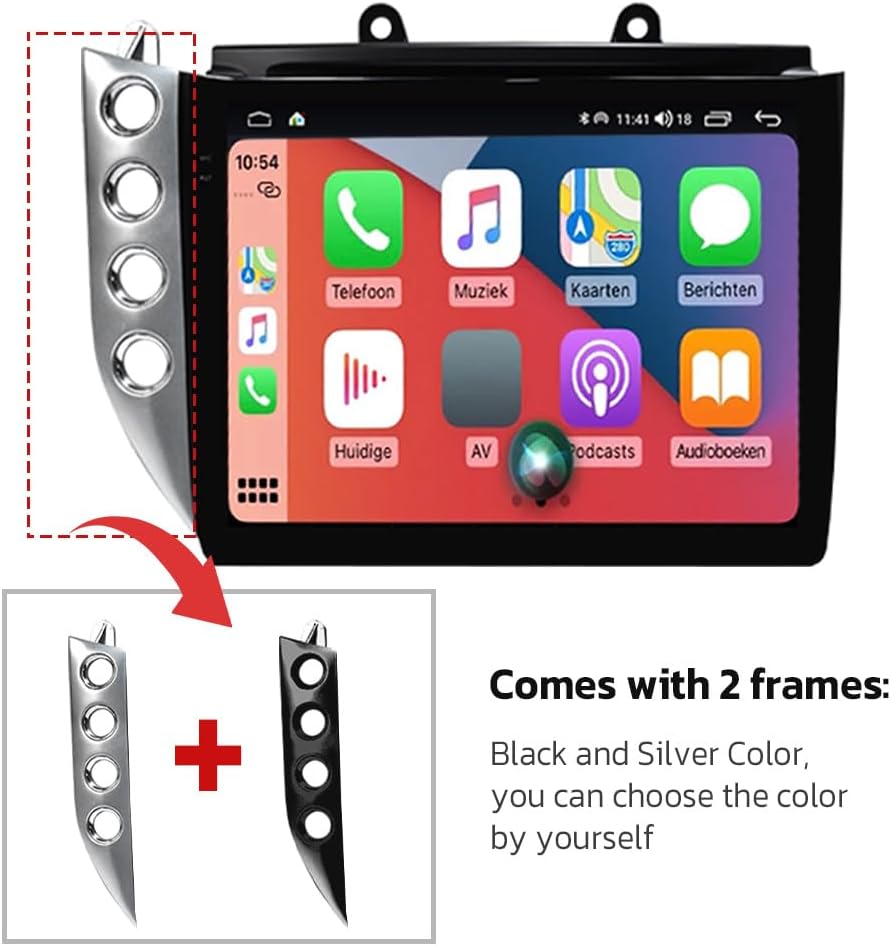
Image 2.1: The aoonav car radio unit showing the two included interchangeable frames (Black and Silver).
3. Key Features
- Operating System: Android 12
- Processor: UIS7862S TRUE Octa-core
- Memory: 6GB RAM + 128GB ROM
- Display: 10-inch IPS HD 2K Capacitive Touch Screen (1024*768 resolution, 178° full-viewing angle)
- Audio Output: Built-in DSP, 4*60W surround stereo output
- Connectivity: Wireless Apple CarPlay & Android Auto, Bluetooth 5.0, Built-in Wi-Fi module, 4G SIM card support
- Navigation: Built-in GPS Navigation (supports Igo Map, Waze Map, 2D/3D maps, GPS, Beidou, GLONASS)
- Multimedia: USB playback (with charging function), AUX interface input, music player, video player (supports 4K video)
- Additional Functions: AM/FM radio tuner, Steering wheel control support, EQ Settings, memory function

Image 3.1: Overview of the user interface and the internal smart chip architecture.
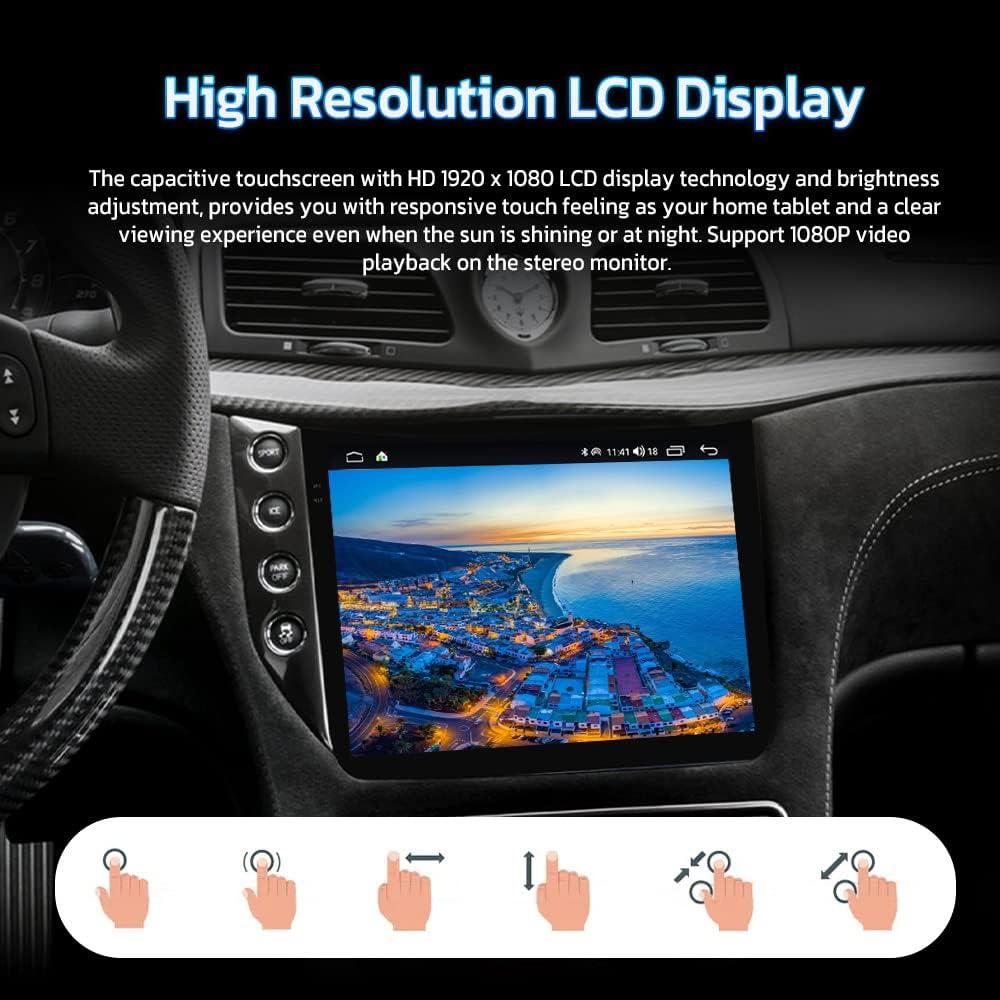
Image 3.2: Demonstration of the high-resolution LCD display and supported touch gestures.
4. Package Contents
The following items are included in your aoonav Android Car Radio package:
- aoonav 10-inch Android Car Radio Head Unit
- Power Adapter
- Screen
- Installation Accessories (including two frames: Black and Silver)
5. Setup and Installation
Installation of the aoonav Android Car Radio involves replacing the existing head unit in your Maserati GT GranTurismo. Due to the complexity of automotive electronics, professional installation is highly recommended to ensure correct wiring and functionality, and to avoid damage to your vehicle or the product.
5.1 Pre-Installation Check
- Verify all package contents are present and undamaged.
- Ensure your vehicle is compatible with the unit (Maserati GT GranTurismo 2007-2017).
- Disconnect the vehicle's battery before starting any electrical work.
5.2 Installation Steps (General Guidance)
- Carefully remove the original car stereo and associated trim panels.
- Connect the provided wiring harness to the vehicle's existing wiring. Ensure all connections are secure.
- Connect the GPS antenna, Wi-Fi antenna, and any other external components.
- Mount the aoonav head unit into the dashboard opening. Choose either the black or silver frame to match your preference.
- Secure the unit and reassemble the trim panels.
- Reconnect the vehicle's battery and power on the unit for initial testing.

Image 5.1: Visual comparison of the Maserati GT GranTurismo dashboard before and after the aoonav car radio installation.
Video 5.1: A general demonstration of the product's features and interface, which may include installation overview.
6. Operating Instructions
6.1 Power On/Off
Press and hold the power button (if available) or turn on your vehicle's ignition to power on the unit. To power off, turn off the vehicle's ignition.
6.2 Touch Screen Navigation
The unit features a responsive capacitive touch screen. Navigate through menus and applications by tapping, swiping, and pinching as you would on a smartphone or tablet.
6.3 Apple CarPlay & Android Auto
Connect your smartphone via the charging cable or Bluetooth to activate wireless CarPlay or Android Auto. This allows access to your phone's music, navigation, and communication features directly on the car stereo display.

Image 6.1: Illustration of Apple CarPlay and Android Auto functionality on the aoonav display.
6.4 Bluetooth 5.0
To connect your mobile phone via Bluetooth:
- Turn on Bluetooth on your mobile phone.
- On the car stereo, navigate to the Bluetooth settings menu.
- Search for available devices on your phone and select the car stereo's name.
- Confirm the pairing code on both devices.
Once connected, you can make hands-free calls, download your phone book, and stream music.

Image 6.2: The Bluetooth 5.0 interface for stable phone and music connections.
6.5 GPS Navigation
The unit supports both online and offline navigation applications. Use the built-in GPS module with pre-installed or downloaded map apps like Igo Map or Waze Map. Ensure a stable Wi-Fi or 4G connection for online maps. The GPS dual zone function allows you to enjoy other media while navigating.

Image 6.3: The built-in GPS navigation interface with supported map applications.
6.6 Wi-Fi and 4G Connectivity
The built-in Wi-Fi module allows connection to a Wi-Fi hotspot. For 4G connectivity, insert a compatible 4G SIM card (not included) into the designated slot. This enables online features, app downloads, and real-time traffic updates for navigation.
6.7 Steering Wheel Controls
The unit supports the original car's steering wheel controls. After installation, ensure these controls are properly configured in the system settings to manage volume, track changes, and phone calls.

Image 6.4: Illustration of steering wheel control compatibility with the aoonav unit.
Video 6.1: A general demonstration of the product's features and interface, which may include operating instructions.
7. Maintenance
7.1 Cleaning the Screen
Use a soft, lint-free cloth to gently wipe the screen. For stubborn smudges, slightly dampen the cloth with water or a screen-cleaning solution. Avoid harsh chemicals or abrasive materials.
7.2 Software Updates
Periodically check for software updates through the unit's settings menu or the manufacturer's website. Keeping the software updated ensures optimal performance, security, and access to new features.
7.3 General Care
Avoid exposing the unit to extreme temperatures, direct sunlight for prolonged periods, or excessive moisture. Ensure proper ventilation around the unit to prevent overheating.
8. Troubleshooting
If you encounter issues with your aoonav Android Car Radio, refer to the following common troubleshooting steps:
- No Power: Check all power connections and the vehicle's fuse box. Ensure the battery is properly reconnected.
- No Sound: Verify speaker connections, volume settings, and audio source selection. Check the DSP settings.
- GPS Signal Loss: Ensure the GPS antenna is properly installed and has a clear view of the sky.
- Bluetooth/Wi-Fi Connectivity Issues: Restart both the car stereo and your mobile device. Ensure devices are within range and not connected to other devices.
- Steering Wheel Controls Not Working: This can sometimes occur due to incorrect wiring or software configuration. Double-check the wiring harness connections and review the system's steering wheel control settings. If the issue persists, professional assistance may be required.
- Touch Screen Unresponsive: Try restarting the unit. If the problem continues, contact technical support.
For persistent issues not resolved by these steps, please contact aoonav technical support.
9. Specifications
| Feature | Specification |
|---|---|
| Item Weight | 4.58 pounds |
| Package Dimensions | 14.65 x 10.43 x 4.76 inches |
| Display Size | 10 Inches |
| Voice Command | Touchscreen |
| Model Name | Car Radio |
| Vehicle Service Type | Car |
| Special Features | Bluetooth, Radar Warning, Touchscreen, Wireless Carplay |
| Connectivity Technology | Bluetooth, Ethernet, USB, Wi-Fi, Wireless |
| Map Type | Worldwide |
| Audio Output Mode | AUX |
| Mounting Type | Dashboard Mount |
10. Warranty and Technical Support
Your aoonav Android Car Radio comes with a one-year warranty and lifetime after-sales service. If you have any questions regarding installation or use, please do not hesitate to contact aoonav technical support.
10.1 Contacting Support
You can contact aoonav technical support via Amazon messaging or directly via email at autostereo@163.com. Support typically responds within 24 hours.

Image 10.1: aoonav customer service is available to assist with inquiries.