
1. Introduction
This manual provides detailed instructions for the installation, operation, and maintenance of your Roinvou 9-inch Android Radio for Jeep Wrangler (4 Doors) models from 2007 to 2010. Please read this manual thoroughly before use to ensure proper functionality and to maximize your experience with the device.

Image 1.1: Roinvou 9-inch Android Radio with included bezel, camera, and microphone.
2. Setup and Installation
This upgraded radio dash kit is designed for Jeep Wrangler 2007-2010 4-door versions. The package includes the in-dash head unit, wiring harness cables, CANBUS decoder, and frame panel. It supports most stock features such as the power amplifier and tire pressure monitoring. Before purchasing or installing, verify that the power cable port on the detail page matches your original car's configuration.
2.1 Package Contents
- Jeep Wrangler (4 Doors) Car Stereo
- Power Cable
- CANBUS Box
- Radio Antenna Adapter Cable
- RCA Cable
- GPS Antenna
- AHD Backup Camera
- External Microphone
- Rear Camera Input Cable
- Dual USB Cable
- Installation Tool

Image 2.1: Visual representation of all included components in the package.
2.2 Wiring Port Overview
Familiarize yourself with the wiring ports on the back of the head unit and the corresponding cables.

Image 2.2: Diagram illustrating the various wiring ports and their connections.
2.3 CANBUS Decoder Connection
If your vehicle includes a CANBUS decoder, connect it before powering on the machine. Then, navigate to Settings > Car Settings > Factory (000000) > CarType Setting to ensure Steering Wheel Control (SWC) functions correctly. Select the brand of the CANBUS decoder and the matching model and year.
If your vehicle does not have a CANBUS decoder, connect the plugs or steering wheel control wires (Key1/Key2) in the power cable to the corresponding port or wire of your original car. Then, follow the path Settings > Car Settings > General (Enter SWC setting interface) to manually match and activate the button functions.

Image 2.3: Instructions for connecting and configuring the CANBUS decoder.
2.4 Reversing Camera Wiring
The reverse input cable must be plugged in even if the reverse camera is not being used, as it affects Bluetooth and WiFi signal reception.
- Red Cable: Connects to the positive terminal of the car's reverse light cable.
- Black Cable: Connects to the negative terminal of the car's reverse light cable.
- There is no need to connect the other two red extension cables.

Image 2.4: Detailed wiring diagram for the reversing camera.
2.5 Installation Overview
The Roinvou Android Radio is designed to integrate seamlessly into your Jeep Wrangler's dashboard, replacing the factory unit. The provided bezel ensures a near-factory appearance.

Image 2.5: Visual comparison of the dashboard before and after installing the Roinvou Android Radio.
3. Operating Instructions
The Roinvou Android Radio features a powerful Android system with a higher performance CPU, offering a smooth user experience and a variety of functions.
3.1 Wireless/Wired CarPlay & Android Auto
The car stereo supports both wireless and wired Apple CarPlay and Android Auto. Connect your phone via Bluetooth (wireless) or the original USB data cable (wired) to access navigation, make calls, send/receive messages, and listen to music. You can also activate Siri/Google Assistant for voice control.

Image 3.1: Overview of Wireless CarPlay and Android Auto functionality.
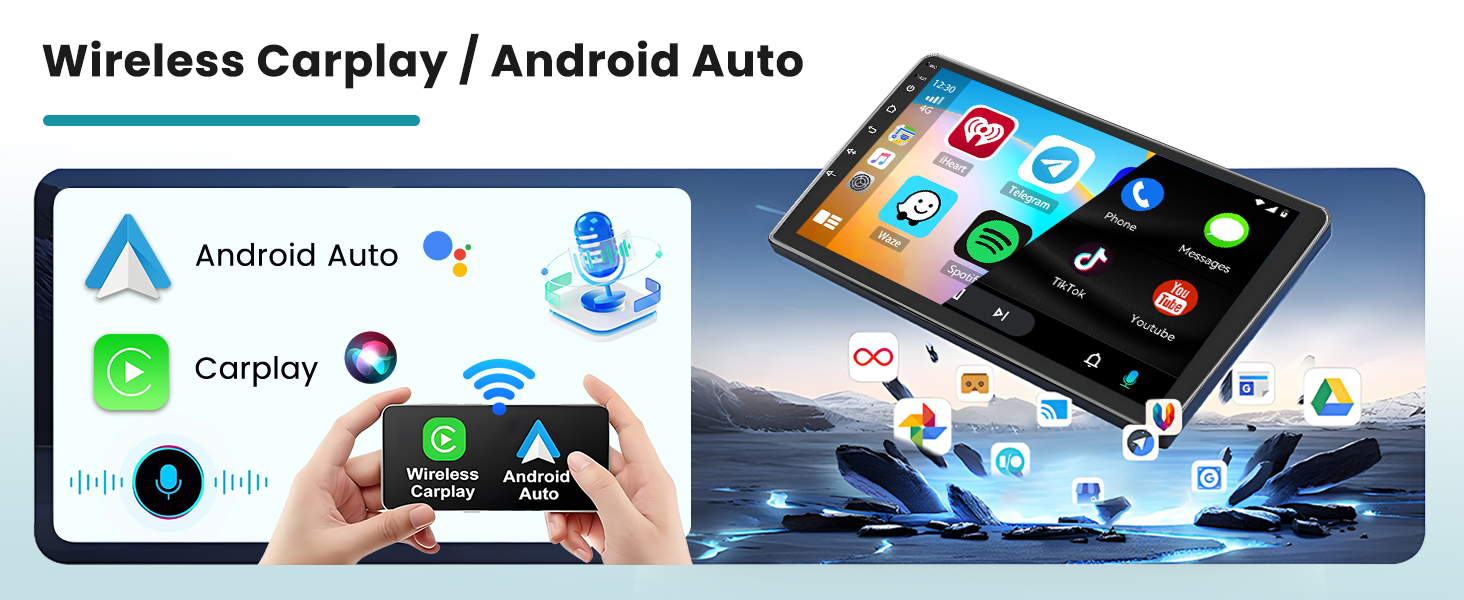
Image 3.2: Connection methods for Apple CarPlay, Android Auto, and Mirror Link.
Video 3.1: Demonstration of CarPlay and Android Auto connection, along with other functions.
3.2 Bluetooth & Mirror Link
The Android radio includes built-in Bluetooth for hands-free calling, phone book synchronization, and music streaming. Mirror Link functionality allows you to synchronize your Android or iOS smartphone screen to the stereo display for multimedia content viewing.

Image 3.3: Interface for Bluetooth hands-free calling and FM/RDS Radio.
3.3 GPS Navigation & WiFi Connection
Connect to WiFi to download online applications and videos. The unit supports both online and offline navigation, compatible with Google Maps and preloaded with a free offline navigation map on the Here WeGo application.

Image 3.4: Visual representation of GPS navigation and WiFi connectivity.
3.4 Steering Wheel Control & AHD Rear View Camera
Enhance your driving experience with steering wheel control integration and an AHD reversing screen display for precision and safety. The system supports various rear view camera features including line rear view, night vision, HD display, and waterproof design.
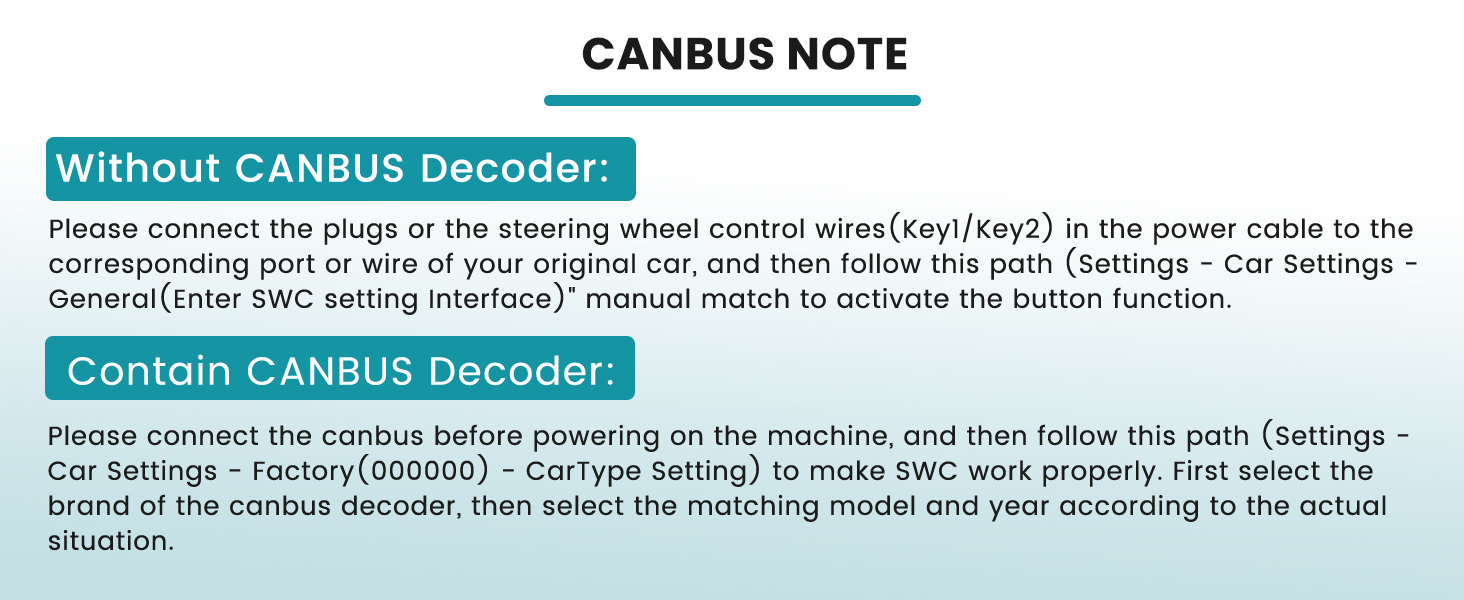
Image 3.5: Display showing steering wheel control functions and rear view camera feed.
3.5 EQ Settings & UI Themes
Customize your audio experience with multiple EQ options. The device also offers 26 different UI themes, allowing you to personalize the desktop style to your preference.

Image 3.6: Examples of available UI themes and the equalizer settings interface.
4. Maintenance
To ensure the longevity and optimal performance of your Roinvou Android Radio, follow these general maintenance guidelines:
- Keep the screen clean using a soft, lint-free cloth. Avoid abrasive cleaners.
- Ensure all connections are secure and free from corrosion.
- Avoid exposing the unit to extreme temperatures or direct sunlight for prolonged periods.
- Regularly check for software updates to improve performance and add new features.
5. Troubleshooting
If you encounter issues with your Roinvou Android Radio, refer to the following common troubleshooting steps:
- No Power: Check all power cable connections and ensure the vehicle's fuse is intact.
- No Sound/Poor Sound Quality: Verify speaker connections. Adjust EQ settings. Ensure the balance/fade is correctly configured (some users reported issues with rear speakers; check system settings or consult support if persistent).
- Bluetooth/WiFi Connectivity Issues: Ensure the reverse input cable for the camera is connected, even if the camera is not in use, as it impacts signal reception. Restart the unit and your phone.
- CarPlay/Android Auto Not Connecting: Ensure your phone's Bluetooth is on and paired. For wired connections, use the original USB data cable. Check Zlink application settings.
- Steering Wheel Controls Not Working: Re-check CANBUS decoder settings or manual SWC configuration in Settings > Car Settings.
- System Lag/Unresponsive: Close unnecessary background applications. Restart the unit.
- Backup Camera Not Displaying: Verify camera wiring connections, especially the red and black cables to the reverse light.
6. Specifications
| Item Weight | 3.89 pounds |
| Product Dimensions | 10.31 x 2.56 x 17.91 inches |
| Display Size | 9 Inches |
| Resolution | 1024 x 600 |
| Connectivity Technology | Bluetooth, USB, Wi-Fi |
| Special Features | Wireless and Wired CarPlay Android Auto, Bluetooth, IPS Touchscreen, FM RDS Radio, Mirror Link, GPS Navigation, EQ Setting, Wi-Fi, SWC, 26 Desktop Themes |
| Map Type | North America |
| Mounting Type | Dashboard Mount |
7. Warranty and Support
The Roinvou Android Radio comes with a 1 Year Warranty.
For customer support or further inquiries, please refer to the seller's contact information on the platform where the product was purchased. Typically, support can be accessed by visiting the Roinvou Store and selecting the 'Ask a question' option.


