Introduction
This manual provides detailed instructions for the installation, operation, and maintenance of your Luqeeg 10-inch Touch Screen Car Stereo. This multimedia player features wireless CarPlay, Android Auto, GPS navigation, Wi-Fi connectivity, and AHD rear camera support, specifically designed as a replacement for 2010-2014 Ford Mustang vehicles. Please read this manual thoroughly before use to ensure proper functionality and safety.
Safety Information
- Ensure the vehicle is turned off and the battery is disconnected before installation to prevent electrical short circuits.
- Installation should be performed by a qualified professional if you are unfamiliar with car audio systems.
- Do not operate the device in a manner that distracts you from driving. Always prioritize road safety.
- Avoid exposing the unit to extreme temperatures, direct sunlight for prolonged periods, or excessive moisture.
- Use only specified power cables and accessories to prevent damage or fire.
Package Contents
Verify that all items listed below are present in your package:
- 1 x Car Stereo Unit (10-inch Touch Screen)
- 10 x Wiring Harnesses
- 1 x Protocol Box
- 2 x User Manuals (this document)
- 1 x AHD Rear Camera

Image: Overview of all included components for the Luqeeg car stereo system.
Specifications
| Operating System | Android 11 |
| CPU | 8 Cores |
| RAM | 2GB |
| ROM | 32GB |
| Screen Size | 10.0 inches |
| Screen Resolution | 1024 x 600 |
| Connectivity | Bluetooth 5.0, Wi-Fi, USB |
| Mobile Connection | Wireless CarPlay (iOS), Android Auto (Android phone image projection) |
| Rear Camera Support | 1080HD AHD Camera (included) |
| Steering Wheel Control | Assistance supported |
| Applicable Model | Replacement for Ford Mustang 2010-2014 |
| Dimensions (L x W x H) | 25.4 x 25.4 x 25.4 cm |
| Weight | 1.84 kg |
Setup and Installation
This section outlines the general steps for installing the car stereo. Specific vehicle wiring diagrams may vary. Refer to your vehicle's service manual for detailed wiring information.
- Preparation: Park your vehicle on a level surface, turn off the engine, and disconnect the negative terminal of the car battery.
- Remove Old Unit: Carefully remove the existing car stereo and dashboard trim. Use appropriate tools to avoid damaging the interior.
- Connect Wiring Harnesses: Connect the provided wiring harnesses to the new car stereo and the vehicle's existing wiring. Ensure all connections are secure. The protocol box should be integrated as per the wiring diagram.
- Connect GPS Antenna: Install the GPS antenna in a location with a clear view of the sky, typically on the dashboard or under the windshield. Connect it to the stereo unit.
- Connect Wi-Fi Antenna: Connect the Wi-Fi antenna to the designated port on the stereo.
- Install Rear Camera: Mount the AHD rear camera at the rear of your vehicle, ensuring a clear view. Route the camera cable to the stereo unit and connect it to the "CAM IN" or equivalent port.
- Test Connections: Before fully reassembling the dashboard, reconnect the car battery and turn on the ignition. Power on the stereo and test basic functions: audio, touch screen response, radio, Bluetooth, and rear camera display.
- Secure Unit: Once confirmed working, securely mount the new car stereo into the dashboard opening. Reinstall all trim pieces.
- Final Check: Perform a final check of all functions and ensure no warning lights are illuminated on the dashboard.
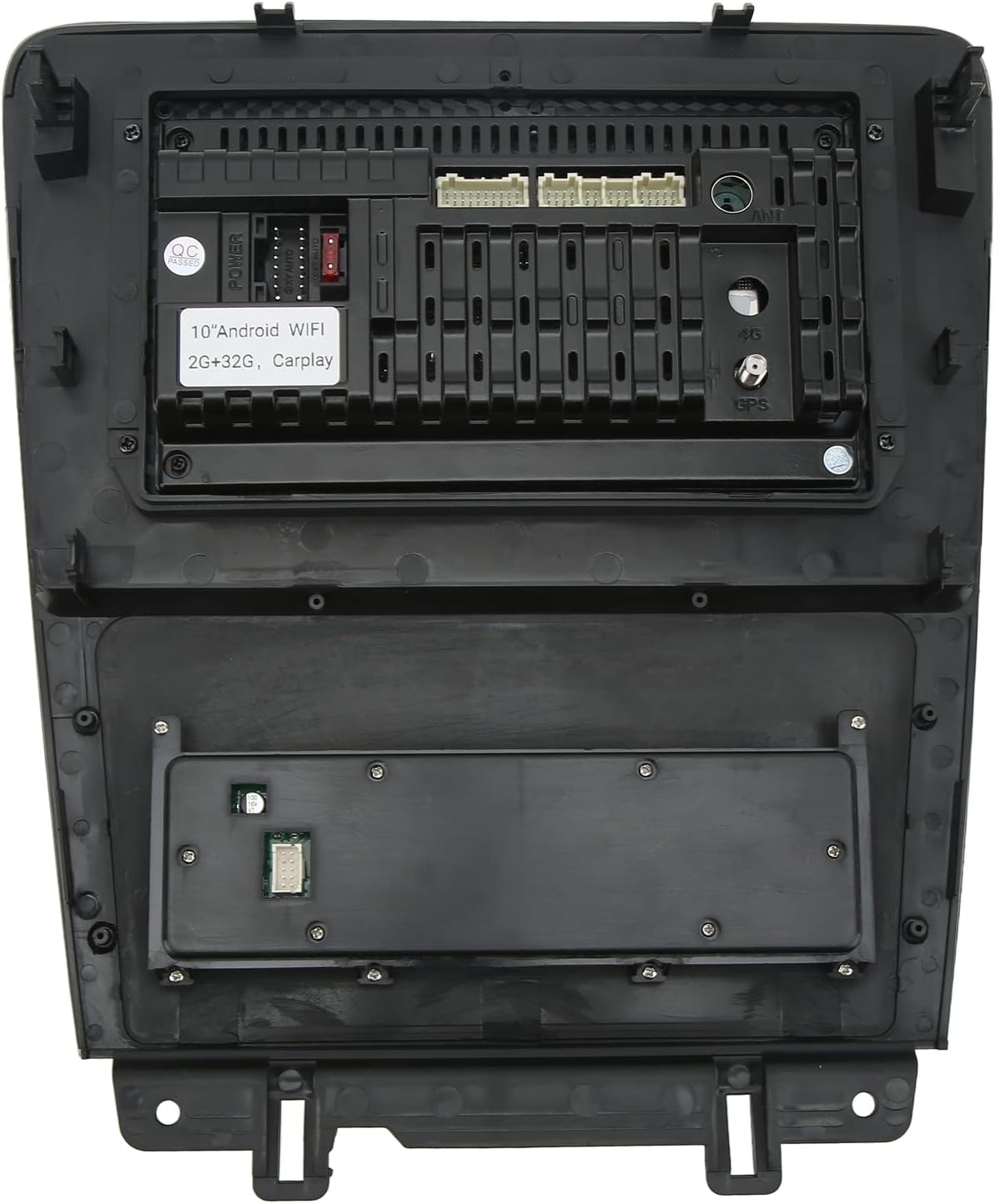
Image: Rear panel connections of the car stereo.

Image: Luqeeg car stereo installed in a vehicle, showing the user interface.
Operating Instructions
Basic Operation
- Power On/Off: Press and hold the power button (usually a physical knob or on-screen icon) to turn the unit on or off. A short press may mute/unmute audio.
- Volume Control: Use the physical knob or on-screen controls to adjust the volume.
- Touch Screen: The 10-inch screen supports multi-touch gestures for navigation and control.
- Steering Wheel Controls: If properly connected, your vehicle's steering wheel controls can operate basic functions like volume, track change, and mode selection.
Wireless CarPlay (iOS) & Android Auto
This unit supports wireless connection for both Apple CarPlay and Android Auto, allowing seamless integration with your smartphone.
- Ensure Bluetooth and Wi-Fi are enabled on your smartphone.
- On the car stereo, navigate to the CarPlay or Android Auto application.
- Follow the on-screen prompts to pair your phone via Bluetooth. Once paired, the system will automatically establish a Wi-Fi connection for CarPlay/Android Auto.
- Your phone's compatible apps (navigation, music, messages) will appear on the stereo screen.
GPS Navigation & Wi-Fi
The unit comes with built-in GPS and Wi-Fi capabilities.
- GPS: The pre-installed navigation app can be used offline with downloaded maps or online when connected to Wi-Fi. Ensure the GPS antenna has a clear signal.
- Wi-Fi: Connect to a Wi-Fi network (e.g., mobile hotspot) to access online maps, download apps from the Play Store, stream media, or browse the internet. Go to Settings > Network & Internet > Wi-Fi to connect.
Bluetooth Functionality
Bluetooth 5.0 allows for hands-free calling and wireless audio streaming.
- On the stereo, open the Bluetooth application.
- Enable Bluetooth on your smartphone and search for available devices.
- Select the stereo's Bluetooth name (e.g., "Luqeeg Car Stereo") from your phone's list and pair.
- Once connected, you can make/receive calls and play music wirelessly through the car speakers.
Rear Camera Display
The included AHD rear camera provides a clear view when reversing.
- When the vehicle is shifted into reverse gear, the stereo screen will automatically display the rear camera feed.
- The camera features 1080HD resolution and IP67 waterproofing for clear vision in various conditions.
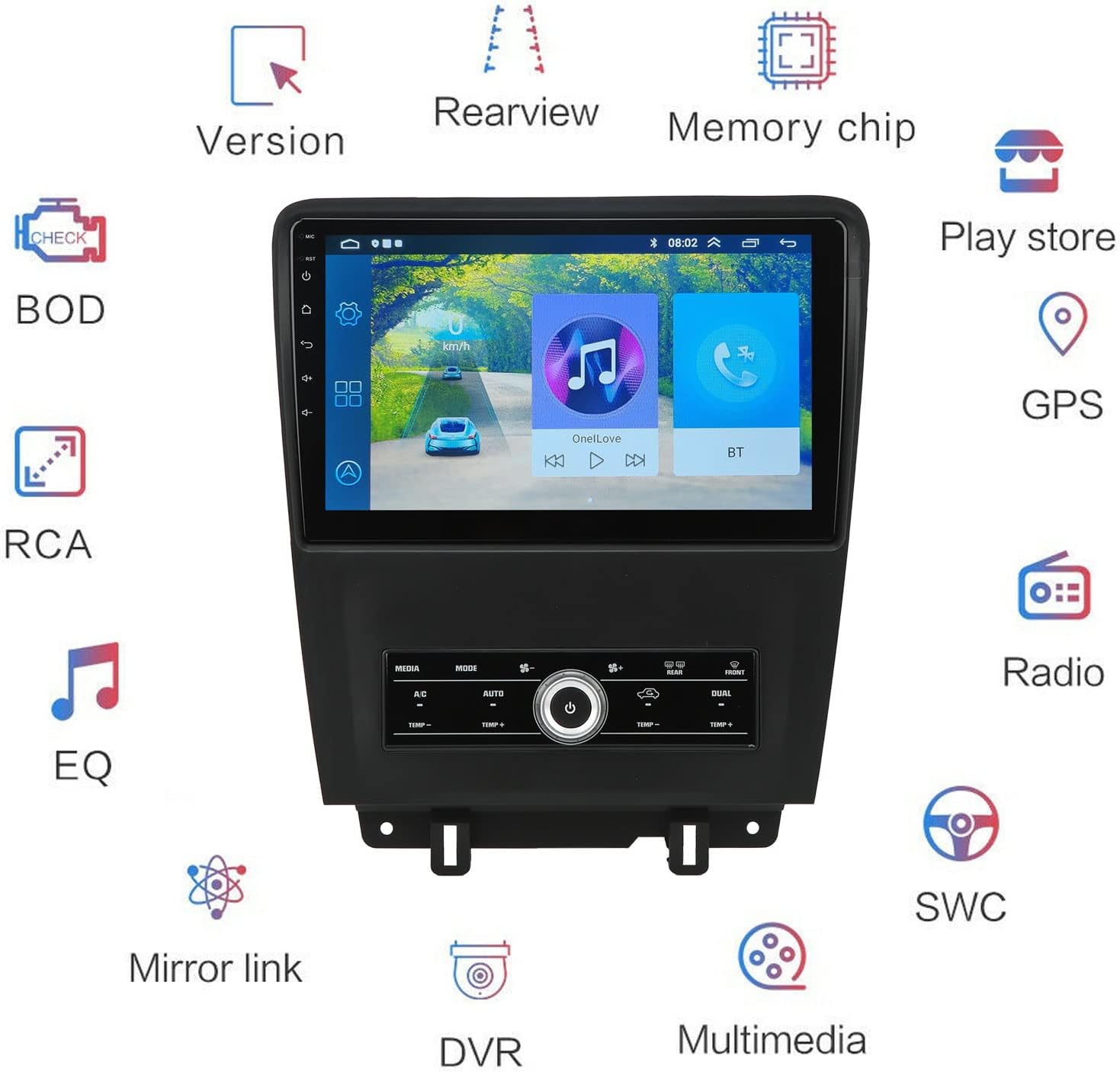
Image: Feature overview diagram of the car stereo.
Maintenance
- Screen Cleaning: Use a soft, lint-free cloth slightly dampened with water or a screen cleaner specifically designed for electronics. Do not use abrasive cleaners or solvents.
- Software Updates: Periodically check for software updates via the system settings or the manufacturer's website to ensure optimal performance and access to new features.
- General Care: Keep the unit free from dust and debris. Avoid placing heavy objects on the unit or exposing it to excessive force.
Troubleshooting
| Problem | Possible Cause | Solution |
|---|---|---|
| Unit does not power on. | Loose power connection, blown fuse, vehicle battery issue. | Check power wiring, inspect vehicle fuses, ensure battery is charged. |
| No sound. | Volume too low, mute activated, speaker wiring issue. | Increase volume, check mute status, verify speaker connections. |
| Touch screen unresponsive. | Software glitch, screen damage. | Restart the unit. If issue persists, contact support. |
| GPS signal weak or lost. | Antenna obstruction, poor antenna placement. | Ensure GPS antenna has a clear view of the sky. Check antenna connection. |
| CarPlay/Android Auto not connecting. | Bluetooth/Wi-Fi off on phone, incorrect pairing, phone software issue. | Ensure phone's Bluetooth/Wi-Fi is on. Re-pair the device. Update phone OS. |
| Rear camera not displaying. | Camera not connected, faulty camera, reverse trigger wire issue. | Check camera connection. Ensure vehicle is in reverse. Verify reverse trigger wire. |
Warranty and Support
The Luqeeg 10-inch Touch Screen Car Stereo comes with a manufacturer's warranty of 2 years.
- Warranty Coverage: This warranty covers defects in materials and workmanship under normal use. It does not cover damage caused by improper installation, accident, misuse, abuse, neglect, or unauthorized modification.
- Claiming Warranty: To claim warranty service, please contact your retailer or the manufacturer directly with your proof of purchase.
- Technical Support: For technical assistance or further inquiries, please refer to the contact information provided with your purchase or visit the official Luqeeg website.