
Introduction
This manual provides detailed instructions for the setup, operation, and maintenance of your Artlii Enjoy4 Mini Projector. Please read this manual thoroughly before using the projector to ensure proper functionality and to maximize your viewing experience. The Artlii Enjoy4 offers native 1080P Full HD resolution, dual-band 2.4G/5G WiFi, and Bluetooth 5.0 connectivity for versatile entertainment and presentation needs.

Image: The Artlii Enjoy4 Mini Projector, showcasing its key features including 5G WiFi, Bluetooth, and native 1080P resolution.
Package Contents
Please check the package contents upon unboxing. If any items are missing or damaged, contact customer support.
- Artlii Enjoy4 Mini Projector
- Remote Control (AAA batteries not included)
- Power Cable
- HDMI Cable
- 3.5mm to RCA AV Cable
- Lens Cap
- Cleaning Kit
- User Manual
Product Overview
Front and Top View
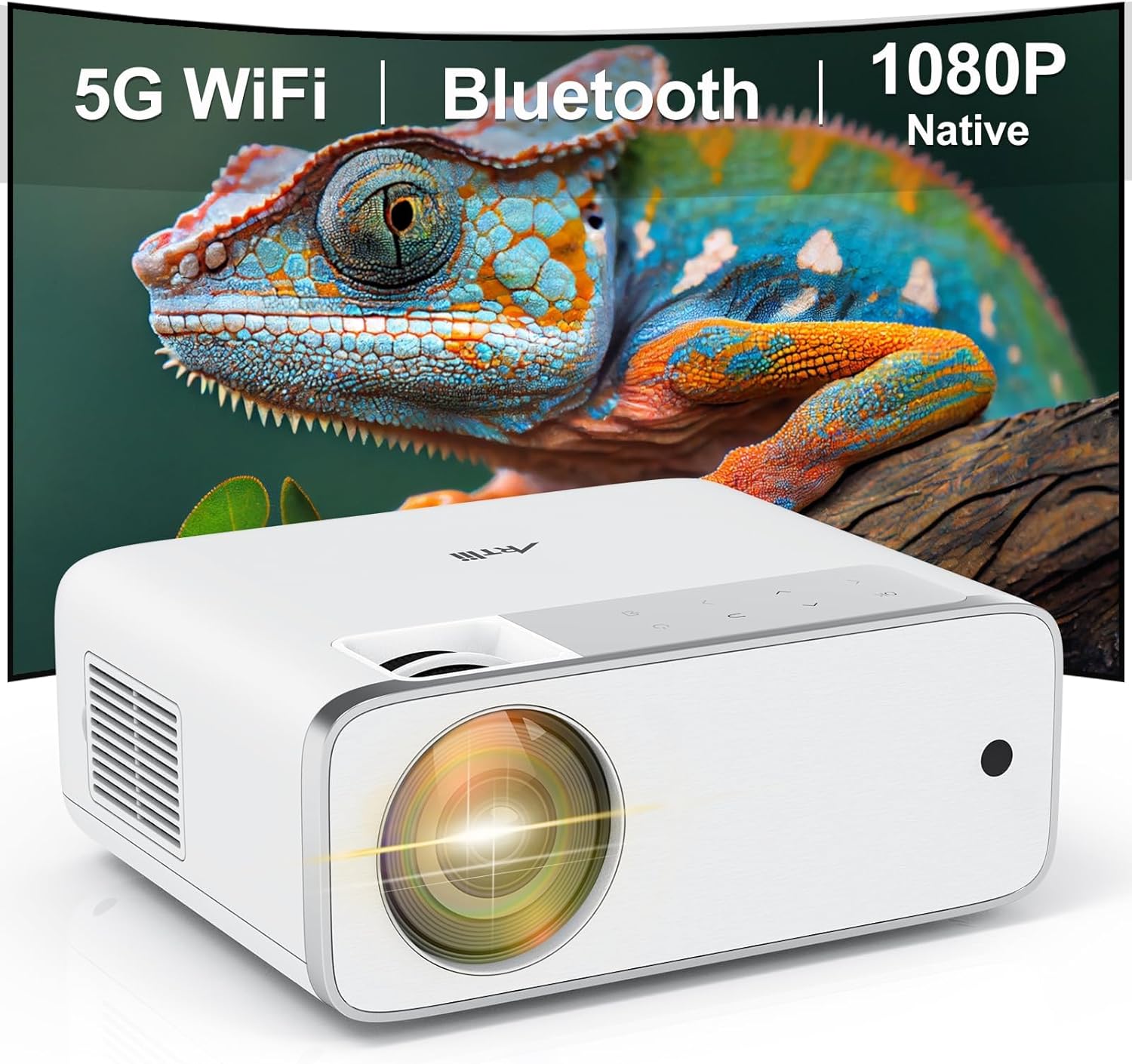
Image: Front view of the projector, highlighting the projection lens and infrared receiver.
The front of the projector features the main projection lens. The top panel includes illuminated control buttons and focus/keystone adjustment dials.

Image: Close-up of the projector's top control panel, showing illuminated buttons for power, navigation, and input selection, visible in both day and night settings.
Rear and Side Ports

Image: Rear panel of the projector displaying various connectivity options such as HDMI, USB, AV, and a 3.5mm audio jack, illustrating its multi-device compatibility.
The rear and side panels house the input/output ports. These include:
- HDMI Ports (x2): For connecting devices like laptops, gaming consoles, TV sticks, and DVD players.
- USB Ports (x2): For connecting USB drives for media playback or powering external devices.
- AV Port: For connecting older devices using the included 3.5mm to RCA cable.
- 3.5mm Audio Out: For connecting external speakers or headphones.
- Power Input: For connecting the power cable.
Setup
1. Placement
Position the projector on a stable, flat surface or mount it to a ceiling or tripod. Ensure the projector lens is perpendicular to your projection surface (screen or wall) for optimal image geometry. The recommended projection distance ranges from approximately 1.18 meters to 9.2 meters, allowing for screen sizes from 37 inches up to 300 inches.

Image: Illustration of the Artlii Enjoy4 Mini Projector's flexible placement options and the resulting screen sizes at different projection distances, from 37 inches to 300 inches.
2. Power Connection
- Connect the power cable to the projector's power input port.
- Plug the other end of the power cable into a power outlet.
- Press the power button on the projector or remote control to turn it on.
3. Focus and Keystone Adjustment
After powering on, adjust the image clarity and shape:
- Focus Ring: Rotate the focus ring near the lens until the projected image appears sharp and clear.
- Keystone Correction: Use the keystone adjustment dial (or digital keystone in settings) to correct trapezoidal distortion, ensuring the image is rectangular. The Artlii Enjoy4 supports ±15° keystone correction.

Image: Visual representation of the keystone correction feature, demonstrating how the projector can adjust the image to a perfect rectangle even when placed at an angle, with a range of ±15 degrees.
Operating Instructions
1. Connecting Devices via Cable
The projector supports various wired connections:
- HDMI: Connect your device (laptop, game console, TV stick) to one of the HDMI ports using an HDMI cable. Select the corresponding HDMI input from the projector's source menu.
- USB: Insert a USB flash drive into a USB port to play media files (photos, videos, music). Navigate the media browser using the remote control.
- AV: Use the provided 3.5mm to RCA cable to connect older devices like DVD players. Select the AV input from the source menu.
2. Wireless Connectivity (WiFi)
The Artlii Enjoy4 supports dual-band 2.4G and 5G WiFi for stable and fast wireless connections.
- Go to the projector's settings menu and select "WiFi Settings".
- Turn on WiFi and select your desired network from the list.
- Enter the WiFi password using the on-screen keyboard.
- Once connected, you can use screen mirroring features or access online content (if supported by connected devices).

Image: The Artlii Enjoy4 Mini Projector in use, projecting content wirelessly, emphasizing its fast and stable 2.4G/5G dual-band WiFi capabilities.
3. Bluetooth Audio Connection
Connect external Bluetooth speakers or headphones for an enhanced audio experience.
- Ensure your Bluetooth audio device is in pairing mode.
- On the projector, navigate to "Bluetooth Settings" in the menu.
- Turn on Bluetooth and select your device from the list of available devices to pair.

Image: The Artlii Enjoy4 Mini Projector surrounded by Bluetooth-compatible headphones and speakers, illustrating its ability to connect to external audio devices for an improved sound experience.
4. Screen Mirroring (Smartphone/Tablet)
The projector supports screen mirroring from compatible smartphones and tablets (iOS and Android). Refer to the projector's on-screen instructions for specific steps, which typically involve connecting both devices to the same WiFi network and enabling screen mirroring on your mobile device.
5. Image and Audio Settings
- Zoom Function: Adjust the image size from 75% to 100% using the remote control or menu settings without moving the projector.
- Aspect Ratio: Select between 16:9 and 4:3 aspect ratios to match your content.
- Picture Mode: Choose from various picture modes (e.g., Standard, Vivid, User) to optimize image quality.
- Sound Mode: Adjust audio settings or select a sound mode (e.g., Standard, Music, Movie).
Maintenance
Regular maintenance ensures optimal performance and longevity of your projector.
- Lens Cleaning: Use a soft, lint-free cloth and lens cleaning solution (if necessary) to gently wipe the projector lens. Avoid abrasive materials.
- Dust Removal: Periodically clean the projector's vents with a soft brush or compressed air to prevent dust buildup, which can affect cooling and performance.
- Storage: When not in use, cover the lens with the provided cap and store the projector in a cool, dry place away from direct sunlight and extreme temperatures.
Troubleshooting
If you encounter issues, refer to the following common problems and solutions:
- No Image:
- Ensure the power cable is securely connected and the projector is turned on.
- Verify the input source is correctly selected (e.g., HDMI1, USB).
- Check if the connected device is powered on and outputting a signal.
- Blurry Image:
- Adjust the focus ring on the projector lens.
- Ensure the projection distance is within the recommended range.
- Correct any keystone distortion using the adjustment dial or menu settings.
- No Sound:
- Check the volume level on both the projector and the connected source device.
- If using external speakers, ensure they are properly connected via Bluetooth or the 3.5mm audio jack.
- Verify that the audio output settings on your source device are correct.
- WiFi/Bluetooth Connectivity Issues:
- Ensure WiFi/Bluetooth is enabled on both the projector and the device you are trying to connect.
- Check that the WiFi password is entered correctly.
- Move the projector closer to your WiFi router or Bluetooth device to improve signal strength.
- Restart both the projector and the connecting device.
Specifications
| Feature | Specification |
|---|---|
| Brand | Artlii |
| Model | Enjoy4 |
| Native Resolution | 1920 x 1080 (Full HD) |
| Brightness | 210 ANSI Lumens |
| Contrast Ratio | 1400:1 |
| Projection Size | 37" - 300" (Recommended: 40" - 200") |
| Keystone Correction | ±15° Manual |
| Zoom Function | 75% - 100% |
| Wireless Connectivity | 2.4G/5G WiFi, Bluetooth 5.0 |
| Input Ports | 2x HDMI, 2x USB, 1x AV, 1x 3.5mm Audio Out |
| Compatible Devices | TV Sticks, Smartphones (iOS & Android), Laptops, DVD Players, USB Drives, PS5, Xbox |
Warranty and Support
Information regarding specific warranty terms and customer support contact details is typically provided with your product packaging or on the manufacturer's official website. Please refer to those resources for the most accurate and up-to-date information.

