
Introduction
Thank you for choosing the Xega 4G LTE Solar Surveillance Camera, Model XG-07. This camera is designed for outdoor security in locations without Wi-Fi or stable power sources, utilizing 4G cellular connectivity and solar power. This manual provides detailed instructions for installation, operation, maintenance, and troubleshooting to ensure optimal performance and longevity of your device.
What's in the Box
- 1 x Xega 4G Cellular Security Camera
- 1 x 6W Solar Panel
- 1 x SIM Card (300MB for trial, pre-inserted)
- 1 x Solar Panel Mounting Bracket
- 1 x 3m Connection Cable
- 1 x 1m Type-C Charging Cable
- 1 x User Manual
Product Overview

Front view of the Xega 4G LTE Solar Surveillance Camera, showing the lens, infrared LEDs, and dual antennas.

Side view of the camera, highlighting its robust outdoor design.
The XG-07 camera features a durable, weather-resistant housing, a high-resolution 2K lens, infrared LEDs for night vision, and a built-in microphone and speaker for two-way audio. It is powered by an integrated 8000mAh battery, continuously charged by a 6W solar panel. The camera supports 4G LTE connectivity via a SIM card, allowing remote access and notifications through the UBox application.
Setup
- SIM Card Installation:
The camera comes with a pre-inserted SIM card for trial use. If using a different SIM card, ensure it is a nano-SIM and that any PIN code is disabled before insertion. The camera requires a 4G data plan for cellular coverage. Approximately 1-2 GB of data can cover monthly usage, depending on activity.

Image illustrating SIM card insertion and available data plans for the 4G camera.
- Battery Charging:
Before initial use, fully charge the camera's internal battery using the provided Type-C charging cable. Connect the solar panel to the camera. The solar panel requires approximately 4 hours of direct sunlight daily to maintain battery charge.

The solar panel connected to the camera, mounted on a wooden building, ensuring continuous power.
- App Installation:
Download and install the "UBox" application from your smartphone's app store (iOS or Android). Follow the in-app instructions to register an account and add your camera device. Scan the QR code on the camera or packaging if prompted.
- Mounting the Camera:
The camera is designed for wall mounting. Choose a location that provides optimal surveillance coverage and sufficient direct sunlight for the solar panel. Ensure the mounting surface is stable and secure. The recommended installation height is 2.6-3 meters for effective motion detection.

The camera and solar panel securely mounted on a tree, demonstrating outdoor installation flexibility.
Operating Instructions
- Live View and PTZ Control:
Open the UBox app and select your camera. You can view the live feed. Use the on-screen controls to pan the camera horizontally up to 355° and tilt vertically up to 90°. Note: This camera does not support automatic tracking of moving objects.

Illustration of the camera's 355° pan and 90° tilt capabilities, overlooking a field with sheep.
- Two-Way Audio:
The camera is equipped with a microphone and speaker. In the live view interface, tap the microphone icon to speak through the camera, and listen to audio from the camera's surroundings.

A person using the UBox app to communicate through the camera, with a speech bubble indicating "Go away!"
- Night Vision Modes:
The camera offers two night vision modes: infrared night vision (black and white) and color night vision. You can switch between these modes via the UBox app settings to suit your monitoring needs.

A split image demonstrating the difference between infrared night vision (left) and color night vision (right) in low light conditions.
- Motion Detection and Notifications:
The camera features PIR motion detection. When human movement is detected, an instant alert will be sent to your UBox app. You can adjust the sensitivity of the motion detection and set specific alarm periods within the app settings to minimize false alerts.

A smartphone screen displaying a UBox app notification: "Alarm message: You have a visitor," triggered by a child on a scooter.
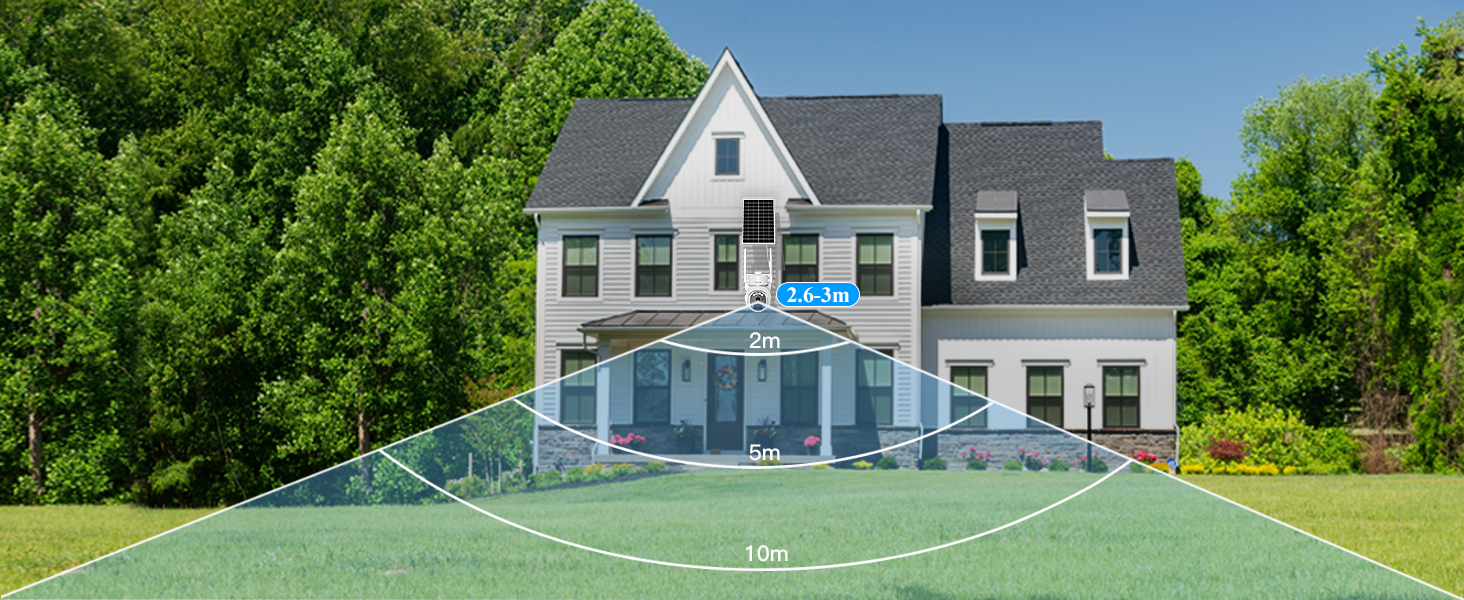
A diagram illustrating the camera's motion detection range, showing detection zones at 2m, 5m, and 10m from the camera.
- Video Storage:
The camera supports both cloud storage and local storage via a TF (microSD) card (up to 128GB, not included). You can configure your preferred storage method in the UBox app. Recorded events can be reviewed through the app.

An image depicting the camera's support for both local SD card storage and cloud storage options.
Maintenance
- Solar Panel Cleaning: Regularly clean the surface of the solar panel to remove dust, dirt, or debris that may obstruct sunlight and reduce charging efficiency. Use a soft, damp cloth.
- Lens Cleaning: Gently wipe the camera lens with a microfiber cloth to ensure clear image quality. Avoid abrasive materials.
- Firmware Updates: Periodically check the UBox app for available firmware updates. Keeping your camera's firmware up-to-date ensures optimal performance, security, and access to new features.
- Battery Health: While the solar panel provides continuous charging, avoid prolonged periods of complete discharge to maximize battery lifespan.
Troubleshooting
- Camera is Offline:
Check the battery level in the UBox app. Ensure the SIM card is correctly inserted and has an active data plan. Verify 4G signal strength in the camera's location. If the issue persists, try restarting the camera.
- Excessive False Alerts:
Adjust the motion detection sensitivity settings in the UBox app to a lower level. Configure specific alarm periods to activate detection only when needed. Ensure the detection zone is properly set to exclude irrelevant areas. During heavy rain or snow, temporarily reduce sensitivity or disable detection if necessary, as water droplets can trigger alerts.

Screenshot of the UBox app's advanced alarm settings, allowing users to schedule detection times.
- Poor Image Quality:
Ensure the camera lens is clean and free from obstructions. Check the camera's resolution settings in the UBox app. Verify that the camera is receiving adequate light during the day and that night vision is functioning correctly at night.
- SIM Card Not Recognized:
Ensure the SIM card is a nano-SIM and inserted correctly. If using a new SIM card, confirm that its PIN code has been disabled using a smartphone before inserting it into the camera.
Specifications
| Feature | Detail |
|---|---|
| Model Name | XG-07 |
| Connectivity Technology | Wireless (4G Cellular) |
| Power Source | Solar Powered |
| Solar Panel Power | 6 Watts |
| Battery Capacity | 8000mAh |
| Resolution | 2K (1440p) |
| Special Features | Two-way Audio, Motion Detector, PTZ Technology, Night Vision |
| PTZ Range | Pan 355°, Tilt 90° |
| Night Vision Range | 25 Meters |
| Night Vision Type | Color Night Vision, Infrared Night Vision |
| Storage | Cloud Storage, TF Card (Max 128GB) |
| Water Resistance Level | IP66 (Waterproof) |
| Control Method | UBox Application |
| Dimensions | 22 x 24 x 15 cm |
| Weight | 1.44 Kilograms |

The Xega camera demonstrating its IP66 waterproof rating, functioning reliably in rainy conditions.
Warranty and Support
Xega provides a worry-free lifetime warranty for this product. For any technical assistance, questions, or support needs, please contact our professional customer service team. We offer 24/7 online customer support to ensure you receive timely and effective help.

A customer service representative ready to assist with product inquiries.


