
1. Introduction
The Cync Full Color Dynamic Effects Hexagon Panel Light system allows you to create unique lighting designs and enhance any space with millions of colors and dynamic effects. This manual provides essential information for the proper setup, operation, and maintenance of your 10-panel system.
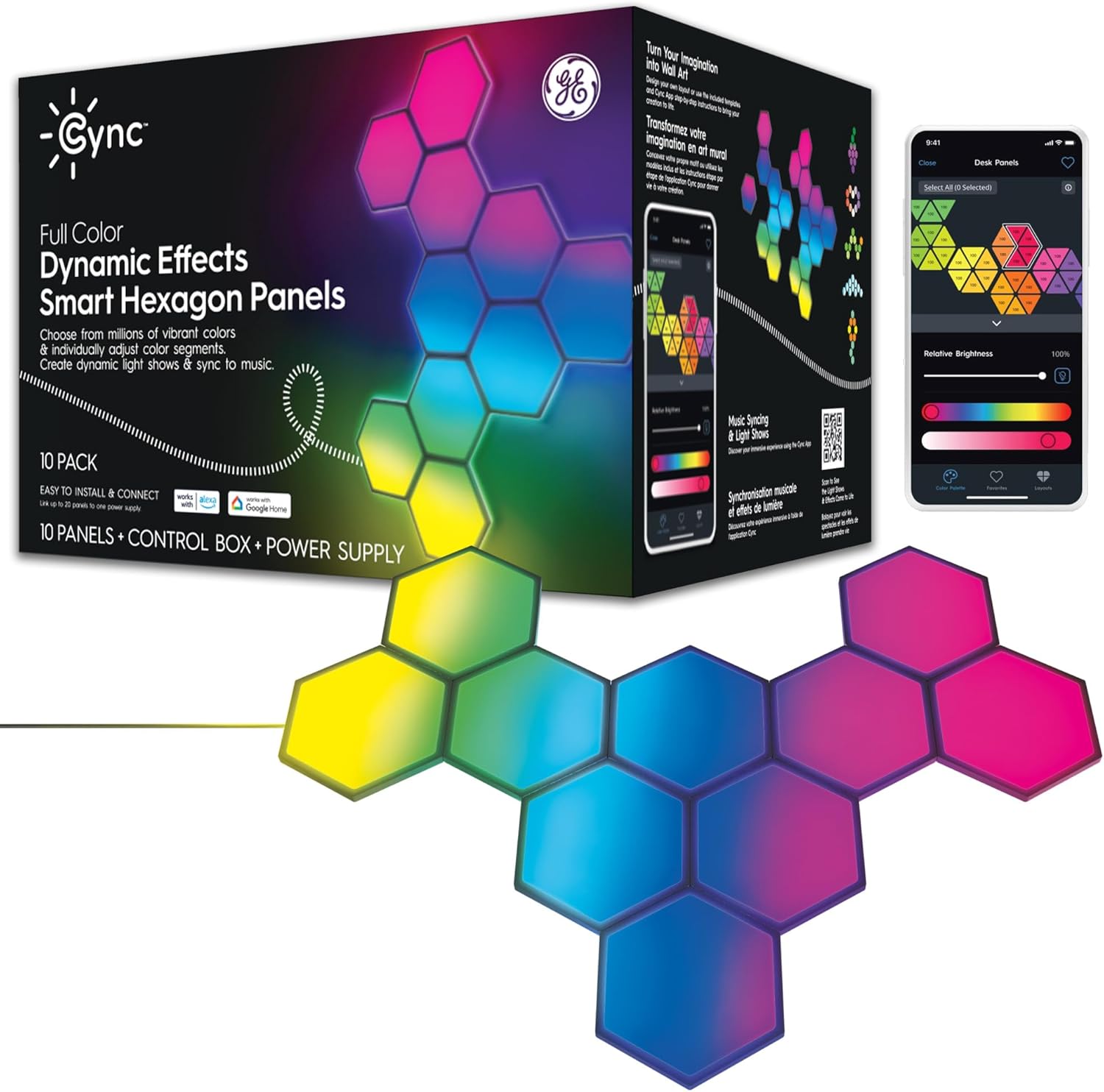
Image: Cync GE Dynamic Effects Smart Hexagon Panels 10-Pack, showing the product packaging and an example of assembled panels.
2. What's in the Box
Your Cync Dynamic Effects Hexagon Panels (10-Pack) includes the following components:
- Ten (10) hexagon panels
- Control box
- Power supply with plug
- 9 linking cables
- 12 adhesive strips
- 30 traceless nails
- 2 screws
- 10 layout templates
- Cleaning wipe
- Level
- Orientation tool
- Panel remover tool
- Installation instructions
3. Setup
Follow these steps for easy installation and connection of your Cync Hexagon Panels:
- Plan Your Design: Use the included layout templates to plan your desired shape and arrangement on the wall before applying any adhesive or nails.
- Clean the Surface: Thoroughly clean the wall surface where the panels will be installed using the provided cleaning wipe to ensure optimal adhesion.
- Connect to the Cync App: Download the Cync App on your smartphone. Follow the in-app instructions to connect your control box and panels to your 2.4GHz Wi-Fi network.
- Mount the Panels: Use the included adhesive strips for flexible placement or the traceless nails and screws for a more secure installation. Ensure the panels are securely attached to prevent accidental falls.
- Link Panels: Connect the hexagon panels using the provided linking cables. Pay attention to the input/output arrows on the back of each panel and the linking cables to ensure correct power flow.
- Power On: Connect the power supply to the control box and plug it into a power outlet.

Image: Visual guide illustrating the four easy setup steps: Connect to Cync App, Use recommended designs, Lay out designs with templates, Clean wall and install.
Setup Tips:
- The linking cables are delicate; handle them with care during installation to avoid damage.
- If using adhesive, ensure the wall is smooth and clean for best results.
- The panel remover tool can assist in carefully detaching panels if repositioning is needed.
Video: A demonstration of the GE CYNC Hexagon Panels, showcasing their physical appearance and initial setup.
4. Operating Instructions
Control your Cync Hexagon Panels using the Cync App, voice commands, or the integrated control box.
Cync App Control:
- Color Selection: Use the app's color wheel and TrueImage technology to select from millions of vibrant colors and white tones (2000K to 7000K).
- Individual Segment Control: Adjust color segments by panel for unique LED wall art shows.
- Dynamic Effects & Light Shows: Choose from various preset light shows or create custom ones.
- Music Sync: Sync your lights to your favorite music for a dynamic audio-visual experience.
- Brightness & Scheduling: Adjust brightness levels and set daily schedules for automated lighting.
- Out-of-Home Control: Manage your lights remotely through the Cync App.

Image: The Cync App displaying options to create dynamic light shows and sync to music, with hexagon panels illuminated in various colors.

Image: The Cync App interface demonstrating how to individually adjust color segments on the hexagon panels for a unique design.
Voice Control & Smart Home Integration:
The Cync Hexagon Panels are compatible with Amazon Alexa and Google Home devices for hands-free control.
- Voice Commands: Use commands like "Alexa, turn on the tile lights" or "Hey Google, set the gaming lights to blue."
- Custom Scenes & Routines: Create personalized scenes and routines through your smart home assistant apps.

Image: A person interacting with smart home devices, demonstrating voice control for the Cync lights, with Google Home and Alexa logos visible.
Video: A detailed guide on how to connect Cync devices to Amazon Alexa for voice control and smart home integration.
Video: A short demonstration showcasing the dynamic color-changing capabilities of the Cync Hexagon Panels.
Video: A brief preview demonstrating the enhanced dimming range feature of Cync lights.
5. Maintenance
To ensure the longevity and optimal performance of your Cync Hexagon Panels, follow these simple maintenance guidelines:
- Cleaning: Gently wipe the surface of the panels with a soft, dry, or slightly damp cloth. Avoid using harsh chemicals, abrasive cleaners, or excessive moisture, as these can damage the finish or electronic components.
- Connection Integrity: Periodically check the linking cables and power connections to ensure they are secure and free from damage. Loose connections can affect performance.
- Software Updates: Keep your Cync App updated to the latest version to access new features, performance improvements, and security patches. Firmware updates for the panels may also be available through the app.
- Environmental Conditions: Ensure the panels are used in indoor environments within recommended temperature and humidity ranges. Avoid exposure to direct sunlight for prolonged periods or extreme temperatures.
6. Troubleshooting
If you encounter issues with your Cync Hexagon Panels, try the following troubleshooting steps:
- Panels Not Lighting Up:
- Check if the power supply is securely plugged into a working outlet and the control box.
- Verify that all linking cables are correctly and firmly connected between panels, following the input/output arrows.
- Ensure the Cync App shows the panels as connected and powered on.
- Connectivity Issues:
- Confirm your Wi-Fi network is 2.4GHz. Cync devices are not compatible with 5GHz networks.
- Restart your Wi-Fi router and the Cync control box.
- Ensure your smartphone is connected to the same 2.4GHz Wi-Fi network during setup.
- If using Alexa or Google Home, ensure the Cync skill/service is enabled and linked to your Cync account.
- Inconsistent Colors/Effects:
- Check for any loose linking cables between panels.
- Perform a soft reset of the panels (refer to the Cync App or support website for specific instructions).
- Ensure the panels are not physically obstructed, which could interfere with light diffusion.
- Panels Falling Off Wall:
- Ensure the wall surface was clean and dry before applying adhesive.
- For heavier or more complex installations, consider using the traceless nails and screws for added security.
- Use additional high-quality adhesive strips if the included ones are insufficient for your wall type.
7. Specifications
| Feature | Specification |
|---|---|
| Brand | Cync |
| Model Name | Cync Dynamic Effects Hexagon Panels (10-Pack) |
| Item Model Number | CFIXTIHCDEN |
| Number of Pieces | 10 |
| Light Source Type | LED |
| Light Color | Full Color, Tunable White |
| Brightness | 200 Lumen |
| Wattage | 36 watts |
| Voltage | 120 Volts |
| Material | Plastic |
| Product Dimensions | 7.56"D x 9.84"W x 6.61"H |
| Item Weight | 4.9 Pounds |
| Mounting Type | Wall Mount |
| Indoor/Outdoor Usage | Indoor |
| Water Resistance Level | Not Water Resistant |
8. Warranty and Support
For product support, warranty information, or to purchase protection plans, please refer to the following resources:
- Online Support: Visit the official Cync support website at cyncsupport.gelighting.com.
- Phone Support: Contact the support team at 1-844-302-2943.
- Protection Plans: Extended protection plans are available for purchase separately. Check product listings or the Cync website for details.


