
WalkerFit ZL73E
WalkerFit Smart Watch User Manual
Model: ZL73E
1. Introduction
Welcome to the WalkerFit Smart Watch user manual. This guide provides detailed instructions on how to set up, operate, and maintain your new smartwatch. The WalkerFit Smart Watch is designed for women, offering a blend of style and functionality with features like fitness tracking, health monitoring, and smart notifications.

Image: The WalkerFit Smart Watch, showcasing its round gold casing and light-colored band, with water splashes indicating its waterproof feature.
Product Overview
The WalkerFit Smart Watch features a 1.4-inch touch screen, a sturdy and anti-scratch frame, and offers various customizable watch faces. It is compatible with both iPhone and Android devices, providing comprehensive health and fitness tracking capabilities.
Video: A comprehensive overview of the WalkerFit Smart Watch, highlighting its design, features, and user interface.
2. What's in the Box
Upon opening your WalkerFit Smart Watch package, you should find the following items:
- 1 x WalkerFit A2PRO Smart Watch
- 1 x Magnetic Charging Cable
- 1 x User Manual

Image: A visual representation of the WalkerFit Smart Watch, its charging cable, and the user manual, as typically found in the product packaging.
3. Setup Guide
Follow these steps to set up your WalkerFit Smart Watch and connect it to your smartphone:
- Download the App: Open Google Play Store (for Android) or Apple App Store (for iPhone) and search for the "Da Fit" app. Download and install it.
- Enable Bluetooth: Turn on the Bluetooth function on your smartphone.
- Pair the Device: Open the "Da Fit" app. On the app's main screen, click "ADD A DEVICE" and select "ZL73E" from the list of available devices. Confirm the pairing request on your phone.
- Control Call Function: Once paired, turn on/off the call switch within the app to control the call function of the watch.

Image: A step-by-step visual guide demonstrating how to connect the WalkerFit Smart Watch to a smartphone using the Da Fit app.
4. Operating Instructions
4.1. Health Tracking
Your WalkerFit Smart Watch is equipped with high-precision sensors to monitor various health metrics:
- Heart Rate Monitoring: Tracks your heart rate 24/7.
- Blood Oxygen Levels (SpO2): Measures blood oxygen using a wrist-based sensor.
- Blood Pressure Monitoring: Provides blood pressure readings.
- Stress Tracking: Monitors your stress levels throughout the day.
- Calorie Burn: Tracks calories burned during exercise.

Image: A visual display of the watch's health tracking capabilities, including heart rate, blood oxygen, and blood pressure monitoring.
Video: Demonstrates the various health tracking features and their interface on the WalkerFit Smart Watch.
4.2. Smart Notifications & Calls
Stay connected by receiving call, SMS text, and SNS messages (Facebook, Twitter, WhatsApp, LinkedIn, Messenger, etc.) directly on your watch. The watch provides vibration alerts for incoming notifications. You can also answer or make calls directly from the smartwatch when synced to your phone.

Image: Illustrates the smart notification and call answering capabilities of the watch, showing icons for various messaging and social media apps.
Video: Shows how to navigate through the watch's interface to access call and notification features.
4.3. Sports Modes
The smartwatch offers a range of fitness tracking modes to cater to various activities. Select your desired exercise mode to track specific metrics like steps, distance, calories, and heart rate during your workouts.

Image: A banner displaying various sports icons, indicating the 30+ activity tracking modes available on the smartwatch.
Video: A short demonstration of selecting and starting an exercise mode on the smartwatch.
4.4. Sleep Tracking
The smartwatch provides enhanced sleep monitoring with multi-sleep mode detection. It analyzes your sleep quality, including total sleep, light sleep, and deep sleep, offering professional suggestions to help you sleep better.
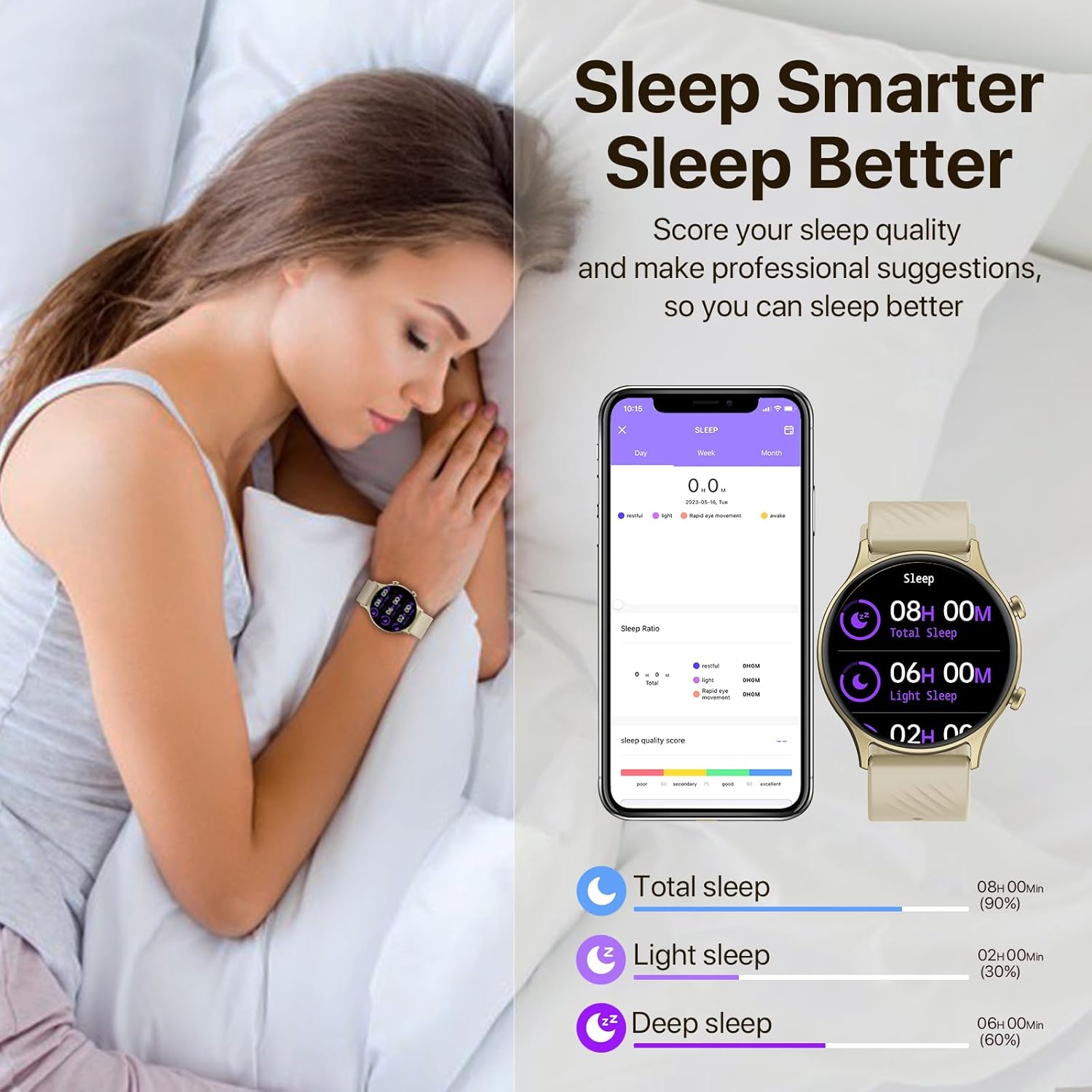
Image: A woman sleeping with the smartwatch on, alongside a graphic showing sleep quality analysis data.
4.5. Customization
Personalize your watch with over 200+ trendsetting dials available within the app. You can also create and customize your own watch faces using photos from your phone gallery.

Image: Displays various customizable watch faces available for the 1.4-inch screen of the WalkerFit Smart Watch.
4.6. Remote Camera Control
Effortlessly control your smartphone camera with just a wave of your hand using the watch's remote camera control feature. This is ideal for capturing photos, especially group shots or selfies.
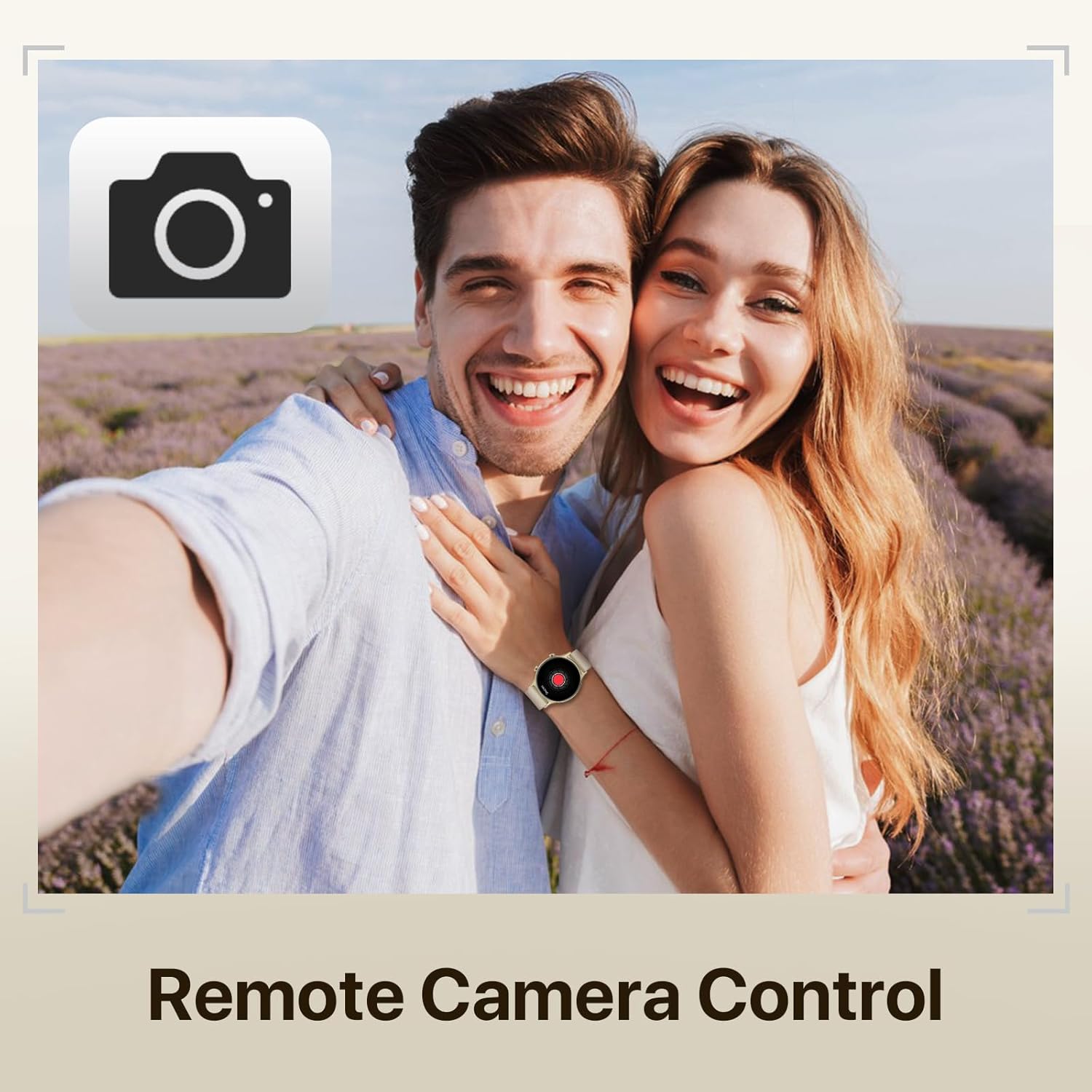
Image: A couple taking a photo, with the smartwatch on the woman's wrist, illustrating the remote camera control function.
4.7. Other Functions
The WalkerFit Smart Watch also includes additional useful features:
- Weather Forecasting: Provides 7-day weather forecasts to help you plan your activities.
- Music Control: Control music playback on your connected smartphone.
- Games: Enjoy simple games directly on your watch.
- Breathe Training: Guided breathing exercises for relaxation.

Image: A collage showing various life functions of the smartwatch, including games, breathe exercises, music control, and weather display.
5. Maintenance
5.1. Water Resistance
The WalkerFit Smart Watch has an IP67 waterproof rating. This means it can be used for hand washing and in the rain. However, it is not suitable for swimming, hot water, or sauna use.

Image: A woman splashing water on her face while wearing the smartwatch, illustrating its IP67 water resistance for daily activities.
5.2. Charging and Battery Life
The watch features a 220 Milliamp Hours Lithium Polymer battery. A full charge can last for several days depending on usage. Charging typically takes about 2 hours using the provided magnetic charging cable.

Image: A woman exercising with the smartwatch, alongside an infographic showing battery life details: 7-9 days heavy use, 30 days standby, 2 hours charging time.
6. Troubleshooting
If you encounter issues with your WalkerFit Smart Watch, please refer to the following common solutions:
- Connectivity Issues (Cannot connect to phone):
- Ensure Bluetooth is enabled on your phone and the watch.
- Make sure the "Da Fit" app is running and has necessary permissions.
- Restart both your phone and the smartwatch.
- Try unpairing and re-pairing the device through the app.
- Battery Not Holding Charge:
- Ensure the magnetic charging cable is properly connected to the watch and a power source.
- Check if the charging contacts on the watch and cable are clean and free of debris.
- Reduce usage of power-intensive features like continuous heart rate monitoring or frequent notifications.
- Disable unnecessary background app refresh for the watch app on your phone.
- Inaccurate Health Readings (e.g., Blood Pressure, SpO2):
- Ensure the watch is worn snugly on your wrist, about one finger's width above the wrist bone.
- Remain still during measurements.
- Note that these are fitness tracker readings and not medical-grade measurements. Consult a healthcare professional for medical advice.
- Notifications Not Appearing:
- Verify that notification permissions are granted to the "Da Fit" app in your phone's settings.
- Check notification settings within the "Da Fit" app to ensure specific apps are enabled.
- Ensure the watch is connected via Bluetooth.
- Screen Scratches Easily:
- While the screen is designed to be sturdy, avoid direct contact with sharp or abrasive surfaces.
- Consider applying a screen protector for added durability.
7. Specifications
| Feature | Detail |
|---|---|
| Product Dimensions | 9.45 x 1.77 x 0.43 inches |
| Item Weight | 3.84 ounces |
| Model Number | ZL73E |
| Batteries | 1 Lithium Polymer batteries required (included) |
| Standing Screen Display Size | 1.4 Inches |
| Memory Storage Capacity | 128 MB |
| Operating System | Android (Compatible) |
| Special Feature | Lightweight |
| Battery Capacity | 220 Milliamp Hours |
| Connectivity Technology | Bluetooth |
| Wireless Communication Standard | Bluetooth |
| GPS | GPS Via Smartphone |
| Shape | Round |
8. Warranty and Support
WalkerFit is committed to customer satisfaction. While specific warranty details are not provided in this manual, please retain your proof of purchase. For any product-related inquiries, technical support, or warranty claims, please contact WalkerFit customer service through the retailer where you purchased the product or visit the official WalkerFit website for support contact information.
Many common issues can be resolved by referring to the Troubleshooting section or by ensuring the latest version of the "Da Fit" app is installed and updated.
Related documentsZL73E


Ask a question about this manual
Ask about setup, troubleshooting, compatibility, parts, safety, or missing instructions. Manuals+ will review the question and use this page’s manual context to help answer it.