
Introduction
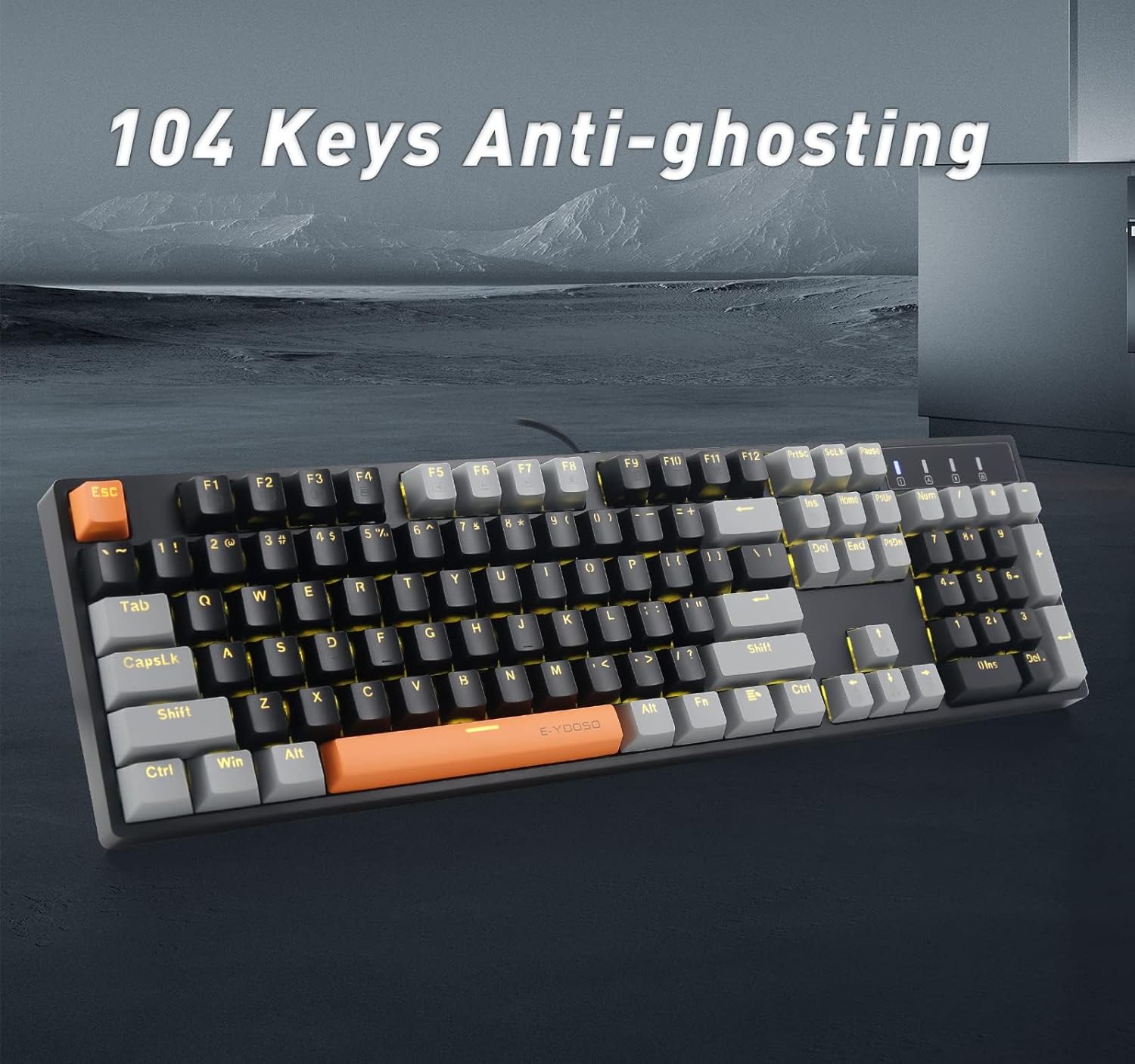
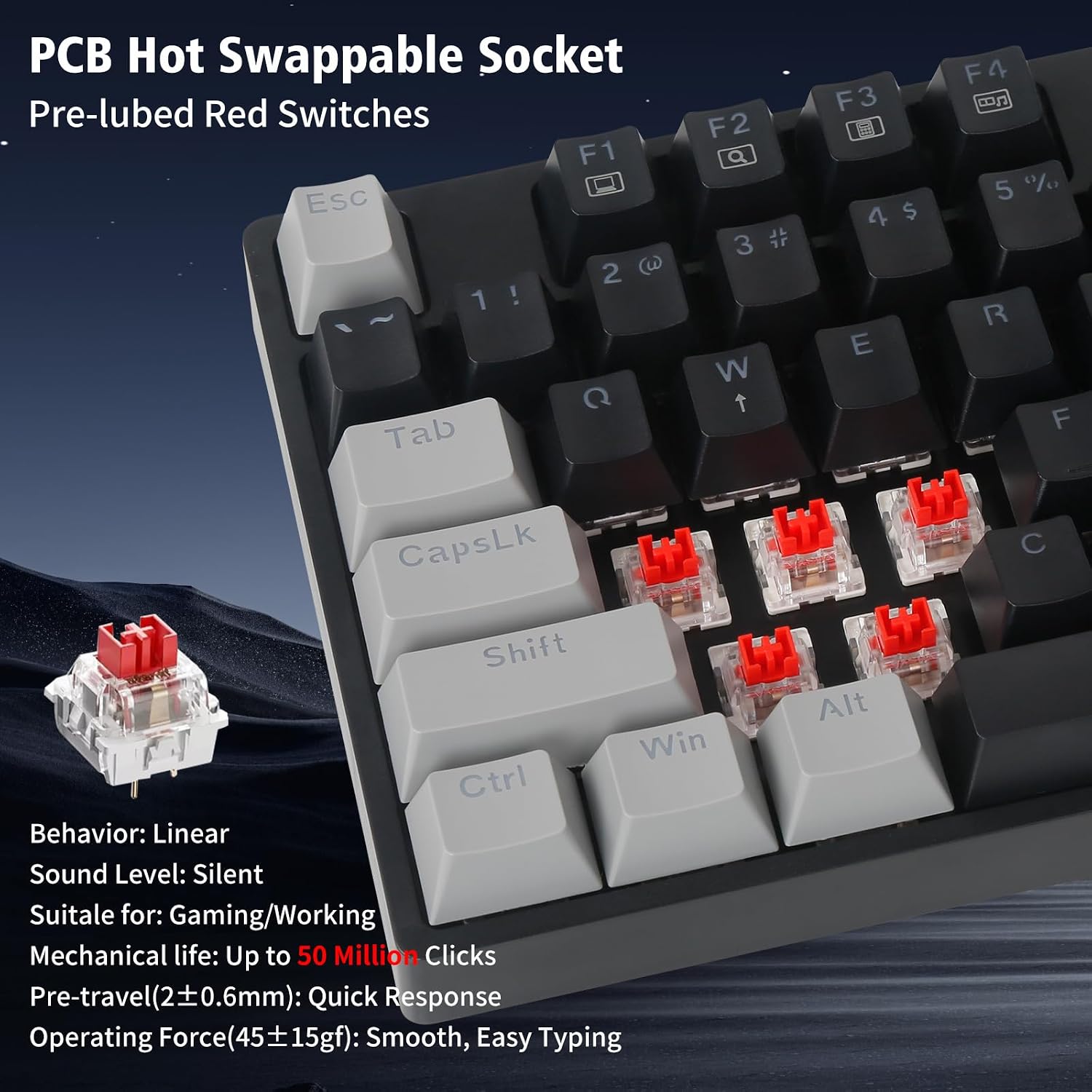
Thank you for choosing the E-YOOSO Z-14 Wired Mechanical Keyboard. This manual provides detailed instructions for setting up, operating, maintaining, and troubleshooting your new keyboard. The Z-14 features 104 keys, hot-swappable red switches, yellow LED backlighting, and an ergonomic design for enhanced typing and gaming experiences.

Setup
Package Contents
- E-YOOSO Z-14 Wired Mechanical Keyboard
- USB Cable (attached)
Connecting the Keyboard
- Unpack the keyboard from its packaging.
- Locate the USB-A connector on the keyboard's attached cable.
- Plug the USB-A connector into an available USB port on your computer (PC or Mac).
- The keyboard is plug-and-play and should be recognized automatically by your operating system. No additional drivers are typically required.
Operating Instructions
Basic Functions
- Typing: Use the standard QWERTY layout for typing.
- 104 Key Rollover Anti-ghosting: All 104 keys are anti-ghosting, ensuring that every key press is registered accurately, even during rapid input.
Backlight Control
The Z-14 keyboard features yellow LED backlighting with 9 different patterns. Use the following key combinations to control the backlighting:
- FN + Ins: Switches between 9 different backlight modes.
- FN + ← / FN + →: Adjusts the backlight running speed.
- FN + ↑ / FN + ↓: Adjusts the backlight brightness.

FN Key Media Controls and Special Functions
The keyboard includes 12 function (FN) keys for media control and other special functions:
- FN + F1-F12: Control various media functions (e.g., volume, play/pause, skip track, mute) and other system functions (e.g., toggle lighting, Windows lock). Refer to the keycap legends for specific functions.
- FN + W: Locks the W, A, S, D keys and swaps their functions with the four arrow keys. Press FN+W again to revert to standard functionality.
Ergonomic Design
The keyboard features two-stage tilt legs on the underside. Adjust these legs to your preferred typing angle for improved comfort and ergonomics.

Maintenance
Cleaning the Keyboard
To maintain optimal performance and appearance, clean your keyboard regularly:
- Disconnect the keyboard from your computer before cleaning.
- Use a soft, lint-free cloth slightly dampened with water or a mild cleaning solution to wipe down the keycaps and chassis.
- For dust and debris between keys, use compressed air or a small brush.
- Avoid using harsh chemicals or abrasive materials, as these can damage the keyboard's finish or keycap legends.
Hot-Swappable Switches
The E-YOOSO Z-14 keyboard features hot-swappable switches, allowing you to replace individual switches without soldering. This enables customization and easy replacement of faulty switches.
- Removing a Keycap: Use a keycap puller (not included) to gently pull the keycap straight up from the switch.
- Removing a Switch: Use a switch puller (not included) to grasp the clips on the top and bottom of the switch. Gently rock and pull the switch straight up to remove it from the PCB.
- Installing a New Switch: Align the pins of the new switch with the holes on the PCB. Press the switch firmly until it clicks into place. Ensure the pins are not bent.
- Installing a Keycap: Place the keycap over the new switch and press down firmly until it is seated.

Video demonstrating the Z-14 Mechanical Keyboard, including keycap and switch removal/installation for hot-swapping.
Troubleshooting
Keyboard Not Responding
- Ensure the USB cable is securely connected to both the keyboard and the computer.
- Try plugging the keyboard into a different USB port on your computer.
- Test the keyboard on another computer to rule out a computer-specific issue.
- Restart your computer.
Backlight Not Working or Flickering
- Ensure the backlight brightness is not set to the lowest level (FN + ↑ to increase brightness).
- Cycle through backlight modes using FN + Ins to see if it resolves the issue.
- If individual keys have backlight issues, it might indicate a faulty LED or switch. Due to the hot-swappable design, switches can be replaced.
Keys Not Registering or Double-Typing
- Clean around the affected key to ensure no debris is interfering with the switch.
- Since the switches are hot-swappable, you can try removing and re-inserting the problematic switch to ensure it is seated correctly.
- If the issue persists, consider replacing the individual switch.
Specifications
| Brand | E-YOOSO |
| Model Number | Z-14 |
| Connectivity Technology | USB-A (Wired) |
| Keyboard Description | Mechanical |
| Switch Type | Linear (Red Switch) |
| Number of Keys | 104 |
| Key Rollover | 104 Key Anti-ghosting |
| Backlighting | Yellow LED (9 patterns) |
| Special Features | Hot-Swappable, Ergonomic (Foldable Tilt Legs), Multimedia FN Keys |
| Compatible Operating Systems | Windows, macOS |
| Product Dimensions (L x W x H) | 16.5" x 4.5" x 1.3" (41.9 cm x 11.4 cm x 3.3 cm) |
| Item Weight | 0.94 kg (2.07 lbs) |
Warranty Information
The E-YOOSO Z-14 Wired Mechanical Keyboard comes with a 1 Year Manufacturer Warranty. This warranty covers defects in materials and workmanship under normal use. Please retain your proof of purchase for warranty claims. The warranty does not cover damage caused by misuse, accidents, unauthorized modifications, or normal wear and tear.
Support
If you encounter any issues not covered in the troubleshooting section or require further assistance, please contact the seller or manufacturer directly. Refer to your purchase documentation for specific contact details.


