
DEPGI DE140SK
Contents
DEPGI 4K 14" Portable Gaming Monitor User Manual
Model: DE140SK
Introduction
This manual provides essential information for the proper setup, operation, and maintenance of your DEPGI 4K 14" Portable Gaming Monitor. Please read this manual thoroughly before using the product to ensure optimal performance and safety. Keep this manual for future reference.
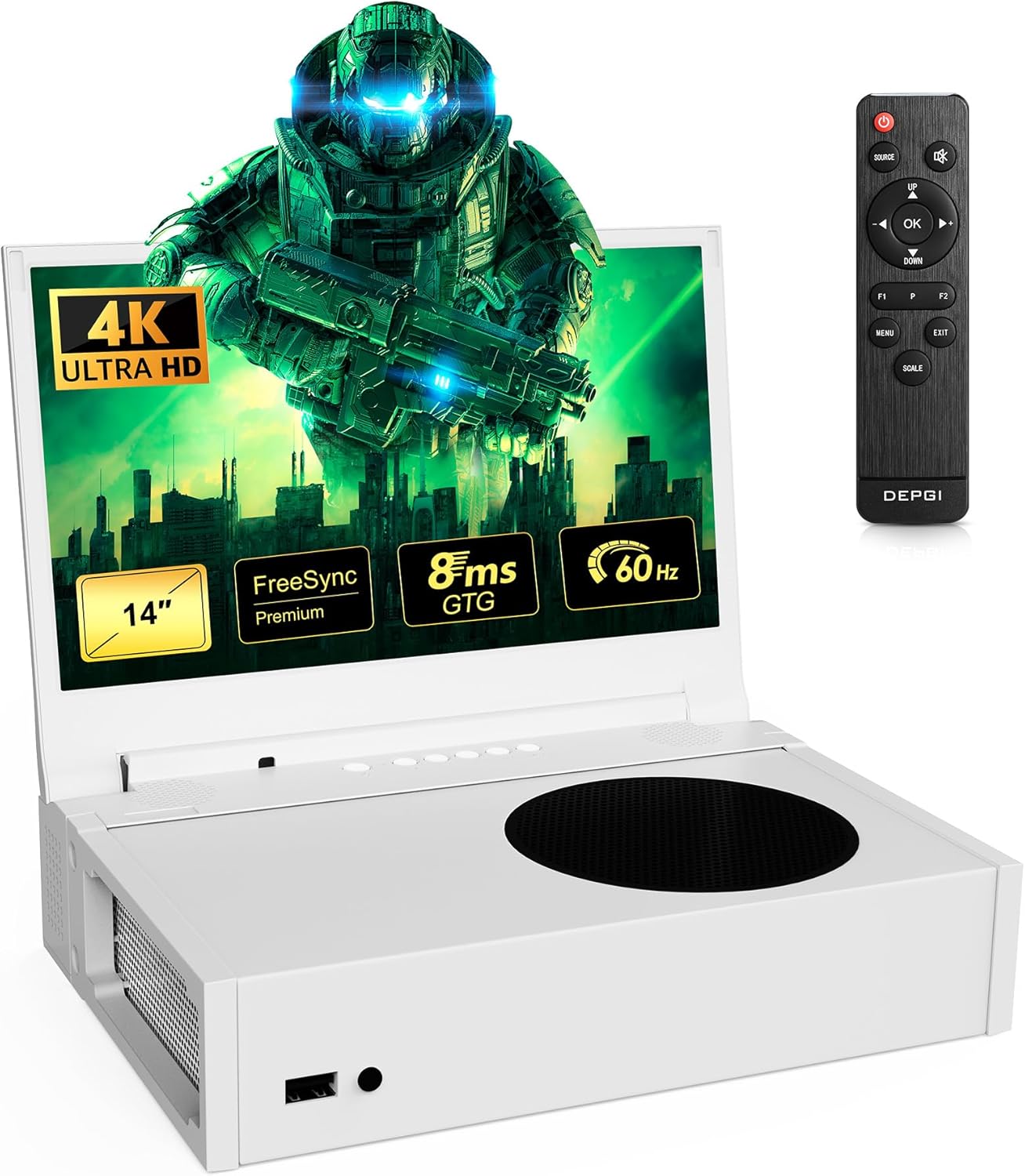
Figure 1: DEPGI 4K 14" Portable Gaming Monitor with Xbox Series S and remote control.
Safety Information
To prevent fire, electric shock, or product damage, please observe the following:
- Do not expose the monitor to rain or moisture.
- Do not disassemble the product. Refer all servicing to qualified personnel.
- Use only the power adapter supplied with the monitor.
- Avoid placing the monitor in direct sunlight or near heat sources.
- Ensure proper ventilation around the monitor.
- Keep out of reach of children.
Package Contents
Verify that all items are present in the package:
- DEPGI 4K 14" Portable Gaming Monitor x1
- Remote Control x1
- HDMI Cable x1
- Power Adapter x1
- User Manual x1

Figure 2: Included accessories: Remote Control, User Manual, HDMI Cable, and Power Adapter.
Product Overview
The DEPGI 4K 14" Portable Gaming Monitor is designed for an immersive gaming experience on the go. It features a 4K UHD IPS screen with HDR10 and AMD FreeSync support.
Key Features:
- 4K UHD (3840 x 2160) Resolution: Delivers crisp and detailed visuals.
- 14-inch IPS Screen: Provides wide viewing angles and vibrant colors.
- HDR10 Support: Enhances contrast and color accuracy for a more lifelike image.
- AMD FreeSync: Reduces screen tearing and stuttering for smooth gameplay.
- 60Hz Refresh Rate: Standard refresh rate for consistent performance.
- 3.0W Dual Stereo Speakers: Integrated speakers for immersive audio.
- Compact and Portable: Lightweight design for easy transport.

Figure 3: Visual representation of the monitor's 4K, 14-inch IPS display with 1.07G colors and HDR capabilities.

Figure 4: Demonstration of FreeSync technology for fluid gameplay.
Setup
Follow these steps to set up your DEPGI Portable Gaming Monitor with your Xbox Series S:
- Unpack: Carefully remove all components from the packaging.
- Position the Xbox Series S: Place your Xbox Series S console securely into the designated slot on the monitor base. Ensure it is seated correctly.
- Connect HDMI Cable: Use the provided short HDMI cable to connect the HDMI output of your Xbox Series S to one of the HDMI input ports on the monitor.
- Connect Power: Plug the power adapter into the DC IN port on the monitor, then connect it to a power outlet.
- Power On: Press the power button on the monitor. The monitor should automatically detect the Xbox Series S signal.
- Optional Audio: If desired, connect headphones to one of the 3.5mm earphone jacks.
Video 1: DEPGI Portable Gaming Monitor Installation Guide. This video demonstrates the process of attaching the Xbox Series S console to the monitor and connecting the necessary cables for operation.

Figure 5: Connection ports and wide compatibility of the monitor.
Operating
The monitor can be operated using the intuitive buttons on the unit or the included remote control.
On-Unit Controls:
The buttons located on the monitor base allow for basic navigation and settings adjustments. Refer to the diagram below for button functions.
Remote Control:
The remote control provides full access to all monitor settings and features, including input selection, volume control, and picture adjustments.
- Source Button: Switches between HDMI input sources.
- Menu Button: Opens the On-Screen Display (OSD) menu.
- Navigation Buttons (Up/Down/Left/Right/OK): Navigate through OSD menu options and adjust values.
- Volume Buttons (+/-): Adjust audio volume.
- Exit Button: Exits the OSD menu.
- F1/F2 Buttons: Customizable shortcut keys (refer to OSD menu for options).

Figure 6: User-friendly controls via intuitive buttons and remote control.
Connecting to Other Devices:
In addition to Xbox Series S, the monitor is compatible with other devices such as Nintendo Switch, PS5, PCs, and laptops via the HDMI inputs.

Figure 7: The monitor's compatibility with various gaming consoles and its integrated speakers.
Maintenance
Proper care ensures the longevity of your monitor:
- Cleaning the Screen: Use a soft, lint-free cloth slightly dampened with water or a non-abrasive screen cleaner. Do not spray liquid directly onto the screen.
- Cleaning the Casing: Wipe the casing with a soft, dry cloth. Avoid using harsh chemicals or abrasive materials.
- Storage: When not in use for extended periods, store the monitor in a cool, dry place, away from direct sunlight and extreme temperatures.
- Handling: Always handle the monitor by its base and avoid putting pressure on the screen.
Troubleshooting
If you encounter issues, refer to the following common problems and solutions:
| Problem | Possible Cause | Solution |
|---|---|---|
| No image on screen | No power; Incorrect input source; Loose HDMI cable. | Ensure power adapter is connected and power button is on. Select correct HDMI input. Reconnect HDMI cable securely. |
| No sound | Volume too low; Muted; External audio device connected. | Increase volume. Check if muted. Disconnect external audio devices if using monitor speakers. |
| Image flickering or distorted | Faulty HDMI cable; Resolution/refresh rate mismatch; FreeSync issue. | Try a different HDMI cable. Adjust resolution/refresh rate on connected device. Toggle FreeSync setting in OSD. |
| Remote control not working | Dead batteries; Obstruction; Remote not pointed at sensor. | Replace batteries. Remove any obstructions. Point remote directly at the monitor's IR sensor. |
Specifications
| Feature | Detail |
|---|---|
| Screen Size | 14 Inches |
| Resolution | 4K UHD (3840 x 2160 Pixels) |
| Panel Type | IPS |
| Refresh Rate | 60Hz |
| Response Time | 8ms GTG |
| HDR Support | HDR10 |
| Adaptive Sync | AMD FreeSync |
| Speakers | 3.0W Dual Stereo Speakers |
| Connectivity | 2x HDMI, 2x Earphone Jack, DC Power Input |
| Product Dimensions | 11.22 x 15.35 x 3.94 inches |
| Item Weight | 3.25 pounds |
| Model Number | DE140SK |
Warranty and Support
DEPGI products are designed and manufactured to the highest quality standards. This product is covered by a limited warranty. For detailed warranty information and support, please refer to the official DEPGI website or contact customer service.
Customer Support: For technical assistance or warranty claims, please visit the DEPGI official website or contact their customer support team directly. Contact information can typically be found on the product packaging or the official brand website.
Online Resources: Additional support, FAQs, and driver updates (if applicable) may be available on the DEPGI support page.
Documents and downloads
Ask a question about this manual
Ask about setup, troubleshooting, compatibility, parts, safety, or missing instructions. Manuals+ will review the question and use this page’s manual context to help answer it.