
Introduction
This manual provides essential information for the operation and maintenance of your NOVOJOY 10-Inch Android Tablet. Please read it thoroughly before using the device to ensure proper functionality and longevity.
The NOVOJOY 10-Inch Android Tablet is a versatile 2-in-1 device designed for various tasks, featuring a 10.1-inch HD display, a powerful Quad-core processor, and the Android 13 operating system. It comes bundled with a keyboard, mouse, stylus, and protective case to enhance your productivity and entertainment experience.
What's in the Box
Verify that all items are present in the package:
- NOVOJOY 10-Inch Android Tablet
- Bluetooth Keyboard
- Wireless Mouse
- Stylus
- Foldable Protective Case
- Charging Cable (Type-C)
- Power Adapter (5V2A)

Product Overview
Familiarize yourself with the tablet's components and features.
Key Features:
- 10.1-inch 1280*800 IPS HD Display with Eye Protection
- Android 13 Operating System
- Quad-core Processor (2 GHz)
- 64GB Internal Storage (ROM) + 8GB RAM (4GB fixed, 4GB virtual)
- Expandable Storage up to 1TB (via microSD card, not included)
- 8MP Rear Camera, 2MP Front Camera
- 6000mAh Battery for extended use
- 5G WIFI-6 and Bluetooth connectivity
- Integrated Speakers and Microphone


Setup
1. Initial Charging
Before first use, fully charge the tablet. Connect the provided Type-C charging cable to the tablet's charging port and the power adapter to a wall outlet. The battery indicator on the screen will show charging status.
2. Powering On/Off
- To Power On: Press and hold the Power button until the NOVOJOY logo appears.
- To Power Off: Press and hold the Power button, then select "Power off" from the options on the screen.
- To Restart: Press and hold the Power button, then select "Restart" from the options on the screen.
3. Connecting the Bluetooth Keyboard
- Ensure the keyboard is charged. Slide the power switch on the keyboard to the "ON" position.
- Press the "Connect" button on the keyboard. The Bluetooth indicator light will flash blue.
- On your tablet, go to Settings > Connected devices > Pair new device.
- Select "Bluetooth Keyboard" from the list of available devices to pair.

4. Connecting the Wireless Mouse
The wireless mouse typically connects via a USB dongle. Insert the USB dongle into a compatible USB-OTG adapter (if required, not always included) and then into the tablet's USB-C port, or directly into a full-size USB port if available. The tablet should automatically detect the mouse.
5. Inserting a MicroSD Card (for expandable storage)
Locate the microSD card slot on the side of the tablet. Gently insert the microSD card with the gold contacts facing down until it clicks into place. You may need to format the card via the tablet's settings for optimal use.
Operating Instructions
1. Basic Navigation
- Touch Gestures: Tap to select, swipe to scroll, pinch to zoom.
- Home Screen: Access apps, widgets, and notifications.
- Status Bar: Displays time, battery, Wi-Fi, and notification icons. Swipe down for quick settings and detailed notifications.
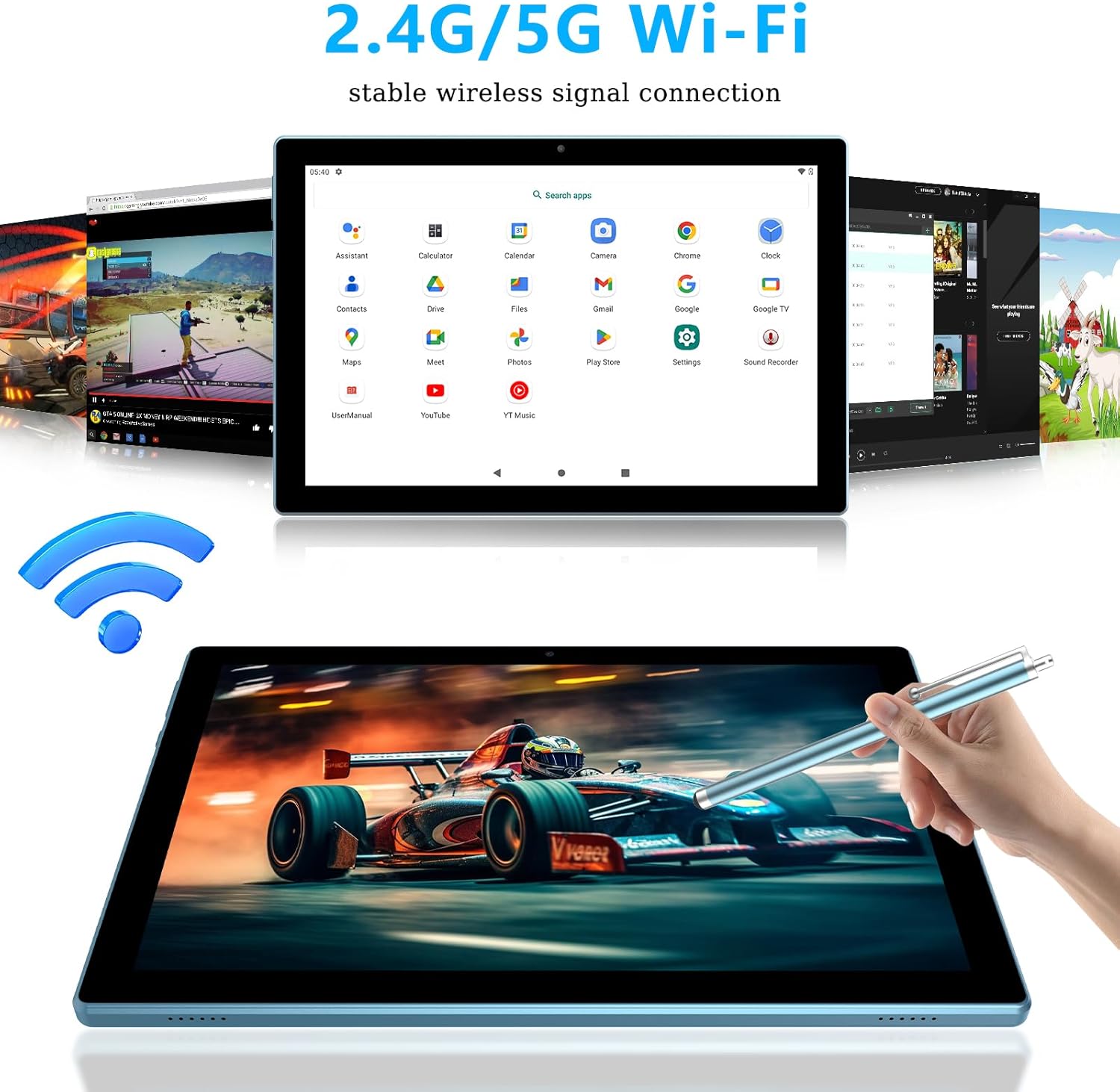
2. Wi-Fi Connectivity
- Go to Settings > Network & internet > Wi-Fi.
- Toggle Wi-Fi to "On".
- Select your desired network from the list and enter the password if prompted.
3. Using the Cameras
Open the "Camera" application from the home screen or app drawer. You can switch between the 8MP rear camera and the 2MP front camera for photos and video recording.
4. Battery Management
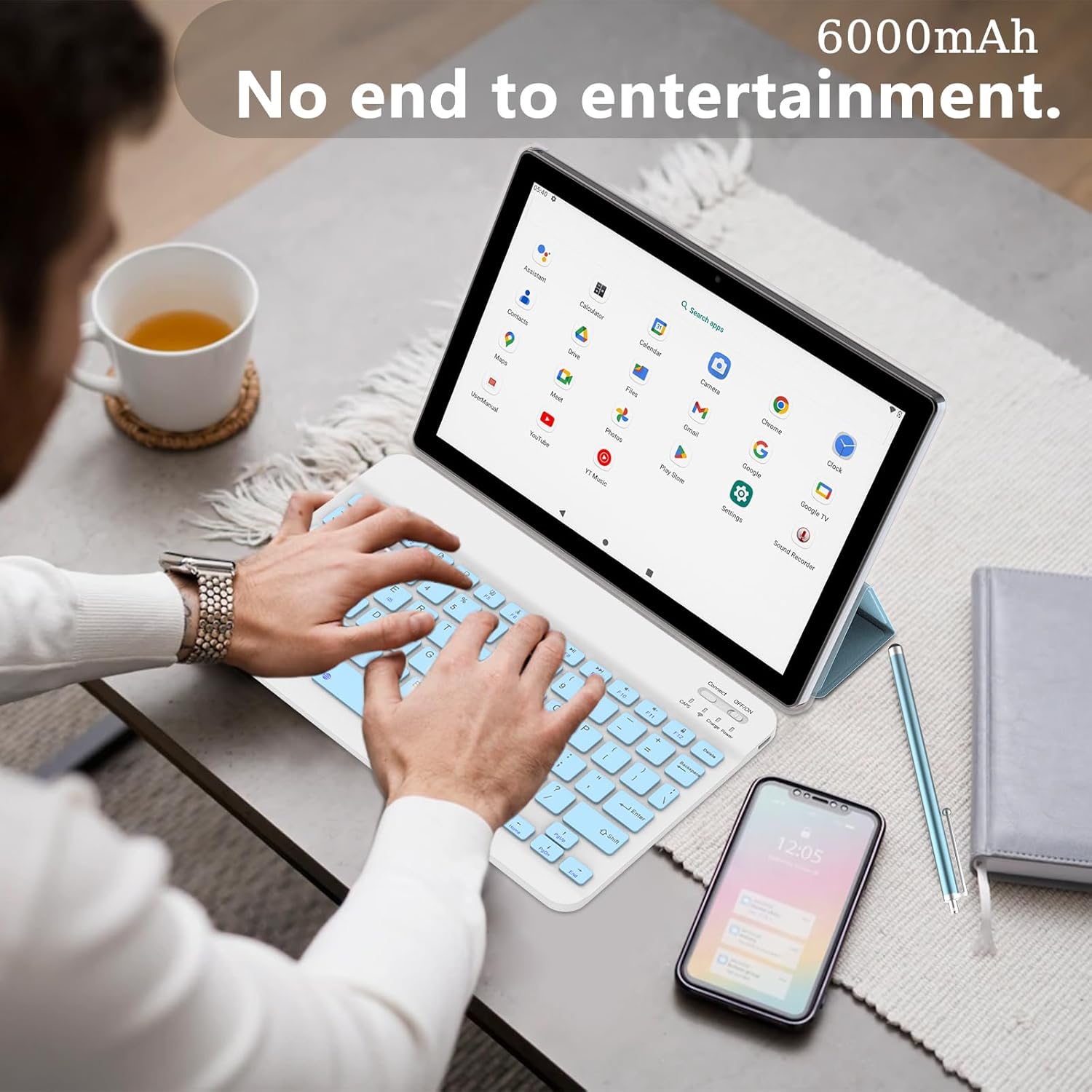
The tablet is equipped with a 6000mAh battery, providing approximately 6-8 hours of continuous use. To optimize battery life:
- Adjust screen brightness.
- Turn off Wi-Fi and Bluetooth when not in use.
- Close unused applications running in the background.
Maintenance
- Cleaning: Use a soft, lint-free cloth to clean the screen and body. Avoid abrasive cleaners or solvents.
- Storage: Store the tablet in a cool, dry place away from direct sunlight and extreme temperatures.
- Battery Care: Avoid fully discharging the battery frequently. Charge the tablet regularly.
- Software Updates: Periodically check for system updates in Settings > System > System update to ensure optimal performance and security.
Troubleshooting
| Problem | Possible Solution |
|---|---|
| Tablet does not power on. | Ensure the tablet is charged. Connect it to the charger for at least 30 minutes, then try powering on again. |
| Cannot connect to Wi-Fi. | Check if Wi-Fi is enabled in settings. Verify the Wi-Fi password. Restart your router and the tablet. |
| Bluetooth keyboard/mouse not connecting. | Ensure the accessories are charged and in pairing mode. Remove previous pairings from the tablet's Bluetooth settings and try pairing again. |
| Tablet is running slow. | Close unused applications. Clear cache from apps in Settings > Apps. Consider freeing up storage space. |
| Screen is unresponsive. | Restart the tablet. If the issue persists, perform a factory reset (data will be lost, back up important files). |
Specifications
| Feature | Detail |
|---|---|
| Model Name | NVCP20blue6in1 |
| Operating System | Android 13 |
| Processor | Quad-core, 2 GHz |
| RAM | 8GB (4GB fixed, 4GB virtual) |
| Internal Storage (ROM) | 64GB |
| Expandable Storage | Up to 1TB via MicroSD card |
| Screen Size | 10.1 Inches |
| Screen Resolution | 1280 x 800 Pixels (IPS HD) |
| Rear Camera | 8 MP |
| Front Camera | 2 MP |
| Battery Capacity | 6000mAh |
| Average Battery Life | 6-8 Hours (continuous use) |
| Wireless Connectivity | 5G WIFI-6, Bluetooth (802.11ax) |
| Dimensions (LxWxH) | 12 x 7 x 0.3 inches |
| Item Weight | 1 pound |
Warranty and Support
For warranty information and technical support, please refer to the documentation provided with your purchase or visit the official NOVOJOY website. Keep your purchase receipt as proof of purchase for warranty claims.
If you encounter issues not covered in this manual, please contact NOVOJOY customer service for assistance.