
1. Introduction
This manual provides comprehensive instructions for setting up, operating, and maintaining your LaView 4MP Bulb Security Camera. Designed for both indoor and outdoor use, this camera offers advanced features such as 5G & 2.4GHz dual-band WiFi connectivity, 360-degree panoramic view, 2K resolution, full-color day and night vision, intelligent motion detection with tracking, two-way audio, and compatibility with Amazon Alexa.
2. Package Contents
- LaView 4MP Bulb Security Camera (Model: LV-PWL2-B-5G)
- E27 Universal Screw Adapter
- User Manual
- Mounting Accessories
3. Setup and Installation
3.1 Physical Installation
The LaView Bulb Security Camera is designed for easy installation into standard E27 bulb sockets. Ensure the power to the socket is turned off before installation.
- Power Off: Turn off the power to the light fixture where you intend to install the camera.
- Screw In: Carefully screw the LaView Bulb Security Camera into the E27 bulb socket until it is snug. If the socket is recessed or the camera does not fit properly, use the provided E27 universal screw adapter to extend the connection.
- Power On: Restore power to the light fixture. The camera will power on and begin its initialization process.

Figure 3.1: Easy and quick installation into a standard E27 bulb socket. The camera is designed to fit most bulb sockets, and an adapter is included for recessed fixtures.
A video demonstrating the installation of a LaView camera into a recessed lighting trim is available from an independent creator. This video shows the process of screwing the camera into a light socket and ensuring proper fit for optimal panoramic view.
3.2 App Download and Wi-Fi Connection
To operate your camera, you will need to download the LaView app and connect the camera to your home Wi-Fi network. The camera supports both 2.4GHz and 5GHz dual-band WiFi for stronger signals and extended range up to 328 feet.
- Download App: Search for "LaView" in your mobile device's app store (iOS or Android) and download the official LaView app.
- Create Account: Open the app and follow the on-screen instructions to create a new user account.
- Add Device: Select the option to add a new device. The app will guide you through the pairing process.
- Wi-Fi Setup: Ensure your phone is connected to the 2.4GHz or 5GHz Wi-Fi network you intend to use for the camera. Enter your Wi-Fi password when prompted.
- Scan QR Code: The app will generate a QR code. Hold your mobile device with the QR code approximately 8-12 inches in front of the camera lens. The camera will emit a tone once the QR code is successfully scanned.
- Completion: Wait for the camera to connect to the network. Once connected, you can name your camera and begin live viewing.

Figure 3.2: The LaView Bulb Security Camera integrates seamlessly with the LaView mobile application, allowing for easy setup and control.

Figure 3.3: The camera supports both 2.4GHz and 5GHz dual-band WiFi, providing a stronger signal and extended coverage up to 328 feet from your router.
4. Operating Instructions
4.1 Live View and Pan/Tilt Control
Once connected, you can access the live view of your camera through the LaView app. The camera features a 360-degree panoramic view with pan and tilt capabilities, allowing you to remotely adjust the viewing angle.
- Access Live View: Open the LaView app and select your camera from the device list to view the live feed.
- Pan/Tilt: Use the directional controls within the app to pan (horizontal movement) and tilt (vertical movement) the camera lens to cover your desired area. The camera offers 355° pan and 62° tilt.

Figure 4.1: The camera's pan and tilt functions allow for comprehensive coverage of your space, with the ability to return to a preset position after tracking motion.
4.2 Motion Detection and Tracking
The camera is equipped with accurate motion detection and tracking features. When motion is detected, the camera can send alerts to your phone and automatically track the moving object.
- Enable Motion Detection: Navigate to the camera settings in the LaView app to enable motion detection.
- Customize Sensitivity: Adjust the sensitivity level of motion detection to minimize false alarms.
- Motion Tracking: Activate motion tracking to allow the camera to follow detected movement within its field of view. After tracking, the camera can return to its preset position.
- AI Human Detection Filter: Utilize the built-in AI human detection filter to reduce false alarms by up to 95%, ensuring you only receive important alerts related to human presence.

Figure 4.2: The camera's alarm function, including a spotlight and audible siren, can deter intruders. The AI human detection filter helps to reduce false alerts.
4.3 Night Vision and Image Quality
The LaView Bulb Security Camera provides clear 4MP HD 2560x1440P resolution with 12x digital zoom, ensuring ultra-clear images both day and night. It features full-color night vision and a 17ft night vision range.
- Full Color Night Vision: The camera utilizes starlight color night vision technology to capture detailed, colorful images even in low-light conditions.
- Resolution: Experience superior image clarity with 4MP resolution compared to standard resolutions.

Figure 4.3: LaView's starlight color night vision provides clear, full-color images in low light, offering a significant improvement over traditional spotlight night vision.
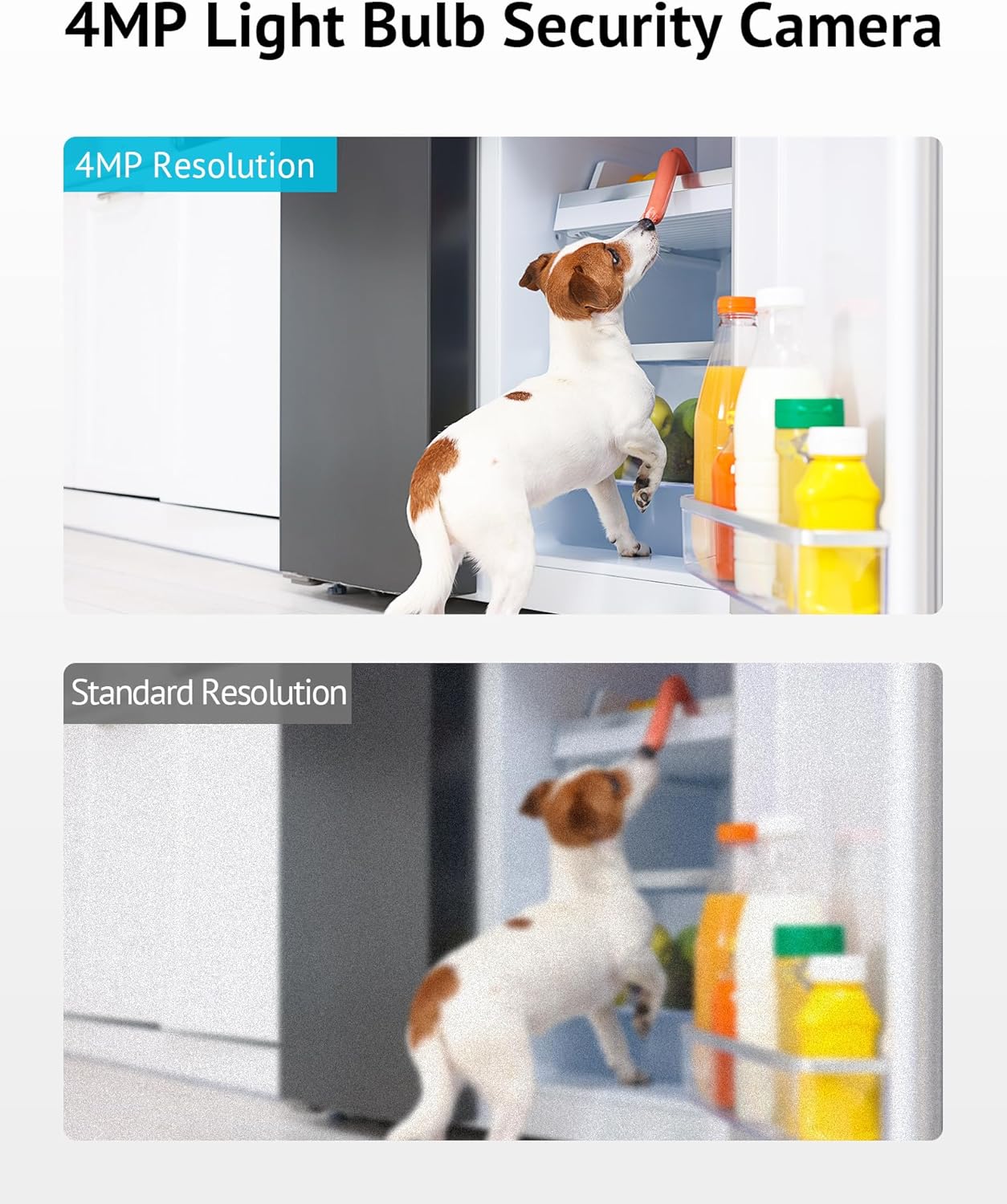
Figure 4.4: The 4MP resolution of the LaView camera captures significantly more detail than standard resolution cameras, as shown in this comparison.
4.4 Two-Way Audio and Audible Alarm
Communicate directly through the camera using the two-way audio feature or activate the loud alarm siren to deter unwanted visitors.
- Two-Way Audio: Use the microphone and speaker icons in the app to speak and listen through the camera.
- Audible Alarm: Activate the siren feature from the app to emit a loud alarm sound.
4.5 Continuous Recording and Storage
The camera supports 24/7 continuous recording, ensuring constant surveillance. You have options for video storage.
- Micro SD Card: Insert a Micro SD card (up to 128GB, not included) into the camera's designated slot for local storage of recordings.
- Cloud Storage: LaView offers cloud storage options for secure, off-site backup of your video footage. Check the app for details on available plans.

Figure 4.5: The LaView camera supports 24/7 continuous recording, with options for free 30-day AWS Cloud storage and support for up to 128GB Micro SD cards for uninterrupted playback.
4.6 Multi-User and Multi-Platform Support
Share live views with family members and access your camera feed from various devices.
- Share Access: Grant access to up to 20 users to view live feeds from up to 9 cameras simultaneously through the app.
- Platform Compatibility: The LaView app is available on iOS, Android, and Windows platforms.
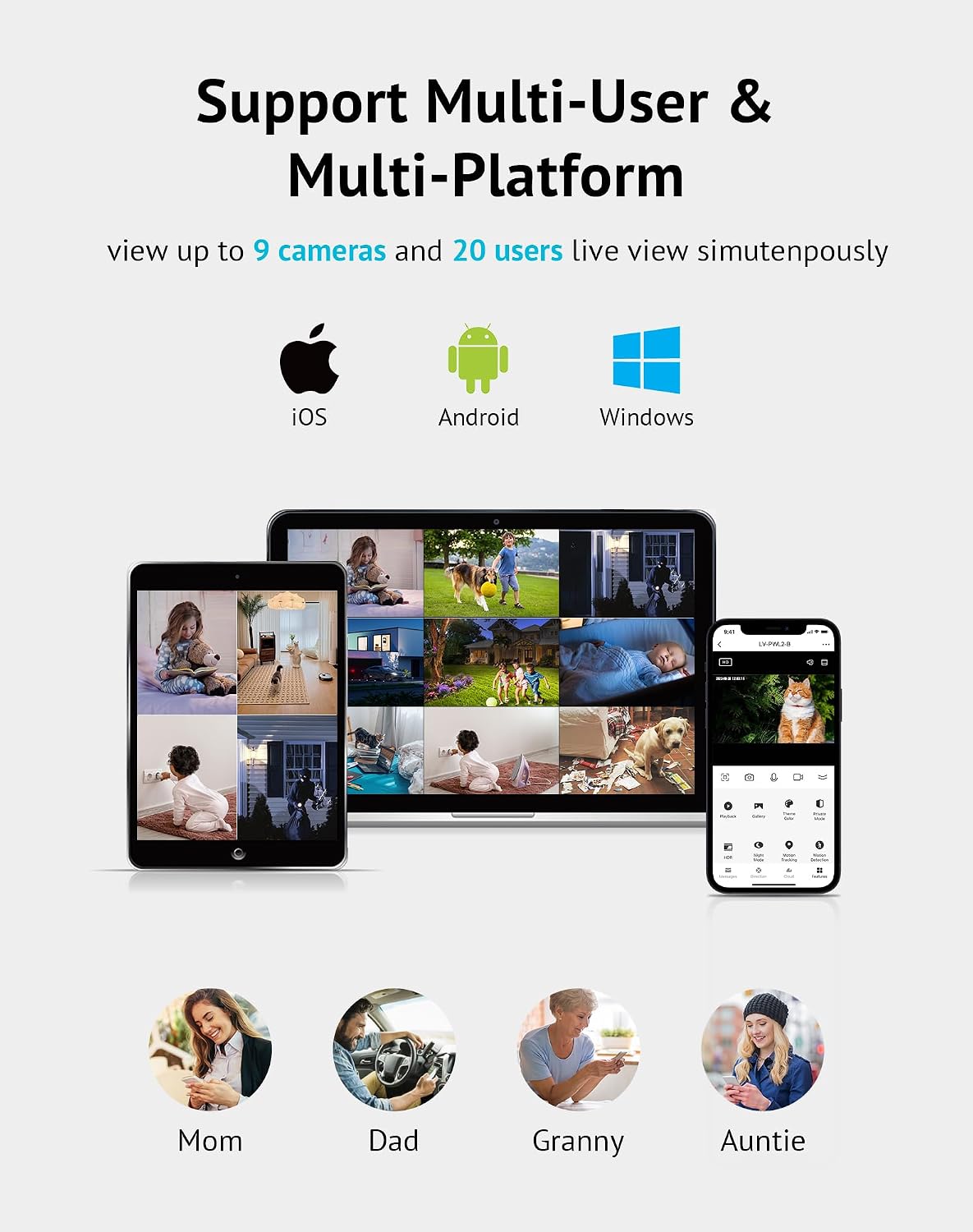
Figure 4.6: The LaView system supports multi-user and multi-platform access, allowing up to 20 users to view up to 9 cameras live simultaneously across iOS, Android, and Windows devices.
4.7 Smart Home Integration
The LaView Bulb Security Camera is compatible with Amazon Alexa, allowing for voice control and integration into your smart home ecosystem.
- Alexa Compatibility: Link your LaView account with your Amazon Alexa account to enable voice commands for viewing camera feeds on compatible Alexa-enabled devices.
5. Maintenance
Regular maintenance ensures optimal performance and longevity of your LaView Bulb Security Camera.
- Cleaning: Gently wipe the camera lens and body with a soft, dry cloth. Avoid using harsh chemicals or abrasive materials that could damage the camera.
- Firmware Updates: Periodically check the LaView app for available firmware updates. Keeping your camera's firmware up-to-date ensures access to the latest features, security enhancements, and performance improvements.
- SD Card Management: If using a Micro SD card for storage, regularly review and back up important footage. Consider formatting the SD card periodically through the app to maintain optimal recording performance.
- Environmental Considerations: While designed for outdoor use, ensure the camera is installed in a location protected from direct heavy rain or extreme weather conditions to prolong its lifespan.
6. Troubleshooting
If you encounter issues with your LaView Bulb Security Camera, refer to the following common troubleshooting steps:
| Problem | Possible Cause / Solution |
|---|---|
| Camera not connecting to Wi-Fi. | Ensure your Wi-Fi network is 2.4GHz or 5GHz. Verify the Wi-Fi password. Move the camera closer to the router. Reset the camera by holding the reset button (refer to app for location) until you hear a voice prompt. |
| Frequent false motion alarms. | Adjust the motion detection sensitivity in the app. Enable the AI Human Detection Filter to reduce alerts from non-human movements. Ensure the camera's field of view is clear of moving objects like tree branches or flags. |
| Siren volume is too low. | Check the volume settings within the LaView app. Ensure there are no obstructions around the camera's speaker. |
| App constantly prompts for upgrades/cloud service. | To disable most push ads, navigate in the app to: APP > Me page > click on the upper right corner > Privacy Permission Settings > disable Personalization. It may take several days for all pop-ups to cease. |
| Poor image quality at night. | Ensure the camera lens is clean. Check for any reflective surfaces near the camera that might interfere with night vision. Verify that the night vision mode is enabled in the app. |
7. Specifications
| Model Name | LV-PWL2-B-5G |
| Brand | LaView |
| Video Capture Resolution | 4 MP (2560x1440P) |
| Connectivity Technology | Wi-Fi (5G & 2.4GHz Dual-Band) |
| Field Of View | 360 Degrees (Pan/Tilt: 355° horizontal, 62° vertical) |
| Night Vision Range | 17 Feet (Full Color Night Vision) |
| Special Features | Motion Sensor, Motion Tracking, AI Human Detection, Two-Way Audio, Audible Alarm, LED Light |
| Compatible Devices | Desktop, Laptop, Smartphone, Tablet |
| Controller Type | Amazon Alexa, LaView App |
| Indoor/Outdoor Usage | Indoor, Outdoor (IP65 rated for water resistance) |
| Power Source | Corded Electric (E27 Bulb Socket) |
| Storage Options | Micro SD Card (up to 128GB), Cloud Storage |
| Item Weight | 13.7 ounces |
| Product Dimensions | 6 x 6 x 13 inches |
| UPC | 192728013797 |
8. Warranty and Support
LaView is committed to providing professional support for its products. For any inquiries or assistance, please utilize the available support channels.
- Live Chat Service: Access live chat support through the LaView app or official website for immediate assistance.
- Protection Plans: Extended protection plans may be available for your product. Please refer to your purchase documentation or the product listing for details on 2-Year, 3-Year, or Complete Protect plans.
- Online Resources: Visit the official LaView website for FAQs, updated manuals, and additional support resources.


