
LAMTTO RC06A
LAMTTO Portable Wireless Car Stereo
Instruction Manual
1. Introduction
Product Overview
The LAMTTO Portable Wireless Car Stereo (Model RC06A) is a versatile 7-inch HD touchscreen device designed to bring modern connectivity features like Apple CarPlay and Android Auto to any vehicle. It offers seamless integration with your smartphone for navigation, music, calls, and more, enhancing your driving experience with advanced technology.

Figure 1.1: LAMTTO Portable Wireless Car Stereo (Model RC06A)
Key Features
- Wireless Apple CarPlay & Android Auto: Access smartphone apps, maps, music, and more directly on the 7-inch screen.
- Upgraded Bluetooth Stereo: Connects to car speakers for enhanced audio quality. Supports AUX, FM Transmitter, and built-in speaker audio output.
- Wireless AirPlay Video Playback: Mirror iPhone screen to play videos (e.g., YouTube, TikTok) via 5GHz Wi-Fi. (Note: Does not support Netflix).
- Smart Live GPS Navigation: Utilizes smartphone's navigation system for real-time guidance without additional fees.
- Built-In Mic & Voice Control: Supports Siri/Google Assistant for hands-free calls, music control, navigation, and messaging.
- 2.5D HD Touchscreen: Features a 1024*600 resolution display supporting 1080P videos.
2. What's in the Box
Package Contents
- 1 x 7 Inch Portable Car Stereo Monitor
- 1 x Installation Tool & Manual
- 1 x 9.8 ft Car Charger Cable
- 1 x Suction Cup Bracket
- 1 x 4.65ft Aux cable
Unboxing Video
Video 2.1: Official unboxing and overview of the 7" Wireless Car Stereo with Apple CarPlay & Android Auto.
3. Specifications
| Attribute | Value |
|---|---|
| Model Name | Drive Play for Car (Model RC06A, also seen as RC08) |
| Screen Size | 7 Inches |
| Screen Resolution | 1024*600 (2.5D HD Touchscreen) |
| Connectivity Technology | 5Ghz WIFI / FM / AUX / Dual Bluetooth |
| Audio Output Mode | Stereo |
| Vehicle Service Type | Car, Truck |
| Item Weight | 1.9 pounds |
| Package Dimensions | 8.98 x 5.51 x 4.17 inches |
4. Setup Guide
Mounting the Device
The LAMTTO Portable Wireless Car Stereo offers flexible installation options using the included suction cup bracket or a dash-mount base. Ensure the mounting surface is clean and stable for secure attachment.

Figure 4.1: Mounting options for the device.
Initial Connection & Power
Power the device using the provided 9.8 ft car charger cable by plugging it into your vehicle's cigarette lighter socket. The device will automatically power on when the vehicle starts.

Figure 4.2: Overview of included accessories for setup.
Connecting Your Smartphone (Wireless CarPlay / Android Auto)
To enable wireless CarPlay or Android Auto, follow these steps:
- Ensure your phone's Wi-Fi and Bluetooth are not occupied by other devices.
- Turn on your phone's Bluetooth and Wi-Fi first.
- On the car stereo, select either "Apple CarPlay" or "Android Auto" from the main menu.
- Pair your phone to the SmartScreen using Bluetooth (e.g., Bluetooth T86-150EE5).
- When prompted on your iPhone, select "Use CarPlay with SmartScreen". For Android, the system will primarily transmit data via Wi-Fi after successful Bluetooth connection.

Figure 4.3: Wireless CarPlay and Android Auto compatibility requirements.
Important Setup Tips
- The first connection may take longer.
- For optimal audio, use Bluetooth to connect to your car's audio system. Bluetooth transmission is generally more stable than AUX or FM.
- Do NOT put the car charger close to the car dashboard to avoid interference with the built-in FM transmitter.
- If you need a car charger with a USB interface, please contact the after-sales team.

Figure 4.4: Key considerations before using the device.
5. Operating Instructions
Wireless CarPlay & Android Auto Interface
Once connected, the 7-inch screen displays a familiar interface similar to your smartphone's CarPlay or Android Auto, allowing easy access to navigation, music, phone calls, and messaging.

Figure 5.1: Wireless CarPlay interface.
Voice Control & GPS Navigation
Utilize the built-in microphone and voice assistants (Siri/Google Assistant) for hands-free operation. This enables safe control of music, GPS navigation, sending messages, and making phone calls while driving.

Figure 5.2: Voice control for navigation and communication.
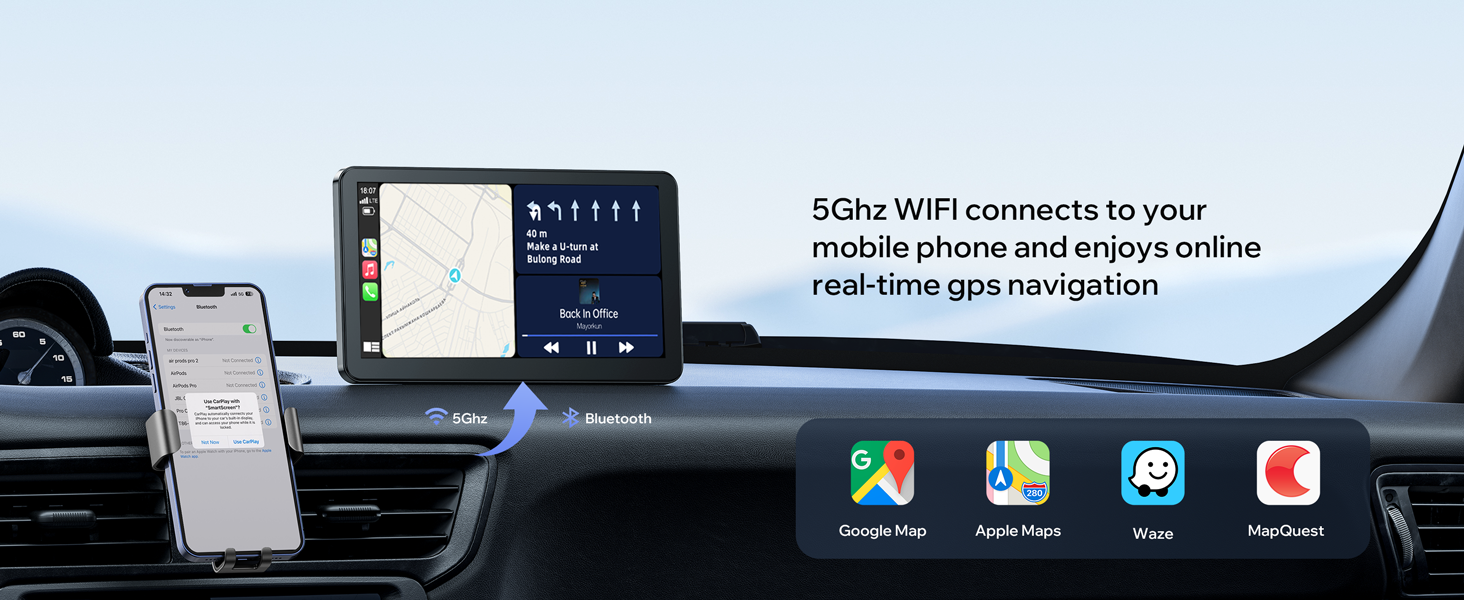
Figure 5.3: Real-time GPS navigation via 5GHz Wi-Fi.
Media Playback (AirPlay, Bluetooth, FM, AUX)
The device supports multiple audio output methods to integrate with your car's sound system:
- Built-in Speaker: For direct audio output from the unit.
- AUX Connection: Use the provided AUX cable to connect directly to your car's AUX input for high-quality audio.
- FM Transmitter: Broadcast audio to your car's FM radio on a selected frequency.
- Bluetooth to Car Speaker: Connect via Bluetooth to your car's audio system for wireless sound.

Figure 5.4: Audio output options.
For video playback, connect your iPhone to the same Wi-Fi network as the CarPlay unit and use Apple AirPlay for screen mirroring. This allows you to play videos from apps like YouTube and TikTok directly on the screen.

Figure 5.5: Apple AirPlay for video streaming.
Backup Camera (Optional)
If your package included a backup camera, it can be integrated with the unit to provide adjustable parking assistance, making reversing safer and easier. The camera typically offers FHD 1080P resolution and is IP67 waterproof.

Figure 5.6: Backup camera features and display.
6. Maintenance
- Cleaning: Use a soft, dry cloth to clean the screen and device body. Avoid abrasive cleaners or solvents.
- Temperature: Avoid exposing the device to extreme temperatures. While designed for automotive use, prolonged exposure to very cold (below 32°F) or very hot conditions can affect performance.
- Software Updates: Check the manufacturer's website or contact support for any available firmware updates to ensure optimal performance and compatibility.
7. Troubleshooting
| Issue | Possible Cause / Solution |
|---|---|
| Device not powering on | Ensure the car charger is securely plugged into the cigarette lighter socket and the vehicle's power outlet is active. Check the charger cable for damage. |
| Wireless CarPlay/Android Auto connection issues | Ensure phone's Wi-Fi and Bluetooth are enabled and not connected to other devices. Restart both the phone and the car stereo. Verify phone compatibility with CarPlay/Android Auto requirements. |
| Poor FM Transmitter audio quality | Move the car charger away from the dashboard to reduce interference. Try different FM frequencies to find a clear channel. Consider using the AUX cable or Bluetooth connection for better audio. |
| Screen distorted in cold weather | This can occur in temperatures around 32°F (0°C) or below. Allow the unit to warm up or restart it. Performance should normalize as the device reaches operating temperature. |
| AirPlay function not working | Ensure your iPhone and the CarPlay unit are connected to the same Wi-Fi network. Verify that screen mirroring is enabled on your iPhone. Note that Netflix is not supported via AirPlay. |
8. Warranty and Support
LAMTTO is committed to providing quality products and satisfactory services. Your purchase is covered by a 12-month warranty from the date of purchase.
Customer Service
- 24-Hour Response: Expect quick and professional responses to your inquiries within 24 hours.
- 90-Day Return/Exchange: Enjoy a 90-day period for returns or exchanges without reason.
- Lifetime Customer Service: Benefit from lifelong customer service for products and accessories.
For any operational questions, technical support, or warranty claims, please refer to the contact information provided in your user manual or on the product packaging. You can also check the official LAMTTO store on Amazon for further assistance.
Related documentsRC06A

Ask a question about this manual
Ask about setup, troubleshooting, compatibility, parts, safety, or missing instructions. Manuals+ will review the question and use this page’s manual context to help answer it.