1. Introduction
This manual provides comprehensive instructions for the installation, operation, and maintenance of your Dell PH6K2 DW5821e Snapdragon X20 LTE WWAN Card. Please read this manual carefully before using the product to ensure proper functionality and to avoid any potential issues.
2. Product Overview
The Dell PH6K2 DW5821e is a high-performance Wireless Wide Area Network (WWAN) card designed to provide mobile broadband connectivity. Utilizing Snapdragon X20 technology, this 4G LTE module offers reliable and fast internet access for compatible devices, typically laptops or industrial PCs equipped with a PCI-Express M.2 slot. It enables users to stay connected on the go, leveraging cellular networks for data transmission.
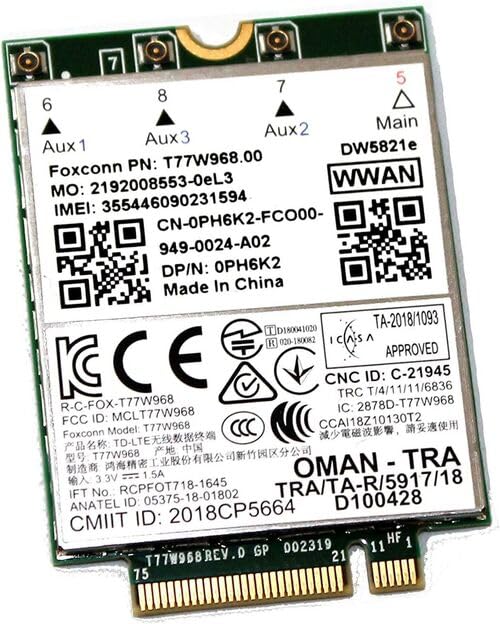
Figure 1: Dell PH6K2 DW5821e Snapdragon X20 LTE WWAN Card. This image shows the top side of the WWAN card, displaying various labels including "DW5821e WWAN", "Foxconn PN: T77W968.00", "IMEI: 355446090231594", "DP/N: 0PH6K2", and regulatory marks like CE and FCC.
3. Features
- Model: Dell DW5821e
- Part Number: PH6K2
- Connectivity: 4G LTE WWAN
- Chipset: Snapdragon X20
- Interface: PCI-Express M.2
- Form Factor: M.2 (NGFF)
- High-Speed Data: Designed for fast mobile broadband speeds.
- Global Compatibility: Supports various LTE bands for worldwide use.
4. Setup and Installation
Before proceeding with installation, ensure your device is powered off and disconnected from any power source. It is recommended to wear an anti-static wrist strap to prevent electrostatic discharge (ESD) damage to components.
- Prepare Your Device: Open your laptop or compatible device's chassis to access the internal components. Refer to your device's service manual for specific instructions on accessing the M.2 slot.
- Locate M.2 Slot: Identify an available PCI-Express M.2 slot. This card typically uses the 'Key B' or 'Key B+M' M.2 slot.
- Insert WWAN Card: Gently align the Dell DW5821e WWAN card with the M.2 slot. Insert the card at a slight angle (approximately 30 degrees) until the gold contacts are fully seated.
- Secure the Card: Press the card down towards the motherboard. Secure it with the small screw provided by your device manufacturer (if applicable) at the end of the slot.
- Connect Antennas: Carefully connect the WWAN antennas (Aux1, Aux2, Aux3, Main) from your device to the corresponding connectors on the card. Ensure a secure connection. Refer to the labels on the card (Aux1, Aux2, Aux3, Main) and your device's antenna cables for correct pairing.
- Close Device: Reassemble your device's chassis.
- Driver Installation: Power on your device. Windows or your operating system may automatically detect and install the necessary drivers. If not, download the latest drivers for the Dell DW5821e (or Foxconn T77W968.00) from the official Dell support website or your device manufacturer's website.
Important: Incorrect installation can damage the card or your device. If you are unsure, seek professional assistance.
5. Operating Instructions
Once the Dell DW5821e WWAN card is successfully installed and drivers are in place, you can begin using it for mobile broadband connectivity.
- Insert SIM Card: Ensure a valid and activated Nano-SIM card (if required by your device) is inserted into the SIM card slot of your laptop or device. The WWAN card itself does not have a SIM slot; it relies on the device's integrated slot.
- Enable WWAN: In your operating system's network settings (e.g., Windows Network & Internet settings), ensure that the cellular or mobile broadband adapter is enabled.
- Connect to Network: Select the cellular network option and click "Connect". Your device should automatically detect available cellular networks.
- APN Settings: In some cases, you may need to manually configure the Access Point Name (APN) settings provided by your mobile network operator. This can usually be found in the cellular settings.
- Monitor Connection: The network icon in your system tray will indicate the connection status.
6. Maintenance
The Dell DW5821e WWAN card is a robust electronic component and requires minimal maintenance. Follow these general guidelines:
- Keep Clean: Ensure the internal environment of your device is free from excessive dust and debris, which can hinder performance and lead to overheating.
- Driver Updates: Periodically check the Dell support website for updated drivers or firmware for the DW5821e card. Keeping drivers current can improve performance and stability.
- Physical Handling: When handling the card, avoid touching the gold contacts or sensitive components. Always use proper ESD precautions.
7. Troubleshooting
If you encounter issues with your Dell DW5821e WWAN card, consider the following troubleshooting steps:
| Problem | Possible Cause / Solution |
|---|---|
| Card not detected by OS |
|
| No cellular signal |
|
| Slow connection speeds |
|
8. Specifications
| Attribute | Detail |
|---|---|
| Brand | Dell |
| Model | DW5821e |
| Part Number (Dell) | PH6K2 (DP/N: 0PH6K2) |
| Part Number (Foxconn) | T77W968.00 |
| Manufacturing Part No. | CN-0PH6K2-FCO00-949-0024-A02 |
| Chipset | Snapdragon X20 |
| Connectivity | 4G LTE WWAN |
| Interface | PCI-Express M.2 |
| Input Voltage/Current | 3.3V / 1.5A |
| IMEI | 355446090231594 |
| ASIN | B0C7DBXMN3 |
| Date First Available | May 25, 2023 |
| Regulatory Compliance | CE, FCC, ICASA, CNC, TRC, CMIIT, OMAN-TRA (as indicated on product label) |
9. Warranty and Support
This product is listed as "Renewed". Warranty terms for renewed products can vary significantly from new products. Please refer to the specific warranty information provided by the seller at the time of purchase, or contact the seller directly for details regarding their return and warranty policy.
For technical support related to driver installation or compatibility, it is recommended to visit the official Dell support website or the support page for your specific laptop/device model, as the WWAN card's functionality is often integrated with the system's drivers and BIOS.
For general inquiries or issues with the renewed product, please contact the seller: ebid-dealz.


