
Oraimo OEB-E105D
Contents
Oraimo FreePods 4 OEB-E105D User Manual
Model: OEB-E105D
Introduction
This manual provides comprehensive instructions for the Oraimo FreePods 4 OEB-E105D Active Noise Cancellation earbuds. Please read this manual carefully before using the product to ensure proper operation and to maximize your listening experience. Keep this manual for future reference.

Image: Oraimo FreePods 4 earbuds in their open charging case, with one earbud shown outside the case. The earbuds are black and white, and the case is black.
Setup
1. Charging the Earbuds and Case
Before first use, fully charge the Oraimo FreePods 4. Place the earbuds into the charging case. Connect the charging case to a power source using a compatible USB-C cable. The indicator lights on the case will show the charging status. A full charge typically takes approximately 1.5 hours for the earbuds and 2 hours for the case.
2. Initial Pairing
- Ensure the earbuds are in the charging case and the case lid is open.
- On your device (smartphone, tablet, etc.), enable Bluetooth.
- Search for new Bluetooth devices. Select "Oraimo FreePods 4" from the list of available devices.
- Once connected, a voice prompt will confirm successful pairing.

Image: A smartphone screen displaying a Google Pop-up Notification for quick pairing with Oraimo FreePods 4. The earbuds and case are shown below the phone.
Note: For Android devices (version 6.0 and above) with Google Play services, Google Fast Pairing allows for seamless and quick connection via a pop-up notification.
3. Oraimo Sound APP Installation
Enhance your experience by downloading the Oraimo Sound APP. This application allows for customization of sound profiles, noise control modes, and other features.
- Scan the QR code provided in the product packaging or visit the official Oraimo website to download the app.
- Alternatively, download from your device's app store (Google Play Store or Apple App Store).
- Once installed, open the app and follow the on-screen instructions to connect your FreePods 4.

Image: A smartphone screen showing the Oraimo Sound APP interface, displaying battery levels for both earbuds and the charging case. Next to it are the Oraimo Sound app icon and a QR code for download.
Download the Oraimo Sound APP: Oraimo Sound APP
Operating Instructions
1. Touch Controls
| Action | Function |
|---|---|
| Single Tap (L/R) | Play/Pause music, Answer/End call |
| Double Tap (Right) | Next track |
| Double Tap (Left) | Previous track |
| Long Press (L/R, 2s) | Reject call, Activate Voice Assistant |
| Long Press (L/R, 3s) | Toggle Active Noise Cancellation (ANC) / Transparency Mode |
2. Active Noise Cancellation (ANC)
The Oraimo FreePods 4 feature Active Noise Cancellation to reduce ambient noise, providing a more immersive audio experience. Long press either earbud for 3 seconds to cycle through ANC On, Transparency Mode, and ANC Off. Transparency Mode allows you to hear your surroundings while still enjoying your audio.

Image: A close-up of an Oraimo FreePods 4 earbud against a dark background, with sound wave graphics illustrating active noise cancellation.
3. Customizing Your Listening Experience
Utilize the Oraimo Sound APP to personalize your audio. The app offers various Equalizer (EQ) modes and allows for manual adjustment of sound frequencies to match your musical taste.
- 5 EQ Modes: Choose from preset modes like Standard, HavyBass™, Rock, Jazz, and Vocal.
- Custom Equalizer: Adjust specific frequency bands to create your preferred sound profile.
- HavyBass™ Technology: Experience richer and deeper bass with Oraimo's signature sound-tuning technology.

Image: A smartphone screen displaying the Oraimo Sound APP with five distinct EQ modes: Standard, HavyBass, Rock, Jazz, and Vocal, along with an equalizer adjustment screen.

Image: An exploded view diagram of an Oraimo earbud, highlighting internal components related to sound production and the HavyBass™ sound-tuning technology logo.
4. Find Your Earbuds
The Oraimo FreePods 4 support the "Find My Device" feature, allowing you to locate missing earbuds. This feature is available for devices running Android 6.0 or above and supporting Google Play services.
- Open the "Find device" section within your phone's settings or the Oraimo Sound APP.
- You can ring either the left or right earbud to help locate them.
- The app may also show the last known location where the earbuds were connected.
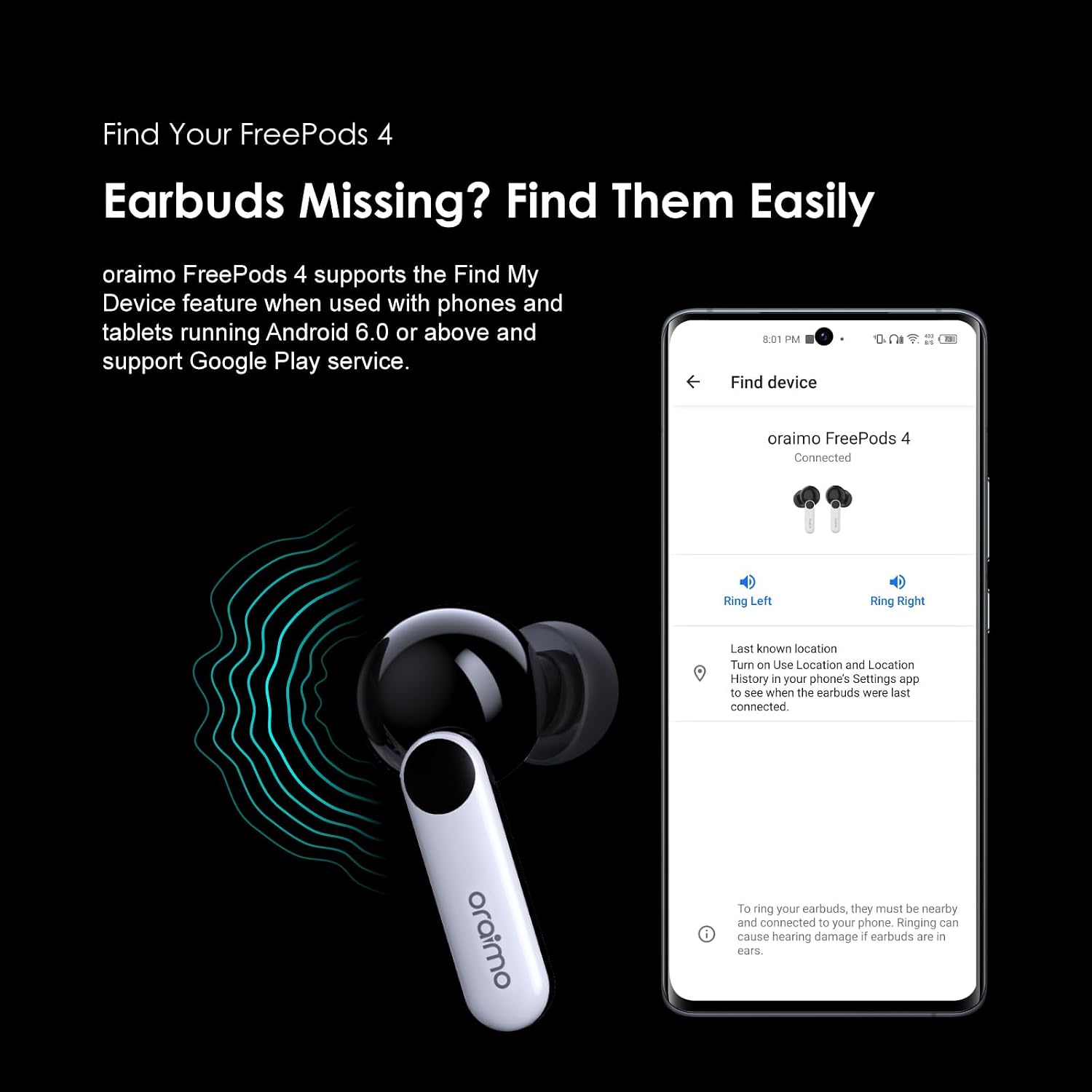
Image: A smartphone screen showing the "Find device" interface for Oraimo FreePods 4, with options to "Ring Left" and "Ring Right" earbuds. An earbud is shown below the phone, with radiating sound waves.
5. Battery Life
The Oraimo FreePods 4 offer extended battery life for prolonged listening. Actual battery life may vary based on usage, volume levels, and ANC settings.
- ANC OFF: Up to 8.5 hours of playback on a single charge, with the charging case providing an additional 27 hours, totaling 35.5 hours.
- ANC ON: Up to 7 hours of playback on a single charge, with the charging case providing an additional 22 hours, totaling 29 hours.
- Quick Charge: A 10-minute quick charge can provide up to 170 minutes of battery life.

Image: A woman wearing an Oraimo FreePods 4 earbud in a field, with text indicating "35.5-hour Long Battery Time" and battery life details for ANC On (7+22 Hrs) and ANC Off (8.5+27 Hrs).
Maintenance
1. Cleaning
- Regularly clean the earbuds and charging case with a soft, dry, lint-free cloth.
- Remove ear tips and clean any earwax or debris from the earbud nozzles using a small, soft brush or cotton swab.
- Ensure charging contacts on both earbuds and inside the case are clean and dry.
- Do not use abrasive cleaners, alcohol, or chemical solvents.
2. Storage
- When not in use, store the earbuds in their charging case to protect them and keep them charged.
- Store in a cool, dry place, away from extreme temperatures and direct sunlight.
3. Water Resistance
The Oraimo FreePods 4 are rated IPX5 water-resistant, meaning they are protected against low-pressure water jets from any direction. This makes them suitable for workouts and light rain. However, they are not designed for submersion in water or for use during swimming. Ensure earbuds are dry before placing them back in the charging case to prevent damage.
Troubleshooting
| Problem | Solution |
|---|---|
| Earbuds not pairing | Ensure earbuds are charged. Turn off and on Bluetooth on your device. Forget "Oraimo FreePods 4" from your device's Bluetooth list and re-pair. |
| Only one earbud working | Place both earbuds back into the charging case, close the lid, wait a few seconds, then open the lid and try again. Ensure both earbuds are charged. |
| Low volume or poor sound quality | Adjust volume on your device. Clean earbud nozzles and ear tips. Try different ear tip sizes for a better seal. Check EQ settings in the Oraimo Sound APP. |
| Earbuds not charging | Ensure charging contacts on earbuds and case are clean. Try a different USB-C cable and power adapter. Ensure the charging case itself has power. |
| ANC not effective | Ensure ANC is enabled (long press earbud). Ensure earbuds are properly seated in your ears to create a good seal. |
Specifications
| Feature | Detail |
|---|---|
| Model Number | OEB-E105D |
| Brand | Oraimo |
| Ear Placement | In Ear |
| Form Factor | In Ear |
| Colour | Black |
| Impedance | 16 Ohm |
| Batteries | 4 Lithium Ion batteries (included) |
| Product Dimensions | 4.9 x 14.1 x 16.8 cm; 25 g |
| Country of Origin | China |
| Water Resistance | IPX5 (Sweat Protection) |
| Key Features | Active Noise Cancellation, Customize Your Listening, HavyBass™ Technology, Google Fast Pairing, Find My Device Support |
Warranty and Support
1. Warranty Information
The Oraimo FreePods 4 OEB-E105D comes with a 12 Months Local Warranty. Please retain your proof of purchase for warranty claims. The warranty covers manufacturing defects and malfunctions under normal use conditions.
2. Customer Support
For further assistance, technical support, or warranty inquiries, please contact Oraimo customer service through their official website or the retailer where you purchased the product.
Visit the official Oraimo Store for more information: Oraimo Store on Amazon.ae
Documents and downloads
Ask a question about this manual
Ask about setup, troubleshooting, compatibility, parts, safety, or missing instructions. Manuals+ will review the question and use this page’s manual context to help answer it.