1. Introduction
This manual provides detailed instructions for the setup, operation, maintenance, and troubleshooting of your Ducky One 3 Mini Pro Nazca 8K 60% Hotswap RGB PBT Mechanical Keyboard. Please read this manual thoroughly to ensure proper usage and to maximize your keyboard's performance.
2. Setup
2.1 Package Contents
- Ducky One 3 Mini Pro Nazca Mechanical Keyboard
- USB-C to USB-A Braided Cable
- Keycap Puller
- Switch Puller
- Additional Keycaps (design specific)
2.2 Connecting the Keyboard
- Locate the USB-C port on the back of your Ducky One 3 Mini Pro keyboard.
- Connect the USB-C end of the provided braided cable to the keyboard.
- Connect the USB-A end of the cable to an available USB port on your computer.
- The keyboard will automatically be detected and installed by your operating system.

Image: The Ducky One 3 Mini Pro keyboard connected via its braided USB cable, highlighting the cable's quality and the keyboard's compact design.
2.3 Adjusting Keyboard Angle
The keyboard features adjustable feet on the underside to change the typing angle for ergonomic comfort. Gently flip out the stands to your preferred height.

Image: The underside of the Ducky One 3 Mini Pro keyboard, illustrating the adjustable feet that allow users to customize the typing angle for improved ergonomics.
3. Operating Instructions
3.1 Key Features
- 60% Layout: Compact design, ideal for maximizing desk space and portability.
- Cherry MX2A Brown Switches: Tactile switches with a 55g actuation force, offering a balance of typing feedback and quiet operation.
- 8K Polling Rate: Ensures ultra-responsive input with minimal lag for high-performance gaming.
- Triple-Shot PBT Keycaps: Highly durable keycaps with legends that will not fade, providing a premium typing experience.
- South-Facing RGB Lighting: Customizable RGB backlighting for enhanced visibility and aesthetic appeal, compatible with most keycaps.
- Hot-Swappable Switches: Allows for easy replacement of switches without soldering.
- Poron Film: Integrated for enhanced typing comfort, reduced noise, and increased durability.

Image: A clear top-down view of the Ducky One 3 Mini Pro keyboard, showcasing its compact 60% layout and keycap design.

Image: The Ducky One 3 Mini Pro keyboard with its customizable RGB backlighting illuminated, demonstrating its aesthetic capabilities.
3.2 Function Layer
Due to its 60% layout, many functions are accessed via a secondary layer using the Fn key in combination with other keys. Refer to the keyboard's included quick guide or Ducky's official website for a full list of function layer commands, including media controls, lighting adjustments, and macro programming.
4. Maintenance
4.1 Cleaning the Keyboard
- Disconnect the keyboard from your computer before cleaning.
- Use a soft, lint-free cloth dampened with a small amount of water or a mild cleaning solution to wipe down the keycaps and casing.
- For deeper cleaning, use the provided keycap puller to remove keycaps and clean underneath with compressed air or a small brush.
4.2 Replacing Keycaps and Switches
Your Ducky One 3 Mini Pro keyboard features hot-swappable switches, allowing for easy customization.
- Keycap Removal: Use the keycap puller to gently grasp the keycap and pull straight up.
- Switch Removal: Once the keycap is removed, use the switch puller to carefully grip the switch from its top and bottom clips, then pull straight up.
- Switch Installation: Align the pins of the new switch with the holes on the PCB. Press down firmly until the switch clicks into place. Ensure pins are not bent.
- Keycap Installation: Place the desired keycap onto the switch stem and press down gently until it is secure.

Image: A hand demonstrating the use of a switch puller to remove a mechanical switch from the Ducky One 3 Mini Pro keyboard, highlighting its hot-swappable feature.
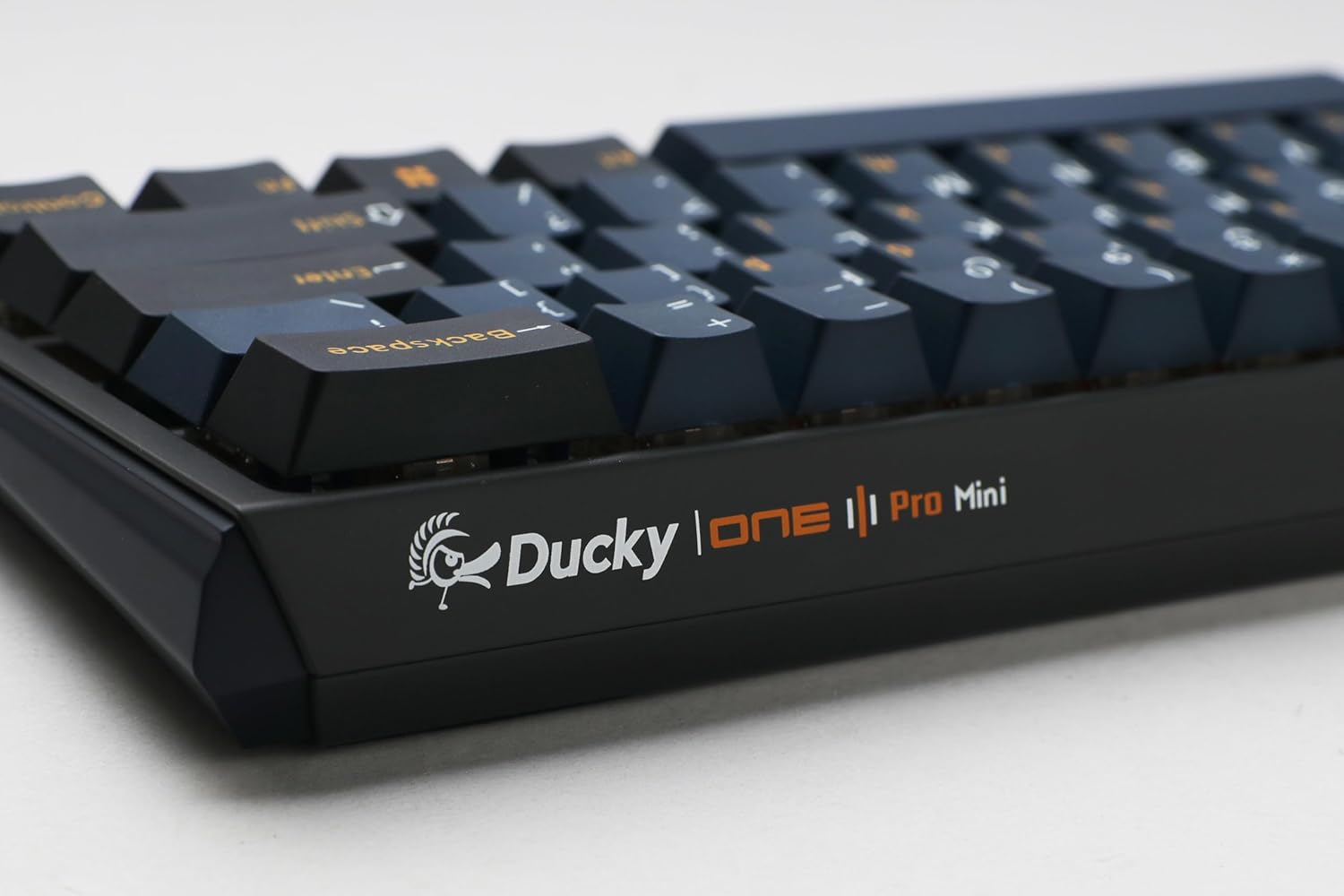
Image: Two mechanical switches and their corresponding keycaps are shown removed from the Ducky One 3 Mini Pro keyboard, illustrating the ease of customization.
5. Troubleshooting
5.1 Keyboard Not Responding
- Ensure the USB cable is securely connected to both the keyboard and the computer.
- Try connecting the keyboard to a different USB port on your computer.
- Test the keyboard on another computer to determine if the issue is with the keyboard or the computer.
- Restart your computer.
5.2 RGB Lighting Issues
- Check the keyboard's function layer commands for RGB lighting control (e.g., brightness, mode changes).
- Ensure no software conflicts are present if you are using third-party lighting control applications.
- Perform a factory reset if necessary (refer to Ducky's official support for specific instructions for your model).
5.3 Key Chatter or Unresponsive Keys
- Due to the hot-swappable design, a switch might not be fully seated. Remove the keycap and gently press down on the switch to ensure it is properly installed.
- If a specific switch is faulty, use the switch puller to replace it with a new one.
- Clean any debris that might be under the keycap or around the switch.
6. Specifications
| Feature | Detail |
|---|---|
| Model Number | DKON2361ST-CBUSPTCHNAZ001 |
| Layout | 60% |
| Switch Type | Cherry MX2A Brown (Tactile) |
| Polling Rate | 8,000 Hz |
| Keycap Material | Triple-Shot PBT (Polybutylene Terephthalate) |
| Lighting | South-Facing RGB Backlight |
| Connectivity | Wired USB-C |
| Dimensions (L x W x H) | 12.2 x 4.33 x 1.57 inches |
| Item Weight | 1.43 pounds |
| Special Features | Hot-Swap, N-Key Rollover, Poron Film |
7. Warranty and Support
For detailed warranty information and technical support, please visit the official Ducky website or contact their customer service. Keep your proof of purchase for warranty claims.
Ducky Official Website: www.duckychannel.com.tw


