
1. Introduction
Thank you for purchasing the SZELAM Digital Alarm Clock. This device combines a large LED mirror display with versatile RGB lighting options, dual USB charging ports, and a powerful alarm system. This manual provides detailed instructions to help you set up, operate, and maintain your alarm clock for optimal performance.
2. Package Contents
Please check the package contents upon unboxing to ensure all items are present:
- 1 x SZELAM Digital Alarm Clock
- 1 x USB Type-C Cable
- 1 x Power Adapter
- 1 x User Manual (this document)

Image: Contents of the SZELAM Digital Alarm Clock package, showing the clock, USB-C cable, power adapter, and user manual.
3. Setup
3.1 Power Connection
Connect the provided USB Type-C cable to the clock's power input port and the other end to the power adapter. Plug the power adapter into a standard electrical outlet. The clock display will illuminate.

Image: The SZELAM Digital Alarm Clock connected to a power source, demonstrating its USB-A and USB-C charging capabilities for external devices like a smartphone and wireless earbuds.
3.2 Initial Time Setting
Upon first power-up, the clock may display a default time. Refer to the 'Operating' section for detailed instructions on setting the correct time and date.
4. Operating Instructions
4.1 Time and 12/24 Hour Mode Setting
The clock supports both 12-hour and 24-hour display formats. Use the designated buttons (usually marked 'SET' or 'MODE') to cycle through settings and adjust hours and minutes. A dedicated button allows switching between 12H and 24H modes.

Image: An overview of the clock's key features, highlighting its 12/24 hour mode, snooze function, and various display options.
4.2 Display Brightness Adjustment
The 7.4-inch LED display offers adjustable brightness from 0% to 100%. It also features a built-in light-sensitive sensor for automatic dimming, adjusting to ambient light conditions. Use the '+' or '-' buttons to manually set your preferred brightness level.

Image: Visual representation of the clock's brightness levels, from completely off (L0) to the brightest setting (L5), illustrating the full range of adjustment.
4.3 RGB Night Light Modes
The alarm clock includes a mood light with 10 night light modes, including 3 dynamic RGB colors and 7 fixed color modes. There are 5 adjustable brightness levels for the night light. Press the dedicated light button to cycle through modes and adjust brightness.

Image: Examples of the 10 dynamic RGB night light modes available on the clock, showing different color flows, breathing effects, and solid color options like red, green, blue, warm white, yellow, light blue, and purple.
4.4 LED Display Colors
The digital display offers 11 color modes for the time digits, comprising 4 dynamic RGB colors and 7 fixed color modes. This allows for personalization of the display's appearance.
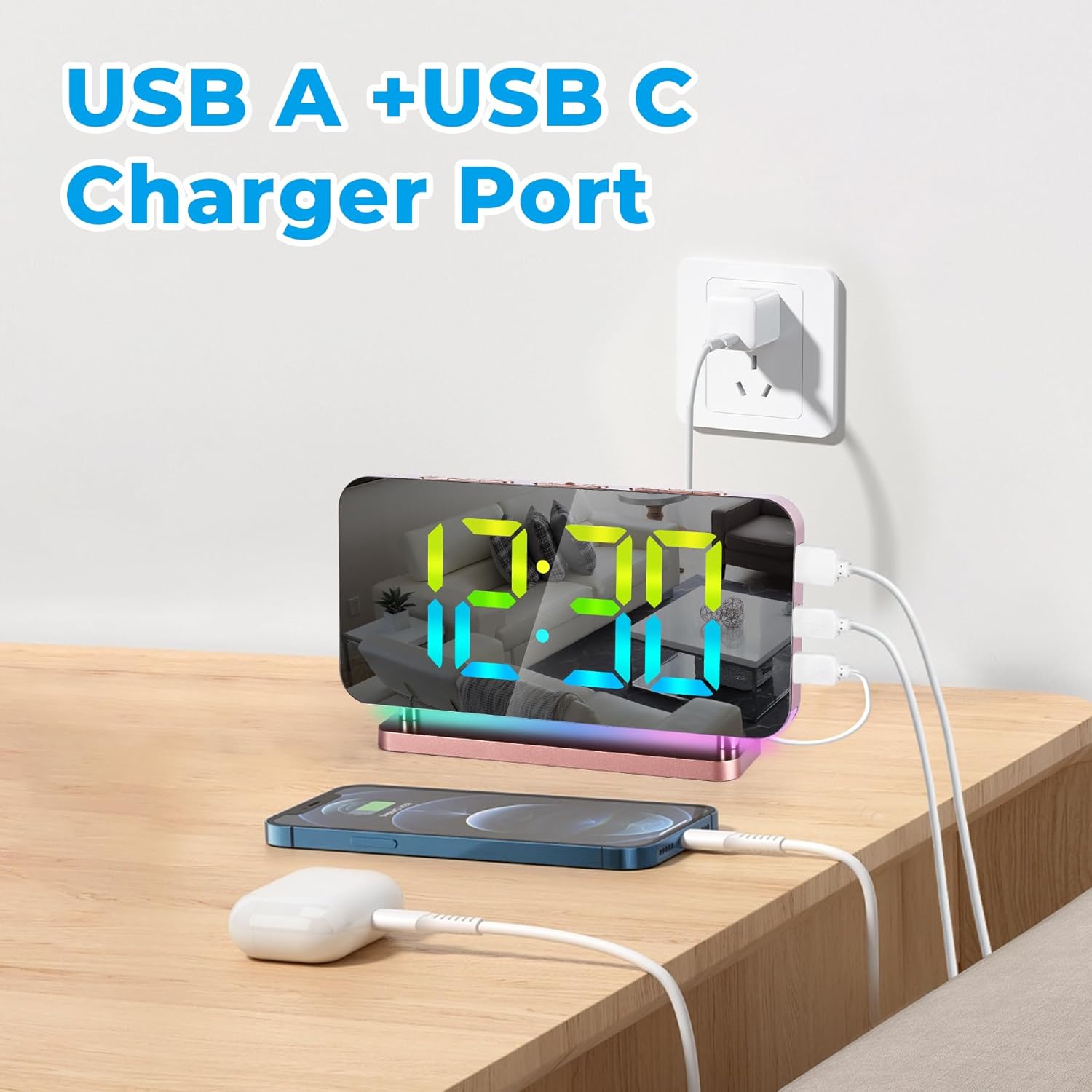
Image: A demonstration of the 11 available color modes for the clock's digital display, featuring dynamic options and static colors such as white, red, yellow, green, light blue, blue, and purple.
4.5 Alarm Setting and Snooze Function
To set the alarm, use the dedicated alarm button and adjustment controls. The alarm features 5 volume levels, ranging from 55dB to 95dB, ensuring it is audible for various sleep depths. The snooze button, conveniently located on top, allows for a 5-60 minute snooze period.
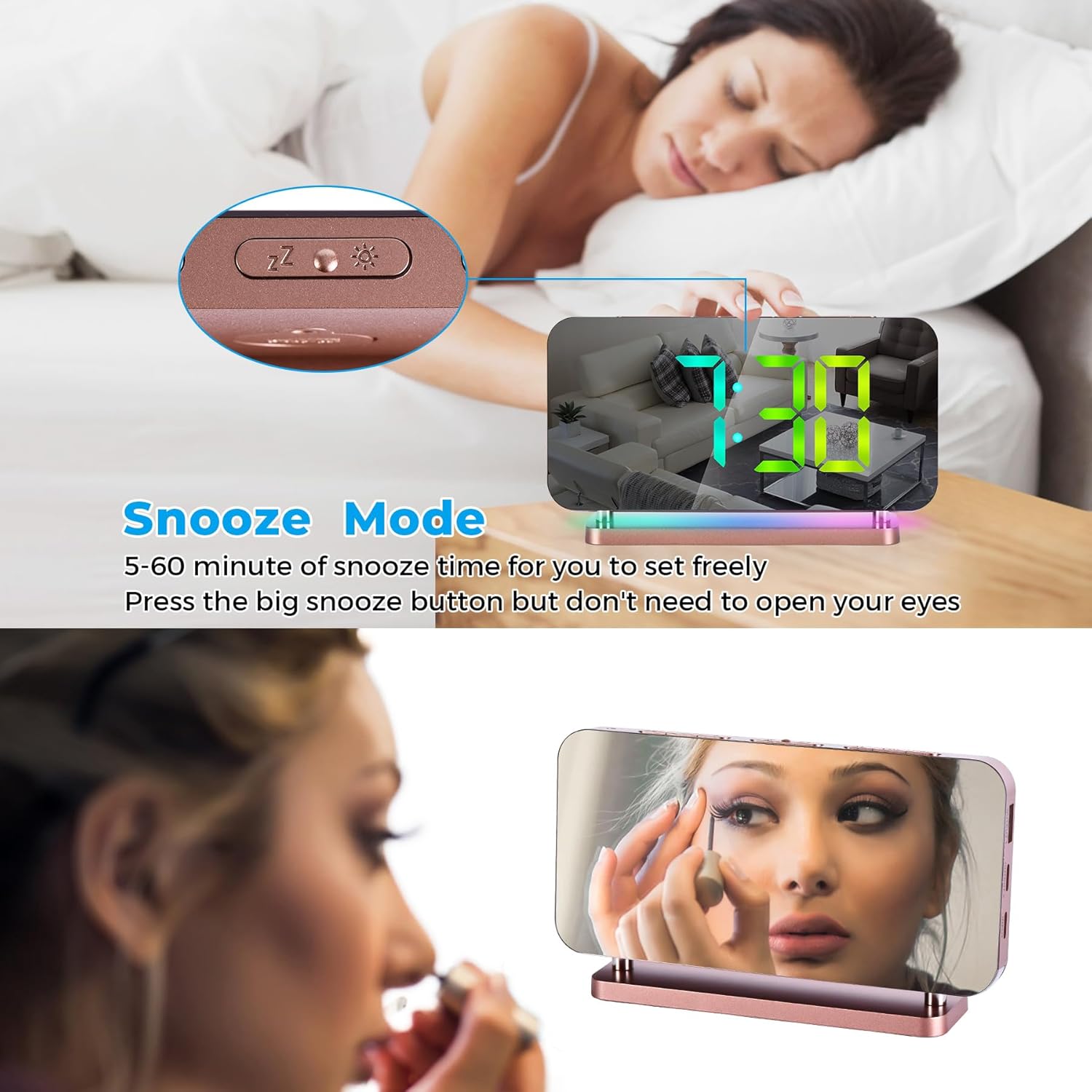
Image: The clock in snooze mode, with a visual of the snooze button and a person sleeping, indicating the ease of extending sleep time.

Image: A graphic demonstrating the five adjustable volume levels for the alarm, ranging from 55dB (quiet) to 95dB (super loud), suitable for different user preferences.
4.6 Dual Charging Ports (USB-C + USB-A)
The alarm clock is equipped with both a USB Type-C and a USB Type-A output port, allowing you to conveniently charge your smartphone or other devices directly from the clock.
5. Maintenance
5.1 Cleaning
To clean the clock, gently wipe the surface with a soft, dry, or slightly damp cloth. Avoid using abrasive cleaners, solvents, or chemical sprays, as these can damage the mirror finish and electronic components.
5.2 Storage
When not in use for extended periods, store the alarm clock in a cool, dry place away from direct sunlight and extreme temperatures. Ensure it is disconnected from the power source.
6. Troubleshooting
If you encounter any issues with your SZELAM Digital Alarm Clock, please refer to the following common problems and solutions:
- Display Not Illuminating: Ensure the power adapter is securely plugged into both the clock and the wall outlet. Check if the power outlet is functional.
- Time Not Setting Correctly: Review the 'Time Setting' instructions in Section 4.1. Ensure you are pressing the correct buttons in the sequence specified.
- Alarm Not Sounding: Verify that the alarm is activated and set to the desired time. Check the alarm volume level (Section 4.5) to ensure it is not set too low.
- Charging Ports Not Working: Ensure the clock is powered on. Try a different USB cable or device to rule out issues with the charging cable or the device being charged.
- Inconsistent Brightness: If auto-dimming is enabled, the brightness will adjust based on ambient light. If you prefer a consistent brightness, disable auto-dimming and set it manually (Section 4.2).
If the problem persists after attempting these solutions, please contact SZELAM customer support for further assistance.
7. Specifications
| Brand | SZELAM |
| Model Number | EN8853-A |
| Colour | Rose Gold |
| Product Dimensions | 3.81 x 3.81 x 6 cm |
| Material | Acrylic |
| Item Weight | 240 g |
| Display Type | Digital |
| Special Features | Large Display, Illuminated, Alarm, RGB Night Light, Dual USB Charging |
| Power Source | With USB charging |
8. Warranty and Support
SZELAM is committed to providing high-quality products. If you are not satisfied with your SZELAM Digital Alarm Clock or encounter any issues not covered in this manual, please do not hesitate to contact our customer support team. We are here to assist you.
For support, please refer to the contact information provided on the product packaging or the official SZELAM website.
