
1. Introduction
This manual provides detailed instructions for the Dpofirs Bluetooth Remote Control Ring. This device is designed to offer convenient remote control for various smartphone functions, including page turning, video recording, and camera operation. Please read this manual thoroughly before using the product to ensure proper operation and to maximize its lifespan.

Image: The Dpofirs Bluetooth Remote Control Ring with its charging case, highlighting its wireless connection, remote control capabilities, mobile phone holder function, and charging case.
2. Safety Information
To prevent damage to the product or injury to yourself and others, observe the following safety precautions:
- Keep the device away from water and other liquids.
- Do not expose the device to extreme temperatures or direct sunlight.
- Avoid dropping or subjecting the device to strong impacts.
- Do not attempt to disassemble or repair the device yourself. Contact qualified service personnel.
- Keep out of reach of children.
3. Package Contents
Verify that all items are present in the package:
- 1 x Remote Control Ring
- 1 x Charging Compartment
- 1 x Instruction Manual (this document)
- 1 x USB Cable
4. Product Overview
The Dpofirs Bluetooth Remote Control Ring consists of a compact ring-shaped controller and a magnetic charging case. The ring features multiple buttons for various functions, and the charging case also serves as a phone holder.

Image: A close-up view of the Dpofirs Bluetooth Remote Control Ring, showing its ergonomic design and control buttons.

Image: Icons representing key features of the Dpofirs Bluetooth Remote Control Ring, including Bluetooth 5.3, magnetic charging, cell phone holder, one-touch back, remote lock screen, and 10-meter remote control range.
5. Setup
5.1. Charging the Device
Before initial use, ensure the remote control ring and its charging compartment are fully charged. The charging compartment features a magnetic design for convenient charging.
- Place the remote control ring into the charging compartment.
- Connect the provided USB Type-C cable to the charging compartment and a power source (e.g., USB wall adapter, computer USB port).
- The charging compartment's display will indicate the charging status. A full charge significantly extends the working time.

Image: The Dpofirs Bluetooth Remote Control Ring inside its magnetic charging compartment, showing a digital battery indicator and illustrating the extended working time of up to 120 hours with the charging case.

Image: The Dpofirs Bluetooth Remote Control Ring's charging case opened, revealing the charging slot and a digital display for battery status.
5.2. Bluetooth Pairing
Follow these steps to pair the remote control ring with your smartphone or tablet:
- Power On: Long press any of the 5 keys on the remote control ring for 3 seconds to turn it on. The blue indicator light will flash.
- Enable Bluetooth: On your smartphone or tablet, go to the Bluetooth settings and ensure Bluetooth is enabled.
- Search for Device: Search for available Bluetooth devices. The device name will appear as "S20".
- Pair: Select "S20" to pair. Once successfully paired, the blue light will stop flashing or indicate a stable connection.
Video: A demonstration of how to connect the Bluetooth Remote Control Ring to a device for app page turning functionality.

Image: A hand holding the Dpofirs Bluetooth Remote Control Ring next to a smartphone displaying a social media feed, illustrating the 10-meter remote control range and hands-free operation.
6. Operating Instructions
The remote control ring offers various functions through its buttons. Refer to the diagram below for button assignments.

Image: A detailed diagram illustrating the functions of each button on the Dpofirs Bluetooth Remote Control Ring, including single click and long press actions for navigation, volume, photo, and mode selection.
6.1. Button Functions Summary
- Up Button: Single click for Up, Long press for +Volume.
- Down Button: Single click for Down, Long press for -Volume.
- Left Button: Single click for Left.
- Right Button: Single click for Right.
- Center Button:
- Single click: Pause/Play (in media mode).
- Double click: Like (in short video mode).
- 3 clicks: Cursor mode activation.
- Long press: Power On/Off.
- Camera Button: Single click to Take a photo.
- Return Button: Single click to go Back to Menu, Long press to Lock Screen.
6.2. Operating Modes
The device supports different operating modes, primarily a short video mode and a cursor mode. The specific functions of buttons may vary slightly depending on the active application and mode.
Video: A demonstration of using the Remote Scrolling Ring for navigating content on TikTok, showcasing its hands-free scrolling capability.
6.3. iOS Specific Settings
For iOS devices running version 15.0 or higher, additional settings may be required for full functionality:
- Go to Settings on your iOS device.
- Navigate to Accessibility.
- Select Touch.
- Tap on AssistiveTouch.
- Enable AssistiveTouch.
This setting helps ensure compatibility with various remote control functions on iOS.
6.4. Cell Phone Holder Function
The charging compartment is designed with a built-in cell phone holder. This allows you to prop up your smartphone or tablet for hands-free viewing while using the remote control ring.

Image: The Dpofirs Bluetooth Remote Control Ring's charging compartment being used as a portable phone stand, demonstrating its compact design and utility for hands-free viewing.
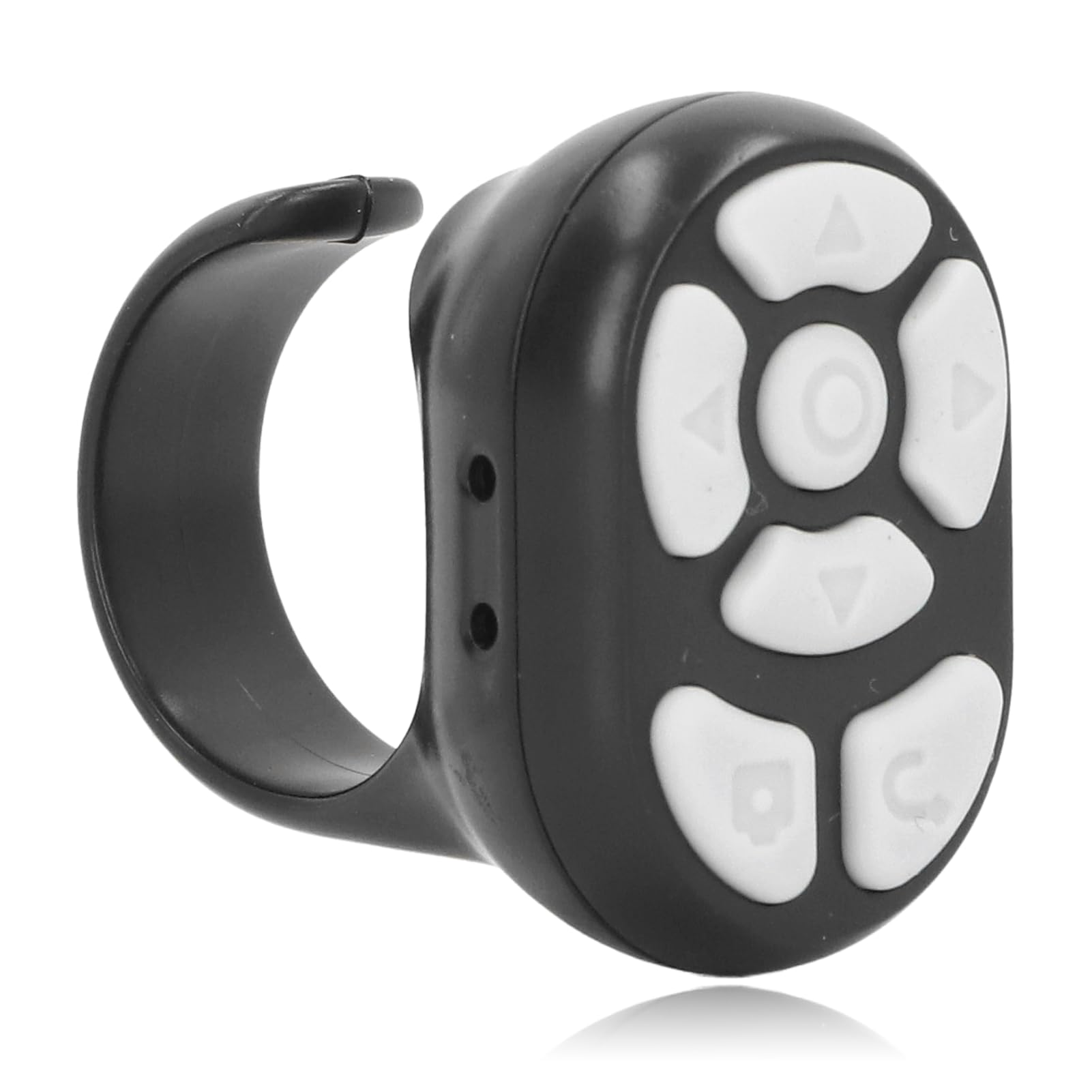
Image: A person using the Dpofirs Bluetooth Remote Control Ring to control a tablet mounted on a stand, illustrating remote operation for camera or video recording functions.
7. Maintenance
Proper care will ensure the longevity of your Dpofirs Bluetooth Remote Control Ring:
- Clean the device with a soft, dry cloth. Do not use abrasive cleaners or solvents.
- Store the device in a cool, dry place when not in use.
- Avoid exposing the charging port to dust or debris.
8. Troubleshooting
| Problem | Possible Cause | Solution |
|---|---|---|
| Device does not power on. | Low battery. | Charge the remote control ring and charging compartment. |
| Unable to pair via Bluetooth. | Bluetooth is off on the phone/tablet; device is out of range; incorrect pairing steps. | Ensure Bluetooth is enabled on your device. Make sure the remote is powered on and within 10 meters. Repeat pairing steps. Restart both devices. |
| Functions not working on iOS. | AssistiveTouch not enabled. | Enable AssistiveTouch in iOS settings (Settings > Accessibility > Touch > AssistiveTouch). |
| Buttons unresponsive. | Device is not connected; application incompatibility. | Verify Bluetooth connection. Some applications may not fully support all remote functions. |
9. Specifications
| Feature | Detail |
|---|---|
| Material | ABS |
| Bluetooth Version | 5.3 |
| Charging Interface | Type C |
| Working Distance | 10M (without obstacle) |
| Charging Compartment Battery Capacity | 300mAh (Li-polymer) |
| Remote Control Battery Capacity | 60mAh (Li-polymer) |
| Working Time (with charging compartment) | Up to 120 hours |
| Compatible Devices | Smartphone, Tablet, E-reader |
| Color | Black |
| Model Number | Dpofirska13gqxs0z-12 |
10. Warranty and Support
This product comes with a standard manufacturer's warranty. For specific warranty details, please refer to the documentation provided at the time of purchase or contact your retailer. For technical support or inquiries, please reach out to Dpofirs customer service through their official channels.